
To restore to a previous version of Booth Junkie, if one is still available on your machine after an update, users can go to the Control Panel and launch the “Add or Remove Programs” application. In the “Change or Remove Programs” section, users then select the application to uninstall and click the Change/Remove button.
If Booth Junkie has installed an update, users should see the option to “Restore the application to its previous state,” which will roll back the update its previous version.
Click Start  -> Settings
  -> Apps -> Apps & features to open Apps & features in Settings.
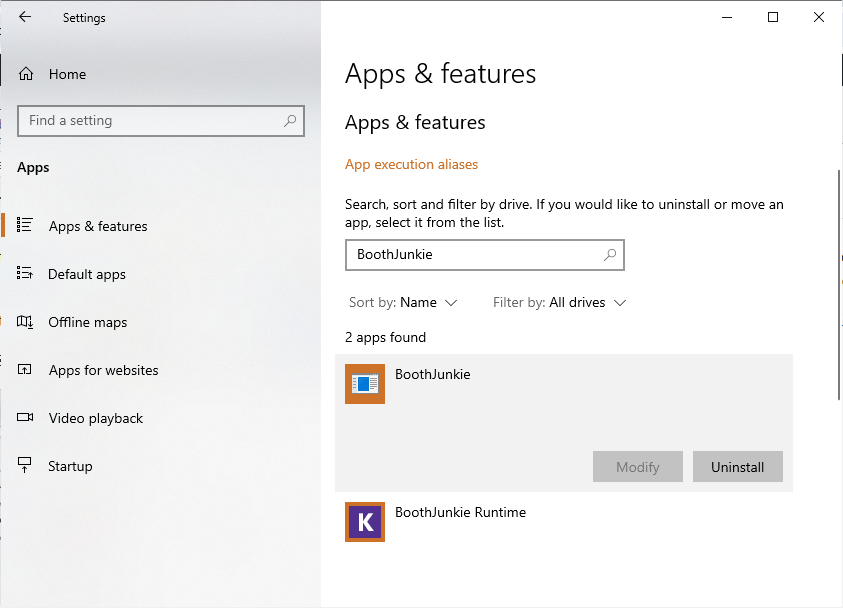
In the apps list, you can find and select “BoothJunkie“. Click the Uninstall button, and then click the next Uninstall button that is shown.
If there is no previous version to roll back to prior to the update, the software will be uninstalled from the computer – templates, workflows, settings, and graphics/animations will be kept, and will be made available again if you decide to reinstall.
If a previous version of the software is still available on the machine, you will see the following dialog box appear with two options available:
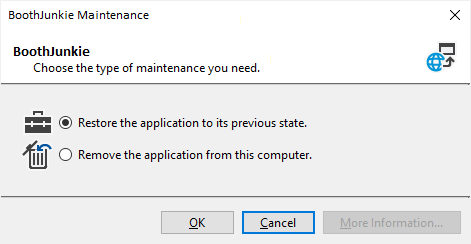
Select the option “Restore the application to its previous state” and click OK to uninstall the most recent update and revert to the previous version.
If this option is greyed out, it will not be possible to restore to a previous version.
If you have already tried to fully uninstall the software, it will not be possible to roll back to a previous version.
If this is the case, or if the option to restore to a previous state is greyed out, we will not be able to assist in rolling back to a previous version.