
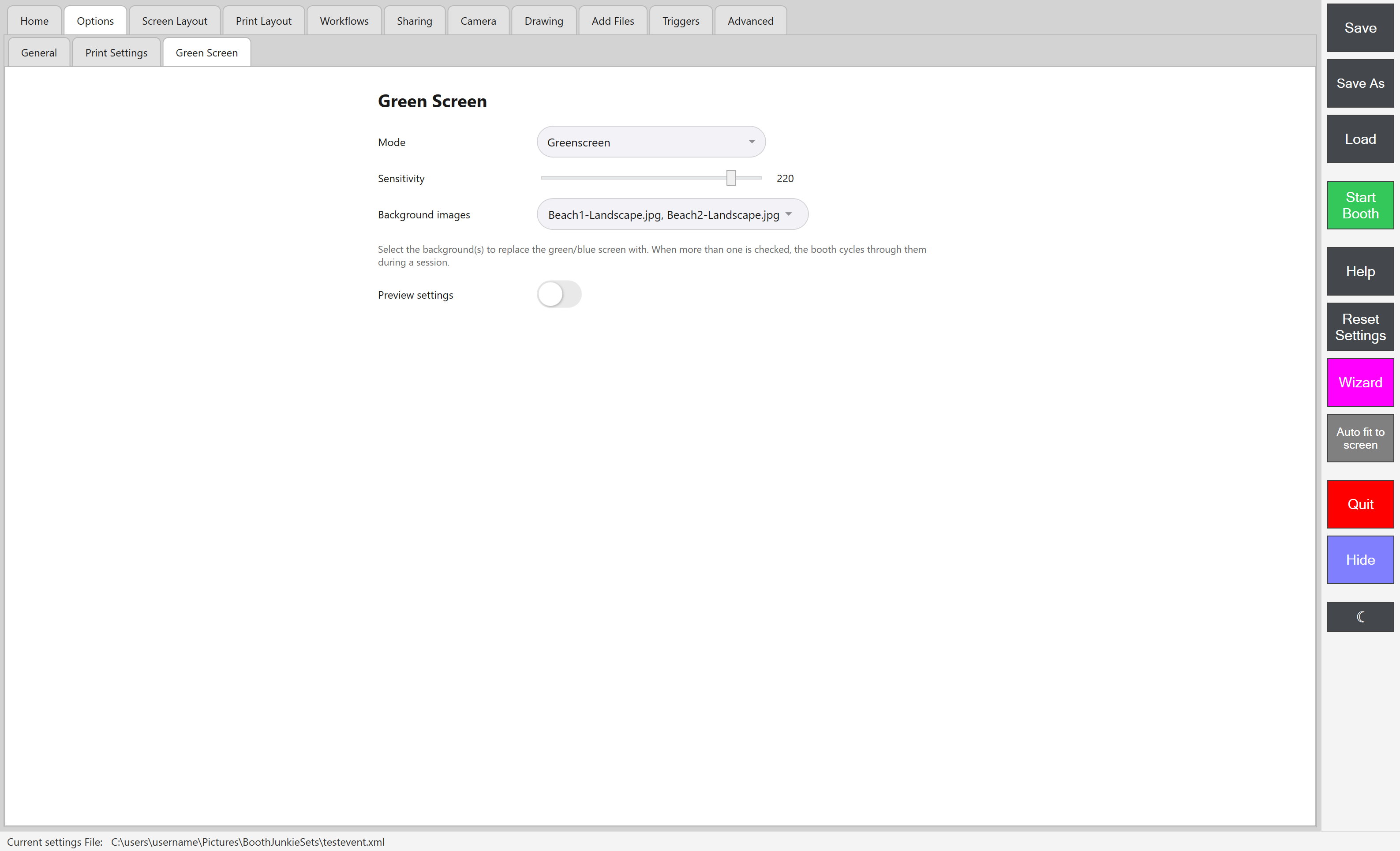
Open the Admin Panel and go to Options and then Green Screen.
Use the Mode dropdown to turn it on and choose your technique – Greenscreen or Bluescreen, matching whatever colour backdrop you’re using.
Adjust Sensitivity to control how aggressively your backdrop colour is detected and replaced. Higher sensitivity catches dim or unevenly-lit patches of your backdrop more reliably, but risks eating into green or blue clothing or props; lower sensitivity protects clothing colours better, but can leave a visible fringe around your subject if your backdrop lighting is uneven. It’s worth tuning this per venue and lighting setup rather than leaving it on a fixed value.
Tick which background images you want available – these need to already be added via Admin Panel -> Add Files -> Import -> Greenscreen first. Ticking more than one lets the booth cycle through them during an event.
Turn on Preview to see a live composite using your actual camera feed and current settings, so you can judge your Sensitivity setting before an event rather than during one.
Do not forget to save your new settings