
Remote Control for Your Photo Booth
See the booth’s screen · Take over from anywhere · Booth Junkie v10
Live view
The booth’s screen, as it happens
Full control
Mouse and keyboard, from anywhere
Never hidden
The booth shows it is being viewed
Desk or pocket
Dashboard or Connect app
Fix it without going over there
Something always needs a hand at the worst moment: a setting to change mid-event, a question from the venue staff, a screen that has stopped responding. Remote Control opens a live view of the booth’s screen from wherever you are, and your mouse clicks and typing go straight to the booth — the same as standing in front of it.
It turns “I will have to drive over” into two minutes at a laptop, and it means one operator can keep an eye on several booths working different events on the same night.
Built for real venue connections
Event wifi is rarely good, so the view shows how good the connection actually is — bitrate, frame rate and packet loss — and lets you trade sharpness for responsiveness when it is slow. That is also how you tell a genuinely poor connection from a booth that is simply sitting idle between guests. Go fullscreen when you need to read the detail.
From your dashboard or your phone
On a computer, a Remote Control button appears beside each licence in your online dashboard whenever that booth is online. On a phone or tablet, the same live view and control are in Booth Junkie Connect, alongside which of your booths are online and what each one is doing.
Remote Control: viewing and operating your booth covers the dashboard side step by step.
Never done behind anyone’s back
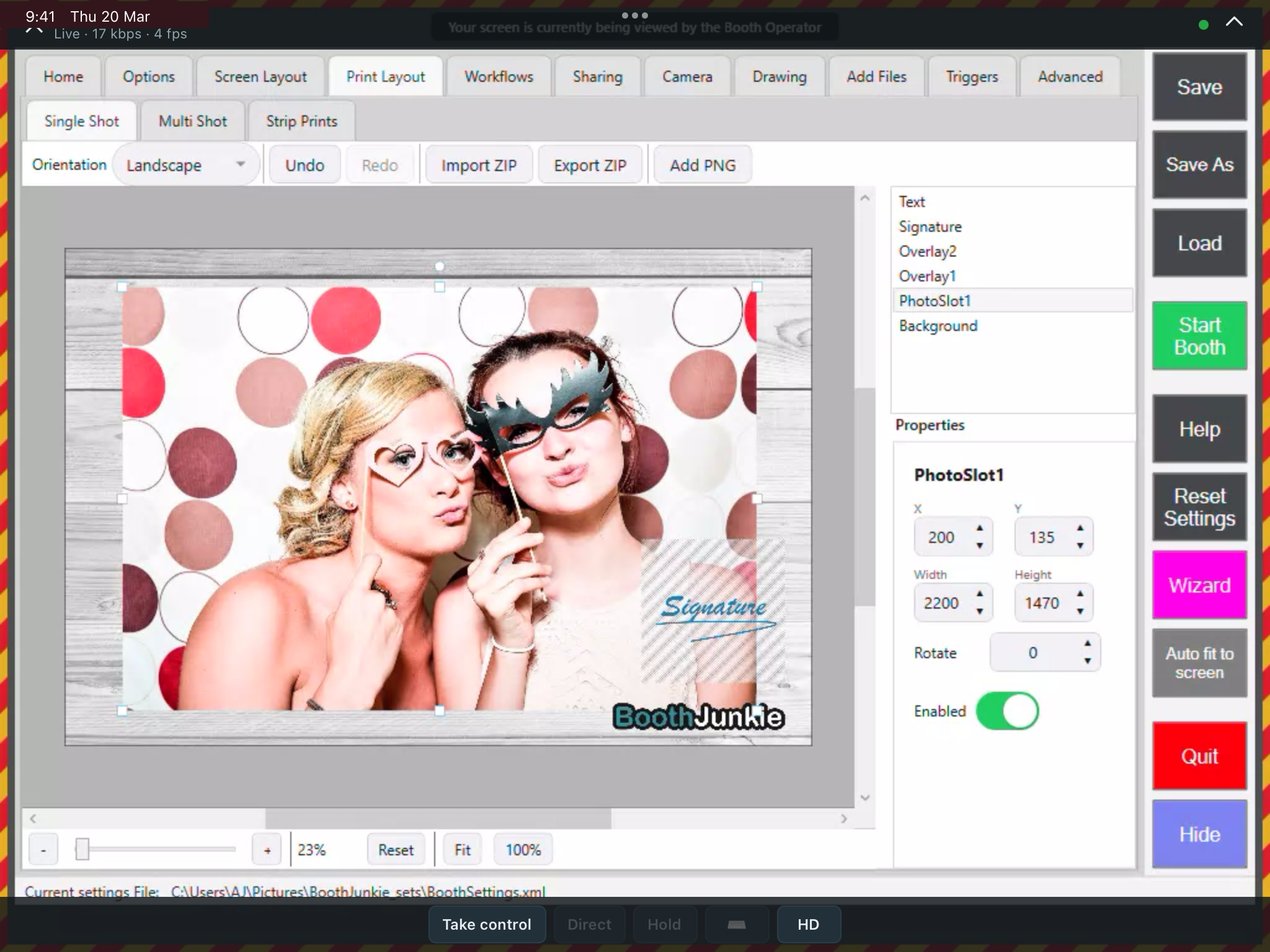
The moment someone connects, the booth’s own screen shows a striped border and a message saying it is being viewed — before anyone has taken control, and visible to anyone standing at the booth. A guest or a member of venue staff always knows when someone is on the other end.
Connecting starts by watching: the booth’s screen appears live, and you choose Take control when you actually need to click or type. The toolbar shows the live bitrate and frame rate while you watch, so a slow venue connection is obvious straight away.
On the booth, the banner and the striped border stay up for as long as the connection is open, and disappear the moment you disconnect.
Help from us, the same way
When you need support, Booth Junkie’s team can connect to the booth in the same way, see exactly what you are seeing and fix it while you are still on site — with the same border on screen whenever they are in control. Remote support is part of Premium.
What it needs
Remote Control works with booths running Booth Junkie v10 or later that are online at the time. Older versions still appear in your dashboard, but show no Remote Control button until they are updated.
See everything else the software does, or download the free trial.