
Set it up
-
Update your DNS settings and create a CNAME record such as ‘virtual.mydomain.com’ which points to virtual.boothprint.co.uk
-
Enter your chosen CNAME (eg: virtual.mydomain.com) into the Hostname box, found by clicking on the ‘Configure’ button for the Booth Print PRO found in your dashboard.
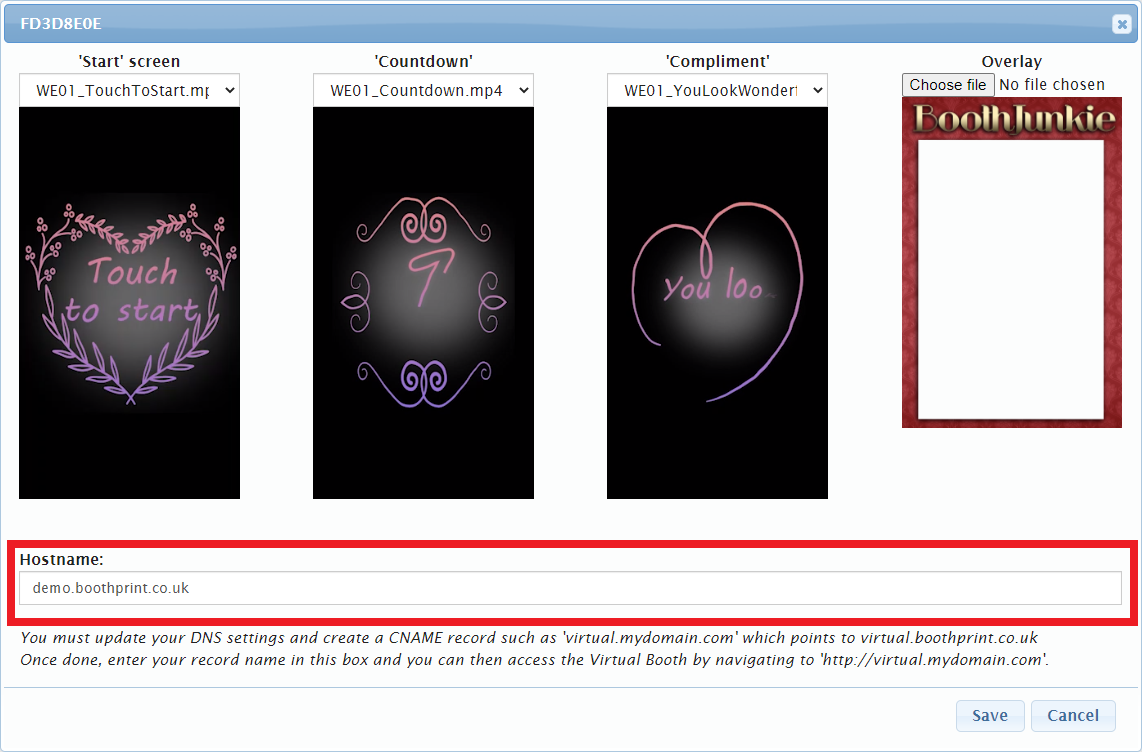
Result: Users will then be able to access the Virtual Booth by navigating to your chosen domain (eg: ‘http://virtual.mydomain.com‘).

Instructions for common domain registrars
If you are unsure how to manage your DNS settings, or how to add a CNAME record to your domain, we have listed below some of the most common domain registrars for you as well as a link to their individual instructions. Alternatively, please contact your web developer, web host, or domain registrar, who should be able to assist you.
| Registrar | Host / name | Points to |
|---|---|---|
| 123-Reg | Step 6 – enter virtual in the HOST box to use virtual.mydomain.com (or your chosen alternative) | Step 7 – enter virtual.boothprint.co.uk |
| GoDaddy | Step 6 – enter virtual in the HOST box to use virtual.mydomain.com (or your chosen alternative) | Step 6 – enter virtual.boothprint.co.uk in the Points To box |
| IONIS | Hostname field – enter virtual to use virtual.mydomain.com (or your chosen alternative) | Point To field – enter virtual.boothprint.co.uk |
| NameCheap | Step 6 – enter virtual in the Host box to use virtual.mydomain.com (or your chosen alternative) | Step 6 – enter virtual.boothprint.co.uk in the Value box |
| HostGator |