
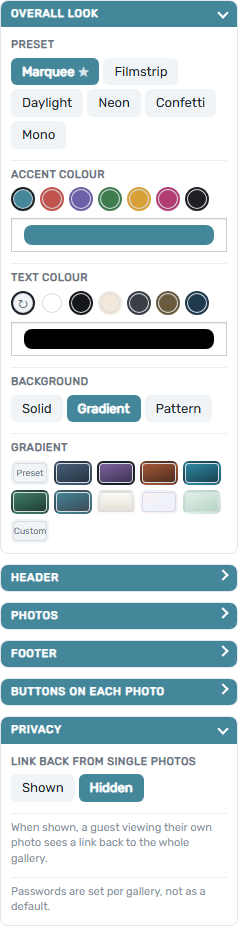
Most sections start collapsed – tap a heading to open it. Overall look and Privacy are the exceptions, since they’re the settings most worth seeing straight away.
Editing your default look vs. one event
The Editing dropdown at the top decides what your changes apply to.
| Editing | What you’re changing | Your options |
|---|---|---|
| My default look | The look every gallery uses unless you’ve customised it individually. | Reset to Booth Junkie default and Save changes. |
| One event (coming here via Customise on a specific event in Galleries) | That one event instead. | Use my default look discards this gallery’s own customisation and falls back to your account default. Also save as my default saves your changes here and updates your account-wide default to match. Save changes saves them for this gallery only. |
Good to know: Sample photos in the preview
The live preview uses sample photos whenever the gallery you’re editing doesn’t have any of its own yet – your own photos, logo, and company name take over automatically once that event has actually run.
Overall look
| Setting | What it does |
|---|---|
| Preset | A starting point (Marquee, Filmstrip, Daylight, Neon, Confetti, Mono) that sets sensible values for everything below in one click; you can still change anything individually afterwards. |
| Accent colour | The highlight colour used for the main buttons and pop-up notices; pick one of the swatches or set a custom colour of your own. |
| Text colour | Can be left on auto (picked to stay readable against your background) or set manually, again from swatches or a custom colour. |
| Background | Solid, Gradient, or Pattern. Gradient offers ready-made presets, or Custom – pick a Gradient start and Gradient end colour and Booth Junkie blends them for you. Pattern reveals a set of pattern styles plus a base colour for it, from swatches or custom. |
Header
Logo position (Left or Centre), Logo size (Small, Medium, or Large) and Event name (Shown or Hidden) appear here whether you’re editing your default look or a single event, so each can be set as your account default or overridden for just one gallery. Logo position places your Gallery Logo (set on the main Dashboard page) left or centred above the gallery.
Editing a single event (rather than your default look) adds more to this section, specific to that gallery only:
| Setting | What it does |
|---|---|
| Logo | Shown or Hidden. Hiding it removes the logo (or your company name, shown instead when there’s no logo) from the gallery’s own header – your footer still shows your company name and “Powered by Booth Junkie” either way. |
| Custom logo for this gallery | Drop an image here or click to choose one, to override your account logo for just this event – useful for a one-off client brand. |
| Custom event name | A field (up to 80 characters) that replaces the name shown above the gallery for this event only (your real event name is untouched – this is just what guests see). Leave it blank to use your event’s own name. |
When you’re editing your default look instead, this section shows a note that a custom logo and event name are set per gallery, not as a default.
Photos
| Setting | Choices |
|---|---|
| Layout | Fitted, Cropped, or Mosaic |
| Block fill | Blurred or Plain background behind photos that don’t fill their tile exactly |
| Block shape | Auto, Square, Portrait, or Landscape |
| Tile size | Small, Medium, or Large |
| Corners | Square, Soft, or Round |
Footer
Show footer turns the gallery’s footer on or off entirely. When it’s on, Social links lets you show buttons for Instagram, Facebook, TikTok, X, and your Website – tick whichever you want visible.
Buttons on each photo
Four independent toggles control what guests can do with an individual photo: Email me this, Download, QR code, and Share (phones and tablets only).
Privacy
Link back from single photos – Shown or Hidden, off (Hidden) by default. When shown, a guest viewing their own photo gets a link back to the whole gallery from it. Like most settings here, this can be your account default or set per gallery.
Gallery password
Gallery password – set per gallery only, never as an account default; the screen says so itself (“Passwords are set per gallery, not as a default”). Add one and guests must enter it before anything of the gallery is sent to them – no photos, logo, name, or background load until it’s correct.
- Once entered, a guest stays signed in for 12 hours.
- 10 wrong attempts within 15 minutes locks that connection out.
- Changing the password signs everyone out, guests included.
- A single photo’s own link (from a QR code or a share) is never asked for the password, since it’s already that guest’s own photo.
Tip: Forgotten the password?
The password is stored as you typed it, so you can open this screen later and see it again if you’ve forgotten it.
Saving
Nothing takes effect until you hit Save changes (or, editing one event, Also save as my default).
Important: Reset isn’t an undo
Reset to Booth Junkie default / Use my default look discards your changes and puts this screen back to Booth Junkie’s own defaults or your saved account default – not a history of your own previous changes, so use it carefully.