
Lock and unlock
There’s no on-screen button for this – it’s triggered by a keyboard shortcut, configured at Admin Panel → Triggers → Keyboard Shortcuts. The default is Ctrl+X, but check that screen for your own booth’s configured combination in case it’s been changed.
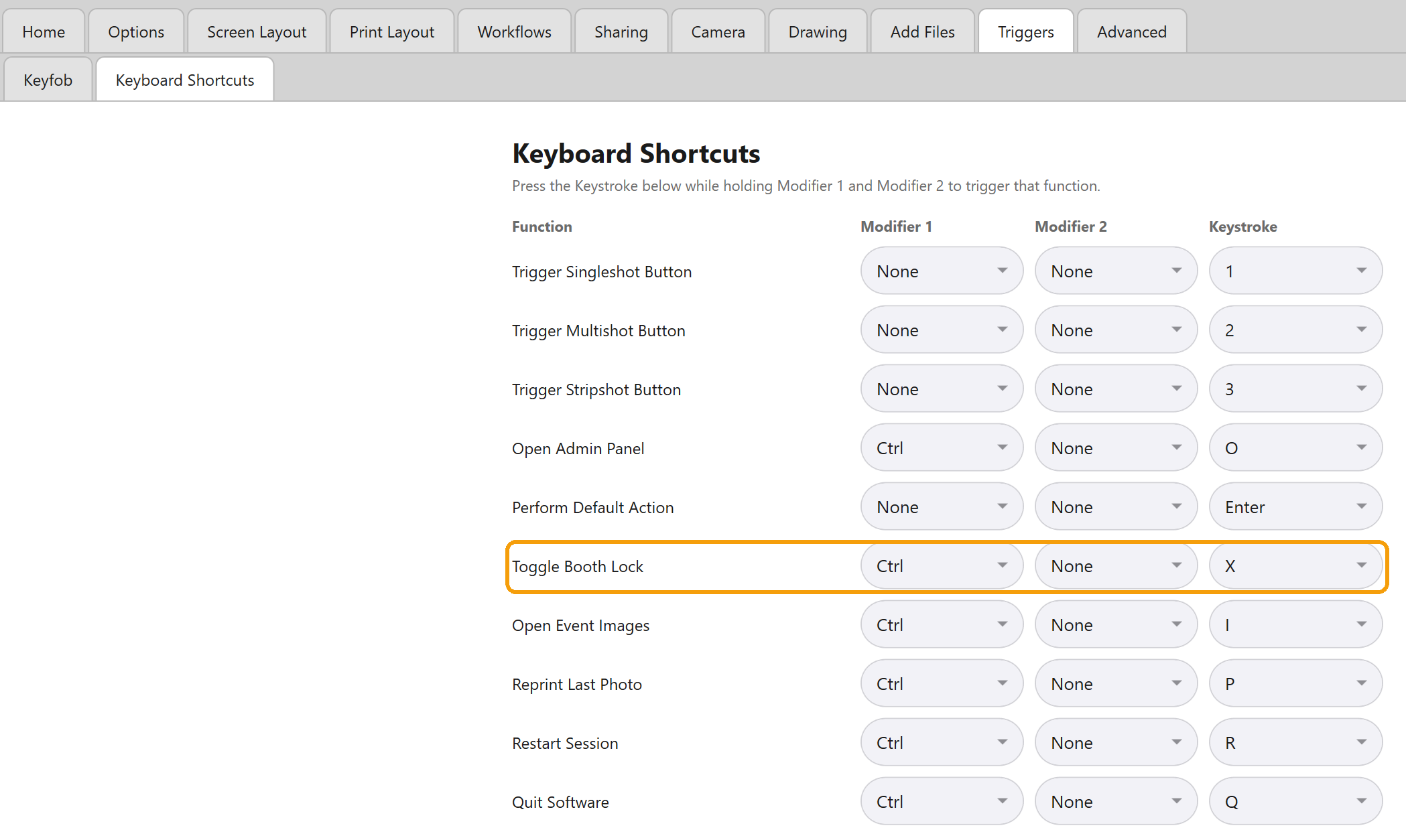
The same shortcut both locks and unlocks the booth – press it once to hide the booth, press it again to bring it back.
Important: No PIN or password
There’s no PIN or password protecting this. Anyone who knows (or guesses) your configured shortcut can unlock the booth just as easily as you can. While locked, every other shortcut is disabled, and the corner tap that normally opens the Admin Panel is also switched off, so a passerby can’t get into your settings that way – but they can still unlock the booth itself if they know the key combination.
What guests see while locked
A full-screen overlay with a looping video, and no way to interact with it. Booth Junkie ships with a default Lock Screen animation, so guests will see this out of the box.
Tip: Use your own video
You can replace it with your own video by dropping a file into your Pictures/flash/lockscreen folder, which will then play automatically whenever the booth is locked.
What happens to an in-progress session
If you lock the booth mid-session, whatever countdown was running (for example, a photo capture countdown) pauses. When you unlock, that countdown starts again from the beginning, not from where it left off.
Good to know: Changed the shortcut?
If you change your Lock Screen shortcut, restart Booth Junkie afterwards to be safe.