
Add it to a workflow
-
Go to Admin Panel → Workflows and open the workflow you want (typically Multishot, since that’s where guests move between multiple shots).
-
Find a spare row, and set its Type to Live View.
-
Drag it to wherever in the sequence you want guests to see themselves between shots.
What guests see
A live camera feed – composited with greenscreen/bluescreen if that’s part of your setup, showing whatever background is coming up next – alongside a short animation or video.
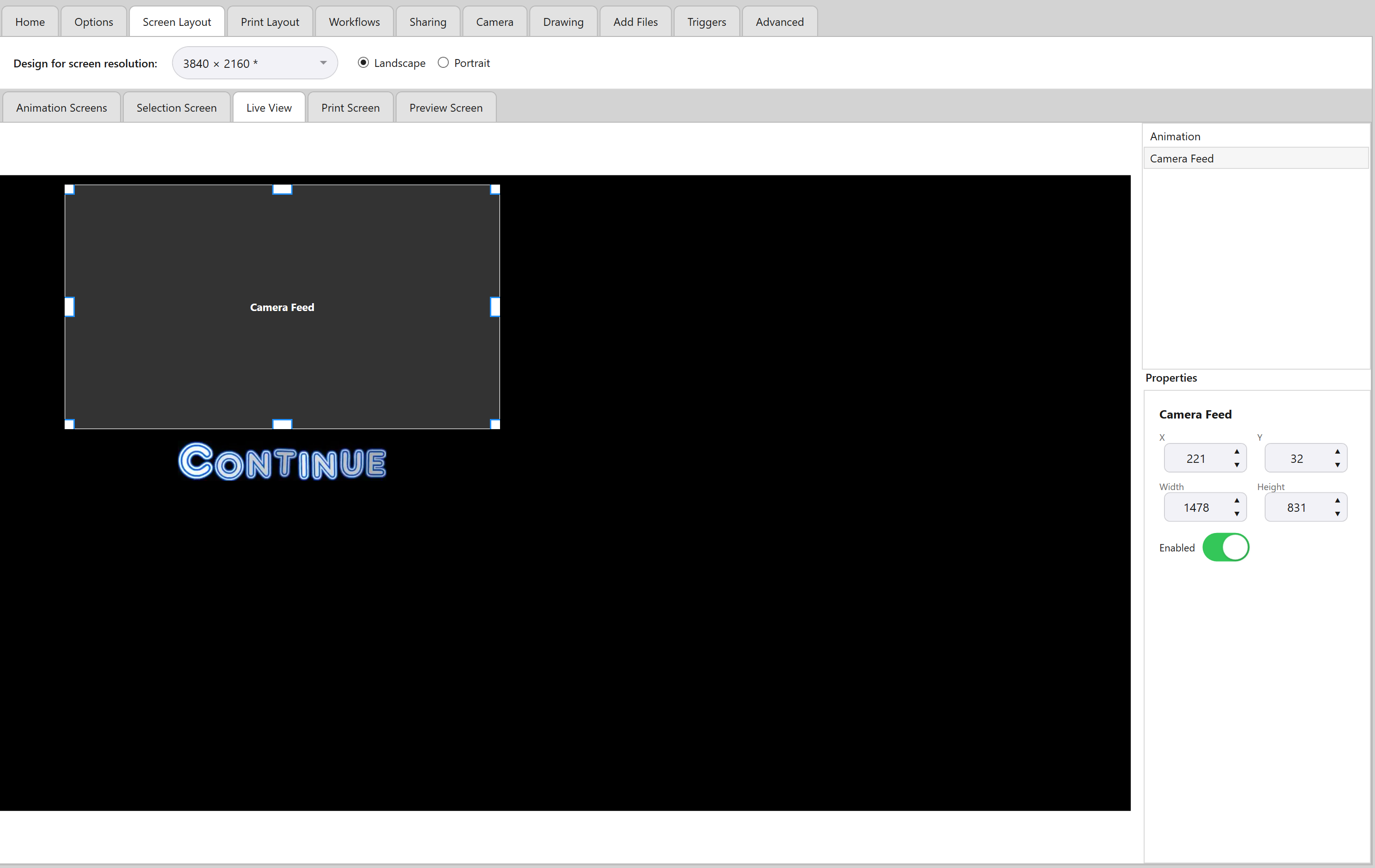
How guests move on depends on your Screen Layout setting for this step:
| Setting | How guests move on |
|---|---|
| Touch | The animation loops until the guest taps the screen to continue. |
| Timed | The step advances automatically once the animation finishes playing. |
Position it on screen
Go to Admin Panel → Screen Layout → Live View to drag and resize where the live feed and animation appear, alongside your other screen elements (Animation Screens, Selection Screen, Preview Screen, Print Screen).
Important: Match your screen resolution first
The “design for screen resolution” option at the top of the Screen Layout tab applies here too, so make sure it matches your actual display before laying anything out.
See The Screen Layout Editor: Positioning On-Screen Elements for how dragging, resizing, and showing/hiding elements works on this screen.