
The Problem
Booth Junkie requires your displays scaling factor to be set to 100%.
Using a larger scaling factor can cause the computer to hide certain things, and cause other things to not fit on the screen correctly.
When using a touchscreen on a photobooth, Windows 10 can sometimes try to assist you by increasing the scaling factor to 200% so that all buttons appear larger, and easier to press with a finger.
However, most photobooth software does not require this as the interface is already designed to be ‘touchscreen friendly’.
The Solution
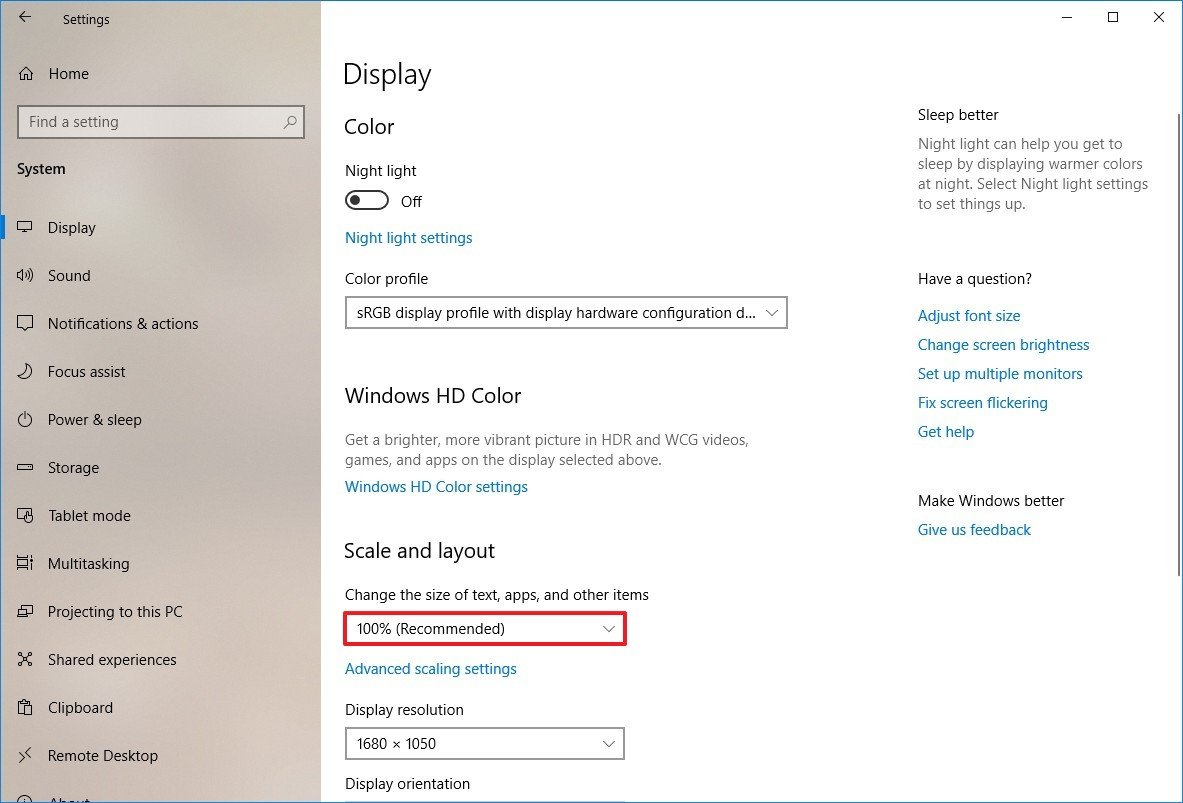
To change a display scaling size using the recommended settings, use these steps:
-
Right click on the desktop
-
Select Display Settings
-
Under the “Scale and layout” section, use the drop-down menu and select 100%.
Tip: More than one display?
If you have multiple displays, you should also click each additional display at the top of this page, and adjust the scaling percentage for each one.
Booth Junkie 10
Good to know: Only for versions before 10
This only applies to versions of Booth Junkie prior to version 10 – Booth Junkie 10 handles display scaling automatically, so this shouldn’t be necessary.