
Where to set it up
Go to Dashboard → AI Credits → Auto Top-up.
Set it up
-
Under Top up when my balance falls below, enter the credit balance that should trigger a top-up. This must be a whole number.
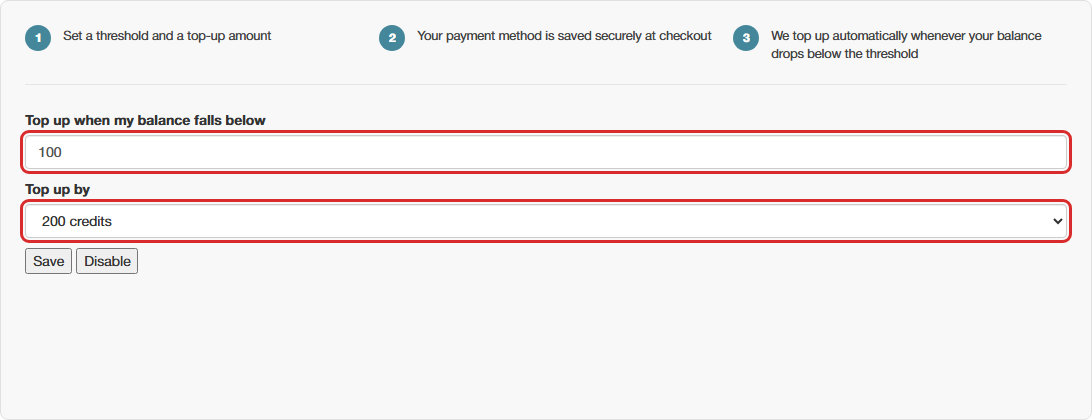
-
Under Top up by, choose how many credits should be added each time (the same amounts available for one-off purchases – see Buying Credits: One-Off Top-ups).
-
Select Set up auto top-up. The first time you do this, you’ll be taken through checkout to authorise the payment method that future top-ups will use.
Result: Once it’s active, your Credits dashboard Overview tab shows an Active badge with your current settings – see Your Credits Dashboard.
Change or turn it off
Come back to the same Auto Top-up tab at any time:
- Change your threshold or amount and select Save
- Select Disable to turn it off completely
If a top-up fails
Important: Needs attention
If a payment attempt doesn’t go through – for example, an expired card – the Auto Top-up tab will show a Needs attention notice explaining what happened. Update your payment details and save your settings again to retry.
Auto Top-up vs a subscription
Auto Top-up only charges you when your balance actually runs low, whereas a subscription charges a fixed amount every month regardless of your balance. See Setting Up a Credits Subscription if a predictable monthly charge suits you better.