
Windows 11
-
Open Settings (Start button, or Windows key + I), then Network & internet.
-
Select your connected Wi-Fi network.
-
On its Properties page turn on Metered connection.
Windows 10
-
Open Settings (Start button, or Windows key + I), then Network & Internet.
-
In the Wi-Fi section, click your connected network, then click Advanced options.
-
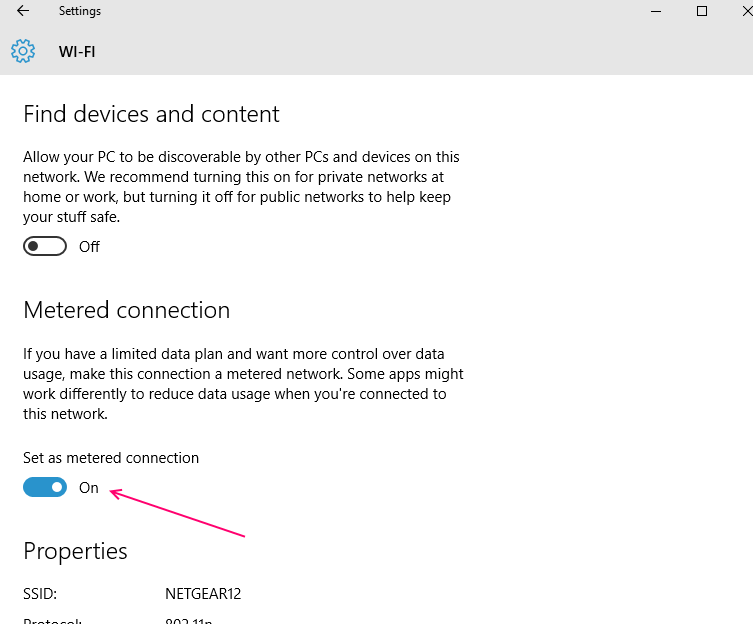
Turn on Set as metered connection.
Good to know: Turning it back off
Note: To turn it back off again, repeat the same steps and switch the toggle off.
What changes when a connection is set to Metered
- Windows Update stops downloading automatically. Only priority/security updates still come through in the background – everything else waits until you allow it.
- Microsoft Store app updates stop downloading automatically in the background, until you allow them. Desktop apps aren’t affected by this.
- Peer-to-peer update sharing between PCs on your network is disabled.
- Live Tiles stop updating (Windows 10 only – Windows 11 doesn’t have Live Tiles).
- Background sync for cloud storage apps like Dropbox or OneDrive is typically paused or reduced, since those apps generally respect the metered-connection setting too.
If the connection drops altogether, Booth Junkie works without wifi: guests can still share their photos, and everything sends once the connection comes back.