
Add the step
-
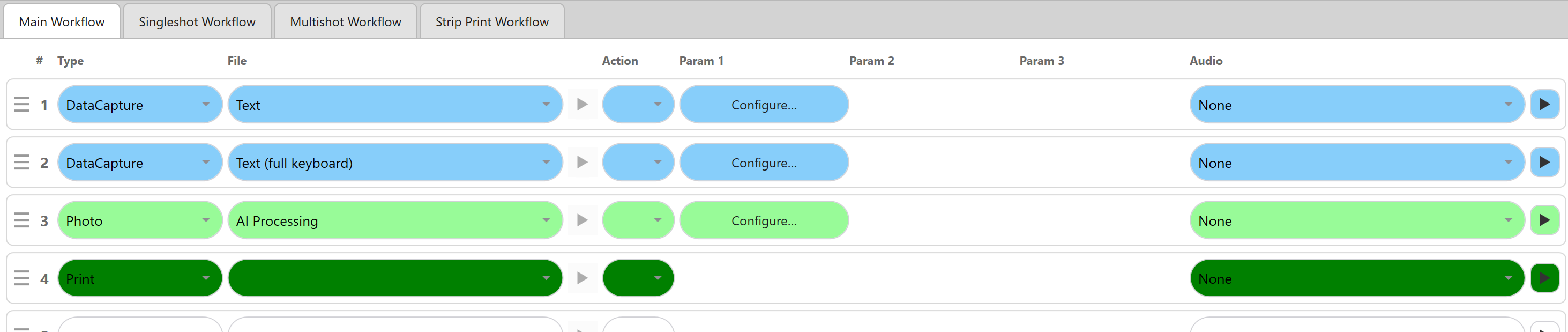
Go to Admin Panel → Workflows, add a row, and set its Type to DataCapture.
-
Use its File dropdown to choose what kind of question it is: Text, Text (full keyboard), Number, Email or Multiple choice.
-
Press Configure… to write the question itself.
The five types
| Type | What the guest gets | Limits and defaults |
|---|---|---|
| Text | A condensed on-screen keyboard: letters, space, and ' - . |
Up to 40 characters. The default question is “Type your answer here.” |
| Text (full keyboard) | A fuller keyboard: digits and accented letters as well, plus . , ! ? ' - |
Up to 60 characters. |
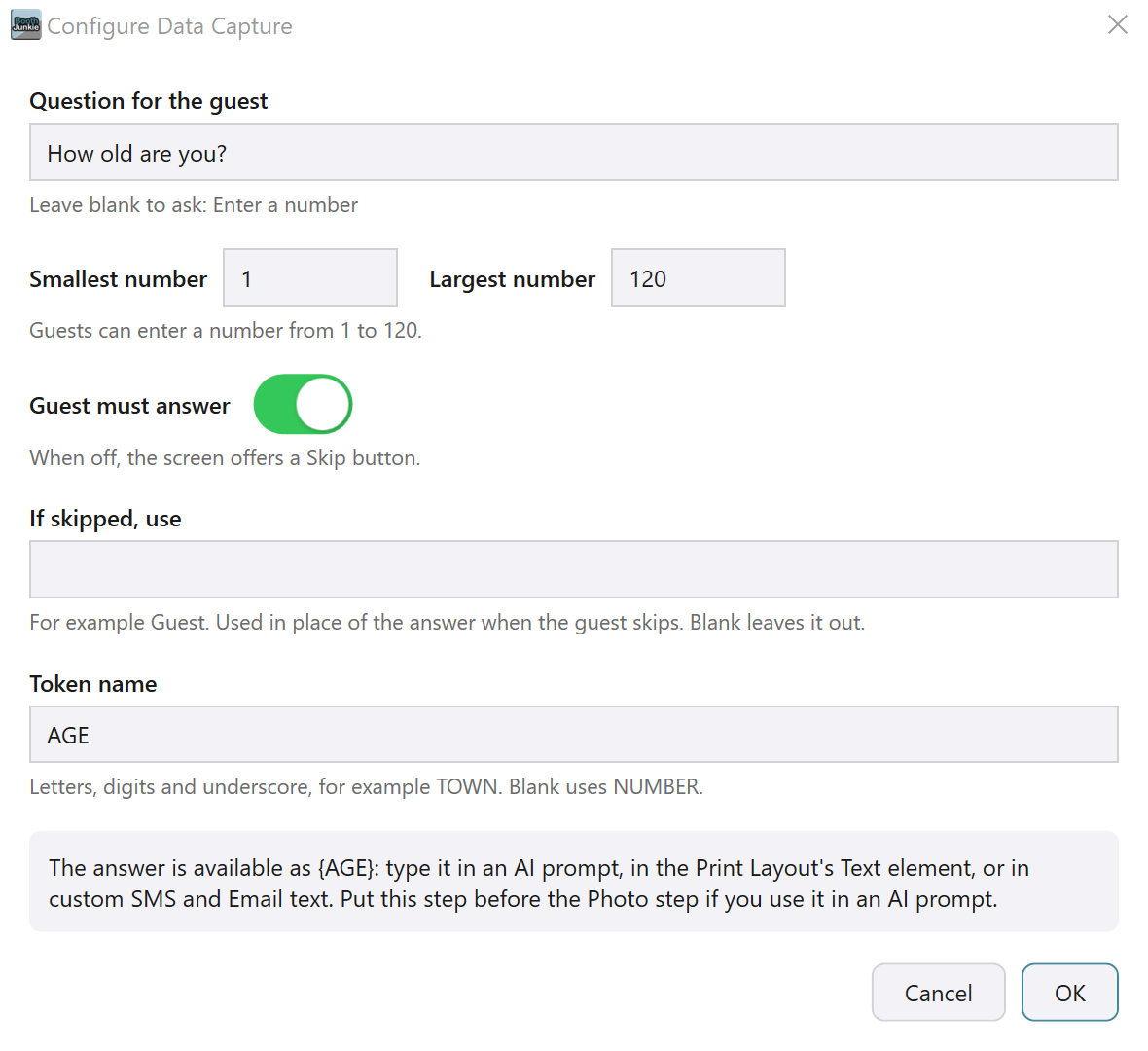
| Number | An on-screen keypad. | Smallest number and Largest number set the range a guest can enter, 0 to 999 by default. The largest you can set is 999,999,999. |
| Checked for a valid email address when the guest taps OK. | The default question is “What’s your email address?” | |
| Multiple choice | 2 to 8 answer buttons the guest taps instead of typing. | The default question is “Choose one.” |
Good to know: Email answers are special
An Email answer is also used to pre-fill the email address on the Sharing screen, and it’s never sent to the AI, whatever you name it.
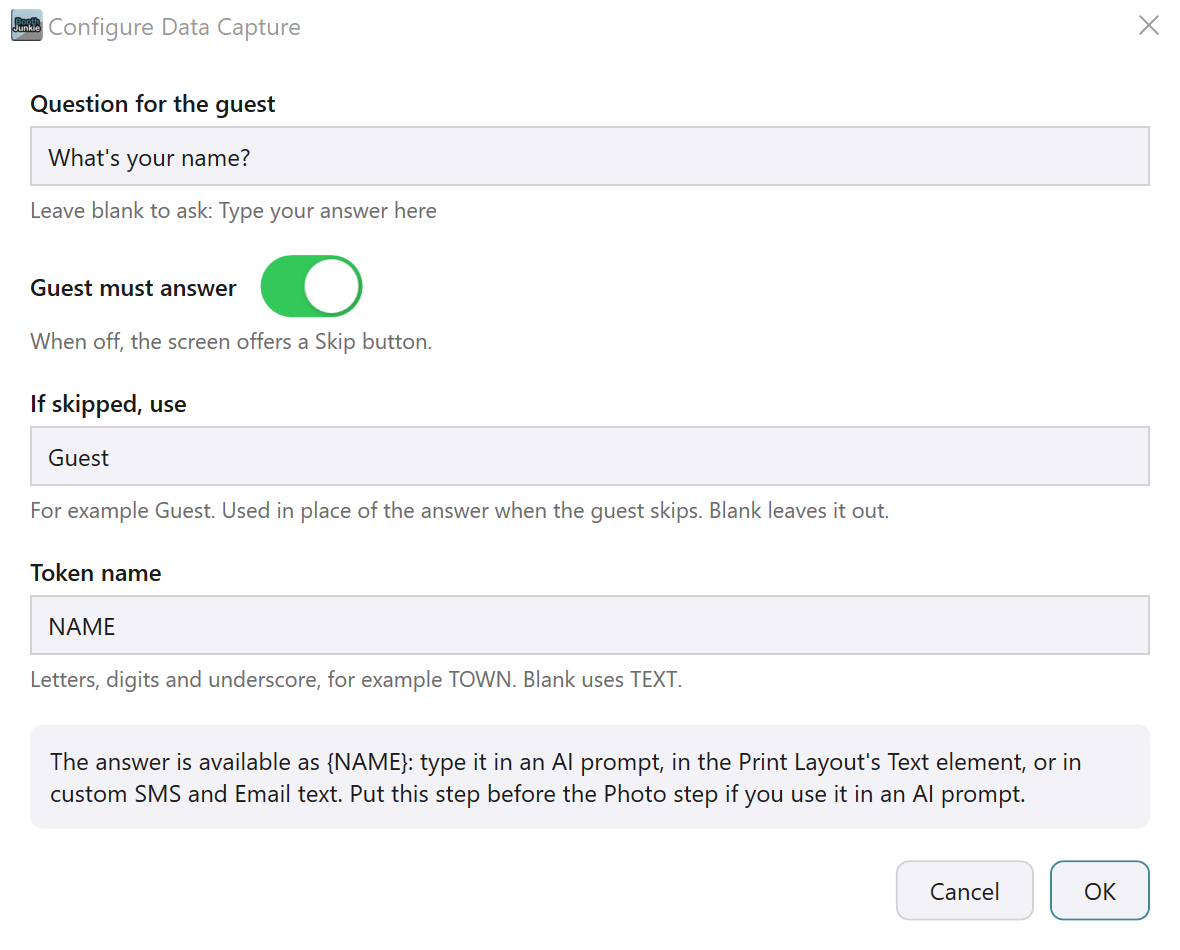
Text, Text (full keyboard), Number and Email all share this one-column layout:
Number adds its Smallest number/Largest number fields above Guest must answer:
Set up Multiple choice answers
Multiple choice’s Configure… window has a second column, where each answer is its own row.
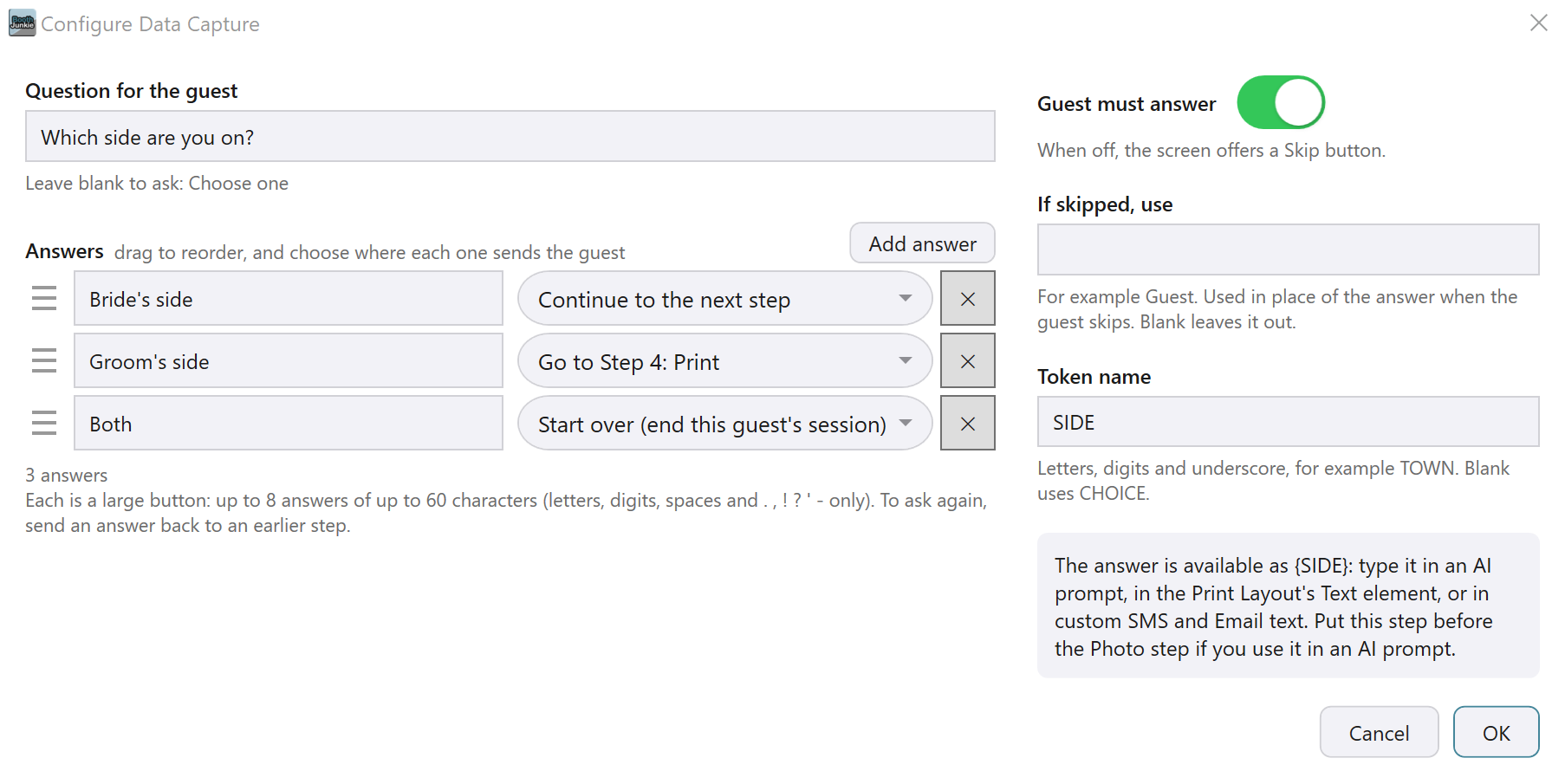
Each row has:
- a drag handle to reorder it;
- the answer itself, up to 60 characters – letters, digits, spaces and
. , ! ? ' -only; - a dropdown choosing where it sends the guest: Continue to the next step, a specific step by name, or Start over;
- a cross to remove it.
Add answer adds another row, up to 8.
Tip: Retyping is safe
Retyping an answer keeps its “sends the guest to” choice – only deleting and re-adding a row loses it.
What the guest sees
| Screen | Answer buttons |
|---|---|
| Portrait | Always one column, however many there are. |
| Landscape | One column for up to 3 answers, and two columns beyond that. |
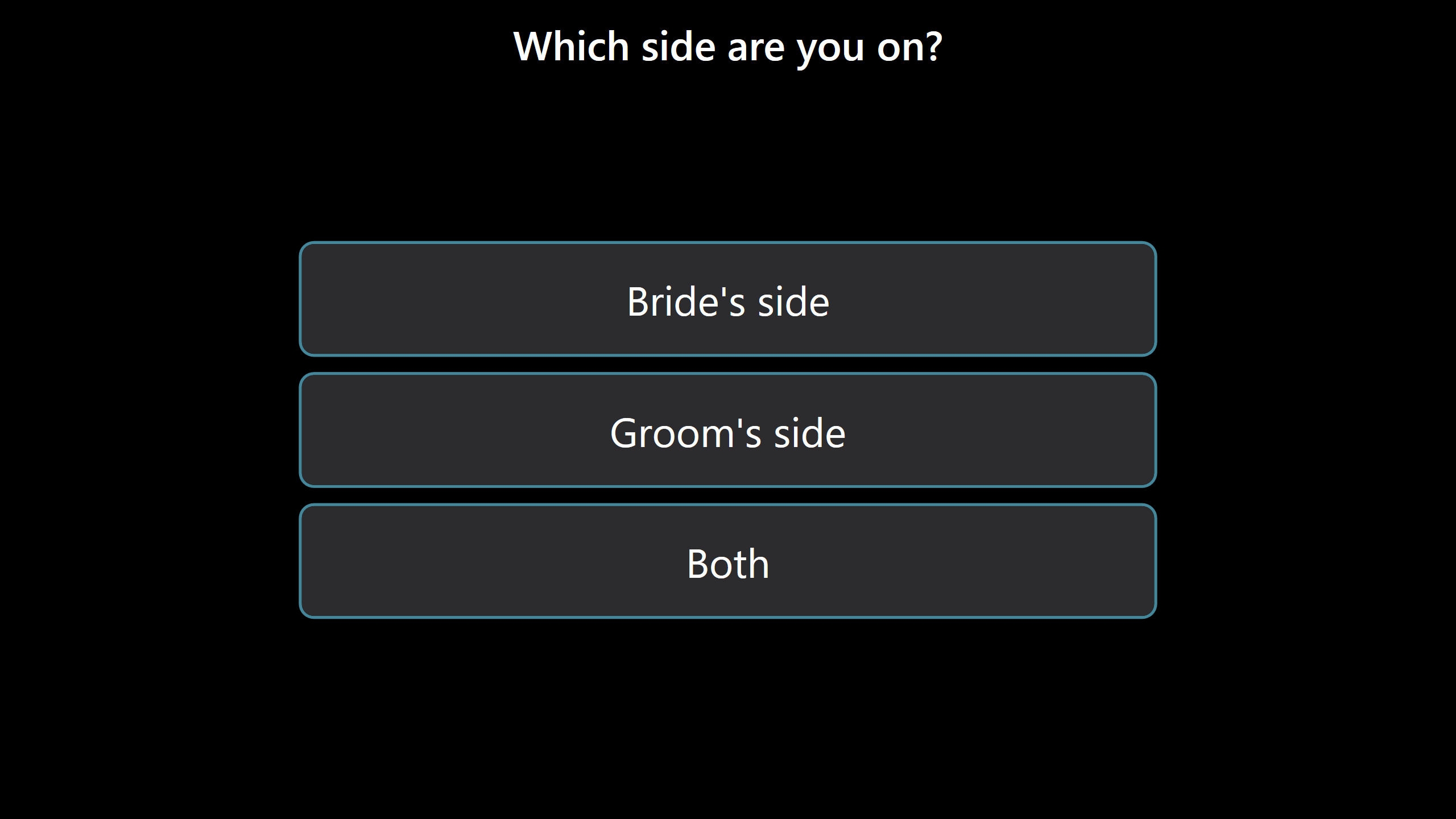
Every answer button, and the Skip button centred below them, has a teal outline so they show up against the black screen even on a dim display.
Make the guest answer, or let them skip
Guest must answer is on by default. Switch it off and the guest’s screen offers a Skip button instead.
If skipped, use is the wording that fills in wherever the token is used if they do skip – blank leaves it out entirely. An Email question has no If skipped, use.
Name the token
Every Data Capture step has its own token – {TEXT}, {NUMBER}, {EMAIL} or {CHOICE} by default, matching its type – or give it your own Token name:
- up to 20 letters, digits and underscores;
- starting with a letter, for example
TOWN.
A name that breaks these rules quietly falls back to the default token. A name isn’t special any more: NAME and AGE are just choices you can make, the same as any other word.
Important: Asking two questions of the same kind?
Give every step its own name when you ask more than one question of the same kind: two Text or Text (full keyboard) steps left unnamed both use {TEXT}, so the second answer replaces the first.
Use the token
Type the token into a print’s Text 1 or Text 2 layer, an AI prompt or negative prompt, or a custom SMS/email message, and it’s swapped for:
- the guest’s actual answer;
- or their “If skipped, use” wording if they skipped;
- or nothing, if that’s blank too.
A token no Data Capture step defines – a typo, for example – is left exactly as you typed it, curly brackets and all.
Use the answer in an AI prompt
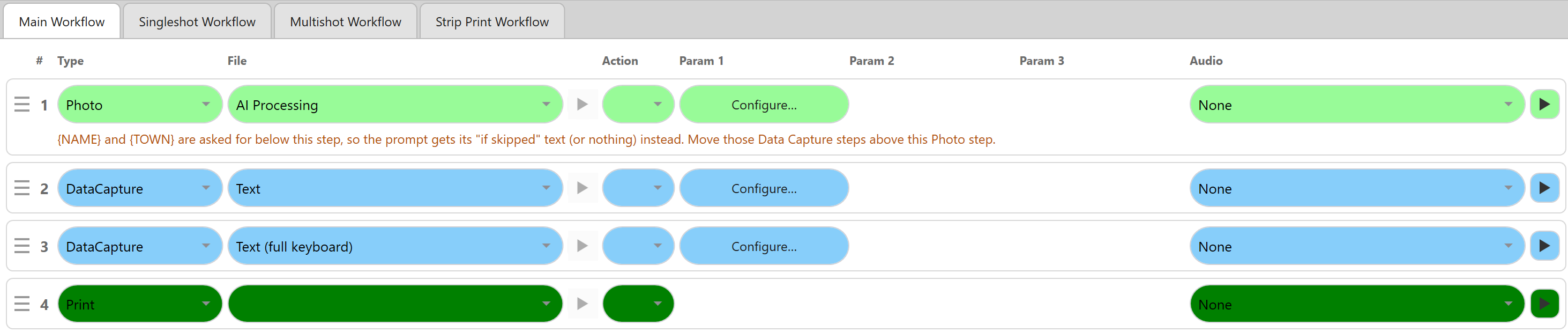
Put the Data Capture step before the Photo step if you want its answer available in that step’s AI prompt. A Data Capture step placed after a Photo step can’t fill in that prompt, and the Workflows tab warns you about it:
Save answers to guests.csv
Turn on Save guest answers (Admin Panel → Options → General) and every guest who answers at least one Data Capture step gets a row in that event’s guests.csv, with:
- Time and Photo file columns;
- a column for each step’s token;
- an Other answers column for any answer without a column of its own, such as one to a question added after the file was started.
Important: Ask your guests first
It’s personal data stored on this computer, so only turn it on if your guests have agreed – a Disclaimer step can ask them before any Data Capture step runs.
Moving from an older settings file
An older settings file’s Name, Age and Free text questions still work – Booth Junkie converts them the first time it loads:
| Older question | Becomes |
|---|---|
| Name | Text named NAME |
| Age | Number named AGE (1 to 120) |
| Free text | Text (full keyboard) |