
The tokens
Every Data Capture step has its own token. Unless you name it, it’s:
| Question type | Token |
|---|---|
| Text or Text (full keyboard) | {TEXT} |
| Number | {NUMBER} |
{EMAIL} |
|
| Multiple choice | {CHOICE} |
To use {NAME}, {AGE}, {TOWN} or any other word, type it as the step’s Token name in its Configure… window: up to 20 letters, digits and underscores, starting with a letter.
You can type them in capitals or lower case; {name} works the same as {NAME}. Any other word in curly brackets is left exactly as you typed it.
Important: Give every step its own token name
Two Text or Text (full keyboard) steps left unnamed both use {TEXT}, so the second answer replaces the first.
If a guest skipped, or was never asked
A token that a Data Capture step defines is always replaced, so guests never see the curly brackets in their print or message. If the guest skipped the question, or the question was never asked, the token becomes the question’s If skipped, use wording, or nothing if you left that blank. Doubled spaces and a space before punctuation are tidied up, but punctuation you typed yourself stays where it is.
For example, with a step whose Token name is NAME, Hello {NAME}! becomes:
| When | It prints |
|---|---|
| The guest gave their name | “Hello Alex!” |
They skipped, and the question’s If skipped, use is Guest |
“Hello Guest!” |
| They skipped, and it is blank | “Hello!” |
Every token behaves the same way, whatever it’s called: it becomes the answer, the question’s If skipped, use wording, or nothing. An Email question has no If skipped, use, so its token becomes nothing when the guest skips it. Only a word in curly brackets that no Data Capture step defines, a typo for example, is left exactly as you typed it.
Put an answer on a print
-
Switch on Text 1 or Text 2 in the Print Layout editor.
-
Type the token into its Text box, along with anything else you want printed.
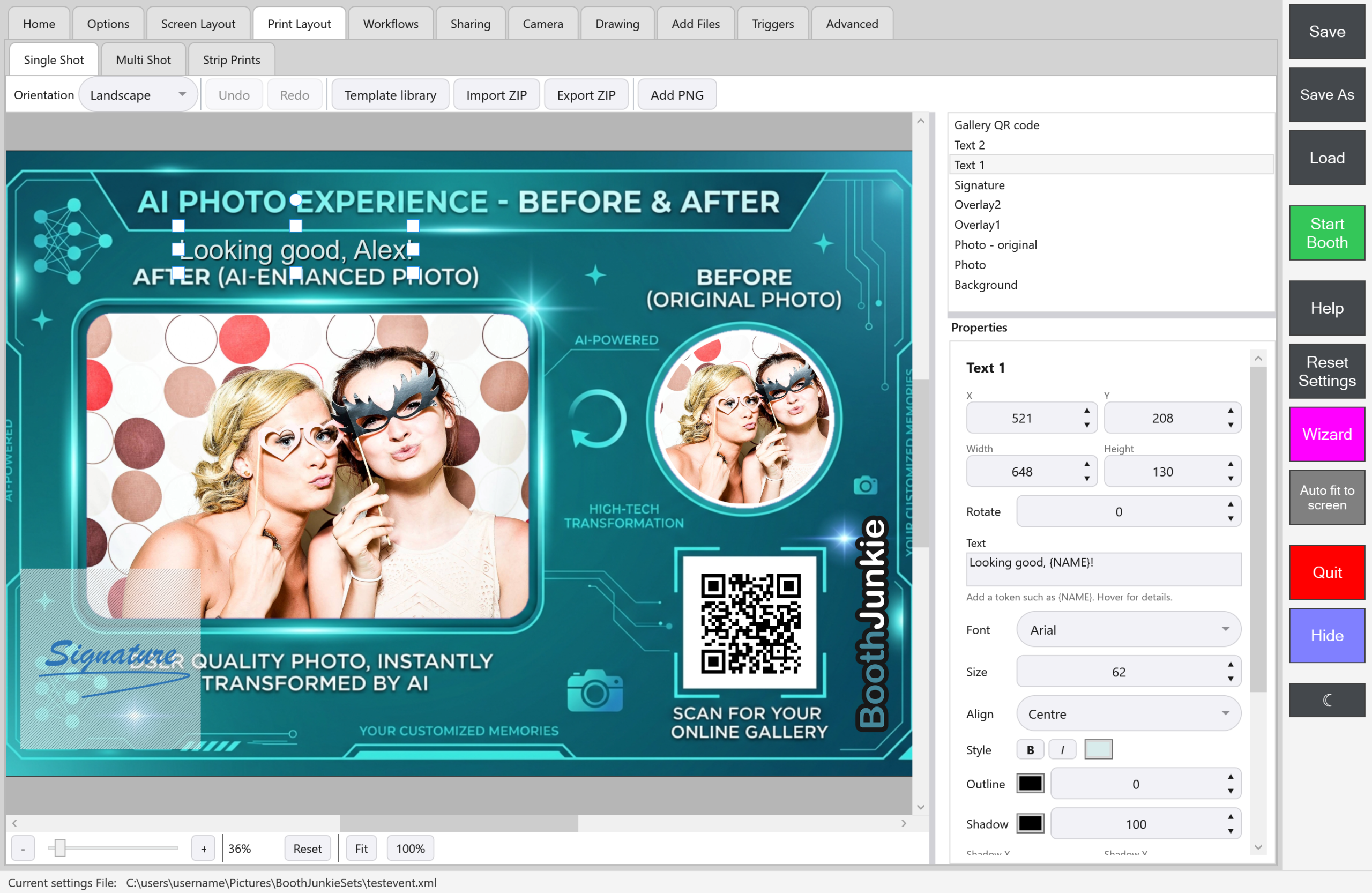
Result: Every print fills it in for that guest, on the Draw step’s preview as well as on the print itself.
The editor previews samples so you can see how it will read:
| Token | Editor preview |
|---|---|
{NAME} |
Alex |
{AGE} |
25 |
{EMAIL} |
alex@example.com |
{TEXT} |
Sample text |
{NUMBER} |
42 |
{CHOICE} |
Sample answer |
Any other token shows as typed in the editor, but prints the guest’s answer to the step that uses it. Hover over the hint under the Text box for a reminder.
See Building a Print Layout Template for how Text 1 and Text 2 work, and Styling Print Text: Text 1, Text 2, Fonts and Effects for fonts, outlines, shadows and glows.
Put an answer in an AI prompt
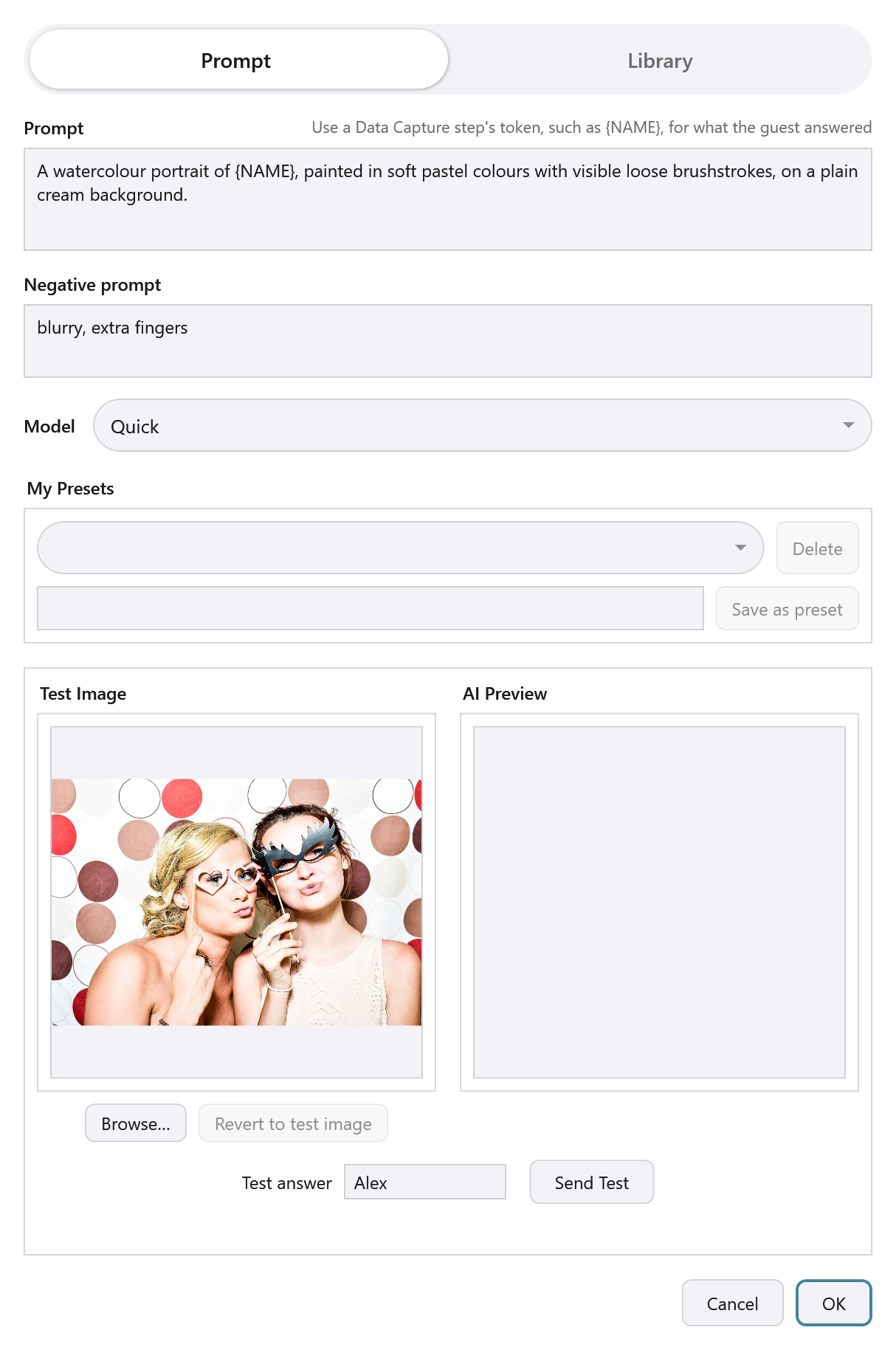
Type a token into a Photo step’s AI prompt, or its negative prompt, for example a watercolour portrait of {NAME}. Each guest’s own answer is filled in before the prompt is sent.
Important: Ask before the photo
The Data Capture step must come before the Photo step, or the prompt gets the “if skipped” wording instead. The Workflows tab warns you if it’s the wrong way round.
- In Configure AI Processing, a Test answer box appears beside Send Test when your prompt uses a token, and in Library mode. It fills in every token for the test, so the words in curly brackets aren’t sent to the AI.
- A guest’s email address is never sent to the AI.
- If a prompt is only a token and the guest skipped it, the AI step is skipped and the guest’s original photo is used.
- With a ready-made style from the Style Library, the style’s own wording stays on Booth Junkie’s server. The booth sends the guest’s answers, except their email address, with the request in encrypted form so that wording can use them.
Put an answer in text messages and emails
If you write your own wording, you can use tokens in it:
- Admin Panel → Sharing → SMS: switch on Use custom Twilio settings and use tokens in the Message template.
- Admin Panel → Sharing → Email: switch on Use custom SMTP settings and use tokens in the Subject and Message template.
The picture link placeholder [IMAGE] works as before. A guest who skipped gets the “if skipped” wording, or nothing.
The email keyboard
If you asked for the guest’s email address with a Data Capture question, the email keyboard on the sharing screen opens with it already filled in. The guest can correct it or just tap OK, and it’s checked the same way as before.
What’s kept out
To stop anything unexpected reaching a print, prompt or message, answers are cleaned when they’re stored. Curly brackets, quotation marks, and other symbols are left out.
Good to know: An answer is never read as a token
An answer is put in once and never looked at again, so a guest who types {AGE} as their name gets the letters AGE printed, not their age.
See Adding a Data Capture Step for exactly what each question accepts.