Set what it says
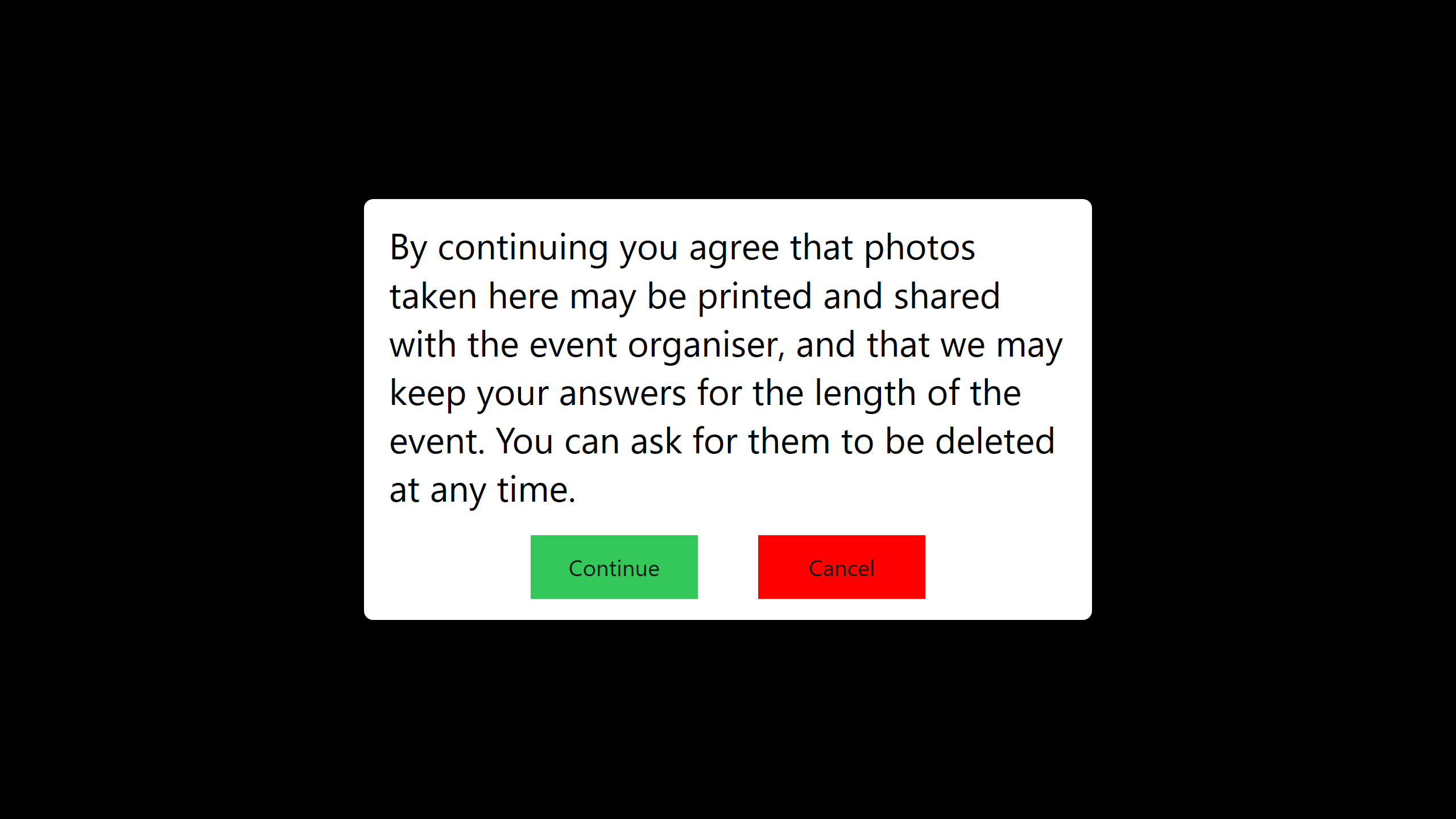
The message itself, and what its two buttons are labelled, are set on Admin Panel → Sharing → Disclaimer – see Customizing the Sharing Disclaimer. A Disclaimer step always shows that same wording; it isn’t written separately per step.
Good to know: It always shows
A Disclaimer step also always shows, even when Show disclaimer before sending SMS or Email is switched off – that switch only controls the automatic popup before sharing.
Add the step
-
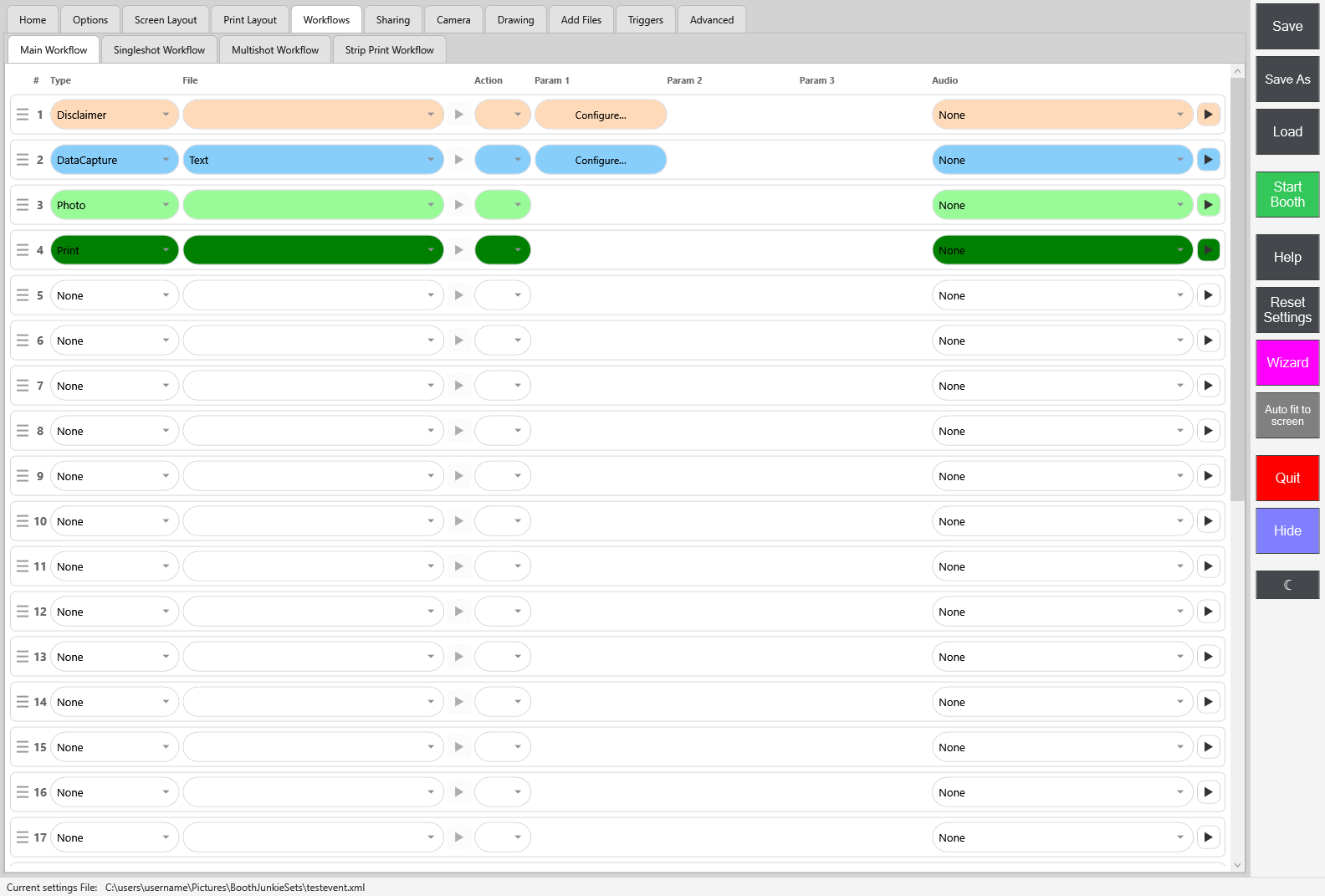
Go to Admin Panel → Workflows, add a row, and set its Type to Disclaimer.
-
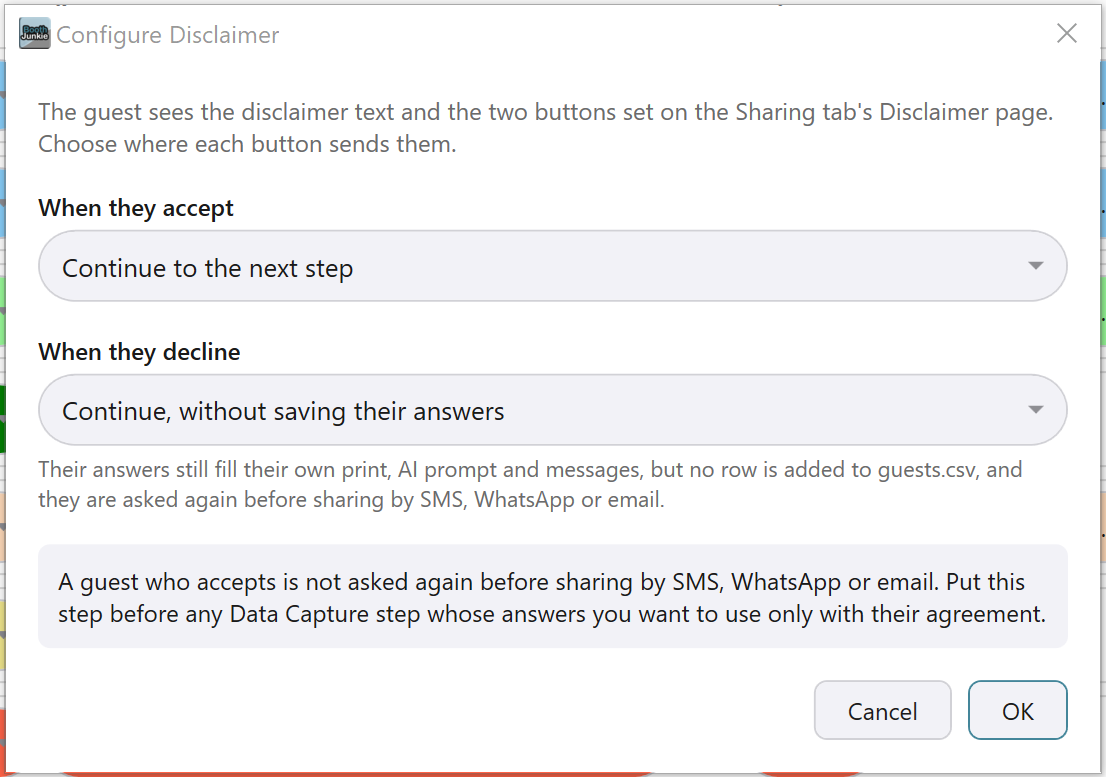
Press Configure… to choose what happens when the guest answers.
Configure Disclaimer
| Setting | Choices |
|---|---|
| When they accept | Continue to the next step, a specific step by name, or Start over. |
| When they decline | Continue to the next step, Continue, without saving their answers, a specific step by name, or Start over (which ends the guest’s session and goes back to the start). |
With nothing changed, accepting continues to the next step and declining starts over.
If they decline and carry on
| On decline | What happens |
|---|---|
| Continue, without saving their answers | Still lets the guest carry on – their answers still fill their own print, AI prompt and messages – but no row is written to guests.csv for them, and they’re asked to accept again before sharing by SMS, WhatsApp or email, while Show disclaimer before sending SMS or Email is on. |
| Continue to the next step | Lets the guest carry on as normal: their answers are still saved to guests.csv while Save guest answers is on, and they’re asked again before sharing in the same way. |
Where to put it
Put a Disclaimer step before any Data Capture step whose answers you only want to use with the guest’s agreement – see Adding a Data Capture Step.
Tip: No second popup
A guest who accepts here isn’t shown the automatic disclaimer again before sharing by SMS, WhatsApp or email later in the same session.
What guests see
Your message, and the two buttons you labelled on the Disclaimer tab.