
Set up a text layer
-
Go to Admin Panel → Print Layout and choose Single Shot, Multi Shot or Strip Prints.
-
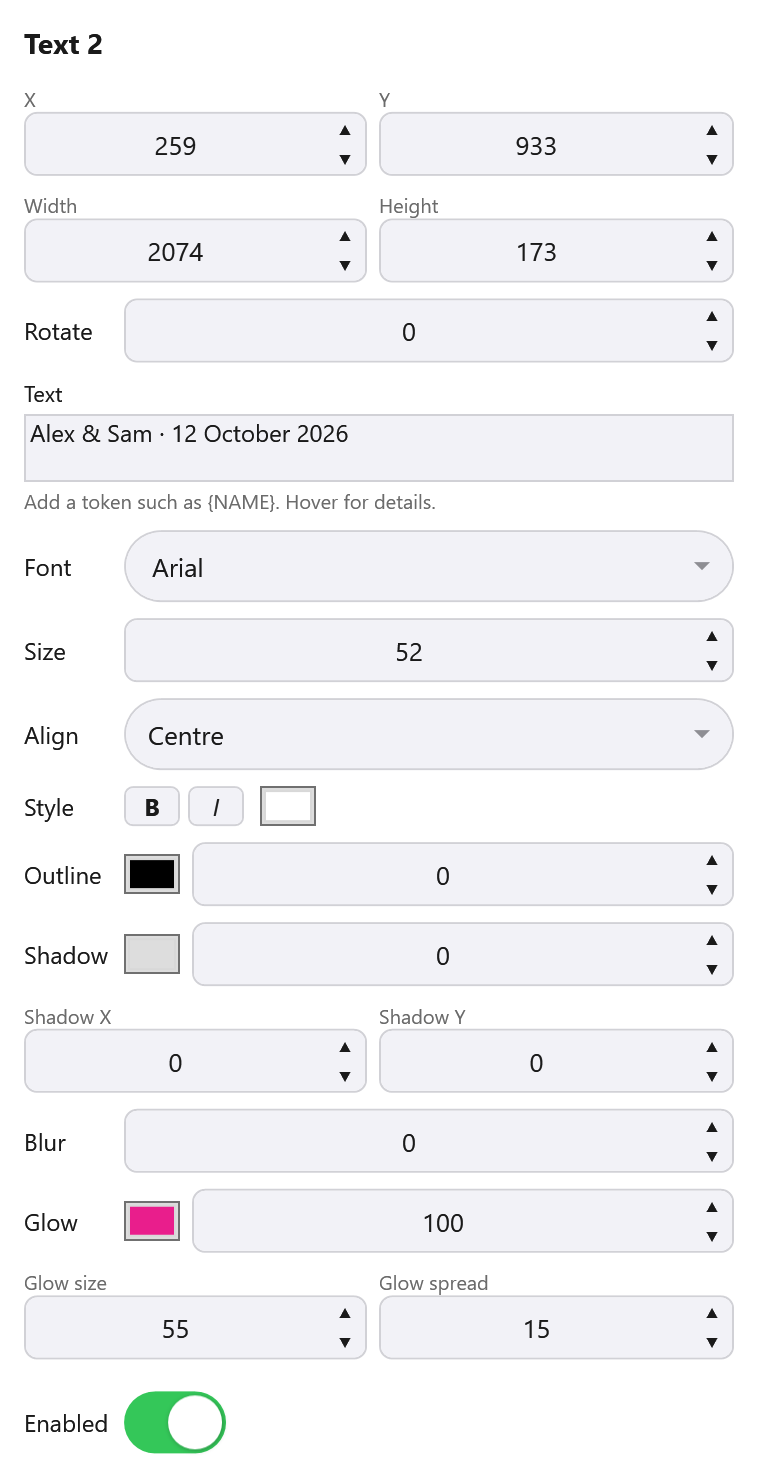
Select Text 1 or Text 2 in the layer list on the right.
Result: Their settings are in the Properties box underneath.
-
Switch Enabled on, at the bottom of the Properties box, for each one you want on the print.
-
Type the text, then set its font, size, alignment, style and effects, as described below.
- Both start switched off in a new layout, and Text 2 is off in a layout made before it existed.
- Older layouts are unchanged. A layout made before Text 2 existed shows its text as Text 1, exactly as it was.
- Text 2 sits above Text 1 in the layer list, so it’s drawn on top where the two overlap.
Tip: Give the settings more room
A text layer has a lot of settings. Drag the divider between the canvas and the sidebar to make the sidebar wider, and the divider between the layer list and Properties to give the settings more room.
What it says
Type into the Text box, and press Enter to start a new line. The text wraps to the width of the layer’s box and is always centred from left to right.
Print a guest’s answer
To print a guest’s answer, type its token, such as {NAME}. While you design, the canvas shows samples in place of the tokens:
| Token | Sample on the canvas |
|---|---|
{NAME} |
Alex |
{AGE} |
25 |
{EMAIL} |
alex@example.com |
{TEXT} |
“Sample text” |
{NUMBER} |
42 |
{CHOICE} |
“Sample answer” |
Any other token, such as one you named yourself, shows as you typed it in the editor, but prints the guest’s answer. Hover over the note under the Text box for a reminder.
Tokens work the same way in Text 1 and Text 2. See Using a Guest’s Name in Prints, Messages and AI Prompts for how they work.
Font
Font lists the fonts installed in Windows together with Booth Junkie’s own font library, in alphabetical order, each one shown in its own lettering. You can also type a font’s name into the box.
Fonts that come with a template, whether from the Template Library or a ZIP brought in with Import ZIP, are added to Booth Junkie’s own font library without installing anything into Windows. They appear in the Font list straight away.
Export ZIP includes the fonts from Booth Junkie’s own font library that the text uses, so the layout looks the same on another PC. Fonts that are only installed in Windows aren’t included.
Good to know: Font missing
If an imported layout’s text uses a font this PC doesn’t have, a Font missing box names it, and the text is drawn in a different font until that font is available. Install the font in Windows and restart Booth Junkie, or import a ZIP that includes it.
Size, and text that’s too long
Size runs from 1 to 900. It’s the size the text has when it fits its box.
Text that’s too long for its box, such as a long guest name, is drawn smaller to fit, down to 40% of the Size. Only text that won’t fit even at 40% is cut off, ending in “…”.
Tip: Plan for the longest answer
Make the box big enough for the longest answer you expect, rather than relying on the text shrinking.
Align and Style
| Setting | What it does |
|---|---|
| Align | Sets where the text sits between the top and bottom of its box: Top or Centre. Layouts made before this setting existed keep Top, so nothing already printing moves. Text in a brand-new layout starts on Centre. |
| Style | Has B for bold, I for italic, and a colour swatch. Click the swatch to choose the text colour. |
Outline, Shadow and Glow
All three start switched off, so existing layouts print as they always have. Each has a colour swatch beside it: click it to choose that effect’s colour.
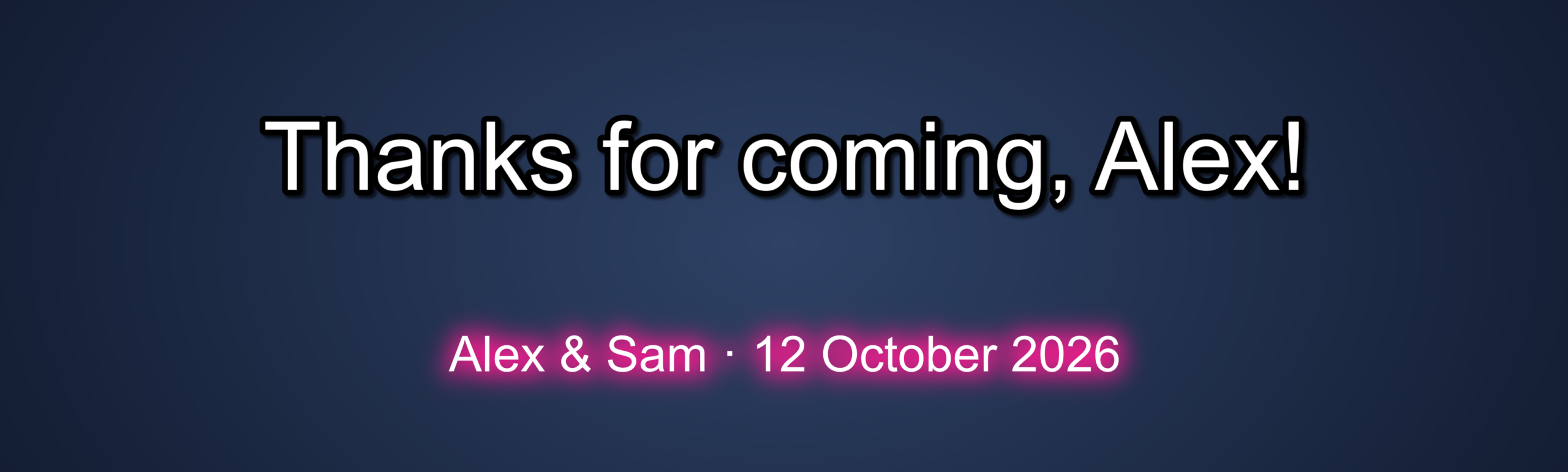
Outline
Outline is a line round the letters. Set its thickness from 0 to 100 pixels of the print; 0 is no outline. It’s drawn outside the letters, so they keep their own thickness.
Shadow
Shadow is a shadow behind the letters. Its strength runs from 0 to 100%: 0 is no shadow, 100 is solid.
| Setting | What it does |
|---|---|
| Shadow X | Moves it right (left when negative), from -300 to 300 pixels. |
| Shadow Y | Moves it down (up when negative), from -300 to 300 pixels. |
| Blur | Softens its edge, from 0 to 100. |
A rotated layer’s shadow turns with it. Picking a colour for a shadow that’s off switches it on at 70%, and gives it a small offset and blur if it has none, so you can see it.
Glow
Glow is light round the letters, behind them. Its strength runs from 0 to 100%: 0 is no glow, 100 is solid.
| Setting | What it does |
|---|---|
| Glow size | How far it reaches beyond the letters, from 0 to 100 pixels of the print. |
| Glow spread | How much of that reach is solid before it fades, from 0 to 100%. At 0 it’s soft from the letters outwards, which is faint round thin letters; at 100 it’s solid all the way out. |
Picking a colour for a glow that’s off switches it on at 80%, with a size of 20 and a spread of 30 if it has no size. A glow is white until you choose a colour.
Tip: For a halo, use Glow
For a halo round the letters, use Glow. A shadow with no offset and some blur only gives a faint mist round the letters.
Tips
- The canvas shows what prints. The editor draws text the same way the print does, with the same font, size, wrapping and effects.
- Both text layers travel with the layout in Export ZIP and Import ZIP, with their text, font, size, colour, alignment and effects.
Important: Text and style changes aren’t part of Undo
Undo covers moving, resizing and rotating layers on the canvas, so check a text or style change before moving on.