
Which layers
- Photo, Photo 2, Photo 3 and Photo 4 (Multi Shot and Strip Prints have all four; Single Shot has Photo).
- Photo – original on Single Shot, which shows the photo as it was before AI changed it (see below).
Crop a photo or cut it to a shape
-
Go to Admin Panel → Print Layout and choose the shot type.
-
Select a photo layer.
Result: The Properties box shows its crop and shape settings.
-
Change the settings below. The canvas updates as you change them.
| Setting | What it does |
|---|---|
| Fit | Stretch (the default) squeezes the whole photo into the layer’s box. Fill scales the photo without distorting it until it covers the box, and crops what hangs over the edges. |
| Shape | Cuts the photo to None, Circle, Oval, Star, Square or Rectangle. None shows the whole photo. |
| Shape size % | How much of the layer’s box the shape covers, from 10 to 100 percent. The shape is always centred. |
| Zoom % | Crops the photo by zooming in, from 100 to 400. At 100 you see all of the photo; at 400 you see a quarter of its width and height. |
| Move left/right and Move up/down | Choose which part of the photo shows. Each runs from 0 to 100, with 50 in the middle. They matter when Zoom % is above 100, or when Fit is Fill and the photo is wider or taller than the box. |
| Reset crop and shape | Puts the layer back to None, 100, 100, 50 and 50, and leaves Fit as it is. |
Circle, Square and Star sit in the largest square that fits the layer’s box. Oval and Rectangle span the whole box.
The print and the Draw step’s preview look the same as the canvas, with smooth edges. A layer on Stretch with no shape and no zoom prints exactly as it did before, so existing layouts are unchanged.
Tips
- Photos are only clickable inside their shape while you design, so a click outside a circle reaches whatever layer is underneath it.
- Everything is saved with the layout and travels with it in Export ZIP and Import ZIP.
Important: Not part of Undo
Crop and shape changes aren’t part of Undo, so use Reset crop and shape to go back.
Make a before-and-after print
On Single Shot, the Photo – original layer shows the guest’s photo as it was before the AI touched it, so you can put it beside the transformed picture. For example, the original as a circle beside the AI result, as in the picture below.
-
Set up an AI step, as described in How AI Features Work in Booth Junkie.
-
In Print Layout → Single Shot, select Photo – original and switch Enabled on. It is off by default.
-
Position it, then choose a Shape (for a circle, choose Circle) and a Shape size %.
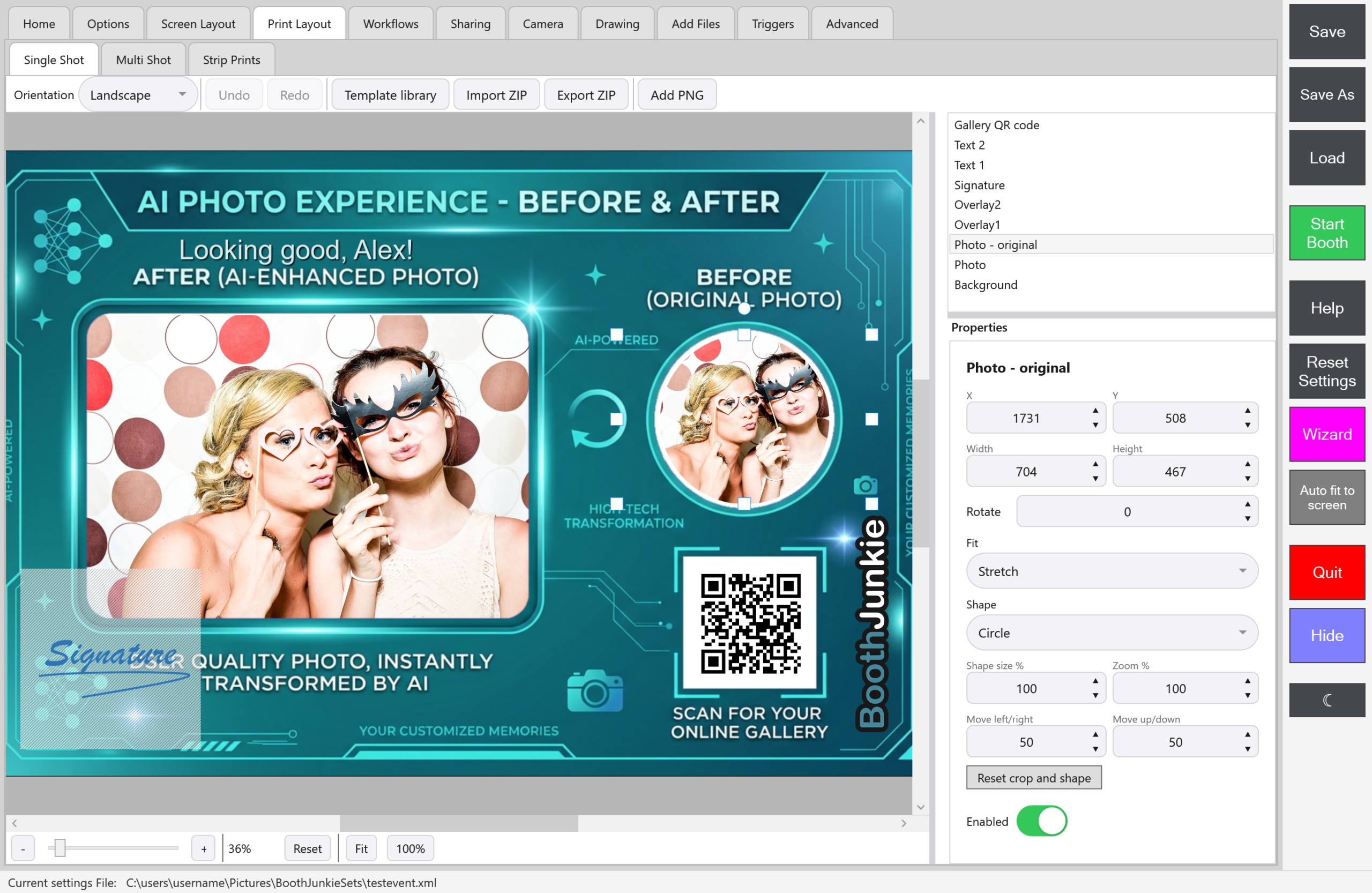
Photo shows the finished picture, transformed by AI when an AI step ran.
Good to know: When the original appears
Photo – original only appears when the AI genuinely changed the photo. It’s left out when AI is switched off or the attempt failed, so a print never shows two identical pictures. The untouched copy is kept in the event’s original folder.