
It’s the layout style most people picture when they think of a “classic” photo booth print showing 3 or 4 different poses side by side.
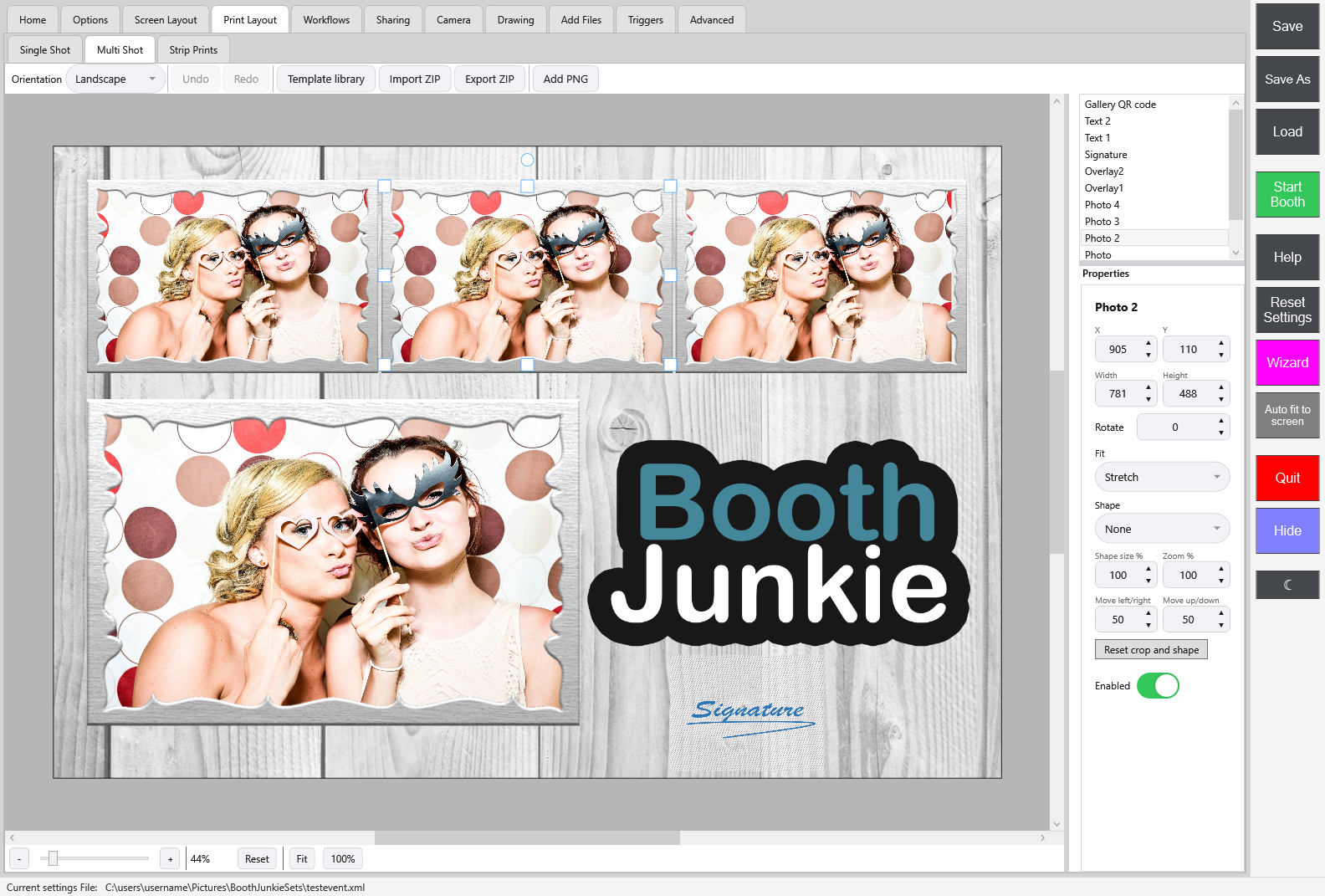
What makes a layout “Multi Shot”
A Multi Shot print layout can use up to four photo slots (Photo, Photo 2, Photo 3 and Photo 4), arranged however you like on the canvas alongside your background, overlays, signature and text layers. Unlike Single Shot, which is locked to one slot, Multi Shot gives you the room to build a proper collage-style print.
How the photos get chosen
This is the part worth understanding clearly: there’s no step where a guest picks their favourite shots out of a longer sequence. Whatever photos get captured during the event, in the order they were taken, are the photos that fill the print — first photo into the first slot, second into the second, and so on, up to the four slots a Multi Shot template can hold.
Important: Keep the layout and the workflow in step
The number of photos your Multishot Workflow captures should match the number of slots on your Multi Shot template. If the workflow captures more photos than the template has slots, the extra ones simply won’t appear on the print — there’s no selection screen for guests to choose which ones make the cut. However many slots you design into the layout, capture that many photos in the workflow.
See The Multishot Workflow for how to set the exact number of photos captured.
The same goes for a ready-made design from the Template library button on this tab (installing one needs an active Premium). When you select a template whose number of photo windows doesn’t match the number of photos your Multishot Workflow takes, the library tells you so before you install it. See Using the Template Library.
Shape and orientation
Multi Shot prints use the same standard proportions as Single Shot (a roughly 2:3 ratio), with Portrait or Landscape selectable from the Print Layout editor.
Designing the layout itself
Positioning the photo slots, adding a background and overlays, resizing and rotating layers, and using the snap guides all work the same way as the rest of the Print Layout editor. See Building a Print Layout Template for the full walkthrough.
Pairing it with a workflow
Multi Shot’s natural partner is the Multishot Workflow. See The Multishot Workflow for how many Photo steps to add and how a guest reaches Multi Shot from the selection screen.