
Before you start
-
Open Admin Panel → Sharing → Gallery and check that the Upload images to online gallery switch at the top is on (it is by default).

The code only prints while gallery uploads are switched on. Without it, the code would lead to a gallery your photos never reach, so the layer is left off the print.
-
Make sure the event has a name under Admin Panel → Options → General. The gallery belongs to your event.
Turn it on
-
Go to Admin Panel → Print Layout and choose Single Shot, Multi Shot or Strip Prints.
-
Select Gallery QR code in the layer list on the right. It is at the top of the list.
-
Switch Enabled on, at the bottom of the Properties box.
-
Drag the code into place on the canvas, and drag the handles to resize it. You can also type exact numbers into X, Y, Width and Height.
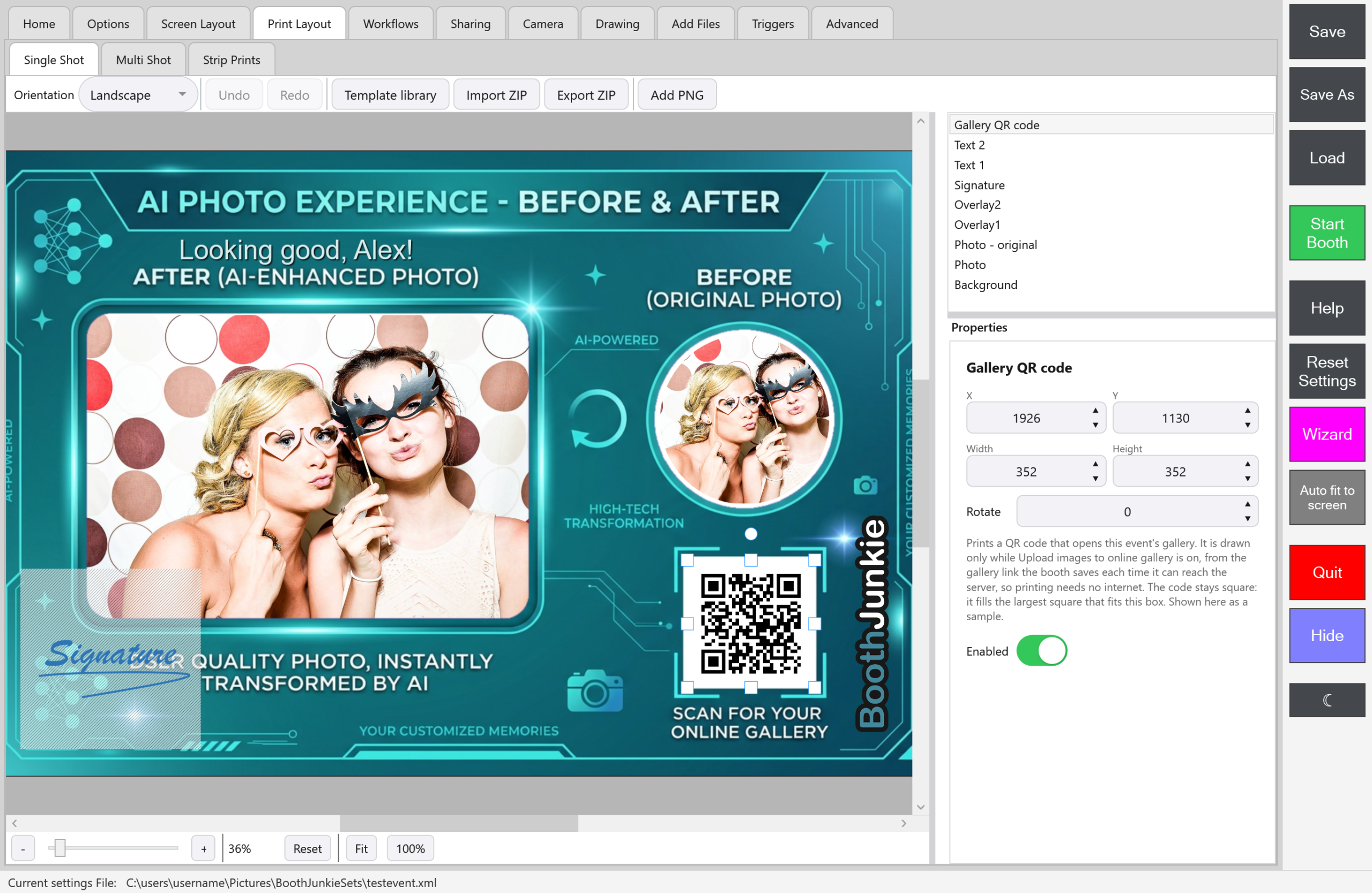
Result: The canvas shows a sample code so you can judge its size and position. The real code is drawn on each photo as it prints.
Important: Repeat on each shot type
Single Shot, Multi Shot and Strip Prints each have their own layout, so repeat these steps on each one you want the code on. The layer is off by default, and print layouts saved before this feature existed open with it off.
Size and placement
- The code always stays square. However you shape its box, the code fills the largest square that fits inside, in the middle.
- It has a white border. A phone needs a clear margin to find the edges of a code, so prints draw the code with the standard white border. That means a white square shows even over a dark photo. Leave room for it.
- Make it big enough to scan. Keep it large enough to read from a comfortable distance, and print a test before your first event.
- Check the Draw preview. The code also shows on the Draw step’s preview, so guests see the finished layout.
What guests get
The code opens your event’s gallery, not one guest’s own photo, so they find theirs among the event’s photos.
Good to know: Scanned too soon?
If a guest scans before their newest photo has finished uploading, it appears a little later, because the Upload Queue keeps retrying.
When the internet drops out
Booth Junkie remembers each event’s gallery link on that computer, so prints still carry the code with no internet at the venue, and the link survives closing Booth Junkie or restarting the PC.
The one time the booth needs the internet is the first time an event is used, to ask the server for the link:
| When | What happens |
|---|---|
| Booth Junkie starts, or you press Start Booth | If any print layout uses the code, it asks for the link. Opening Admin Panel → Sharing → Gallery while online fetches it too. |
| It doesn’t have the link yet | Prints go ahead without the code rather than waiting. The booth keeps trying in the background, after 15 seconds, 30 seconds, 1 minute, 2 minutes and then every 5 minutes, so prints pick up the code as soon as the connection returns. |
| It has fetched the link | It stays. |
Tip: Before every event
Start the booth with an internet connection before an event so the link is saved, then check that your first test print has the code.
The Gallery tab also falls back to the saved link when it can’t reach the server, with the note “Couldn’t reach the server just now, so this is the link saved for this event. It’s what a QR code on a print uses too.” If it has no saved link either, it shows “Could not connect to server – please check your internet connection”.
If there’s no code on a print
-
Check Enabled is on for Gallery QR code on the tab for that shot type.
-
Check Upload images to online gallery is on under Admin Panel → Sharing → Gallery.
-
Check the booth has been online at least once for this event name. Renaming the event means it needs to fetch a new link.
Moving a layout between computers
Export ZIP and Import ZIP keep the Gallery QR code layer’s on or off setting and its position, like any other layer. The link stays with the event on each computer, so the new computer fetches it the first time it’s online.
To find the link and QR code for yourself, see Finding Your Online Gallery Link and QR Code.