
Where to find it
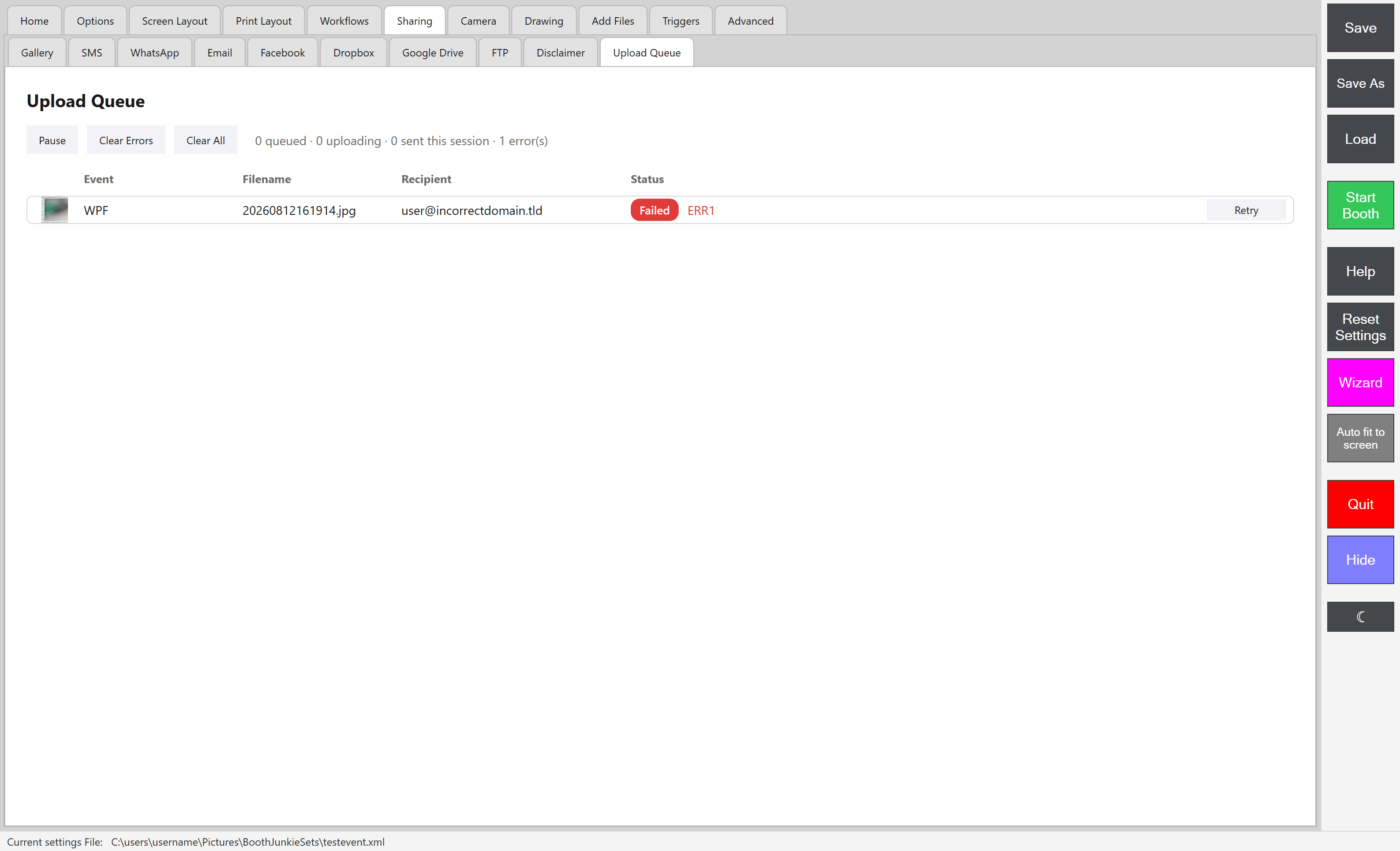
Admin Panel → Sharing → Upload Queue. This is the last of the Sharing sub-tabs.
What you’ll see
A summary line (“N queued – N uploading – N sent this session – N error(s)”), and a row for each pending, in-progress, or errored item: a thumbnail, the event name, filename, recipient, and a status pill.
| Status | Colour | What it means |
|---|---|---|
| Queued | Grey | Waiting to start. |
| In Progress | Blue | Uploading right now. |
| Error | Amber | Failed, but still retrying automatically. |
| Failed | Red | Given up after several attempts, needs your attention. |
Where a share failed, the actual reason from the server is shown alongside it – not a generic error message.
Automatic retries
A failed upload retries automatically up to 5 times, waiting longer between each attempt (30 seconds, then 2, then 10, then 30 minutes). After the 5th failed attempt it’s marked Failed and stops retrying on its own – press Retry to try again immediately rather than waiting.
What you can do here
| Action | What it does |
|---|---|
| Retry | Retries a single item – available on Error or Failed rows. |
| Edit the recipient | On an Error or Failed row, if a phone number or email was mistyped. Editing doesn’t resend it automatically, you still need to press Retry afterward. |
| Clear Errors | Removes every Error/Failed row at once (asks for confirmation first). |
| Clear All | Removes every queued/errored item, leaving anything currently uploading to finish (asks for confirmation first). |
| Pause / Resume | Pause stops new uploads from starting; anything already uploading keeps going. |
Important: Clearing can’t be undone
Clearing items is permanent and can’t be undone, so double check before confirming.
Fix a mistyped phone number or email
-
Edit the recipient on the Error or Failed row.
-
Press Retry. Editing doesn’t resend it automatically.
Result: It’s tried again immediately, to the corrected recipient.
A few things worth knowing
- There’s no way to delete just one queued item – only Retry it, or clear everything at once
- The list doesn’t show which channel (SMS/WhatsApp/Email/Gallery) each row is for directly – you can tell from the recipient shown (a phone number, an email address, or blank for Gallery)
- How often the queue checks for retries that are due (not how quickly new uploads start – those begin right away) is set separately, on Admin Panel → Advanced → Settings Page 1
Premium: “Premium has expired”
An item showing Error with “Premium has expired” was refused because this machine has no active Premium. WhatsApp always needs it, and so do SMS and email sent through Booth Junkie’s own service. It’s retried and then marked Failed like any other error, so renew Premium from Your Licences on your account Dashboard, then press Retry.
The queue is also what lets a booth work without wifi: shares wait here and send themselves once a connection comes back.