
Booth Junkie can upload every photo straight to a Dropbox account of your choosing, as an extra copy alongside however else you’re already sharing with guests.
Setting it up
Open the Admin Panel and navigate to the Sharing tab, followed by the Dropbox tab, and enable Upload images to Dropbox.
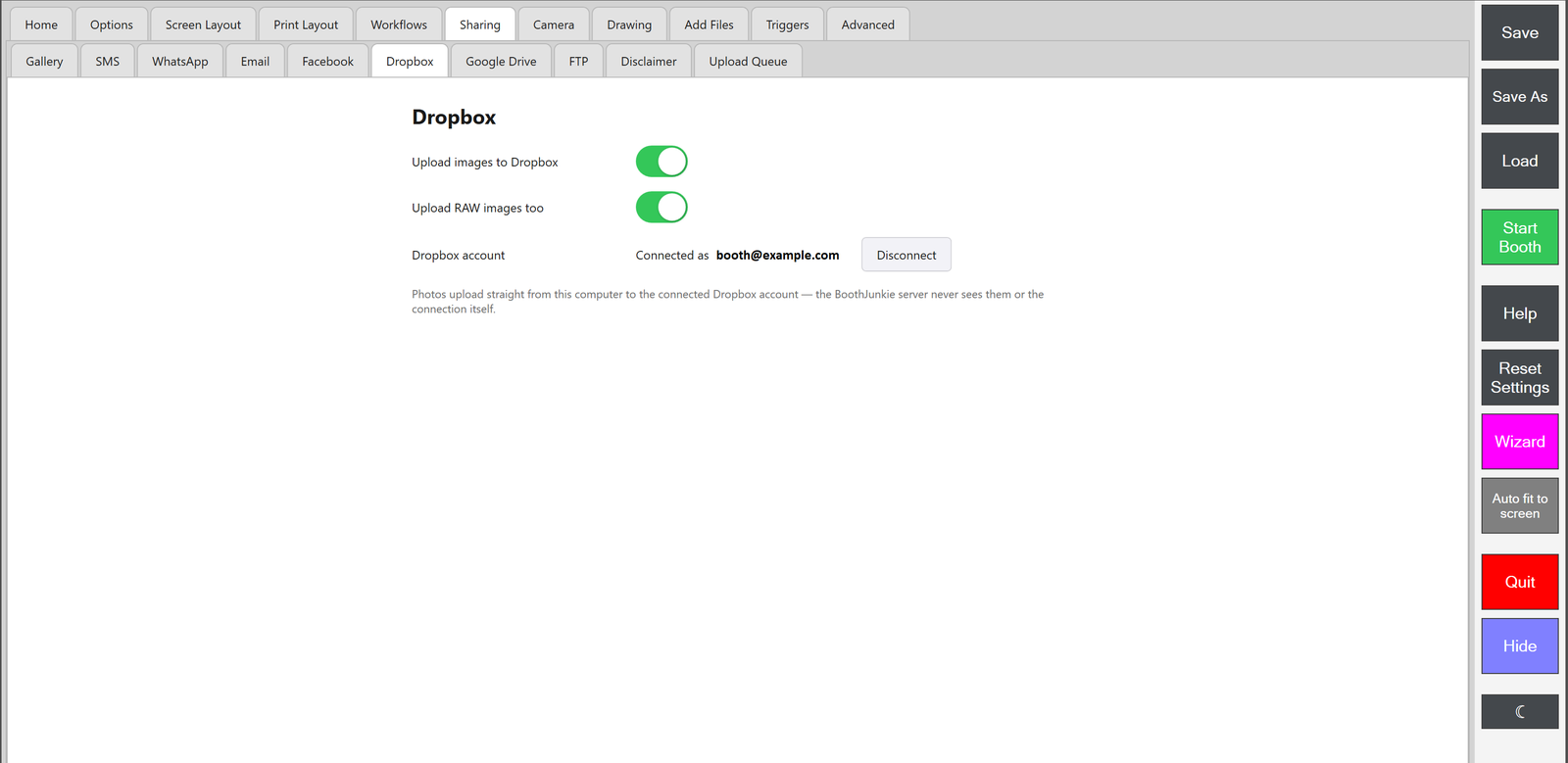
Connecting your Dropbox account
Select Connect with Dropbox and you’re taken straight to Dropbox’s own sign-in page, not one hosted by Booth Junkie. Log in with your usual Dropbox email and password there, the same as you would in a browser, and approve the connection. Booth Junkie never sees or stores your Dropbox password – once you’ve signed in, Dropbox itself hands back only a token that lets Booth Junkie upload on your behalf, which is what the Connected as line next to your account email confirms.
How uploads actually happen
Nothing needs uploading in the moment a guest’s session ends. Each photo joins the Upload Queue the instant a guest reaches the Print screen, and the queue sends it on to Dropbox whenever the booth has an internet connection – so the booth itself never needs to be online during the event. If a venue’s Wi-Fi is patchy, or there isn’t any, photos simply queue up and go out once you’re back on a connection, even if that’s not until you’re packing down or home again.
Where your photos end up
Each event gets its own folder in Dropbox, named exactly after whatever’s entered in the Event Name box on the Options tab. Turn on Upload RAW images too and the untouched original straight from the camera – before any overlays, filters, or print layout – goes up alongside the finished photo, filed in a RAW subfolder underneath that event’s folder. Uploading a photo with the same filename twice overwrites the original rather than creating a duplicate.
Turning it off
Two ways to stop, for two different situations. Switch Upload images to Dropbox off to pause uploads while keeping the account connected – handy if you just want to skip Dropbox for a single event. Select Disconnect instead to fully deauthorise Booth Junkie from your Dropbox account; you’ll need to sign in and approve the connection again from scratch next time.