
As well as however else you already share photos with guests, Booth Junkie can send a copy of every one straight into a Google Drive account you choose.
Setting it up
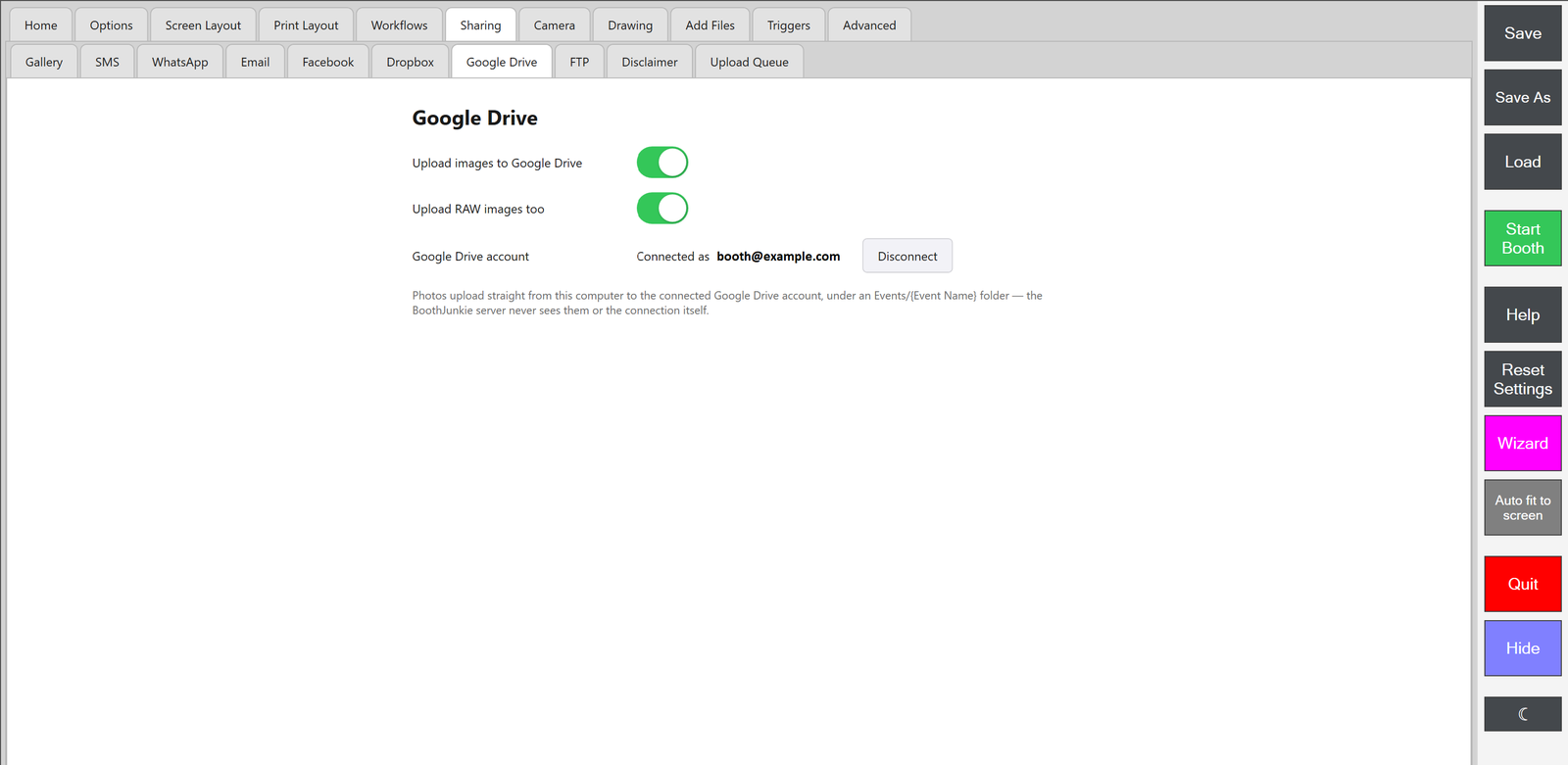
In the Admin Panel, open the Sharing tab and then the Google Drive tab, and switch on Upload images to Google Drive.
Signing in to Google Drive
Selecting Connect with Google Drive hands you over to Google’s own sign-in screen, not anything hosted by Booth Junkie. Enter your normal Google email and password there and confirm access, exactly as you would signing into Gmail or Drive in a browser. Your Google password is never seen or held by Booth Junkie at any point – what comes back after you sign in is a token, scoped only to files Booth Junkie itself creates, which is what lets the app keep uploading without you signing in again. The account email shown next to Connected as confirms it’s linked correctly.
Where uploads are filed
Every event gets its own folder inside an Events folder in your Drive, taking its name directly from the Event Name field on the Options tab. With Upload RAW images too switched on, the original file straight off the camera – untouched by any effects, borders or layout – is uploaded too, into a RAW subfolder inside that event’s folder. Uploading a photo with the same filename twice overwrites the original rather than leaving a duplicate behind.
Uploading without needing a live connection
Photos don’t wait until the event is over to be sent. Each one is added to the Upload Queue the moment a guest reaches the Print screen after their turn, and the queue itself takes care of sending it on to Google Drive as soon as a connection is available. That means the booth can run an entire event with no internet at all, and everything queued will still make it to Drive once it’s back online, whether that’s minutes later or after you’ve packed the booth away.
Disconnecting or pausing uploads
If you want to stop sending to Google Drive for a single event but keep everything set up for next time, just switch Upload images to Google Drive off – the connection itself stays intact. To remove Booth Junkie’s access to your Google account entirely, use Disconnect instead; you’ll need to sign in and grant access again before it can upload anywhere.