
Open the library
-
Go to Admin Panel → Print Layout and choose Single Shot, Multi Shot or Strip Prints.
-
Press Template library on the toolbar, between Redo and Import ZIP.

Result: The window titled Template Library: Single Shot opens (or Multi Shot, or Strip Prints).
The library opens straight away with the list saved on this PC, and checks the Booth Junkie site for new and changed templates at the same time.
Good to know: One shot type at a time
The library lists only the templates for the tab you opened it from, in name order. To find a layout for a different shot type, open the library from that shot type’s tab.
Find a template
Use the search box, the two lists and Refresh along the top of the window, and the page buttons under the tiles:
- Type in the search box (“Search by name, category, tag or description…”). Every word you type has to match, so typing two words shows only the templates that match both.
- Choose a category from the All Categories list, or Landscape or Portrait from the Any orientation list, to narrow what’s shown.
- Press Refresh to ask the Booth Junkie site for new and changed templates. The line under the search box says when the list was last updated, or “The list has not been downloaded yet.”
- Use ◀ Previous and Next ▶ to move between pages. Six templates show at a time.
Read the tiles
Each tile shows the template’s picture, its name, and its orientation and number of photos, such as “Landscape · 3 photos”. While a picture is still on its way, the tile says “Downloading preview…”.
A badge in the corner tells you more:
| Badge | What it means |
|---|---|
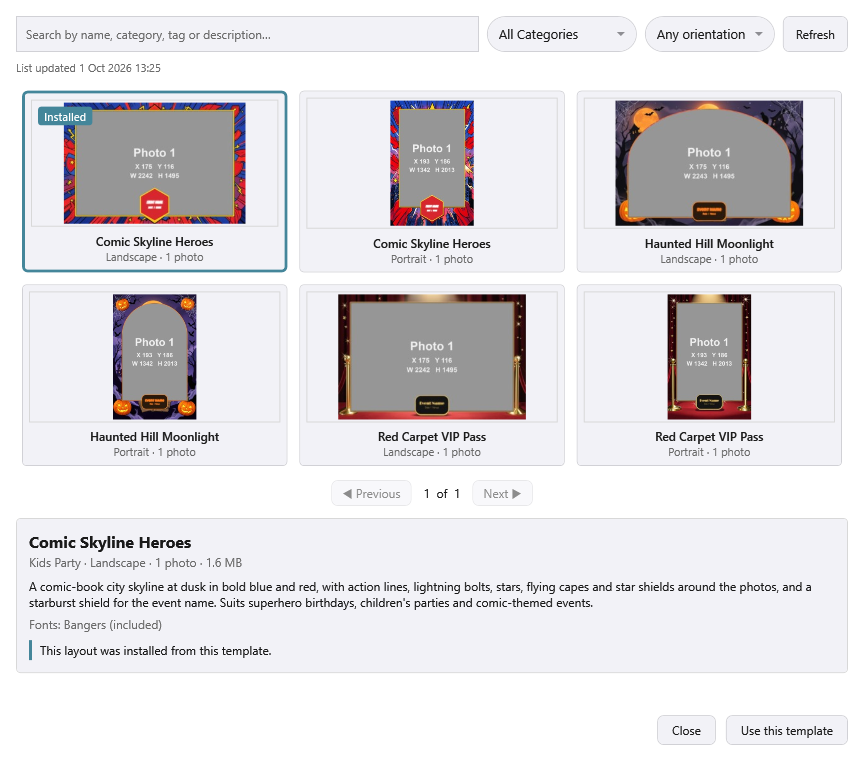
| Installed | The layout on this tab was installed from this template. |
| Update available | The layout on this tab was installed from this template, and the library now has a newer edition of it. |
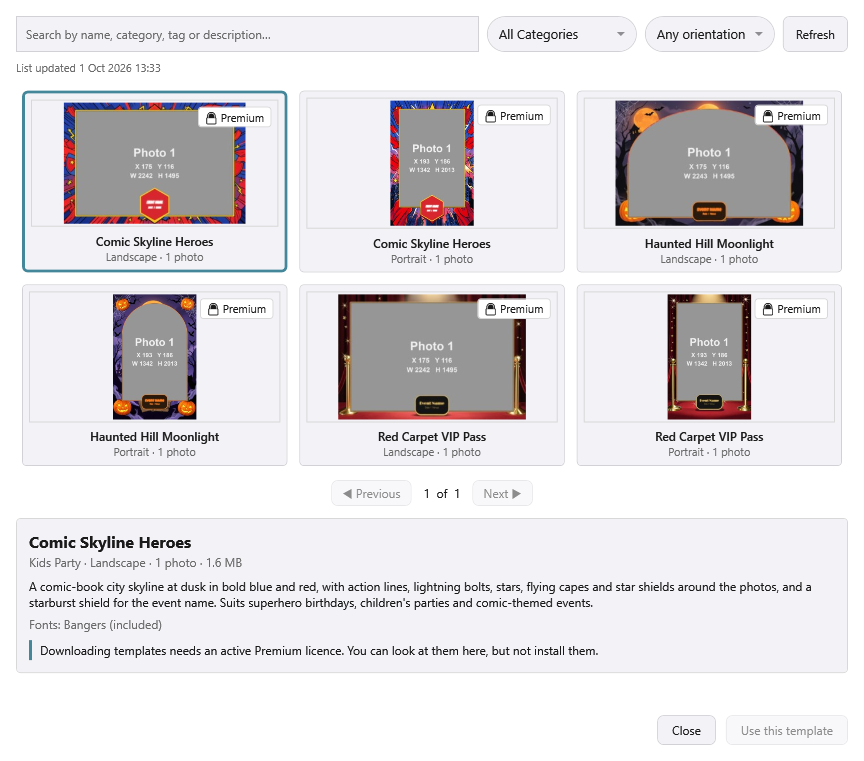
| 🔒 Premium | This licence doesn’t have an active Premium, so you can look at the template but not install it. |
Check a template first
-
Click a tile to select it. Nothing is installed yet.
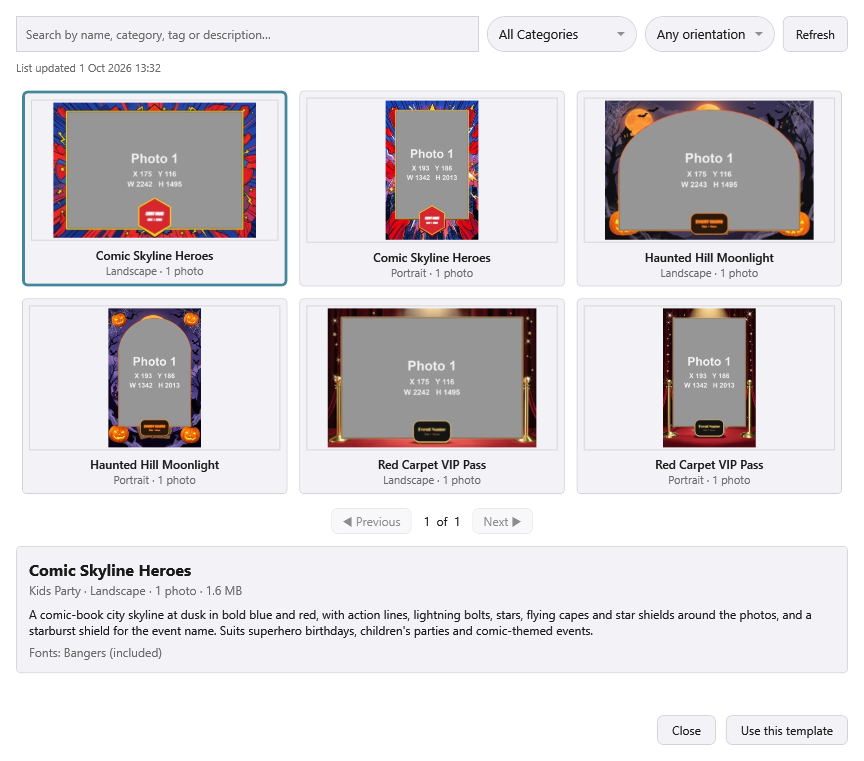
The selected tile’s details show in the panel under the tiles. -
Read the panel under the tiles. It shows:
- the template’s name;
- its category, orientation, number of photo windows and download size, such as “Kids Party · Landscape · 1 photo · 1.6 MB”;
- its description;
- the fonts it brings with it, such as “Fonts: Bangers (included)”. You don’t need to install these yourself.
-
Read the note underneath, if there is one. It tells you anything worth knowing first:
If the note says What it means “A newer edition of this template is available: installing it replaces the one this layout was made from.” The library has a newer edition of the template this tab’s layout was installed from. See Keep a template up to date, below. “This layout was installed from this template.” The layout on this tab came from this template. Its tile shows Installed. “A copy of this template is saved on this PC, so it can be installed again without the internet.” You’ve downloaded this edition before, so installing it again doesn’t need the internet. “An earlier edition of this template is saved on this PC. With the internet, installing downloads the current edition; without it, installing uses the earlier one.” Connect to the internet before you install if you want the current edition. “Downloading templates needs an active Premium licence. You can look at them here, but not install them.” This licence doesn’t have an active Premium. See What needs Premium, below. “This template needs version … of the software or newer (this is version …). Update the software to use it.” The template needs a newer version of Booth Junkie than the one on this PC. Use this template stays off for it until the software is updated. “This template has 3 photo windows, but your Multi Shot workflow takes 4 photos. Some of the photos would not appear on the print. Change the number of photos on the Workflows tab, or choose a template with 4 windows.” The template’s photo windows don’t match your workflow (the numbers are an example). When the template has more windows than your workflow takes photos, it says “Some windows would stay empty.” instead. Installing a template never changes your workflow, so sort out a mismatch on the Workflows tab, or choose a different template.
Install a template
Important: Installing replaces this tab’s layout
Installing a template can’t be reversed with Undo. If you might want your old layout back, use Export ZIP first. When the new layout is in place, press Save to keep it.
-
Select the template and press Use this template.
-
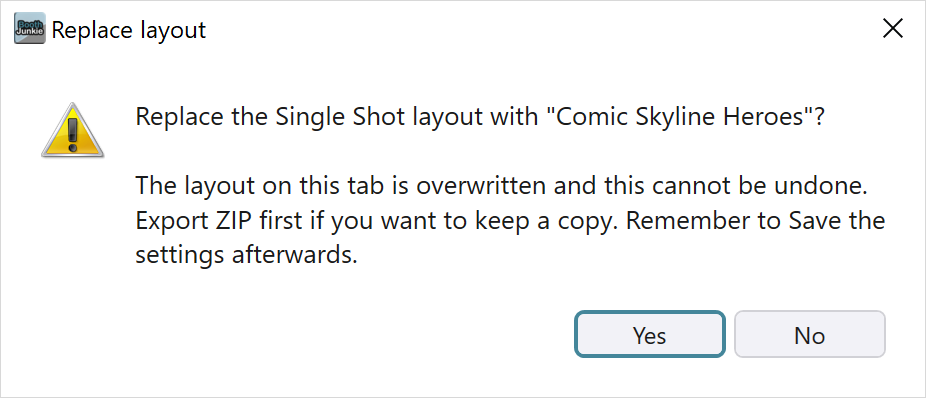
Read the Replace layout box, then press Yes to go ahead. No leaves everything as it was.
-
Wait while Booth Junkie downloads the template, showing its progress, then installs it.
If you’ve downloaded this edition on this PC before, it uses the copy it kept instead, showing “Getting “…” from this PC…”, and nothing is downloaded.
To stop a download part-way, press Close. Press it again to close the window.
Result: The window closes and the tab shows the new layout.
-
Press Save to keep it.
Once it’s installed, you can adjust the layout in the editor as usual, for example to type your own wording into its text.
Next time you open the library on this tab, the template you installed shows Installed (or Update available, if the library couldn’t be reached and an earlier edition saved on this PC was installed; see Work offline, below).
What installing changes
- Replaces the layout on this tab only. The other two tabs are untouched.
- Can change the tab’s Orientation to match the template.
- Switches off any layer the template doesn’t use, so nothing from your old layout shows through.
- Adds the template’s fonts to Booth Junkie’s own font library, so its text looks as designed. Nothing is installed into Windows. If the text still uses a font this PC doesn’t have, a Font missing box names it, and that text is drawn in a different font until the font is installed.
Keep a template up to date
When the library has a newer edition of the template a tab was installed from, that template’s tile shows Update available.
Important: Your own changes are replaced too
Installing the new edition replaces the whole layout on that tab, including any changes you’ve made since you installed it, so use Export ZIP first if you want to keep them.
-
Select the tile that shows Update available.
-
Press Use this template again.
-
Press Yes in the Replace layout box, then press Save once the new edition is in place, just as in Install a template, above.
Work offline
| What you want to do | Needs the internet? |
|---|---|
| Open the library, search and browse | No. The list is kept on this PC. Each time the window opens it checks the Booth Junkie site. If it can’t reach it, it says so and carries on with the templates saved on this PC. |
| Install a template for the first time on this PC | Yes. It’s downloaded from the Booth Junkie site. |
| Install the same template again later | No. Booth Junkie keeps a copy, so you can install it again with no internet: on any Print Layout tab, after a reset, or weeks later. Installing from a saved copy doesn’t count towards the daily download limit. |
| Get a newer edition of a template | Yes. If the library can’t be reached, Booth Junkie installs the earlier edition you have saved instead and says so, and the tile shows Update available until you install the newer edition with the internet back. |
| Print with a layout you’ve already installed | No. It’s on the PC, so it prints without the internet. |
Premium: Saved copies need an active Premium too
A saved copy still needs an active Premium, just like a download. If Premium has ended, renew it and your saved templates can be installed again; nothing needs downloading again.
What needs Premium
Browsing the library is free on any licence: you can open it, search, filter and look at every template’s details. Installing a template needs an active Premium.
Without an active Premium:
- each tile shows 🔒 Premium;
- Use this template stays greyed out;
- select a tile and the note under the tiles says “Downloading templates needs an active Premium licence. You can look at them here, but not install them.”
Tip: Just renewed?
If you’ve just renewed Premium and the padlocks are still there, open the library while you’re online, or press Refresh.
If Premium lapses
A layout installed from the library keeps printing its own artwork, the Background, Overlay1 and Overlay2 pictures, only while Premium is active. Once Premium has lapsed:
| Part of the layout | What happens |
|---|---|
| Background, Overlay1 and Overlay2 | They print as plain white. They also show as white on screen during a booth session and in the Print Layout editor, so what you see is what will print. |
| Text, photos, the Signature and the Gallery QR code | They carry on as normal. |
The artwork comes back by itself once Premium is renewed, with nothing to download again or set up.
When you open the Admin Panel, and again after Load or Reset Settings, a Premium has expired box names the tabs affected: “The Single Shot Print Layout was installed from the Template Library, which needs an active Premium licence. Its own artwork will not print until Premium is renewed — choose a different layout on the Print Layout tab, or renew Premium.”
Layouts you built yourself, or imported with Import ZIP from a ZIP that didn’t come from the library, are never affected. A library layout saved with Export ZIP still counts as a library layout on any PC it’s imported on.
Check or renew Premium
Every Lifetime Licence includes 12 months of Premium. The licence itself never expires: when Premium ends, only the features that need it stop.
- To check where your Premium stands, look at Premium services and Premium expiry under Admin Panel → Options → General.
- You can renew Premium at any time from Your Licences on your account Dashboard. See Your Licences: Machine Status, Renewals, and Remote Control.
Messages you might see
Look up a message here if you’re not sure what it means or what to do next.
Every message and what to do
While the list loads
| Message | What it means | What to do |
|---|---|---|
| “Couldn’t reach the template library (…). Showing the templates saved on this PC.” | The Booth Junkie site couldn’t be reached. | You can still browse what’s saved; check the internet connection before you install anything. |
| “There are no Single Shot templates in the library yet, or the list has not been downloaded. Check the internet connection and press Refresh.” | The list hasn’t been downloaded to this PC yet. | Connect to the internet and press Refresh. |
| “No templates match your search.” | None of the templates for this tab match the search and filters. | Clear the search box, or set the filters back to All Categories and Any orientation. |
When you install a template
| Message | What it means | What to do |
|---|---|---|
| “Installed “…” from the copy saved on this PC.” | The template was installed from the copy Booth Junkie kept when you downloaded it before, so nothing was downloaded. | Nothing to do. |
| “Installed “…” from the copy saved on this PC. It is an earlier edition: the template library couldn’t be reached.” | A newer edition exists, but the library couldn’t be reached, so the earlier edition you had was installed. | Install it again once you’re online to get the newer one. |
| “Downloading templates needs an active Premium licence.” | This licence doesn’t have an active Premium. | See What needs Premium, above. |
| “The template library no longer has this template.” | It has been taken out of the library. | Nothing to do: the list updates itself to match. |
| “Too many templates have been downloaded today. Try again tomorrow.” | The daily download limit has been reached. | Try again tomorrow. |
| “The template library is not available right now. Try again in a little while.” | The template library isn’t available at the moment. | Try again in a little while. |
| “The template library could not be reached. Check the internet connection and try again.” | The connection dropped. Nothing on the tab has changed. | Check the internet connection and try again. |
| “The download did not finish. Check the internet connection and try again.” | The connection dropped. Nothing on the tab has changed. | Check the internet connection and try again. |
| A download arrives damaged, or is larger than a template can be | Booth Junkie throws it away and says so, without changing anything. | Try again. |
| “The downloaded file could not be saved on this PC.” | The download couldn’t be saved on this PC. | Check the PC’s drive has free space, then try again. |
| “The template was downloaded but could not be used: …” | The reason follows the colon. | Nothing to undo: the layout on the tab is unchanged. |
| “Something went wrong with the template library. Nothing was changed.” | Nothing was changed. | Close the window and try again. |
| “Cancelled.” | You pressed Close while a download or a refresh was running. Nothing was changed. | Nothing to do. |
Other boxes
| Box | What it means | What to do |
|---|---|---|
| Replace layout | Asks before a template replaces the layout on the tab, and warns: “The layout on this tab is overwritten and this cannot be undone. Export ZIP first if you want to keep a copy. Remember to Save the settings afterwards.” | Press Yes to go ahead; No leaves everything as it was. See Install a template, above. |
| Font missing | Names a font the template’s text uses that isn’t on this PC. That text is drawn in a different font until the font is installed. | See What installing changes, above. |
| Premium has expired | Names a layout from the library whose artwork has stopped printing. | See If Premium lapses, above. |
Related articles
- Building a Print Layout Template — using the editor to adjust a layout or build your own
- Single Shot Print Layouts
- Multi Shot Print Layouts
- Strip Print Layouts
- Styling Print Text: Text 1, Text 2, Fonts and Effects — fonts, outlines, shadows and glows for a layout’s text
- Photo Booth Templates — where else to get templates, and what Booth Junkie needs from one