
If a guest steps into the booth, poses once, and walks away with a print showing just that one picture, that print came from a Single Shot template.
What makes a layout “Single Shot”
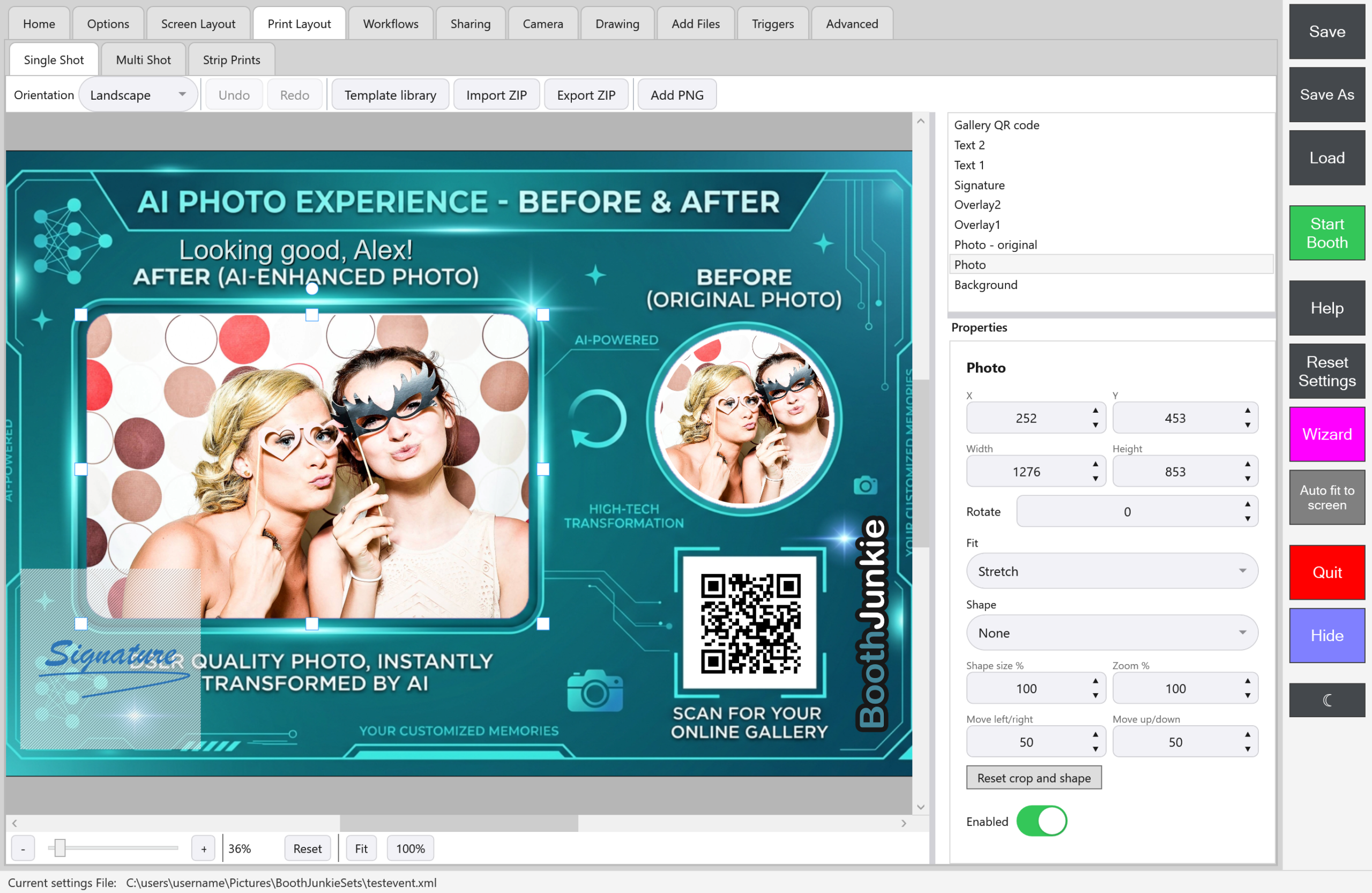
A Single Shot print layout has one photo slot, Photo. This isn’t a setting you can change — the Print Layout editor’s Single Shot tab only ever gives you one photo slot to work with, alongside your usual background, overlay, signature and text layers (Text 1 and Text 2) and the Gallery QR code.
Good to know: Used to other photo booth software?
If you’re used to other photo booth software that lets you drop extra photos onto any layout, this is different: a Single Shot template is built around a single image from the ground up.
That makes it the layout to reach for whenever an event calls for one clean shot per print — headshots, formal portraits, a simple branded print with a logo overlay, or any style where you don’t want your guests waiting through a multi-shot sequence.
Before-and-after prints
Single Shot also has a Photo – original layer. It shows the same photo as it was before AI processing, so you can put the original beside the AI result for a before-and-after print. It only appears on the print when an AI step actually changed the photo. See Cropping and Cutting Photos to a Shape in a Print Layout.
Shape and orientation
Single Shot prints use the same standard proportions most people expect from a photo booth print (a roughly 2:3 ratio). You can set the layout to Portrait or Landscape from the Print Layout editor, and the canvas adjusts to match — but the underlying shape itself isn’t something you customise beyond that choice.
Designing the layout itself
Everything about building a Single Shot template — adding your background image, positioning the photo slot, adding logos or text, resizing and rotating layers, using the snap guides — works exactly the same way as the Print Layout editor’s other tabs. See Building a Print Layout Template for the full walkthrough of the editor itself.
Premium: Start from a ready-made design
The Template library button on this tab lists only Single Shot templates. Anyone can browse them; installing one needs an active Premium. See Using the Template Library.
Pairing it with a workflow
A print layout on its own doesn’t decide how many photos get taken — that’s the job of the matching workflow. Single Shot’s natural partner is the Singleshot Workflow, which captures exactly one photo before moving to print. See The Singleshot Workflow for how that pairing works, and how a guest reaches Single Shot in the first place from the selection screen.