
The Customise button on each row in Galleries opens a native Customiser built around a live preview of your actual gallery, so you can change how it looks without leaving the app.
Opening the Customiser
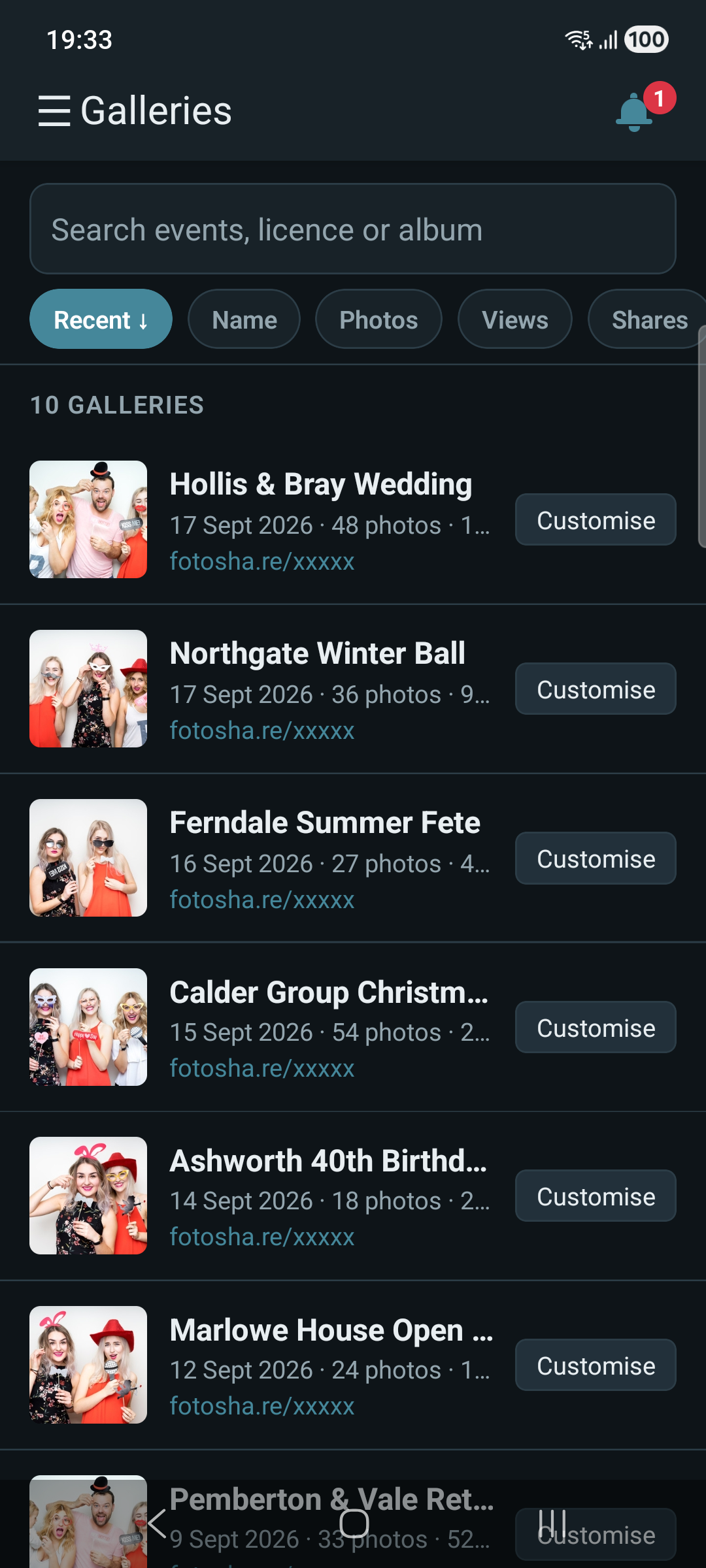
From Galleries, tap Customise on any row. The preview on screen is your real gallery – any change you make shows there straight away.
What you can change
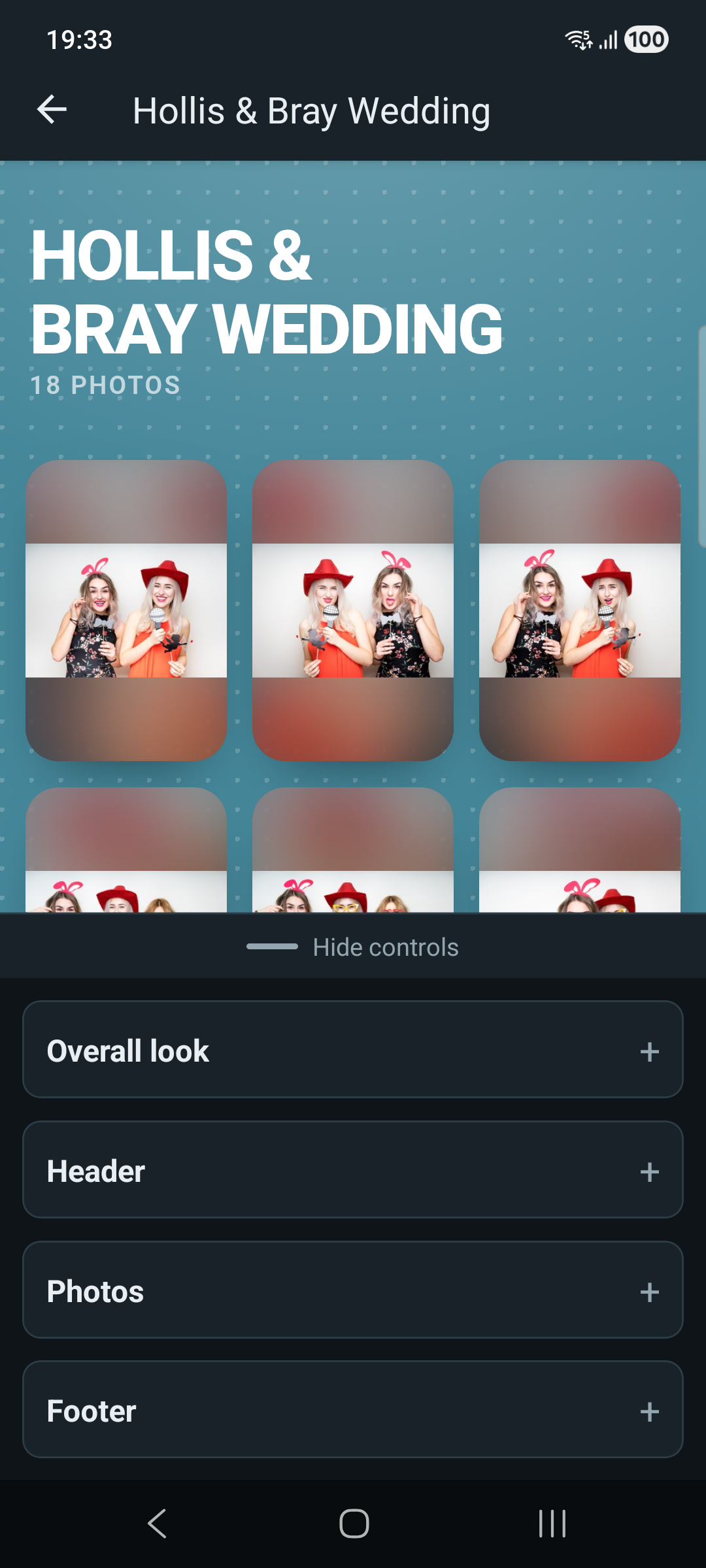
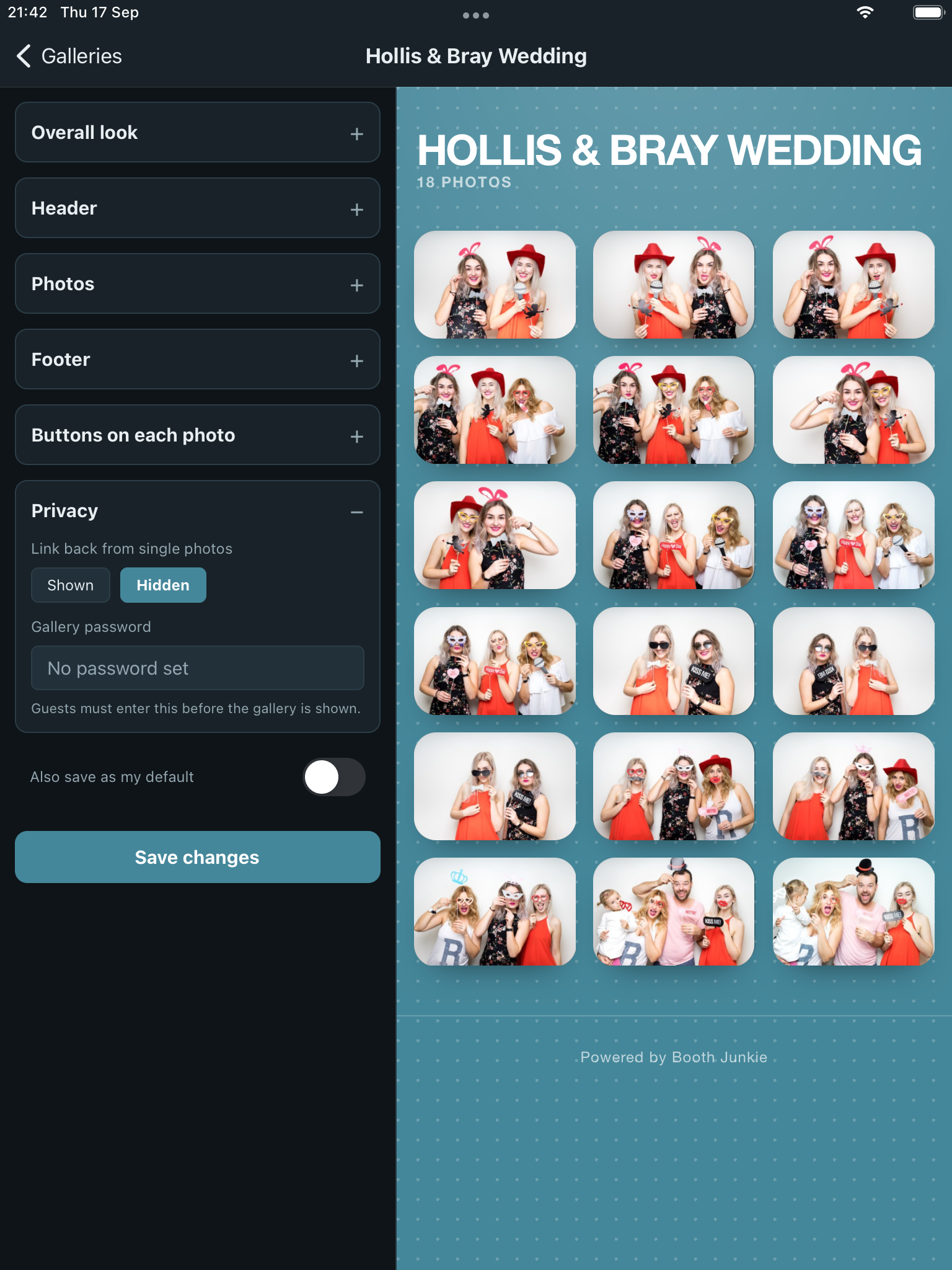
The same sections as the website’s own gallery editor, in the same order: Overall look, Header, Photos, Footer, Buttons on each photo, and Privacy. Every section collapses to save space, except Overall look and Privacy, which both start open.
Colours, gradients and patterns
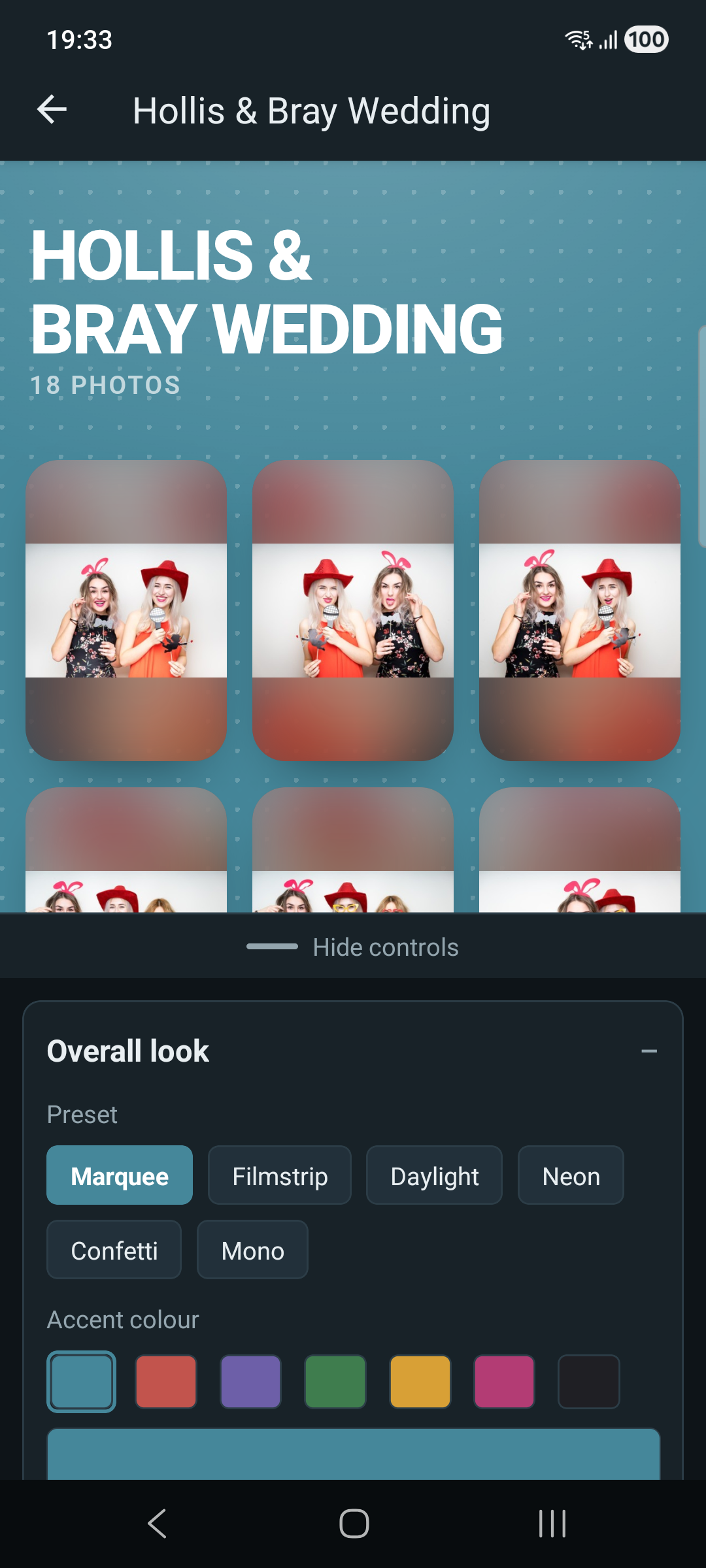
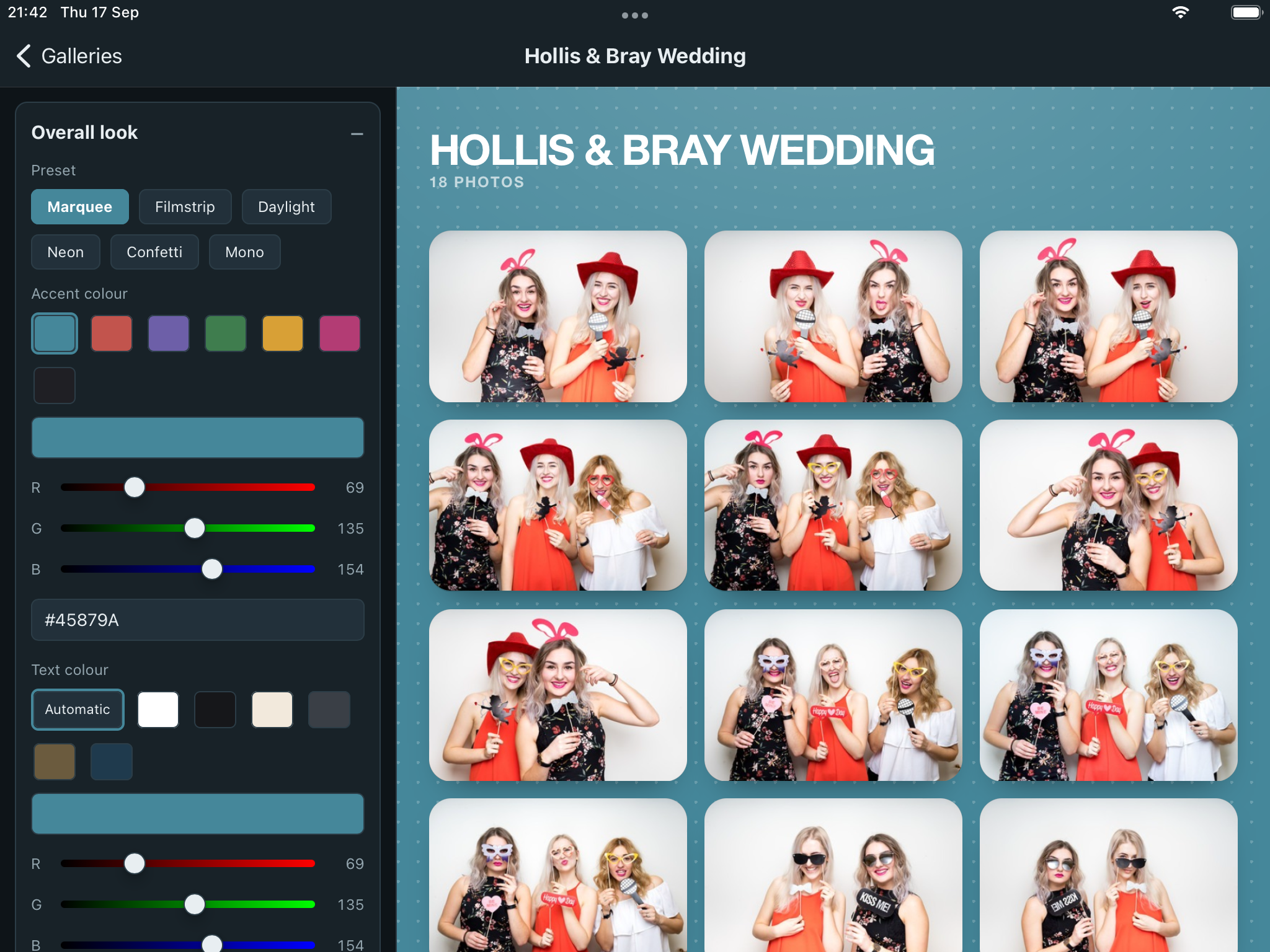
Where Overall look offers Solid, Gradient, or Pattern for the background, choosing one reveals its own options – gradients and patterns show as real swatches, not names.
For colour, pick a preset or set your own with the red, green, and blue sliders – this works the same for both the accent colour and a separate text colour, which also offers Automatic to pick black or white for you.
Photos and buttons
How your photos tile together – Fitted, Cropped, or Mosaic – plus block shape (Square, Portrait, or Landscape), fill, tile size, and corners, are all under Photos. Buttons on each photo covers email, download, QR code, and sharing – turn off any you’d rather guests didn’t have.
Social links, logo and password
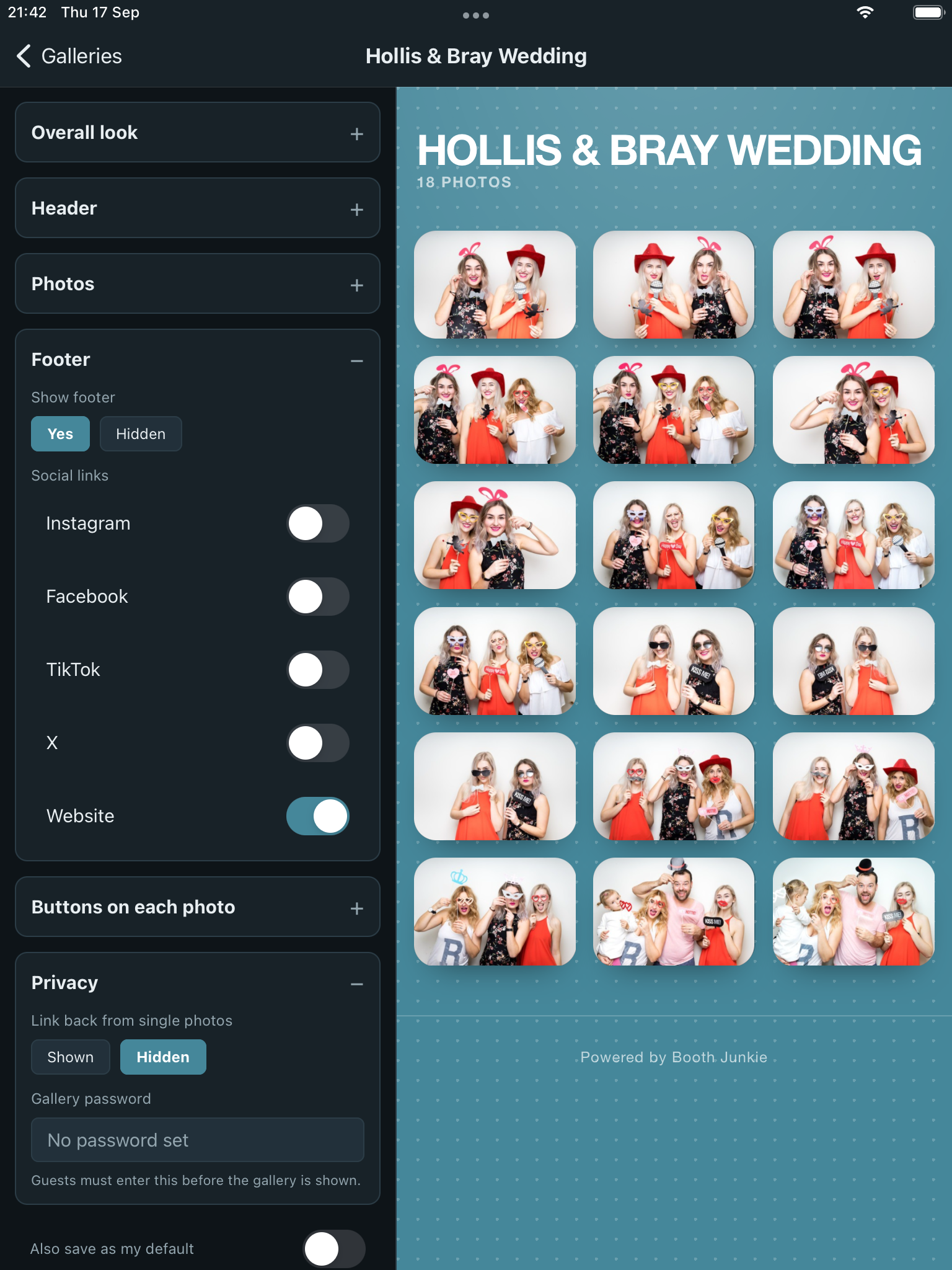
For social links, only the handle needs typing – the address itself is filled in for you. Your gallery’s logo can be uploaded from the app, shown or hidden, and positioned. Under Privacy: the gallery password, and whether opening a single photo links back to the rest of the gallery.
Seeing your changes
Most changes preview instantly. A hand-picked colour takes a moment longer to process, and the Customiser shows Applying… while it catches up.
On a tablet, or turned sideways
On an iPad – the way you’re likely to use this – the controls sit in a sidebar down the left, with the live preview beside them, the same arrangement as the website’s own editor. Rotate a phone to landscape and it works the same way.
Held upright on a phone, the controls become a panel across the bottom instead, taking up about a third of the screen, with a handle to fold them away when you want the full preview.
Saving
Changes only take effect once you tap Save changes – Also save as my default applies the same look to every new gallery from then on, not just this one.
Saving in the app follows the same rules as the website’s editor, so a gallery customised from your phone looks exactly as it would if you’d done it on the website.