
Watch and Control gives you a live view of a booth’s screen from your phone or tablet, with full mouse and keyboard control – the same feature covered on the website side in Remote Control, built for touch here instead of a mouse.
Phone or tablet?
Both work fully – nothing is missing on a phone. A tablet is simply more comfortable: a booth’s screen is shown letterboxed, so on a 10-inch tablet screen the picture is large enough to read text and aim at buttons directly, and the on-screen controls take up proportionally less of it. On a phone the same picture is only a few inches wide, which is why the app defaults to a different pointing method there – see below.
Requirements
Open it from a licence’s details on the Licences screen – it’s only available when that machine is currently online and running Booth Junkie v10.0.0 or newer.
What the booth’s screen shows while you’re connected
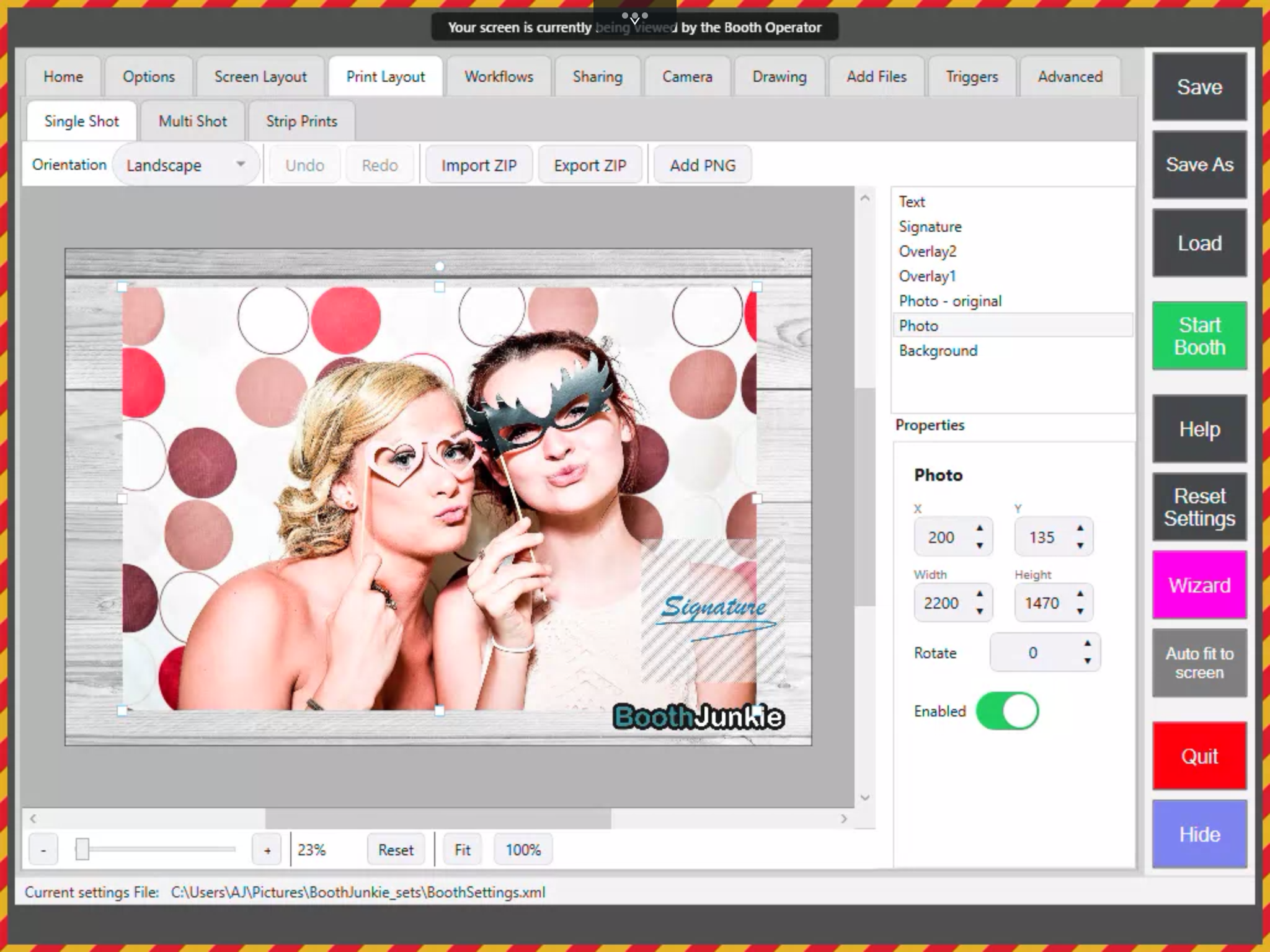
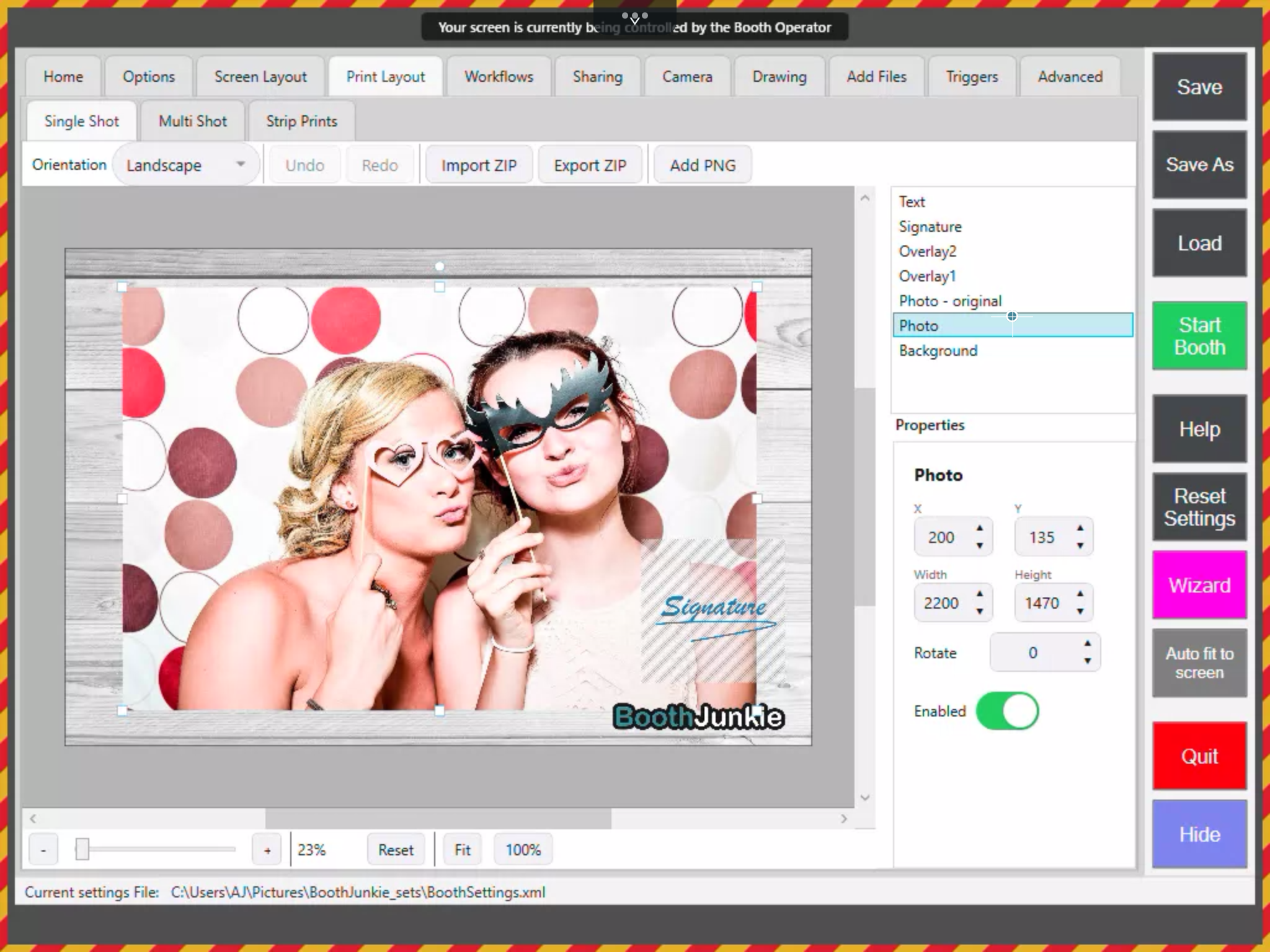
The booth’s own screen gets a yellow-and-red hazard border and a banner across the top the moment anyone connects, so a guest standing at it can see what’s happening: “Your screen is currently being viewed by the Booth Operator” while you’re only watching, changing to “…being controlled…” the moment you take control. Worth knowing before you connect during a live event – guests will see it too.
Watching before you take control
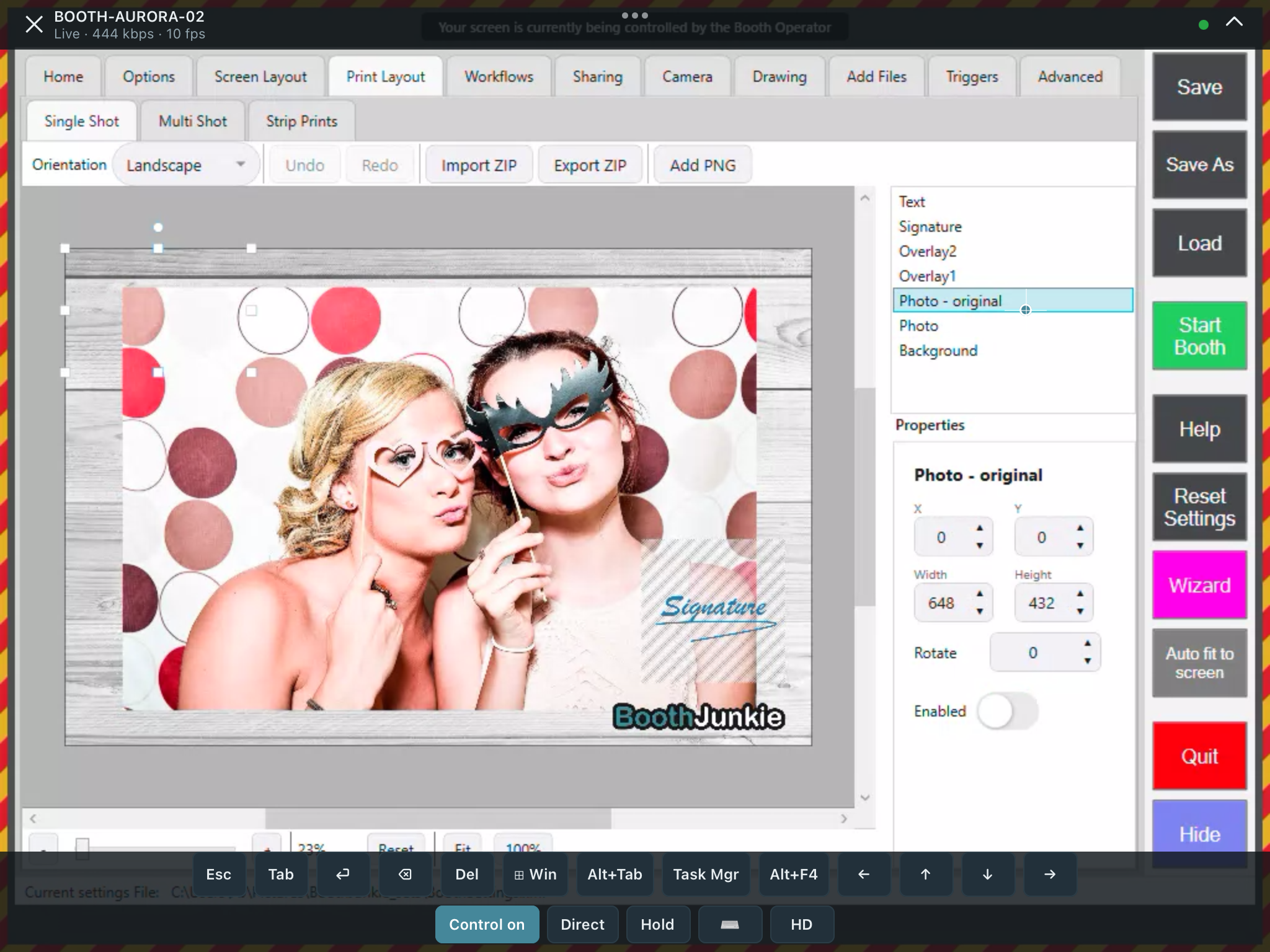
Opening Watch and Control starts you in watch-only mode: you see the booth’s screen live, but Trackpad, Hold and the keyboard are greyed out until you tap Take control. The top bar shows the machine name and connection quality – “Live · 370 kbps · 3 fps” plus a coloured connection dot – and HD/Low on the right lets you trade picture quality for a steadier connection if the link is weak.
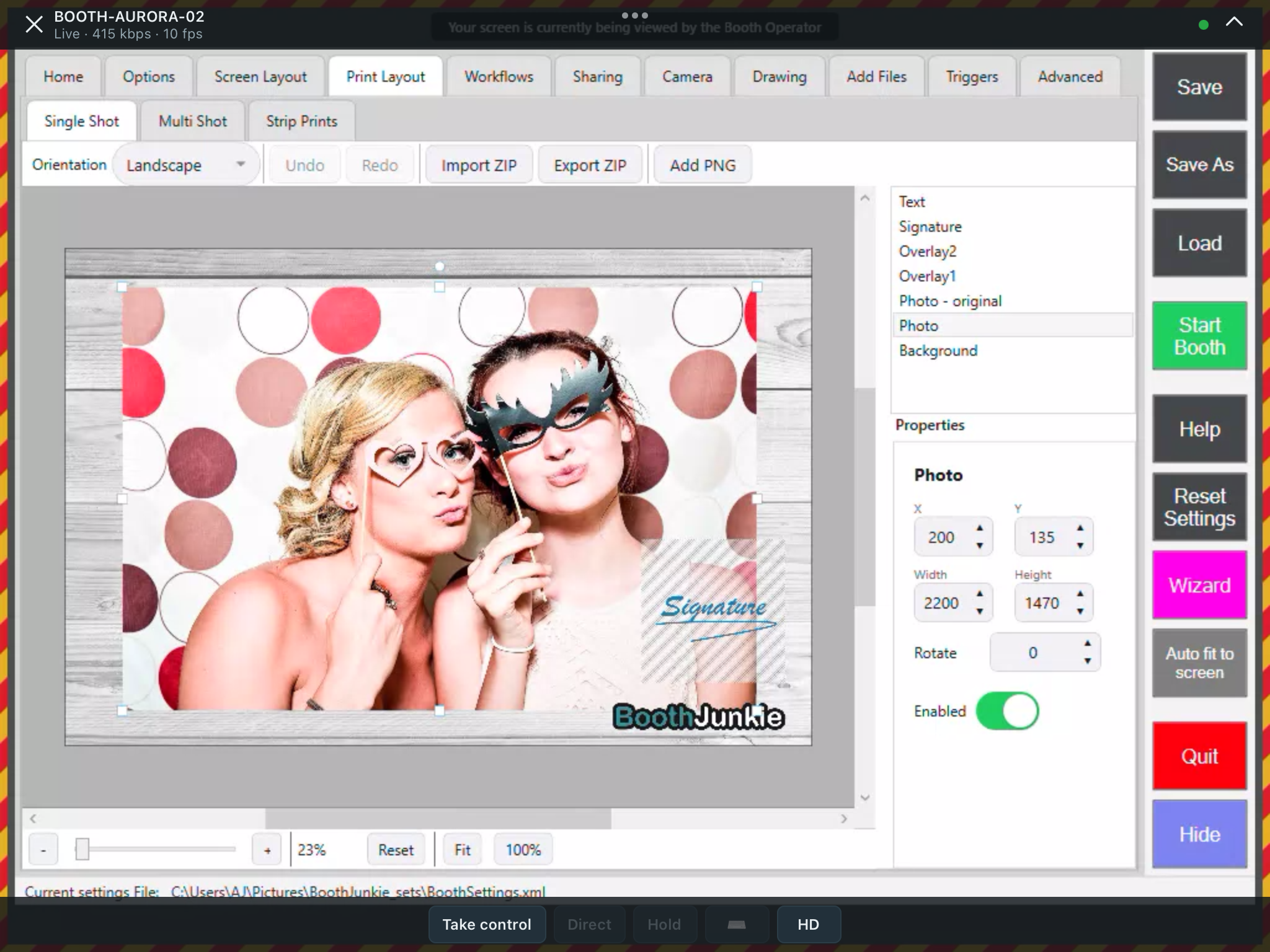
Tap Take control and it switches to Control on, Trackpad, Hold and the keyboard become available, and a key bar appears above the toolbar – see The on-screen keyboard below.
Trackpad vs. Direct pointing
Two ways your finger drives the booth’s on-screen pointer. The app picks a sensible default for your device, and you can switch between them from the toolbar at any time.
- Direct – your finger is the pointer. Touch a spot on the picture and the booth’s pointer goes exactly there. Default on tablets (iPad and Android), where the picture is large enough to aim at directly.
- Trackpad – your finger is not the pointer. A visible crosshair moves by a scaled amount as you drag, like a laptop trackpad, and clicking happens wherever that crosshair currently sits. Default on phones (iPhone and Android), because one fingertip covers a few hundred of the booth’s screen pixels on a phone screen – aiming directly would mean aiming at a target smaller than the finger covering it. Trackpad mode decouples the two, which is what makes precise work possible on a small screen.
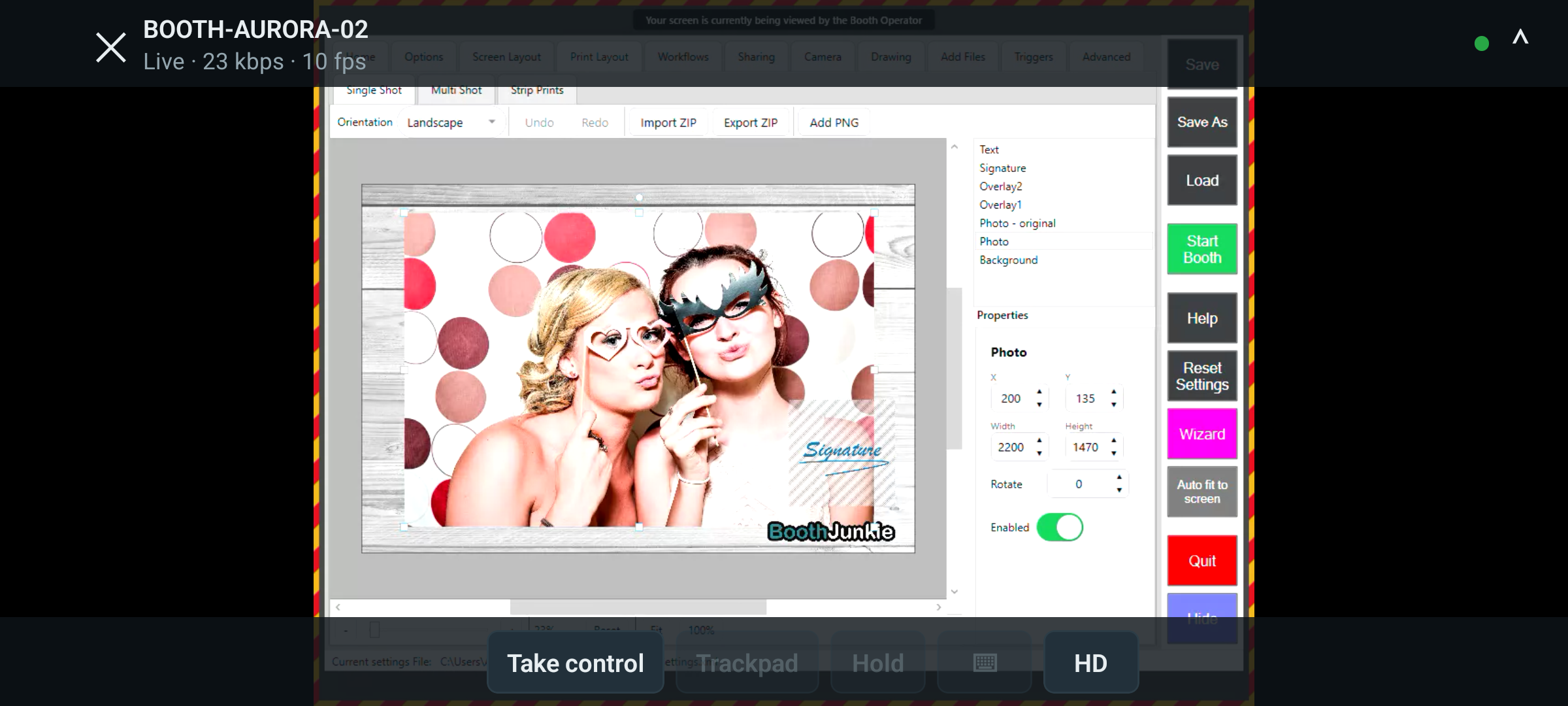
The toolbar’s pointer-mode button shows which one is active. The watching-toolbar screenshot above, taken on a tablet, reads Direct – its own default; the same toolbar on a phone reads Trackpad instead:
Dragging works differently between the two – this is the part that trips people up
- In Direct mode, drag exactly as you would with a mouse: press, move, lift.
- In Trackpad mode, tap first, then press and move – the same double-tap-and-hold every laptop trackpad uses. A plain drag in Trackpad mode only moves the pointer; it doesn’t pick anything up.
Other touch gestures
These work the same in both modes:
- Pinch – zoom in or out on the booth’s screen
- Two fingers dragged together – scroll
- Long press – right-click
- Two fingers tapped together – bring the toolbars back after they auto-hide (there’s also a small chevron handle at the top edge that does the same thing)
The on-screen keyboard
A key bar and full on-screen keyboard let you type and trigger keyboard shortcuts without a physical keyboard attached to your device. The key bar appears above the toolbar only once you’re in control, with Esc, Tab, Enter, Backspace, Del, Win, Alt+Tab, Task Manager, Alt+F4, and the arrow keys – the shortcuts you’d reach for to close a stuck window or get back to the booth software without a physical keyboard attached.
On an iPad, the keyboard can cover much of the booth’s screen. Pinch inward on the keyboard with two fingers to shrink it down to a small floating keyboard you can drag anywhere on screen; pinch outward to restore it to full size. iPadOS remembers whichever size you last used. The app shows a one-time tip about this the first time you open the keyboard, but it’s easy to miss – if the keyboard is in your way, this is the fix.