
What the window shows
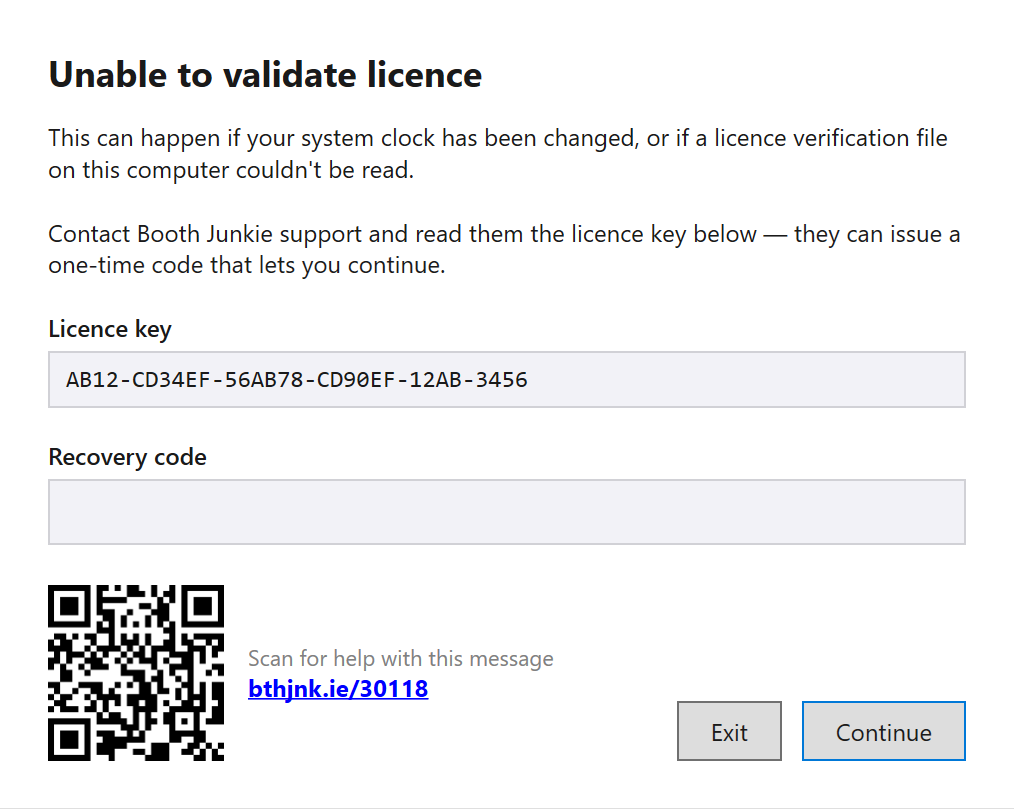
| Part | What it is |
|---|---|
| Licence key box | This computer’s licence key. It’s the same key shown under Admin Panel → Options → General. |
| Recovery code box | Where you type the code support gives you. |
| Exit and Continue | Exit closes Booth Junkie, and Continue checks the code you’ve typed. |
| A QR code | Opens this article on your phone, so you can follow the steps without leaving the booth. |
Why it happens
Booth Junkie keeps a check on this computer’s clock each time it starts, to make sure it hasn’t jumped backward since the last time it ran. If something looks wrong, it stops before opening the booth rather than run with a clock it can’t trust.
A genuine clock problem trips this the same way a deliberate change would. The usual causes are:
- The clock was changed and then put right. For example, the date was set forward to test something, Booth Junkie was started, and the date was then set back.
- A flat clock battery or a BIOS reset. The PC starts up with an old date until Windows corrects it.
- A restored virtual machine snapshot or disk image from an earlier date.
- A power cut at a venue on a PC that then couldn’t reach a time server, so it started with the wrong time.
Good to know: Time zones and daylight saving are fine
Changing time zone, or daylight saving starting or ending, doesn’t cause it, because Booth Junkie compares the times in UTC.
First, put the clock right
-
Open Settings → Time & language → Date & time in Windows.
-
Turn on Set time automatically and Set time zone automatically, then press Sync now. With no internet connection, set the real current date and time by hand instead.
-
Start Booth Junkie again.
Result: If the clock was the only problem, Booth Junkie now starts as normal.
If the window comes straight back, that usually means the clock had been set forward at some point before being corrected. That needs a recovery code.
Important: Get the clock right before you ask for a code
Get the clock right before you ask for a code. The code is checked against the computer’s own date, so it won’t work while the clock is out. A wrong clock also stops secure internet connections working, so other things would fail anyway.
Get a recovery code
-
Note the Licence key in the window exactly as shown, dashes included. Clicking in the box selects all of it, and Ctrl+C copies it.
-
Contact Booth Junkie support and give them that licence key. They will give you a six-digit recovery code.
-
Check the PC’s date and time are correct (see above), type the code into the Recovery code box and press Continue. Spaces are ignored, so
123 456works.Result: Booth Junkie carries on starting up as normal. Your licence isn’t changed, and you don’t need to do anything else.
About the code:
- It only works for the licence key shown in the window, on the computer showing it.
- It is short-lived. It works on the day it was issued and the day after (both dates in UTC), so use it straight away.
- It is checked against the PC’s own date, which is why the clock needs to be right before you type it.
If the code is refused
The window says That code didn’t match. Check it and try again, or contact support. Check that:
- the digits were typed exactly as given;
- the code was issued for the licence key shown in the window now, not one from a different computer;
- the code is no more than a day old;
- the PC’s date and time are correct.
If it is still refused, tell support what date and time the PC is showing.
Stop it happening again
- Leave Set time automatically switched on.
- Replace a flat clock battery on a PC that loses its date when it is switched off.
- Don’t start Booth Junkie while testing with the clock set to a different date. Put the real date back before you start it again, not after.
- Check the date and time before running a booth from a restored snapshot or disk image.
Where to find your licence key and licence type: The General Tab: Event Name, Rotation, and Licence Info.