
The same tab also holds Secondary Display, Light Ring, and Remote Keyfob status, which are covered separately – see Setting Up a Keyfob.
Event name
Free text, but it does two jobs at once:
- it’s the folder name your photos save under locally;
- it’s what identifies this event’s online gallery in your Dashboard.

Good to know: Some characters disappear as you type
Characters Windows doesn’t allow in folder names are silently removed as you type, with no warning.
Save guest answers
An on/off switch, off by default. When it’s on, each guest who answers at least one Data Capture question gets a line in a guests.csv file in this event’s folder, with:
- Time and Photo file columns;
- a column for each Data Capture token;
- an Other answers column for answers to any question added after the file was started.

Important: Ask your guests first
It’s personal data stored on this computer, so only switch it on if your guests have agreed to it – a Disclaimer step can ask them.
Selection screen timeout
When it’s on, 30 seconds of no interaction on the Selection screen resets the session back to the start. That 30 seconds isn’t adjustable.
Good to know: A switch, not a duration
This is an on/off switch, not a duration field, despite sitting next to two duration settings.

Preview delay
Controls how long the post-capture Preview screen waits before automatically moving on, when that step has no visible Continue button (3 seconds if you don’t set one).
Camera rotation
A list of 16 rotation/flip combinations to match your camera’s physical orientation. The option you choose turns both the live view guests see on screen and each photo after it’s taken, so a camera mounted on its side or upside down looks the right way up in both.

A few entries are equivalent to each other under a different name – if the picture comes out the wrong way round, try a different option from the list until it looks right.
Tip: Check it with the Simulated camera
The Simulated camera is a good way to see what each option does, because the person in its picture is upright when the picture is the right way up.
Reprint button position and colour
Choose which side of the screen the reprint button appears on, and set a colour that stands out against your background. Tapping it reprints the last photo taken.

Tip: Reprint from the keyboard
You can also trigger this with the “Reprint Last Photo” keyboard shortcut, configured under Triggers → Keyboard Shortcuts.
Licence and Premium status
These fields are read-only and only update when the app starts, not live while you’re looking at this screen. This block also shows whether a Light Ring or Remote Keyfob is currently detected – see Setting Up a Keyfob for what the Keyfob one means.
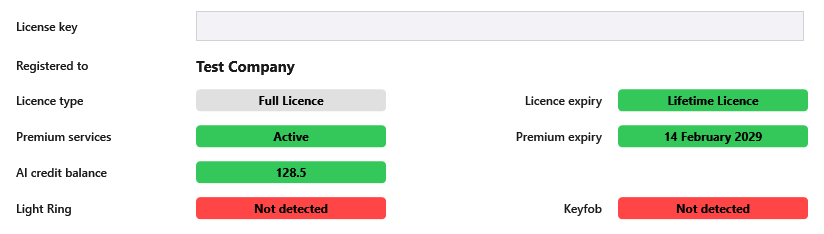
| Field | What it shows |
|---|---|
| License key | Generated automatically by this specific machine. |
| Licence type | Full Licence for a Lifetime Licence and Trial Licence for anything else, or Unknown until a licence check has succeeded. |
| Licence expiry | The date your licence ends, or “Lifetime Licence” for a full licence. |
| Premium services | Active, Active – Due to expire (fewer than 30 days left), Inactive or Unknown. |
| Premium expiry | The date Premium ends, Expired or Unknown. |
| AI credit balance | How many AI credits your account has left, or Unknown until a licence check has succeeded. See How the AI Credit System Works. |
Move from a trial to a full licence
-
Purchase a Booth Junkie Licence from our website, and enter this exact License key at checkout. That links your purchase to this machine.
On any licence other than a full one, a Buy Licence button appears beside the licence key. It opens the Booth Junkie licence page in your browser with your licence key already filled in.
-
Restart the app.
Result: Licence type/expiry will update the next time the app starts.
Premium
Every Lifetime Licence includes 12 months of Premium. When Premium ends, the licence itself keeps working; only the Premium features stop.
Premium: What needs an active Premium
An active Premium is needed to install layouts from the Template Library (and to keep their own artwork printing), for Booth Junkie’s ready-made AI styles in the Style Library, for WhatsApp, and for texts and emails sent through Booth Junkie’s own SMS service and mail server. See What Needs an Active Premium? for the details.
There’s no renew button in the software. You can renew Premium at any time from Your Licences on your account Dashboard – see Your Licences: Machine Status, Renewals, and Remote Control.