
Start the wizard
Click the pink Wizard button in the column of buttons on the right of the Admin Panel, between Reset Settings and Auto fit to screen. The wizard opens in its own window called Booth Junkie: Setup Wizard.
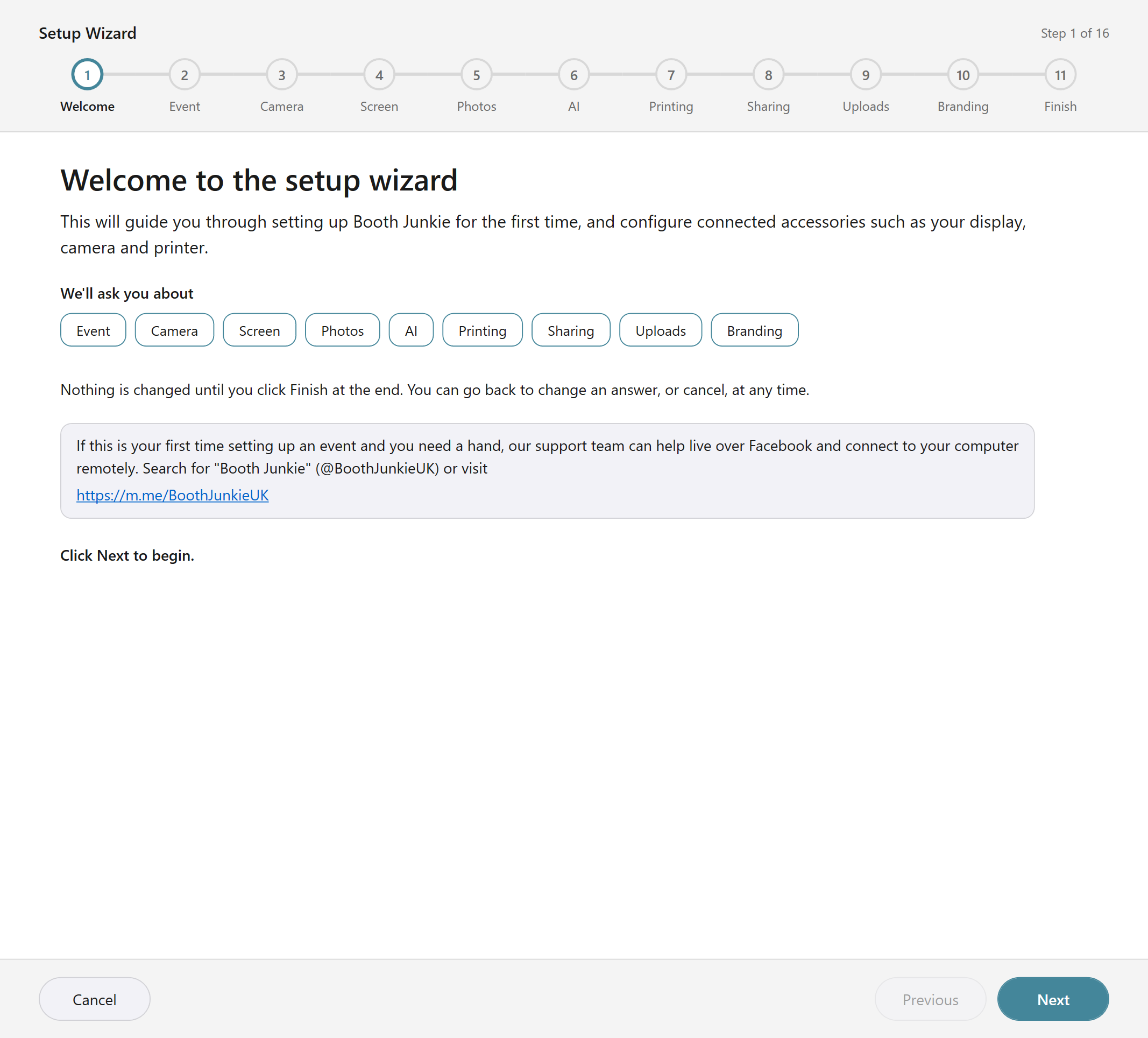
| Where | What it shows |
|---|---|
| Top | “Step N of M”. The step count changes to match the pages your answers need. |
| Under the title | A row of numbered circles that shows where you are: Welcome, Event, Camera, Screen, Photos, AI, Printing, Sharing, Uploads, Branding and Finish. |
| Bottom | Cancel, Previous and Next buttons. The last page has Finish instead of Next. |
Nothing changes until you press Finish
- Cancel closes the wizard and changes nothing. Once you’re past the first page it asks “Close the setup wizard?” first, with Close the wizard and Keep going.
- Pages that don’t apply to your choices are skipped, and a skipped page changes nothing, with one exception: choosing a webcam skips the mounting page but sets Camera rotation back to none.
Important: Finish doesn’t save to file
Finish applies your answers to the Admin Panel. It doesn’t save them to file: a “Setup complete” message tells you to have a look through the tabs and click Save when you’re happy. Any warnings appear under it.
Answer each page
Press Next after each page. A page below marked “Only if”, “DSLR only” or “Webcam only” appears only when your earlier answers need it.
-
Welcome lists what you’ll be asked about.
-
What is your event called? The event name is also the folder your photos save under and how your online gallery is identified, so you need one to continue.
-
Which type of camera are you using? Choose DSLR camera or Webcam. Each card shows what Booth Junkie has detected, such as the camera’s model or “1 webcam found”.
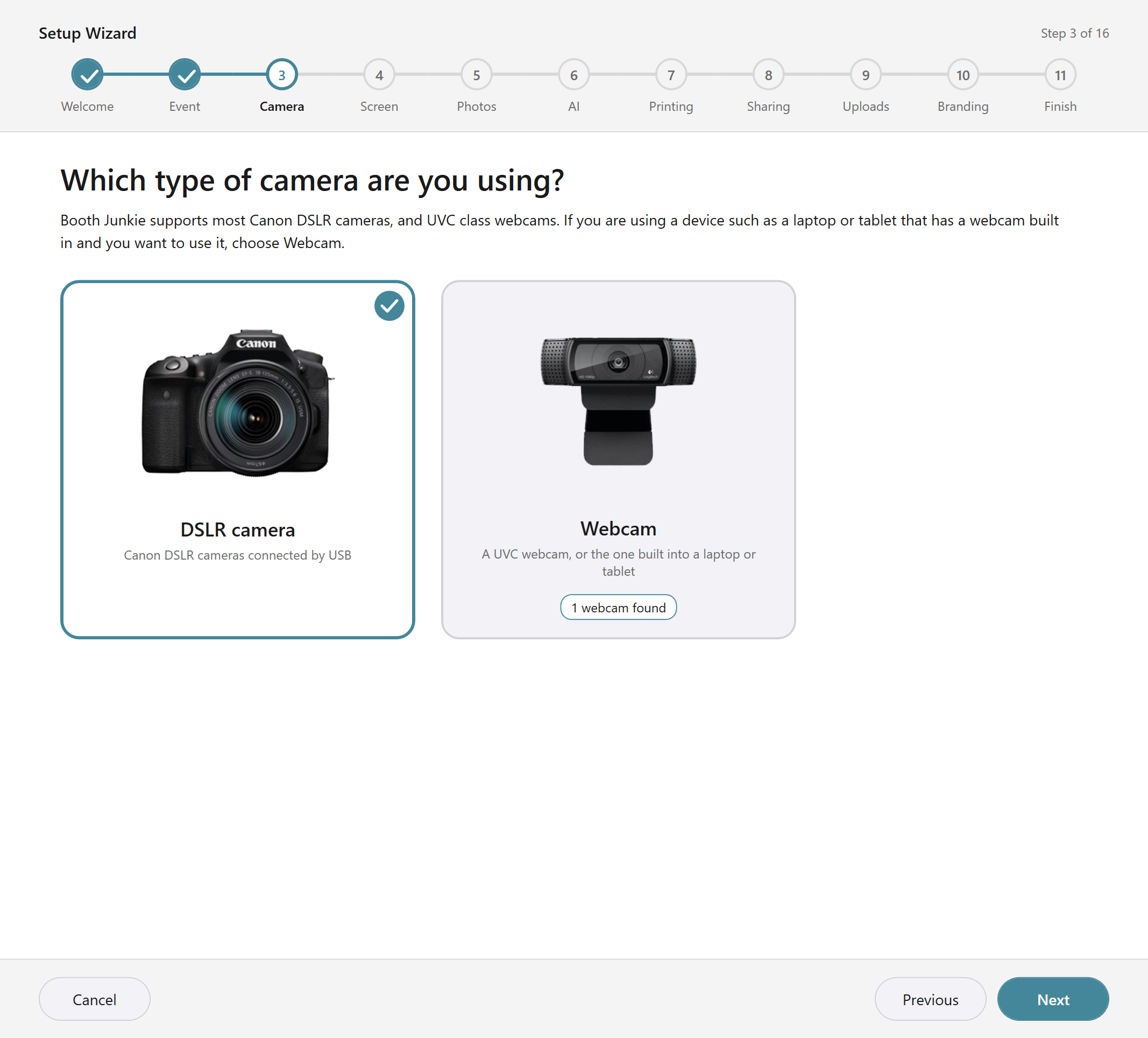
To use the simulated camera for a demo, choose it on the Camera tab afterwards.
-
How is your camera mounted? DSLR only. Choose Upright, Turned 90° clockwise, Upside down or Turned 90° anticlockwise.
Result: This sets Camera rotation for you.
-
Which webcam should be used? Webcam only, with a Webcam dropdown.
-
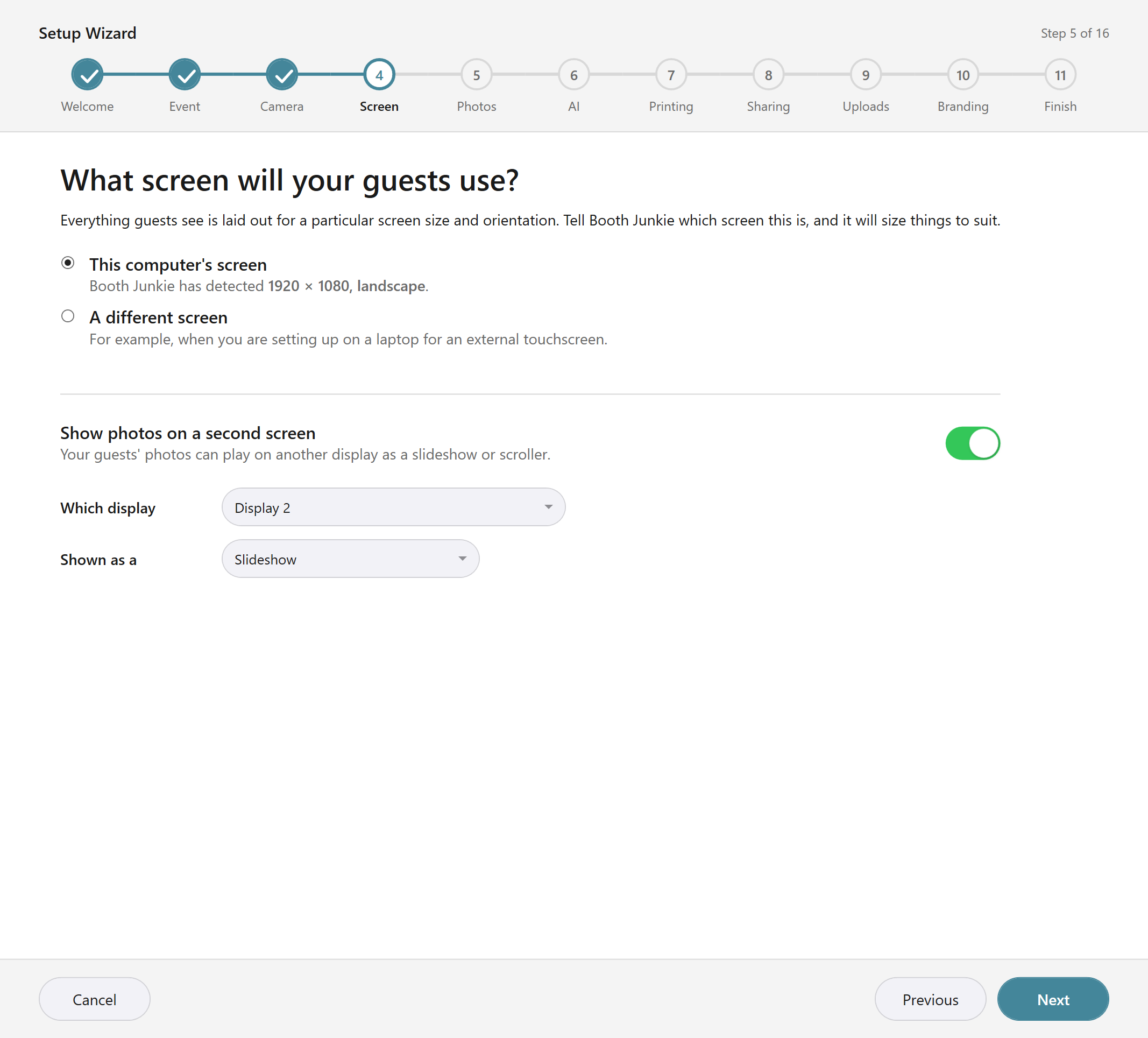
What screen will your guests use? Choose This computer’s screen or A different screen (pick its resolution and Landscape or Portrait). If your computer has more than one display, you can also Show photos on a second screen and choose its display and whether it’s a Slideshow or Scroller.
-
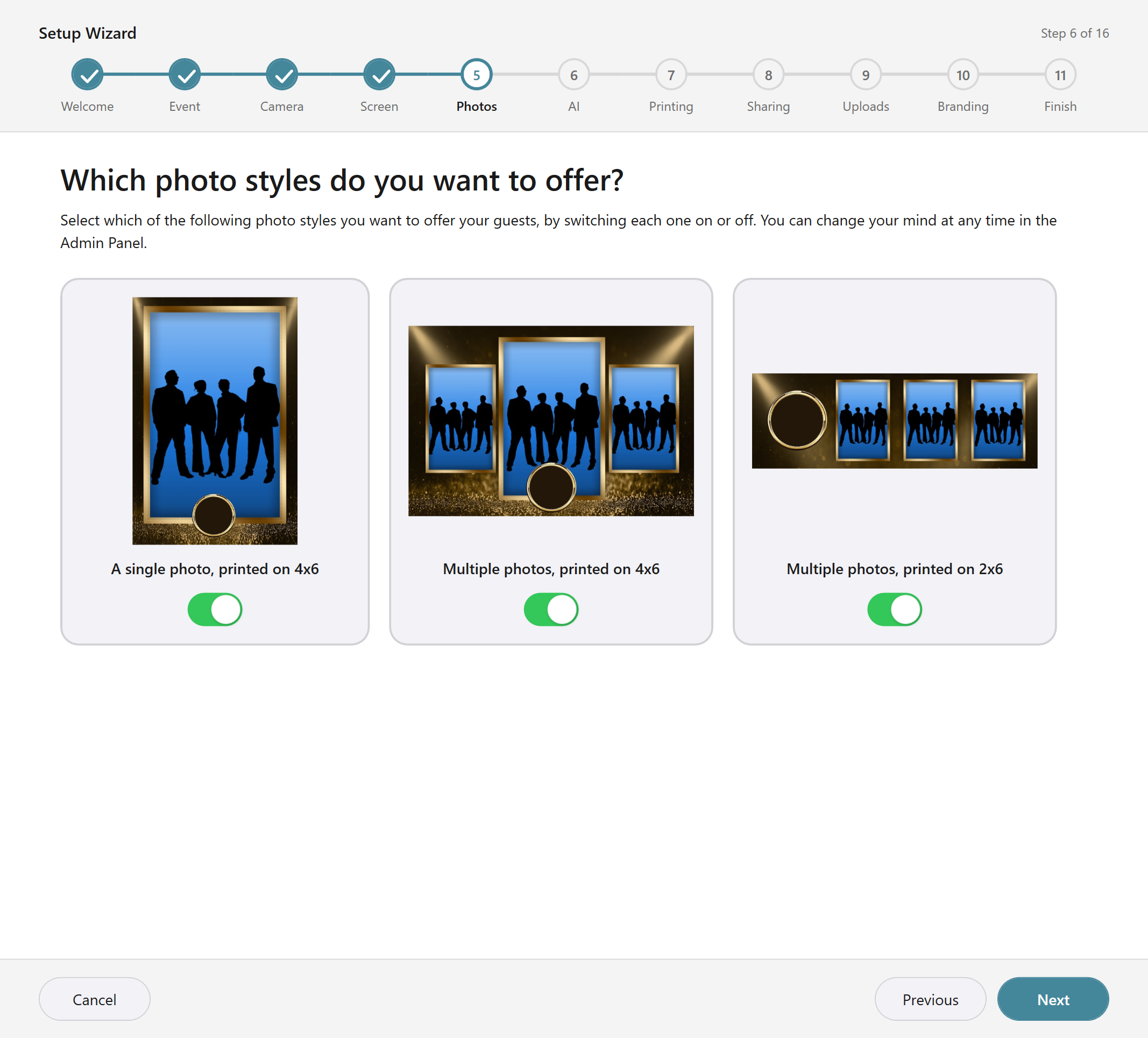
Which photo styles do you want to offer? Switch on the styles you want, at least one.
-
How many photos should each session take? Only if Multishot or Strip is on. Choose 2, 3 or 4.
If the workflow follows the standard repeating pattern, it’s rewritten to match and keeps your own sounds and videos. If it doesn’t, it’s replaced with the standard workflow and a warning tells you, so any extra rows you’d added, such as a Data Capture step, are lost.
-
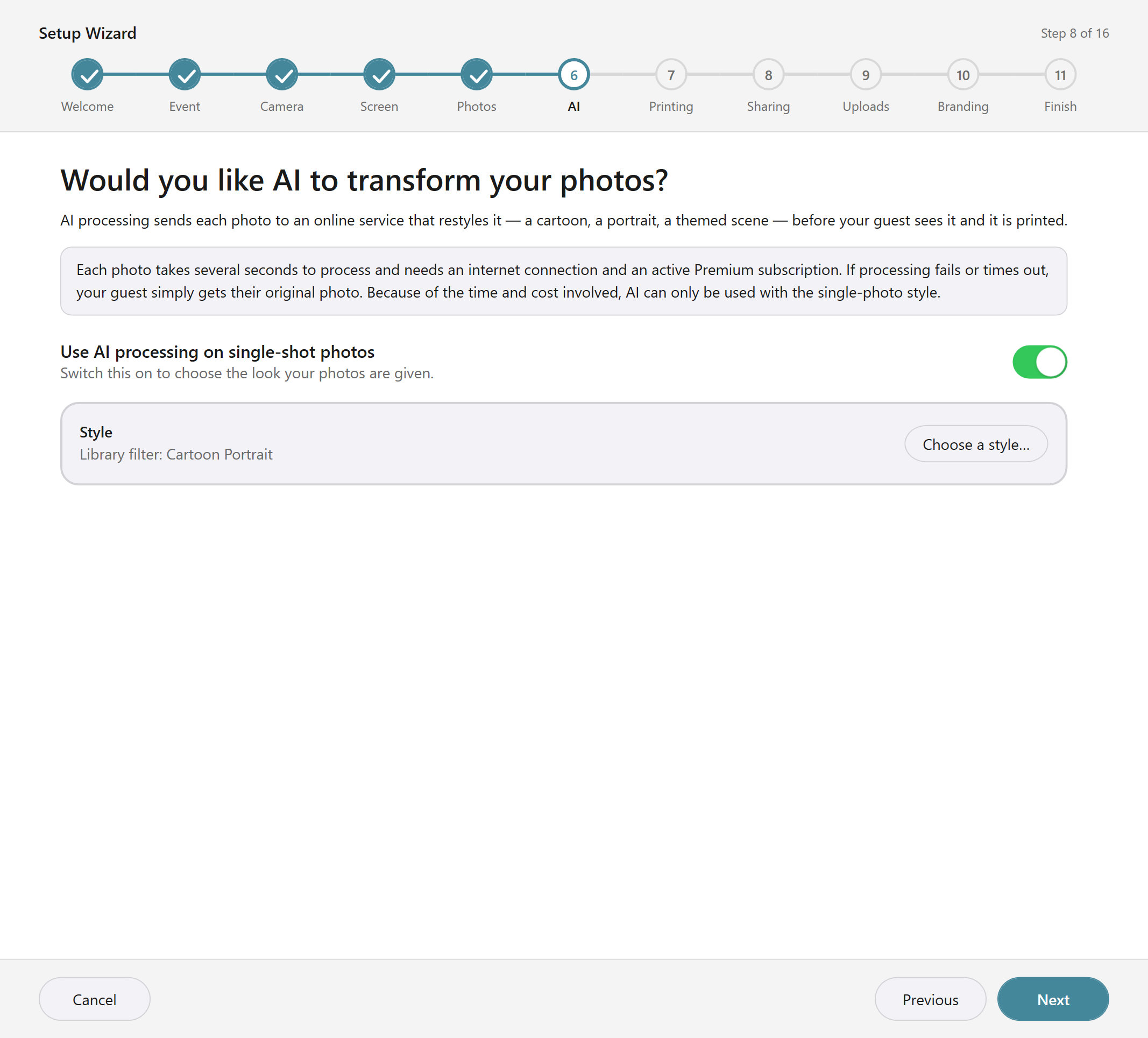
Would you like AI to transform your photos? Only if Single Shot is on. Switch on Use AI processing on single-shot photos and use Choose a style… to pick one. If AI can’t be switched on here, the page explains why instead.
-
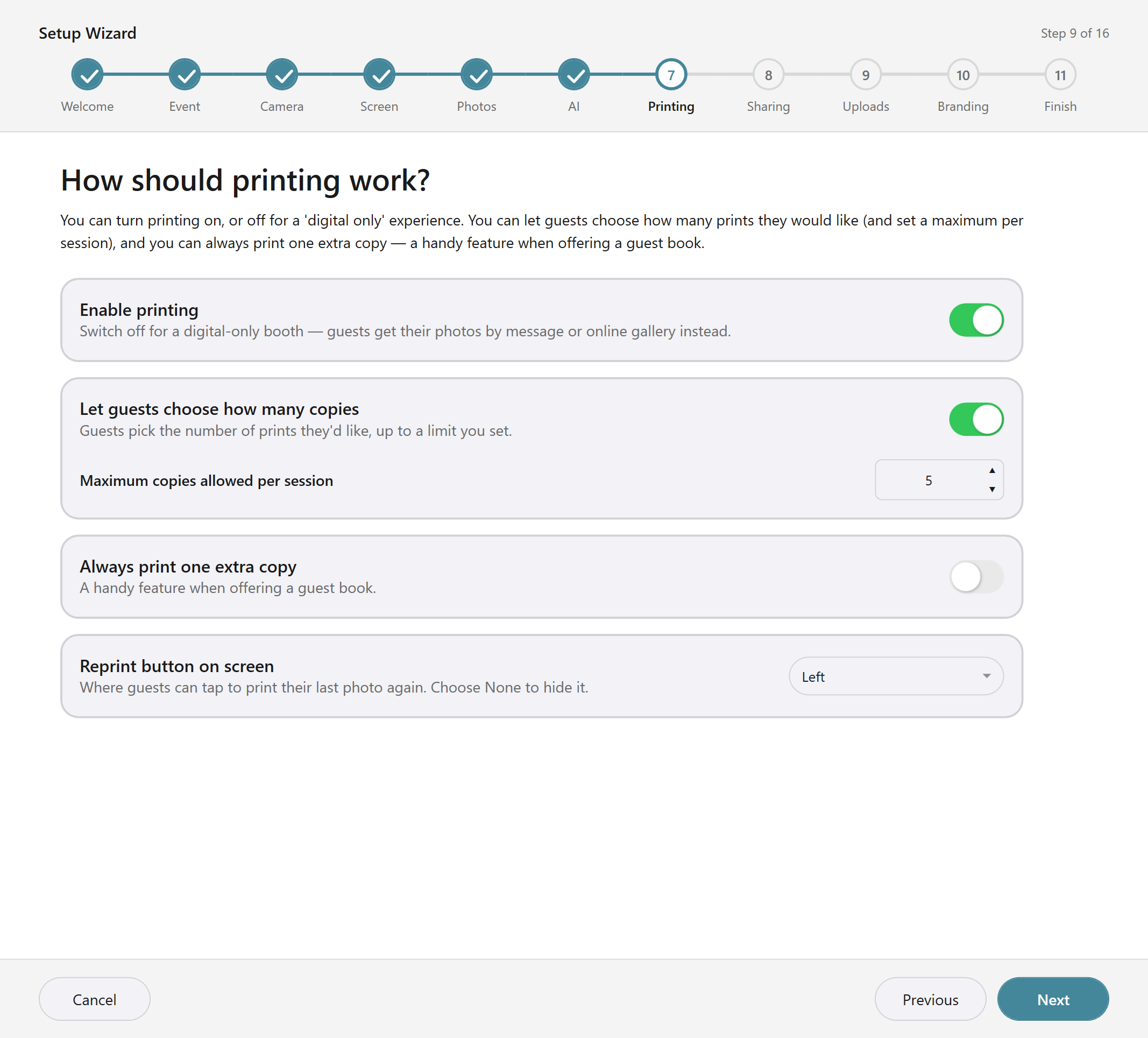
How should printing work? Choose from Enable printing, Let guests choose how many copies, Always print one extra copy and Reprint button on screen.
-
Which printer should be used? Only if printing is on. Each photo style you offer gets a Printer and Paper size, plus Print double strips if Strip is on.
-
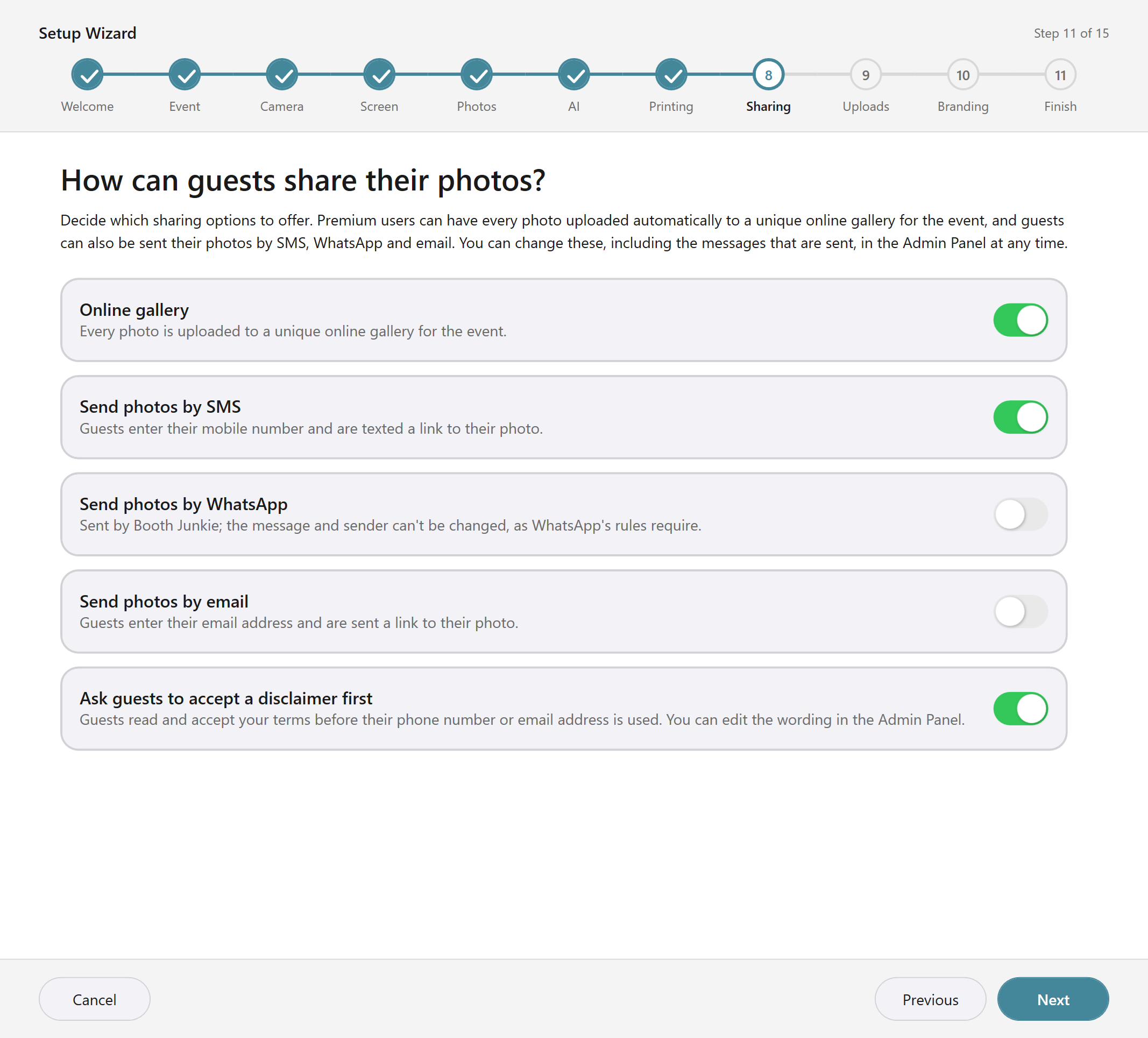
How can guests share their photos? Choose from Online gallery, Send photos by SMS, Send photos by WhatsApp and Send photos by email. If a message option is on, Ask guests to accept a disclaimer first appears too. WhatsApp, and texts or emails that Booth Junkie sends for you, need an active Premium.
-
Where should text messages come from? Only if SMS is on.
-
Where should emails come from? Only if email is on.
-
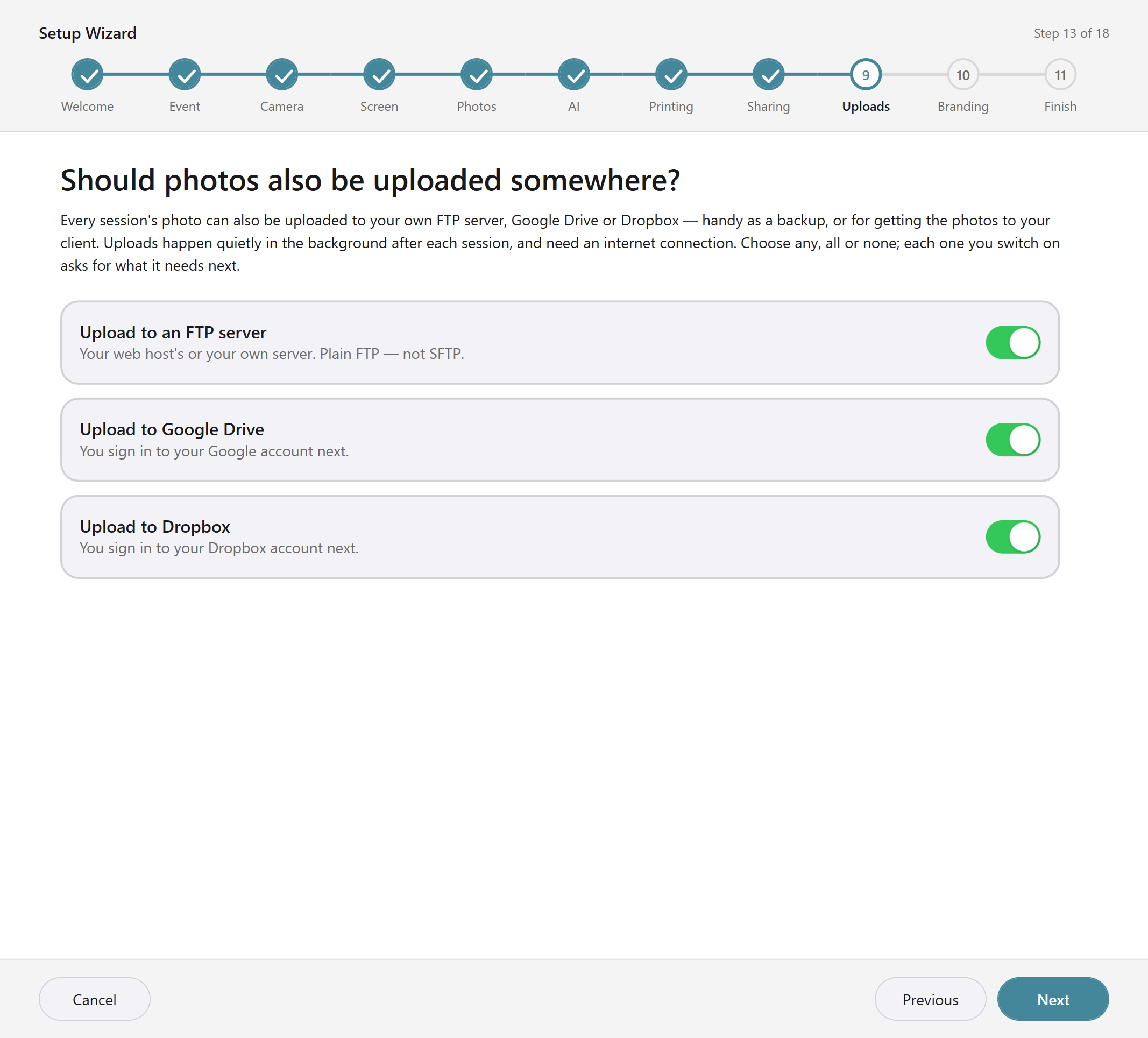
Should photos also be uploaded somewhere? Choose from Upload to an FTP server, Upload to Google Drive and Upload to Dropbox.
-
Where should photos be uploaded? Only if FTP is on. Then Connect Google Drive and Connect Dropbox pages follow if you chose those.
-
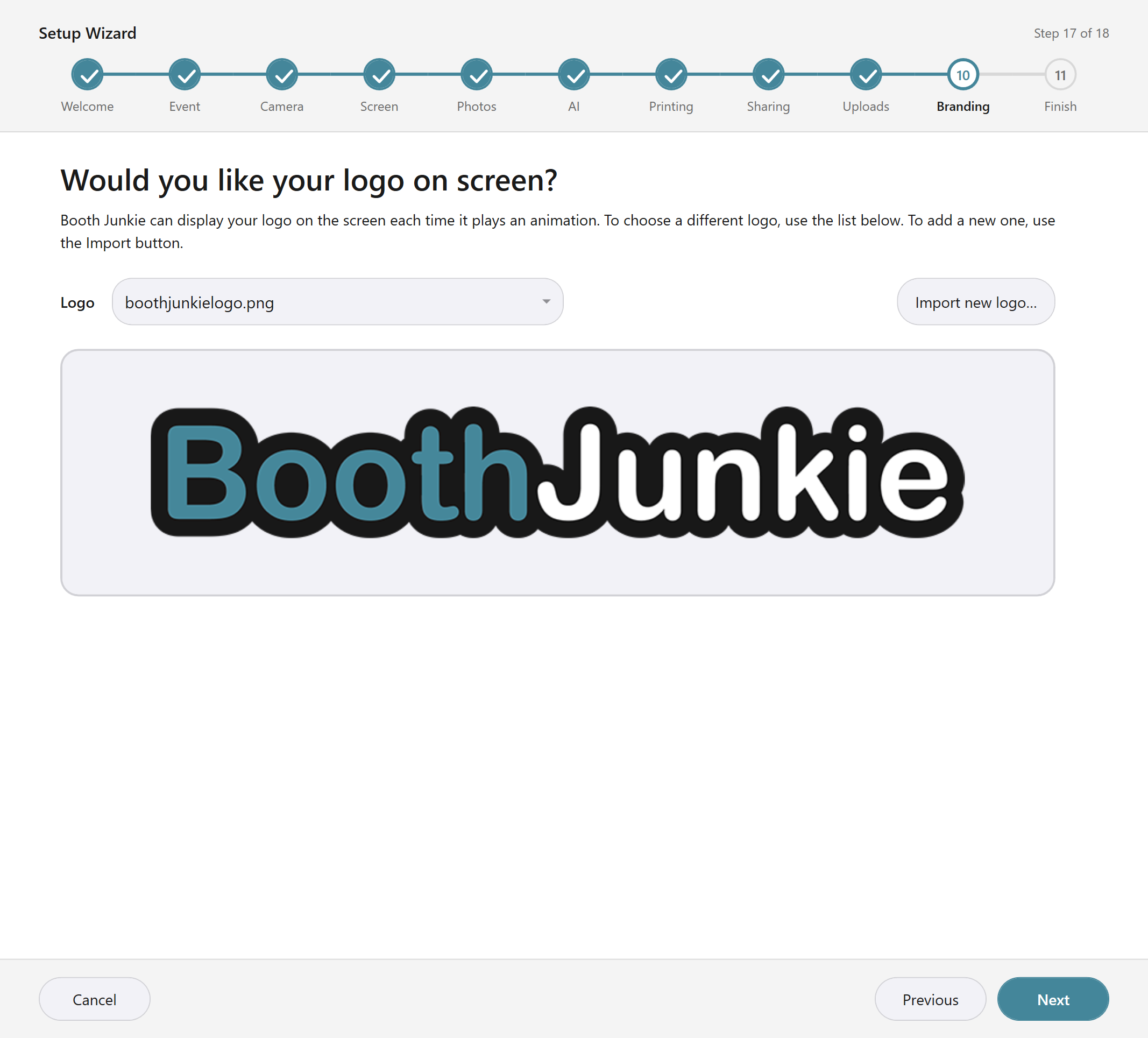
Would you like your logo on screen? Pick a logo from the Logo dropdown, or use Import new logo….
-
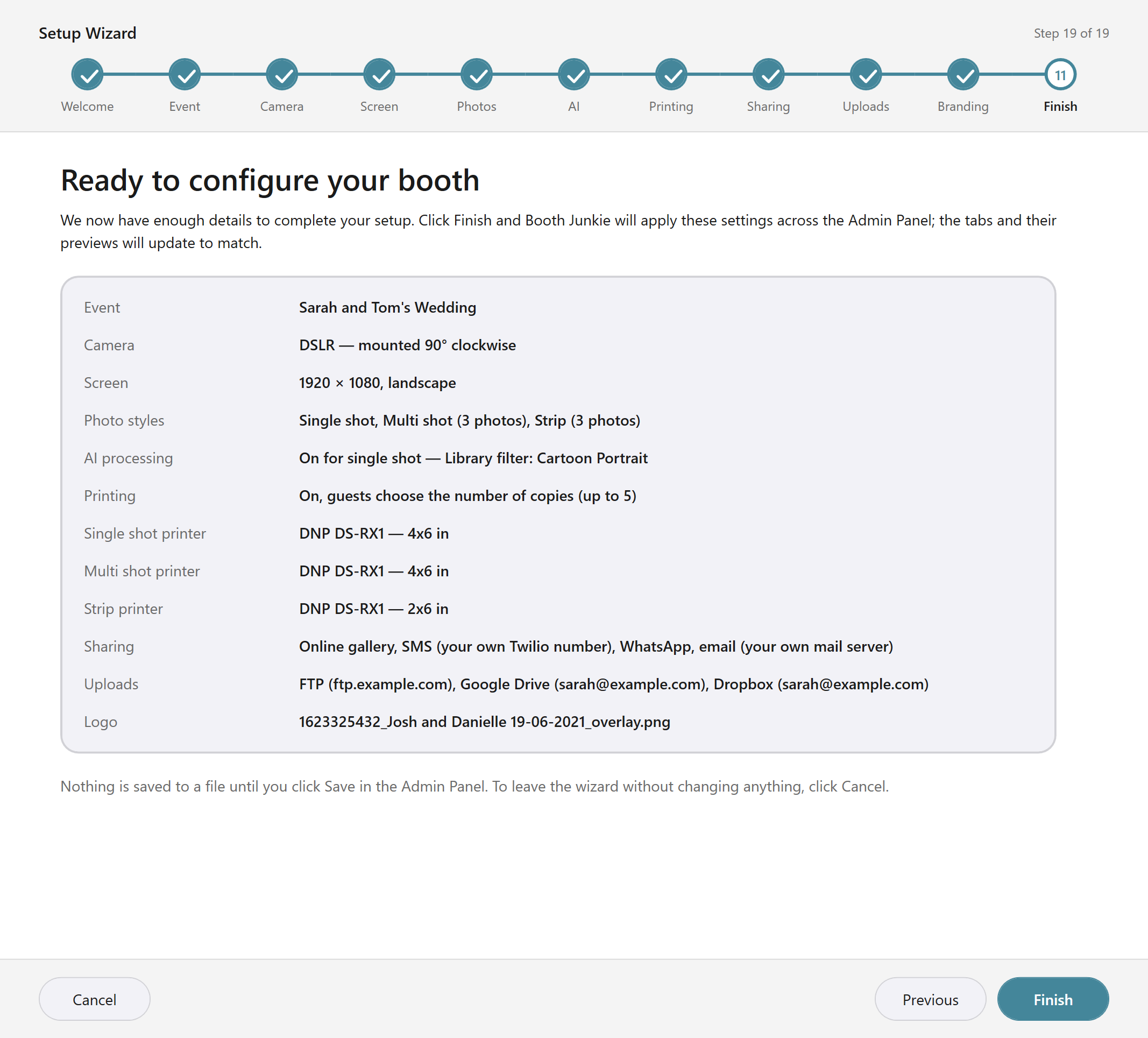
Ready to configure your booth is the last page. It lists your answers in a summary (event, camera, screen, photo styles, AI, printing, printers, sharing, uploads and logo) so you can check them before you press Finish.
Test your text, email and FTP details
The SMS, email and FTP pages have a Test these details button. For SMS and email it appears when you choose to use your own Twilio number or email address. It checks the details without sending anything to anyone:
| Page | What the test does | What it doesn’t do |
|---|---|---|
| SMS | Logs in to your Twilio account and checks the sender number. | It doesn’t send a text. |
| Connects to the mail server, signs in and checks that it would accept your From address. | It doesn’t send an email. | |
| FTP | Connects and logs in, and creates the folder if it’s missing. | It uploads no photos. |
While it runs, a progress bar and Checking… appear beside the button. It gives up after 30 seconds.
What Finish does
Finish applies your answers in this order: event, camera, screen, photo styles, photo counts, AI, printing, sharing, uploads and logo. It finishes with Auto fit to screen, which lays out every element on every screen for your screen size and orientation.
Important: Already have a layout you like?
Auto fit to screen repositions everything, so if you already have a layout you like, use Cancel and change only the settings you need by hand. See The Screen Layout Editor for what Auto fit does.
Run it again
You can run the wizard as often as you like. It starts from your current settings where it can, so it’s a quick way to set things up for a different event.