
Because each step’s settings are independent, different steps, or different workflows, can use entirely different styles. The Setup Wizard can also set up AI processing on your Singleshot workflow’s Photo step for you.
What you need
| You need | Why |
|---|---|
| An internet connection | Each photo is sent to an online AI service, which takes several seconds. If processing fails or times out, the guest simply gets their original photo. |
| AI credits | Every photo processed uses them, and so does Send Test in Configure AI Processing. See How the AI Credit System Works for what each AI model costs to run. |
| An active Premium, for the Style Library | Booth Junkie’s ready-made styles need an active Premium; your own prompts and My Presets don’t. See Library mode below. |
Open the window
-
Go to Admin Panel → Workflows and find a Photo row.
AI Processing is only offered on Photo steps, not on Print or Draw steps.
-
Set its File to AI Processing and select Configure….
Result: The Configure AI Processing window opens.
At the top of the window is a switch between Prompt and Library. Each workflow step remembers which one it uses and which style you chose.
Prompt mode: write your own
| Field | What it’s for |
|---|---|
| Prompt | Describes what you want, for example “a watercolour portrait in soft pastel colours”. |
| Negative prompt | Lists what to avoid. |
| Model | Chooses the AI model. The list is Quick, Balanced and Best: Quick is the fastest, Best is the slowest and gives the highest quality. See How the AI Credit System Works for what each costs. |
| My Presets | Saves a prompt, negative prompt and model together so you can reuse them. See Saving AI Prompts as Presets. |
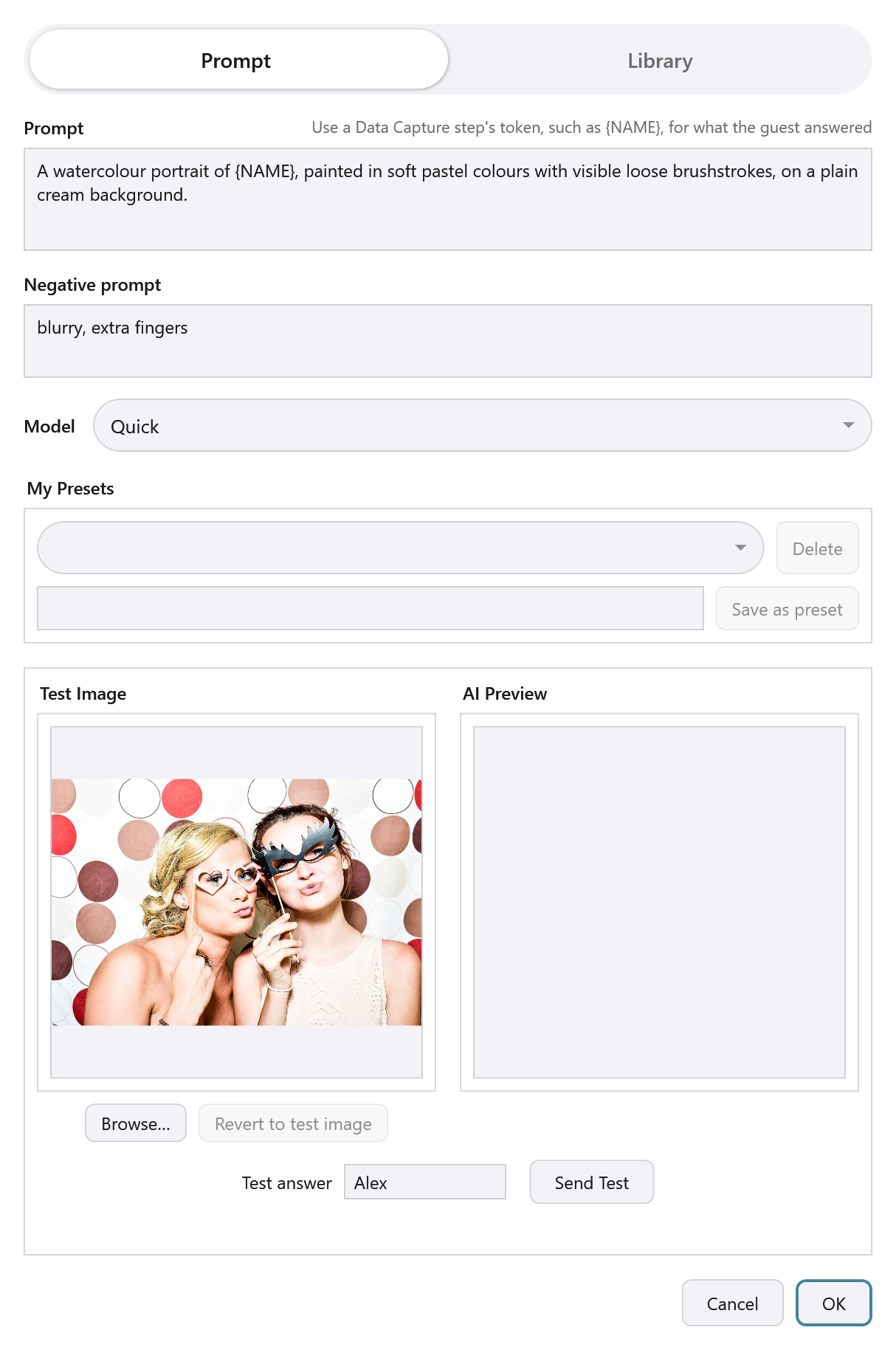
Tip: Use the guest’s name
You can put a guest’s answer into the prompt, for example a watercolour portrait of {NAME}. See Using a Guest’s Name in Prints, Messages and AI Prompts.
Library mode: pick a ready-made style
Instead of writing a prompt, pick a style from the Style Library.
-
Switch the window to Library.
The Library Filter box says “No library filter selected yet.” until you choose one.
-
Press Browse Library… to open Browse Style Library.
-
Click a style’s picture to select it.
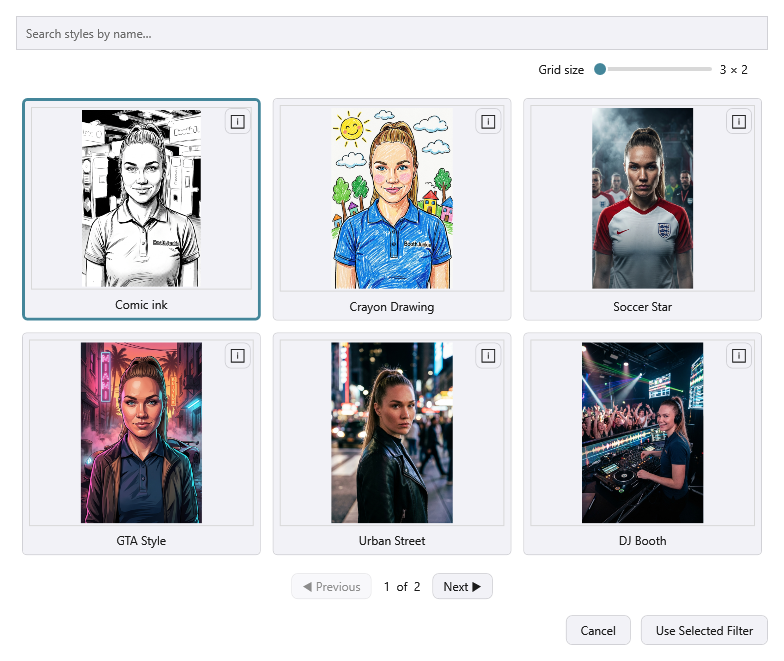
Use Search styles by name… to narrow the choice (and the Category list, which appears once the styles are grouped into categories), Grid size to change how many show at once, and Previous and Next to move between pages.
-
Select the ℹ button on a style to read about it. From there, Use This Filter picks it, or Close goes back.
-
Press Use Selected Filter.
Result: The Library Filter box shows the style’s name, with Change Filter… to pick a different one.
The wording behind each style stays on Booth Junkie’s server. Your booth only ever holds a reference to the style, never its prompt. A style whose own wording uses a token gets it from any Data Capture question you’ve asked, but never an Email-type answer.
Premium: The Style Library needs an active Premium
The ready-made styles in the Style Library need an active Premium. Your own prompts, and My Presets, don’t. Every Lifetime Licence includes 12 months of Premium, and you can renew it at any time from Your Licences on your account Dashboard.
If the Style Library is empty
Booth Junkie fetches the latest styles each time it starts. If Browse Style Library is empty and says “Couldn’t load style presets — check your internet connection.”:
-
Check that this computer is online.
-
Check that Premium services on Admin Panel → Options → General says Active.
-
Restart Booth Junkie.
Test before you use it live
The bottom of the window lets you try your choice against a real photo without a guest in front of it.
-
Check the photo under Test Image. It’s the photo that will be sent.
It’s the standard test photo unless you press Browse… to pick one of your own, and Revert to test image goes back to the standard one.
-
If Test answer is showing, type an answer into it.
It appears when your prompt or negative prompt uses a token, and in Library mode. It stands in for whichever token you’ve used, so it’s filled in rather than sent as the word in curly brackets.
-
Press Send Test.
Result: The result appears in AI Preview beside the original, along with how long it took.
-
Press OK to keep your choices, or Cancel to leave everything as it was.
Good to know: A test uses credits
Send Test is a real request, so it uses AI credits just as a guest’s photo does.
Check your credits
Admin Panel → Options → General shows your AI credit balance with the rest of your licence details. See Your Credits Dashboard for more on your credits.