
For the physical side – lighting, fabric, and camera distance – see How do I use a greenscreen in my photobooth with Booth Junkie?; this article is about the software settings once that’s set up.
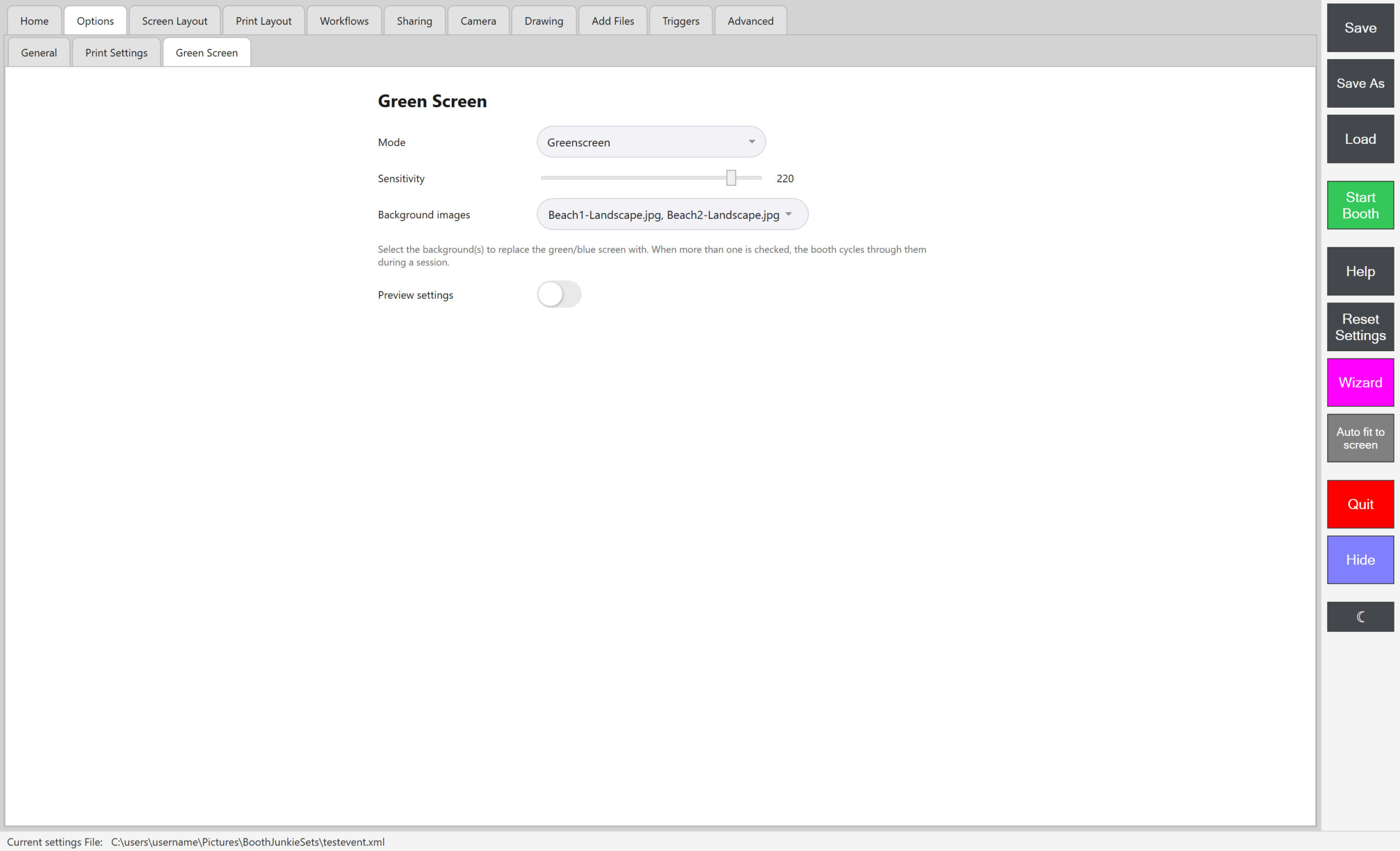
Mode
Sets whether background replacement is off, or keying on green or blue – match this to whichever colour backdrop you’re actually using.
Sensitivity
How closely a pixel has to match the backdrop colour to be replaced.
| Sensitivity | What happens |
|---|---|
| Too low | Patches of the real backdrop survive in the shot. |
| Too high | It starts eating into guests’ hair or clothing if they’re a similar colour to the backdrop. |
Tip: Patchy, or cutting into guests?
If replacement looks patchy or is cutting into guests, this is the first thing to adjust.
Background images
Pick one or more images to replace the backdrop with. With more than one selected, the booth cycles through them across a session, so different guests (or different shots in the same session) get different backgrounds automatically.
Preview settings
Off by default, and this is for you, not guests: turning it on shows the Booth Operator a live preview of the keyed/replaced result directly on the Admin Panel while adjusting Mode, Sensitivity, and Background images, rather than needing a full test capture to see the effect of each change.