
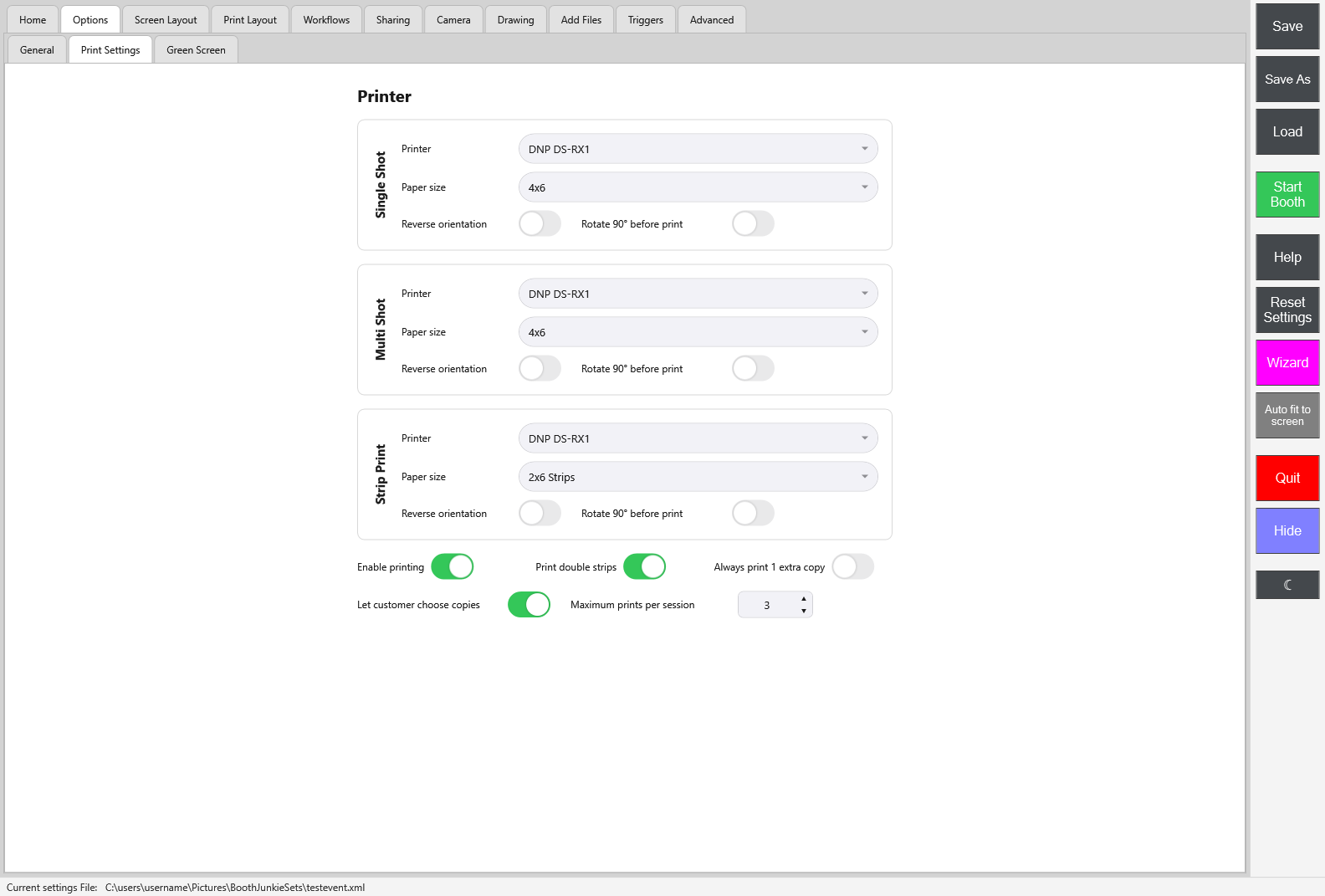
Per shot type: Printer, paper size, and orientation
Single Shot, Multi Shot, and Strip Print each get their own independent block:
| Setting | What it does |
|---|---|
| Printer | Which installed printer handles that shot type. |
| Paper size | The paper/ribbon size loaded in that printer (e.g. 4×6, or 2×6 Strips for strip shots). |
| Reverse orientation and Rotate 90° before print | Correct a print that comes out mirrored or sideways for that printer. |
Setting these per shot type means Single, Multi, and Strip prints can each go to a different printer, or use a different paper size on the same printer, without affecting the others.
Printing rules
| Setting | What it does |
|---|---|
| Enable printing | The master switch; turn it off and nothing prints regardless of the settings above. |
| Print double strips | Prints two identical strips side by side on one panel instead, cut apart afterwards. |
| Always print 1 extra copy | Adds a spare print to every session, useful for keeping one copy for an album while the guest takes theirs. |
| Let customer choose copies | Shows a copies picker to the guest instead of always printing a fixed number. |
| Maximum prints per session | A hard cap regardless of what the guest chooses; 0 means no limit. |
Tip: Why print double strips?
Dye-sub printers use a fixed-size ribbon panel that can’t be part-used, so a single 2×6 strip wastes most of a 6×4 panel. Printing two identical strips side by side on one panel, cut apart afterwards, is the standard way strip booths get a normal cost-per-print instead of paying for a full panel each time.
For setting a printer up and its running costs, see photo booth printers.