
Premium: AI needs an active Premium and AI credits
AI processing needs an active Premium, and every photo processed uses AI credits. The ready-made styles in the Style Library also need an active Premium. See How the AI Credit System Works.
Set it up
-
Add an AI Selection step before a Photo step set to AI Processing, and add your styles to it, as in AI Selection: Letting Guests Choose Their AI Style.
Library styles, Add several styles… and your own prompts all work. Each style in the list is as likely to be picked as any other.
-
In the Configure AI Selection window, tick Pick one style at random for each guest (no screen is shown).
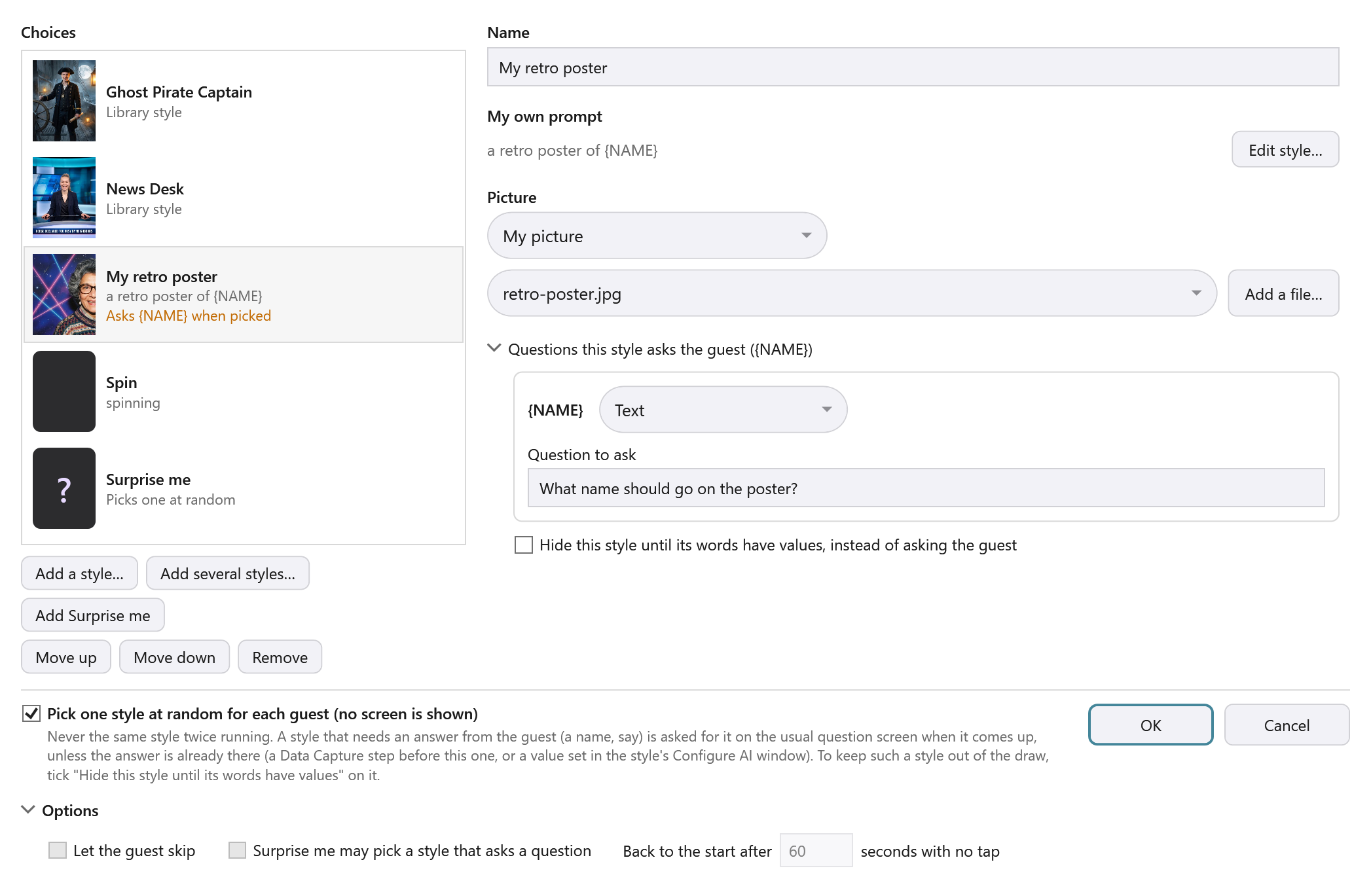
Result: Let the guest skip, Surprise me may pick a style that asks a question and Back to the start after … seconds are greyed out, because there’s no screen for them. Their settings are kept for when you untick it.
-
Press OK.
How the style is picked
- One style for each guest. The style is picked once for each guest, not for each photo.
- Never the same style twice running. With two styles in the list, guests take turns; with only one, every guest gets it. The booth remembers the last pick until it’s started again.
- Surprise me is never picked. A Surprise me tile needs a guest to tap it, so it’s left out.
- Styles that are hidden stay out. A style with Hide this style until its words have values ticked is only picked once its words have values.
Styles that ask a question
A style that needs an answer from the guest, such as {NAME}, can be picked like any other. When it is, the guest sees the usual question screen straight away, answers it, and carries on to their photo.
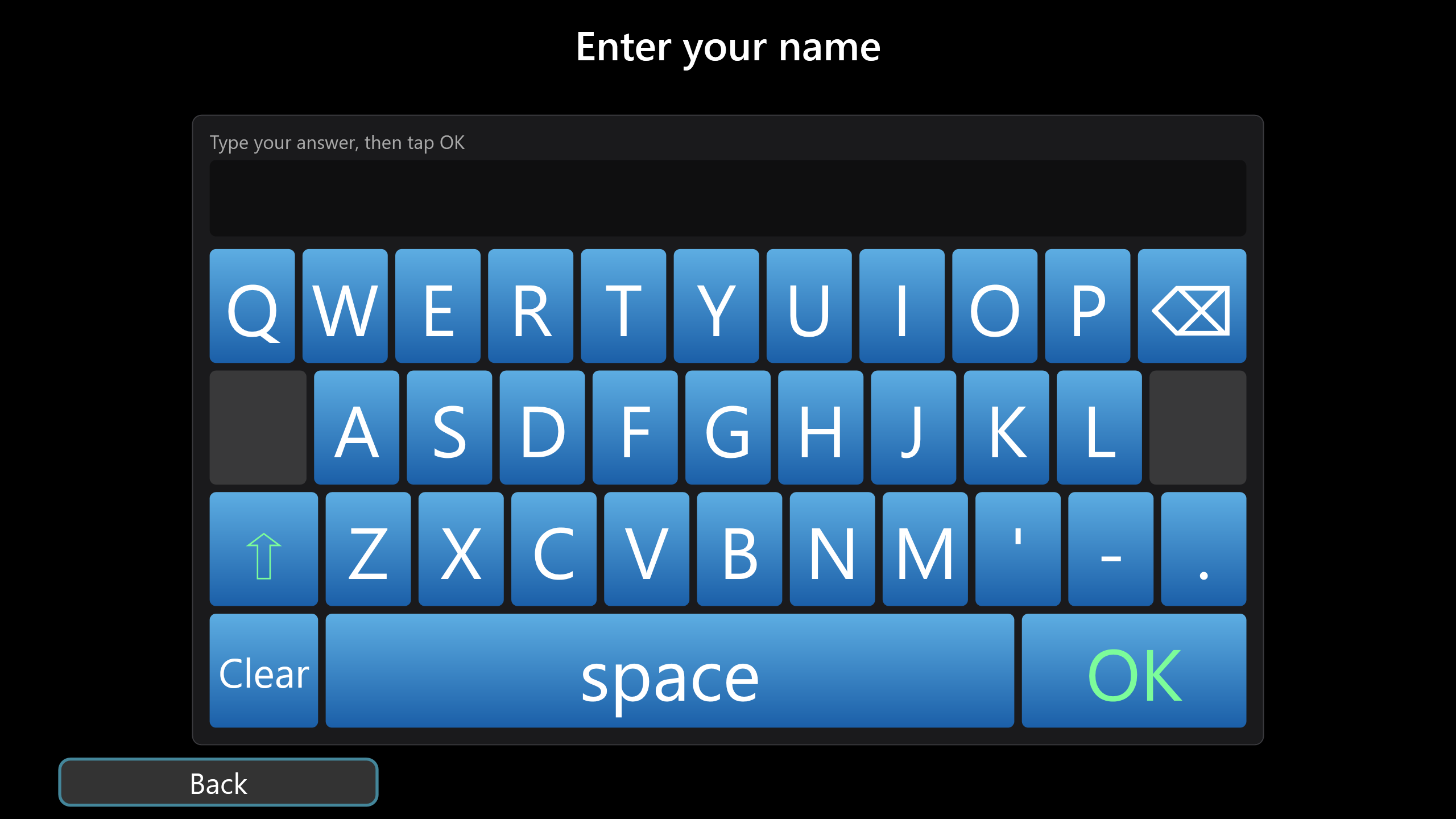
- They aren’t asked if the answer is already there: a Data Capture step before this one asked for it, or you’ve set a value for it in the style’s Configure AI window.
- The guest isn’t told which style they were given, so the result stays a surprise.
- Back on that question goes to the screen before the step.
To keep styles like these out of the draw, tick Hide this style until its words have values, instead of asking the guest on each one.
Random pick or Surprise me?
| Random pick | Surprise me | |
|---|---|---|
| Screen of styles | None: the guest never sees one | Shown: Surprise me is one of its tiles |
| Who decides | The booth, for every guest | The guest, by tapping Surprise me |
| Set up with | The tick box in the Configure AI Selection window | Add Surprise me in the Configure AI Selection window |
This guide is from Booth Junkie, photo booth software for Windows that has supplied the photo booth industry for 10 years. It runs enclosed booths, selfie pods and magic mirror booths with a Canon DSLR or a webcam, prints to any Windows printer, and sends photos to guests by WhatsApp, SMS and email.