
Choose the printer
-
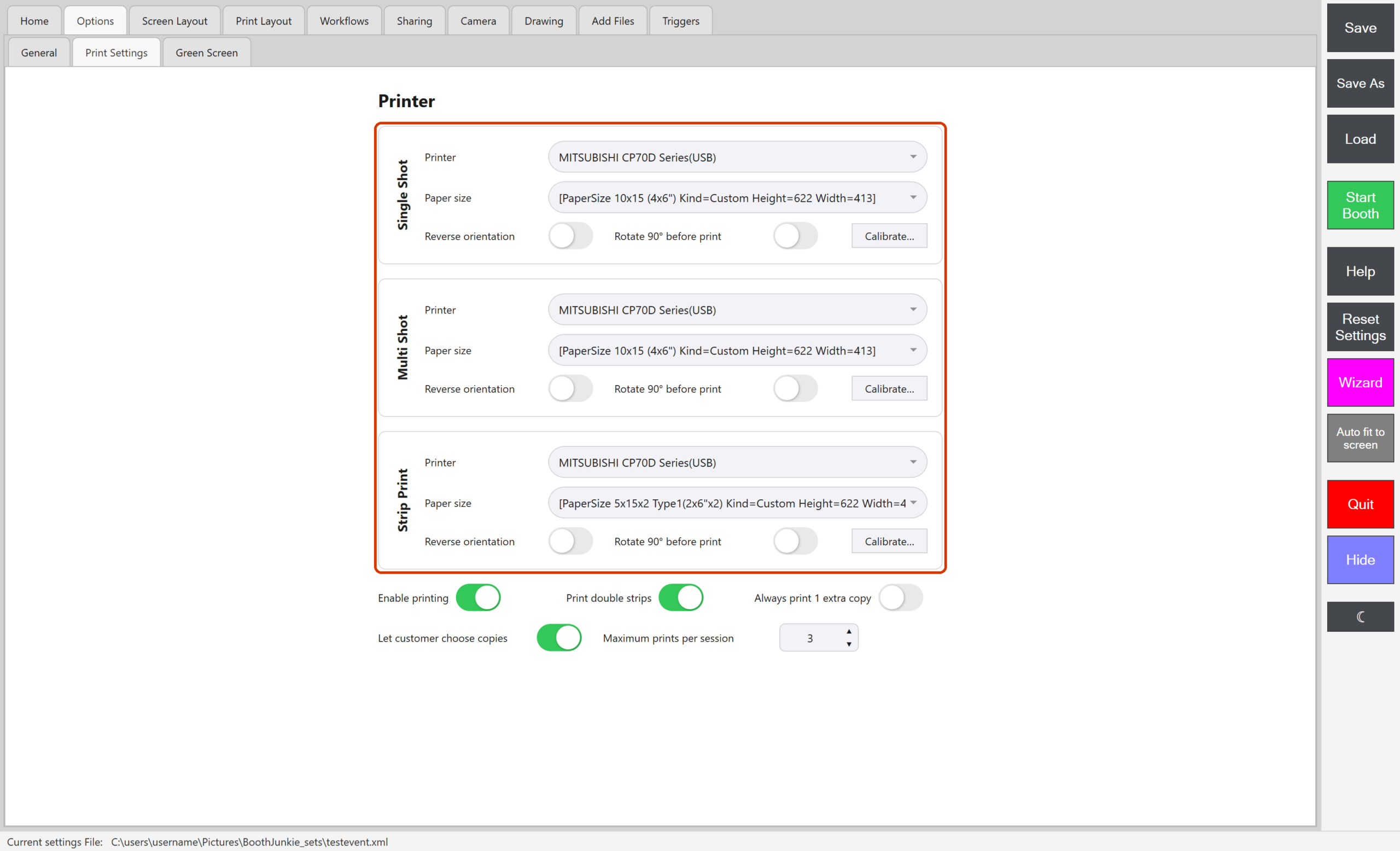
Open the Admin Panel and go to Print Settings.
-
For each shot type you offer (Single Shot, Multi Shot, Strip Prints), choose the correct Printer and Paper size from the dropdowns.
-
Do not forget to save your new settings
Tip: Strip paper sizes vary
For strip prints specifically, the correct paper size varies from printer to printer. You may need to try different paper sizes to find the option which prints and cuts your strip prints correctly.
Reverse orientation and rotation
Each shot type also has Reverse orientation, and rotate 90° before printing, both independent per shot type, same as the printer/paper choice above.
Copy-count options (session-wide, not per shot type)
- Enable printing: turns the Print button on the guest Print screen on or off entirely
- Print double strips
- Always print 1 extra copy
- Let customer choose their own number of copies
- Maximum prints per session
For picking a printer in the first place, and what each print costs to run, see photo booth printers.
This guide is from Booth Junkie, photo booth software for Windows that has supplied the photo booth industry for 10 years. It runs enclosed booths, selfie pods and magic mirror booths with a Canon DSLR or a webcam, prints to any Windows printer, and sends photos to guests by WhatsApp, SMS and email.