
Load a workflow, step by step
Loading works the same way on every page of the Workflow Library, and for Import Workflow too.
-
Press Load on the workflow’s card.
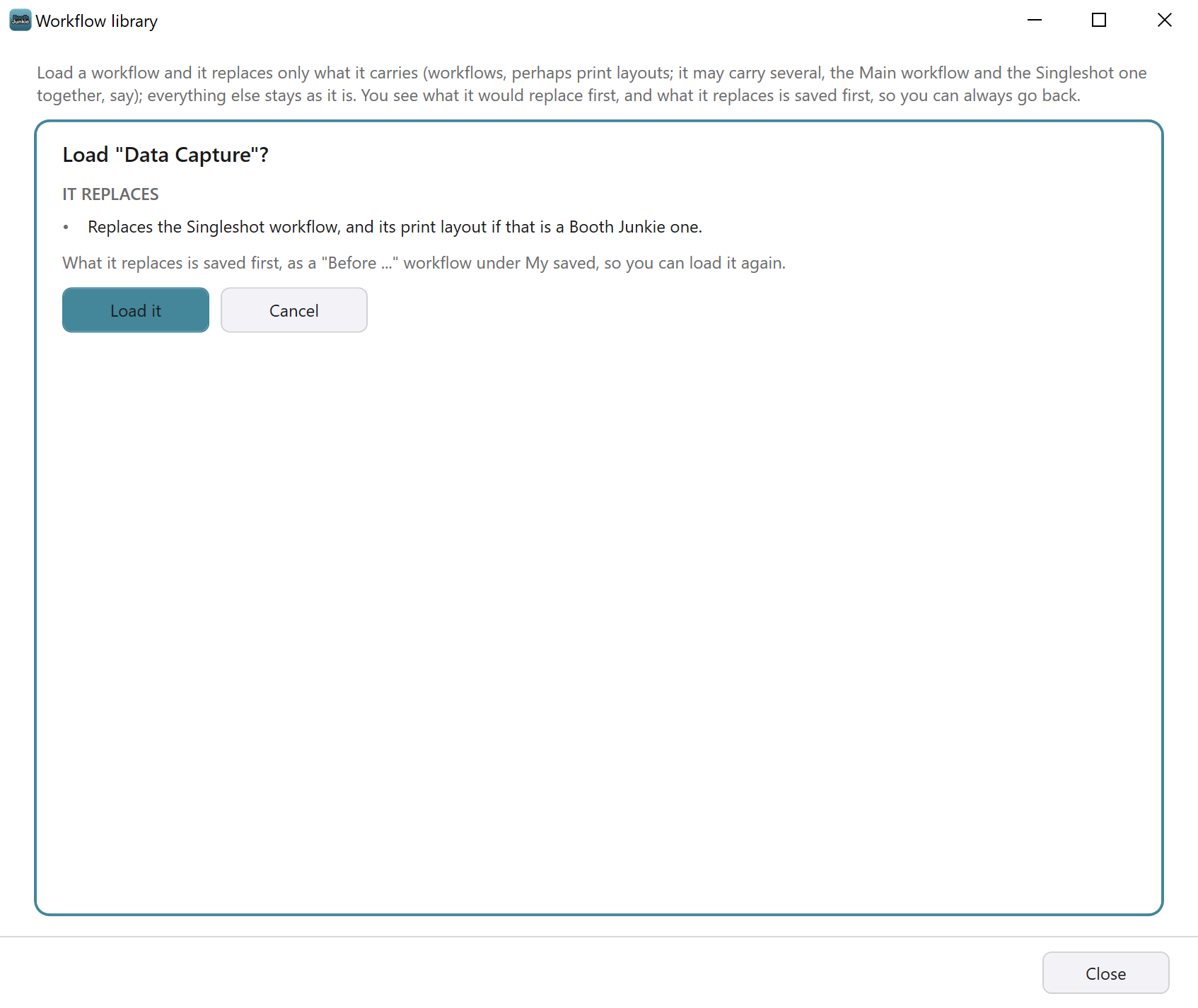
Result: Nothing changes yet. The window asks whether to load the workflow, and shows what loading it would do, with Load it and Cancel buttons. A workflow from the Booth Junkie library is downloaded first (see The Booth Junkie Library: Workflows Kept on Our Website).
-
Read what it would change. Each part is only shown when it applies:
- IT REPLACES: what the workflow replaces. For a ready-made workflow, this is the line from its card, and the only part shown. For any other workflow there’s a line for each workflow it replaces, with how many steps yours has now and how many it will have, for example “Singleshot workflow: your 9 steps become 10”. Rows set to None aren’t counted. There’s also a line for each print layout it brings: “Singleshot print layout: yours is replaced by the one in the file”, or “Singleshot print layout: the one in the file is added” where you had none.
- IT ADDS: the pictures, animations and sounds it brings that this PC doesn’t have yet, by file name. The first five are named, then it says how many more there are.
- IT NEEDS: reminders of anything the workflow needs from you. A workflow from the Booth Junkie library can carry its own, for example to type
{NAME}into a Text element of your print layout. A workflow with a Card Payment step reminds you “Needs a card reader on this PC. Set your price with Configure on the Card Payment step.”. A workflow with an AI step reminds you “Uses AI credits: every photo is turned into a picture by AI.” An AI step also needs an active Premium. - TO CHECK: anything you should look at yourself. For example, “drumroll.wav is already on this PC, so that one is used (a file is never replaced).”, or “A step uses party_countdown.mp4, which is not on this PC and is not in the file, so it will show nothing until you add it.”
Under the lists, the window reminds you that what the workflow replaces is saved first, as a Before copy under My saved.
If the workflow needs a newer version of Booth Junkie, red text says so, and Load it is greyed out. Update Booth Junkie to load it.
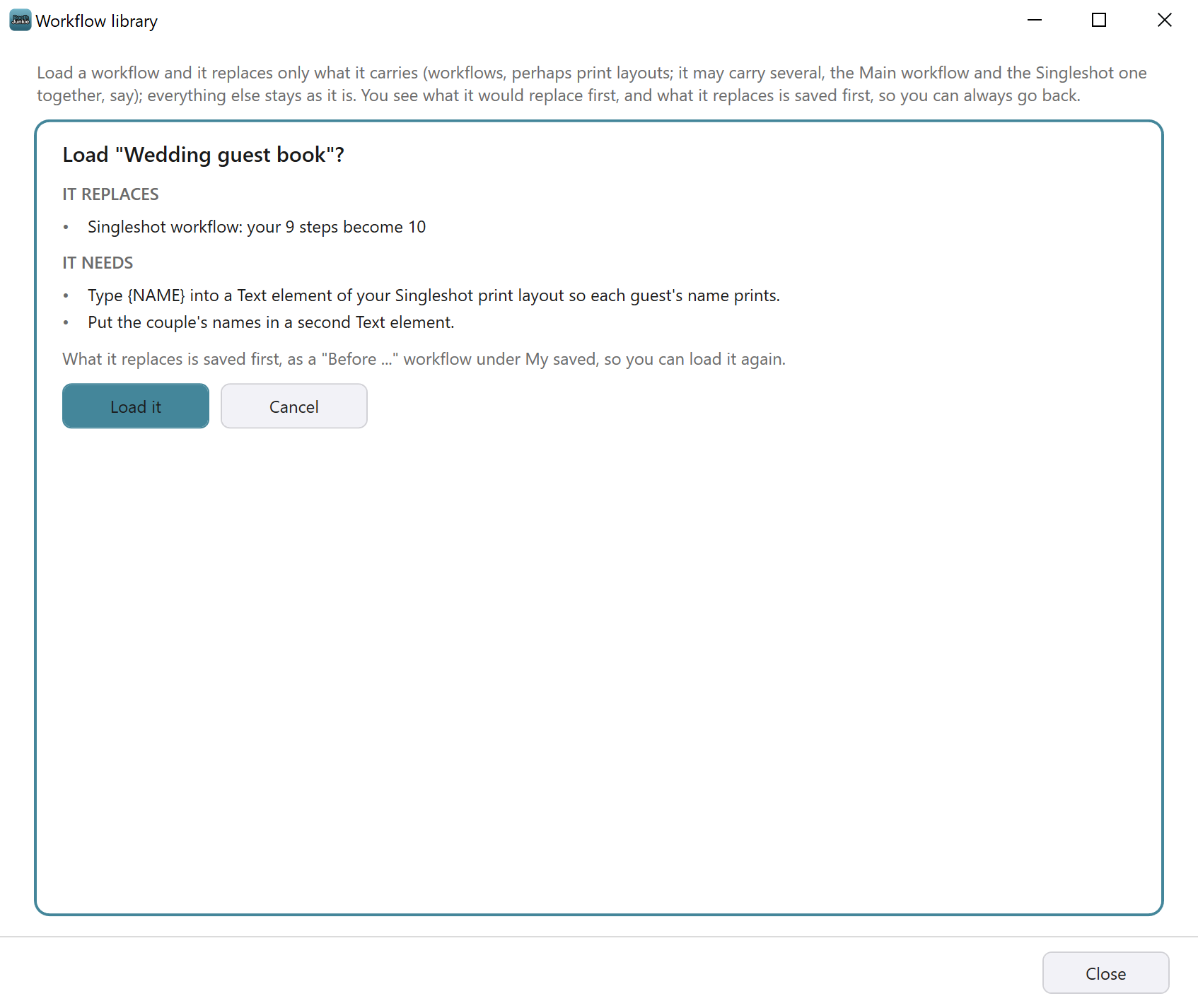
The workflow in this picture is an example. -
Press Load it. To leave everything as it is, press Cancel instead.
Result: The workflow is loaded, and its steps show on its tab in the Admin Panel. The window says what it replaced is saved under My saved, as Before followed by the workflow’s name, for example Before Wedding guest book. It ends “Press Save in the Admin Panel to keep it.” Anything you should look at is listed under A few things to check.
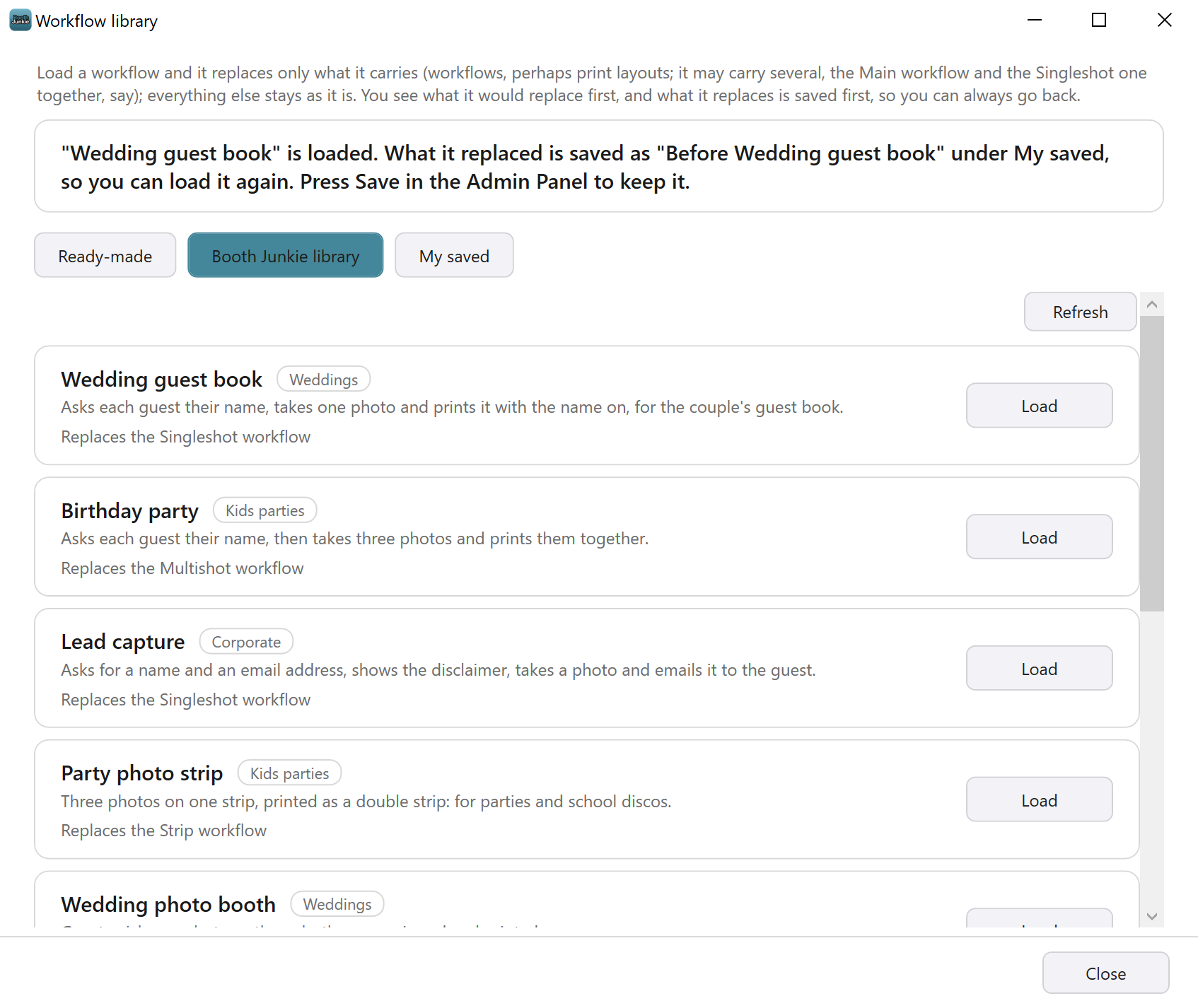
The workflows in this picture are examples. -
Close the window, look over the workflow on its tab, and press Save in the Admin Panel.
Important: Save before you start the booth
A load changes the Admin Panel, not your saved settings. Start Booth goes back to your saved settings, so a workflow you loaded and didn’t save is gone. The Before copy, and any pictures or sounds the workflow brought, are kept straight away.
Good to know: Your own pictures and sounds are safe
A workflow only copies in a picture, animation or sound where this PC has no file of that name. A file you already have is never replaced, and nothing is ever deleted.
Related articles
- How the Workflow Library Works: Ready-Made, Booth Junkie and Your Own Workflows
- Ready-Made Workflows: Standard, Data Capture and AI Photo
- The Booth Junkie Library: Workflows Kept on Our Website
- My Saved Workflows: Saving, Loading and Deleting Your Own
- The Before Copy: Going Back After Loading a Workflow
- Workflow Library Problems and Messages
This guide is from Booth Junkie, photo booth software for Windows that has supplied the photo booth industry for 10 years. It runs enclosed booths, selfie pods and magic mirror booths with a Canon DSLR or a webcam, prints to any Windows printer, and sends photos to guests by WhatsApp, SMS and email.