
The Before copy: going back after a load
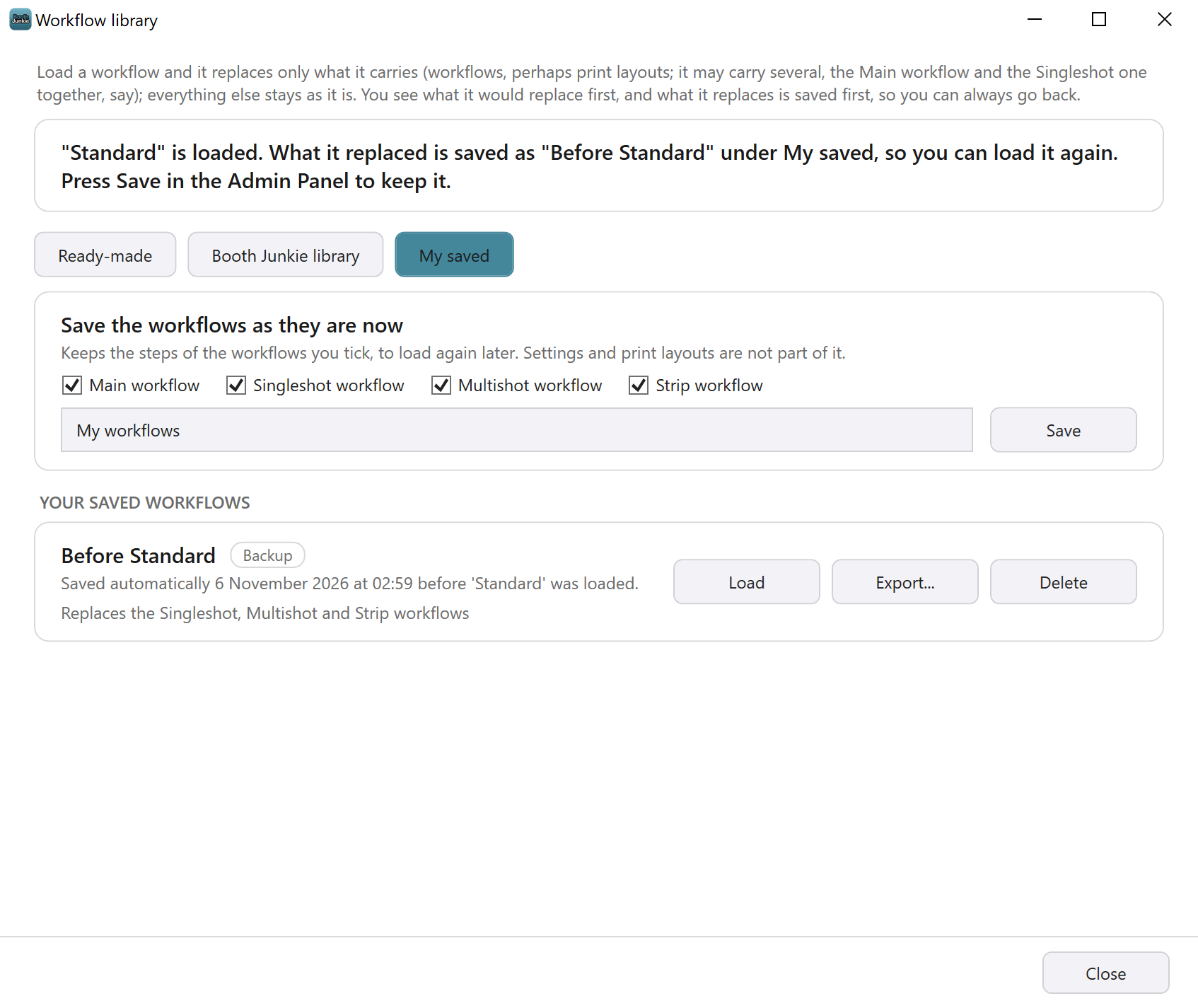
Every time you press Load it, what the workflow is about to replace is saved first, under My saved. The copy is called Before followed by the workflow’s name, for example Before Wedding guest book, and it’s tagged Backup. Its card says when it was saved, and which workflow was loaded, for example “Saved automatically 24 October 2026 at 03:56 before ‘Wedding guest book’ was loaded.”
What the copy holds depends on what you loaded:
- After a workflow from the Booth Junkie library or My saved, or an imported workflow file: the workflows it replaced, and the print layouts it replaced.
- After a ready-made workflow: the workflows it replaced. A ready-made workflow only puts its print layout in where nobody has designed one, so the copy holds no print layout.
Only workflows that had steps are kept. If nothing the workflow replaces had steps or a print layout, no copy is made, and the window only says the workflow is loaded and to press Save.
If the copy can’t be saved, the load still goes ahead, and the window says under A few things to check that what it replaced could not be saved first.
To undo a load:
-
In the Workflow library window, press My saved.
-
Press Load on the Before copy.
Result: The window shows what loading the copy would put back.
-
Press Load it, then close the window and press Save in the Admin Panel.
Result: The workflows and print layouts in the copy are put back. Workflows the copy doesn’t hold are left as they are.
Loading a Before copy makes a Before copy of its own (for example Before Before Wedding guest book), so you can go either way.
Tip: Tidy up old copies
A Before copy is made at every load, so they build up. Delete the ones you no longer need (see Delete a saved workflow in My Saved Workflows: Saving, Loading and Deleting Your Own).
Related articles
- How the Workflow Library Works: Ready-Made, Booth Junkie and Your Own Workflows
- Loading a Workflow: the Preview, Load it and Save
- My Saved Workflows: Saving, Loading and Deleting Your Own
This guide is from Booth Junkie, photo booth software for Windows that has supplied the photo booth industry for 10 years. It runs enclosed booths, selfie pods and magic mirror booths with a Canon DSLR or a webcam, prints to any Windows printer, and sends photos to guests by WhatsApp, SMS and email.