
The Booth Junkie library
Premium: The Booth Junkie library needs an active Premium
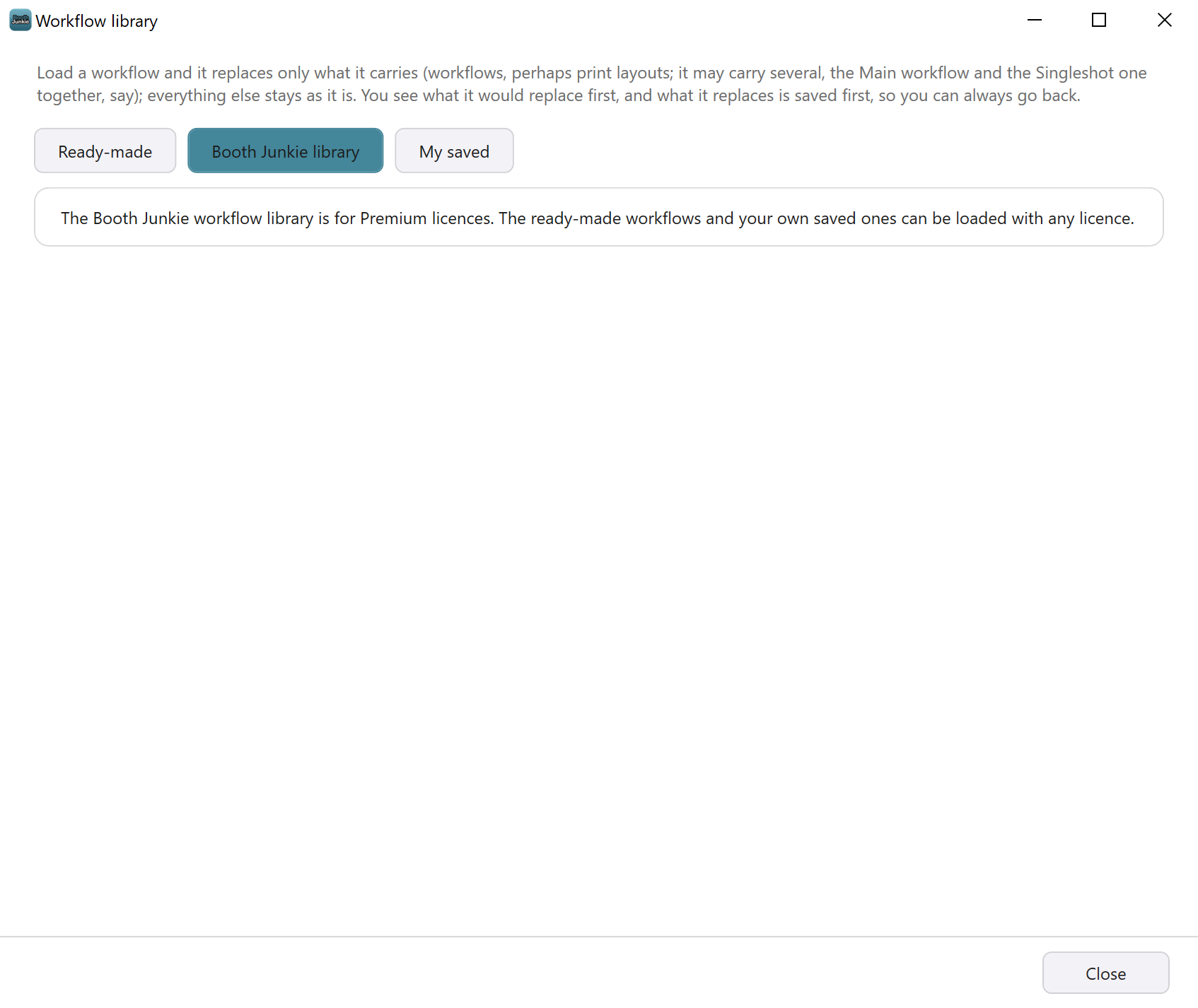
Without an active Premium, the Booth Junkie library page says “The Booth Junkie workflow library is for Premium licences. The ready-made workflows and your own saved ones can be loaded with any licence.” An AI step in any workflow still needs an active Premium and AI credits. Every Lifetime Licence includes 12 months of Premium, and you can renew it at any time from Your Licences on your account Dashboard (see Your Licences: Machine Status, Renewals, and Remote Control).
The Booth Junkie library page lists workflows that Booth Junkie keeps on its website. Booth Junkie looks up the list the first time you open the page, not when the window opens. Each card shows:
- the workflow’s name, with a tag for its category;
- what it does;
- what it replaces, for example “Replaces the Singleshot workflow” or “Replaces the Singleshot and Multishot workflows”.
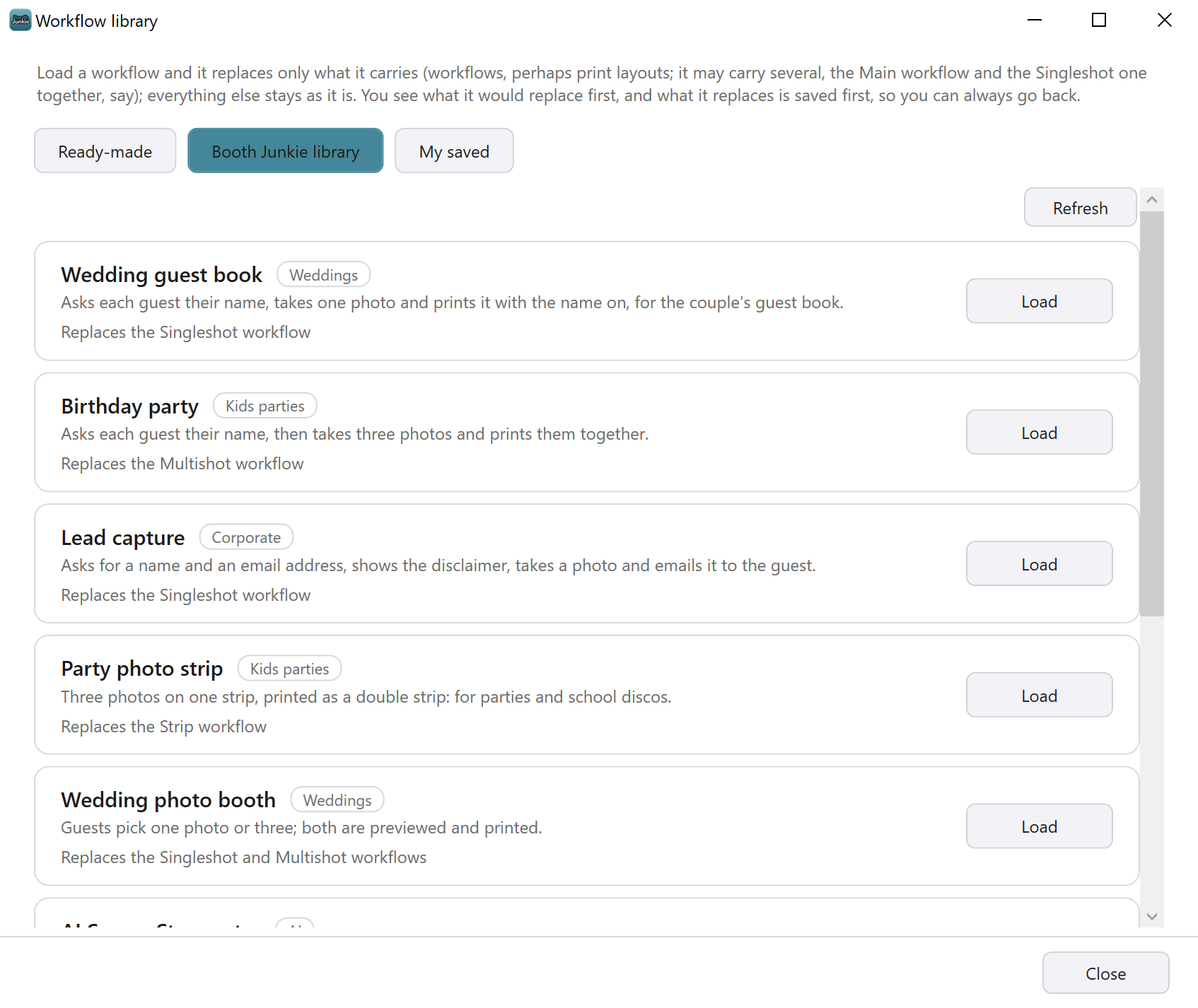
Press Refresh, at the top of the list, to fetch the latest list from the website. A workflow Booth Junkie takes out of the library disappears from the list the next time it’s refreshed.
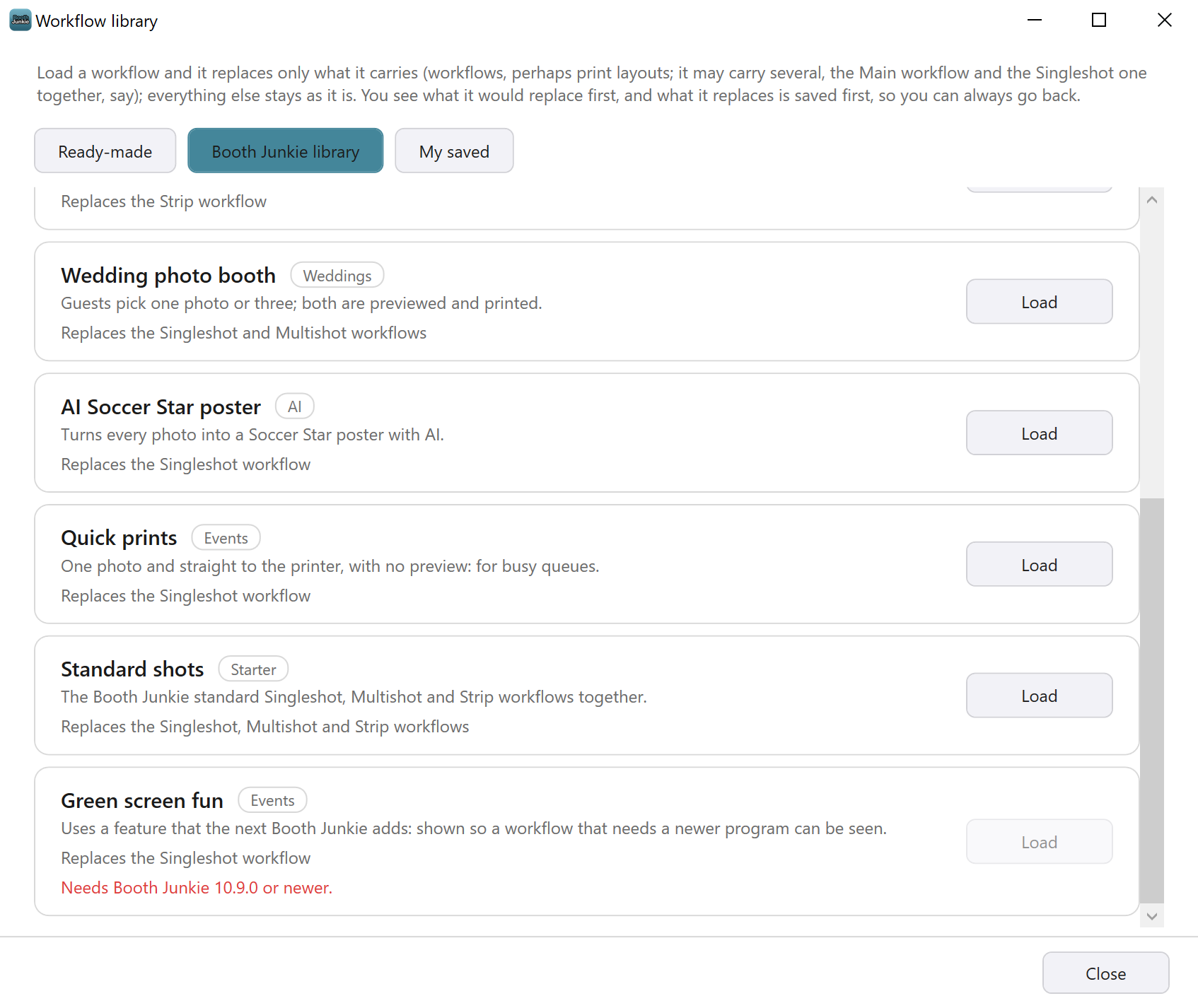
A workflow made for a newer version of Booth Junkie is still listed, but its Load button is greyed out, and red text says which version it needs, for example “Needs Booth Junkie 10.9.0 or newer.” Update Booth Junkie to load it.
Only Booth Junkie adds workflows to the Booth Junkie library. You can’t upload your own. To take your own workflows to another PC, use Export Workflow on the workflow’s tab, then Import Workflow on the other PC.
Load a workflow from the Booth Junkie library
-
Press Load on the workflow’s card.
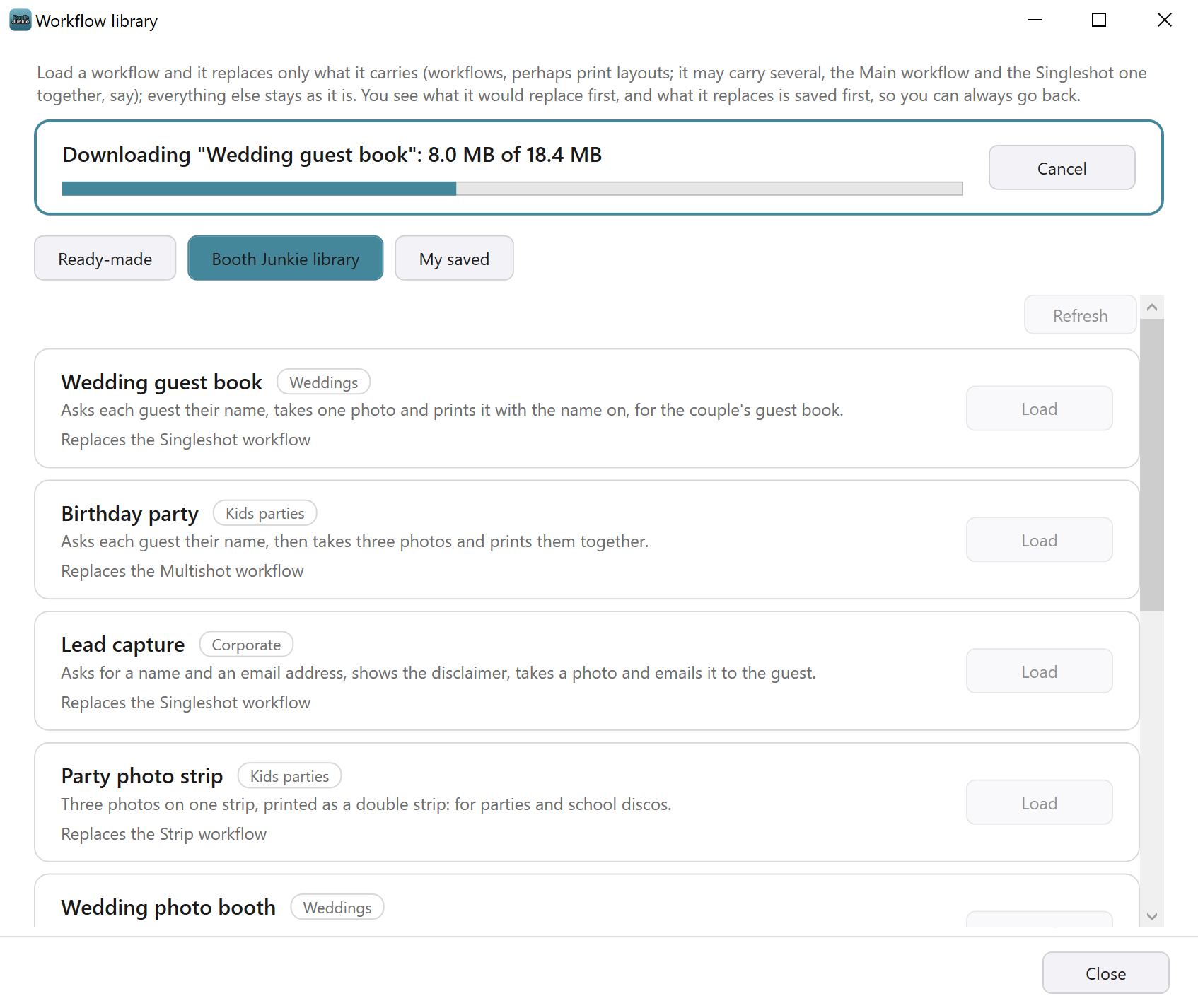
Result: A card at the top of the window shows what’s happening. It asks the website for the workflow, then shows the download, for example 8.0 MB of 18.4 MB, with a bar and a Cancel button, then opens the workflow.
While this happens, every Load button and Refresh are greyed out, so only one workflow loads at a time.
The workflows in this picture are examples. -
Wait for the download to finish.
Result: The window shows what loading the workflow would do. Carry on from step 2 of Loading a Workflow: the Preview, Load it and Save.
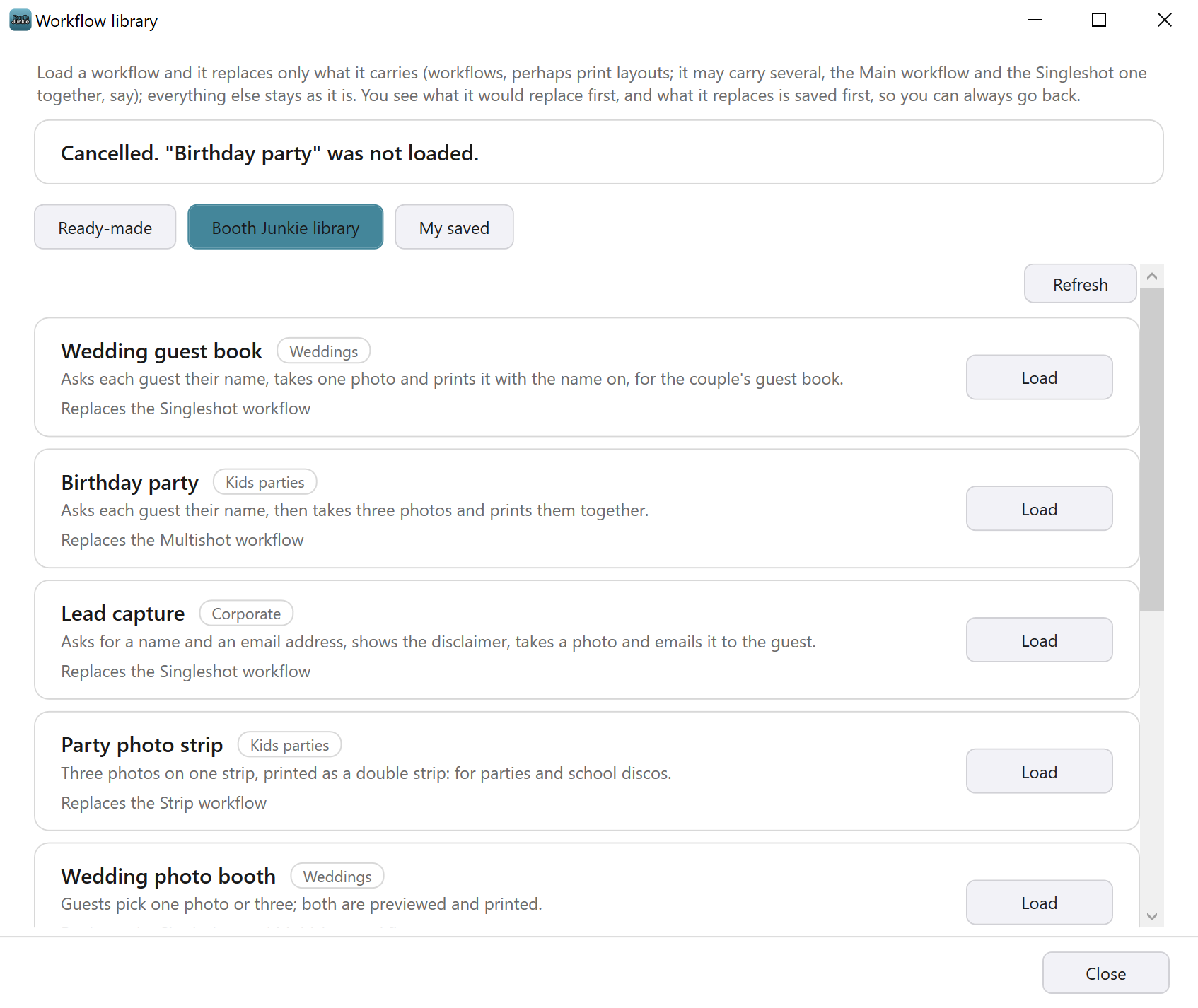
To stop a download, press Cancel on the card at the top of the window. The window says the workflow wasn’t loaded, and nothing changes. Closing the window during a download stops it too.
If a download fails, the window says “That workflow could not be downloaded.” and gives the reason under A few things to check. Nothing changes. Press Load to try again.
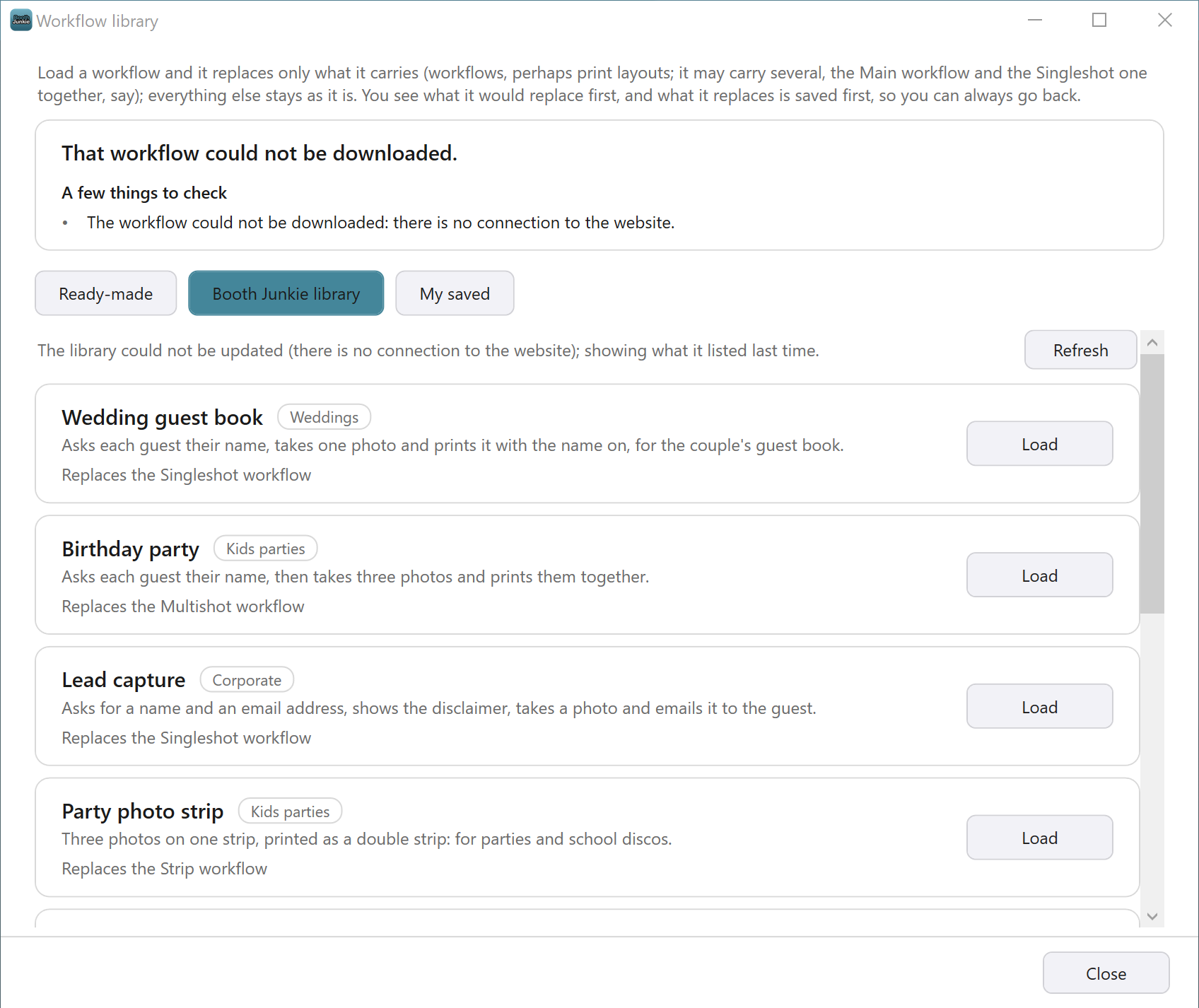
What a failed download says
| Reason | What to do |
|---|---|
| “The workflow could not be downloaded: there is no connection to the website.” | Connect the booth PC to the internet, then press Load again. |
| “The website did not answer within 60 seconds, so the workflow was not downloaded. Try again.” | Press Load again. |
| “The download stopped: nothing arrived for 30 seconds. Try again.” | Check the internet connection, then press Load again. |
| “The download was taking too long and was stopped. Try again, or on a faster connection.” | Press Load again, on a faster connection if you can. |
| “The connection to the website was lost before the whole workflow arrived. Try again.” | Press Load again. |
| “What was downloaded is not the file the library described (its checksum is different), so it was thrown away. Try again.” | Press Load again. Nothing from the failed download is kept. |
| “The website no longer has this workflow. Refresh the library.” | Press Refresh. The workflow has been taken out of the library. |
| “The website says this licence is not Premium, so the workflow was not downloaded.” | Check your Premium under Your Licences on your account Dashboard (see Your Licences: Machine Status, Renewals, and Remote Control), and renew it if it has run out. |
A workflow you’ve loaded doesn’t change by itself when Booth Junkie updates it in the library. To get the new version, load it again.
Related articles
- How the Workflow Library Works: Ready-Made, Booth Junkie and Your Own Workflows
- Loading a Workflow: the Preview, Load it and Save
- The Before Copy: Going Back After Loading a Workflow
- Workflow Library Problems and Messages
- What Needs an Active Premium?
This guide is from Booth Junkie, photo booth software for Windows that has supplied the photo booth industry for 10 years. It runs enclosed booths, selfie pods and magic mirror booths with a Canon DSLR or a webcam, prints to any Windows printer, and sends photos to guests by WhatsApp, SMS and email.