
What a workflow is, and what loading one changes
A workflow is the list of steps on one of the four tabs under Admin Panel → Workflows: Main Workflow, Singleshot Workflow, Multishot Workflow and Strip Print Workflow. A workflow in the Workflow Library can hold one or more of these, for example the Main and Singleshot workflows together. A ready-made workflow can also bring a Booth Junkie print layout. A workflow from the Booth Junkie library, or a file you import, can also bring print layouts, and the pictures, animations and sounds its steps use.
Loading a workflow replaces only what it carries. Everything else stays as it is. Your settings are never changed: your camera, printer, sharing, Card Payment page and every other setting stay exactly as they were.
Before anything changes, the window shows you what the workflow would replace. Then, when you load it, the workflows it replaces, and any print layouts a file or a Booth Junkie library workflow replaces, are saved first, so you can go back (see The Before Copy: Going Back After Loading a Workflow). A ready-made workflow only ever replaces a print layout that is still a Booth Junkie one, and that print layout isn’t kept in the copy.
The Workflow Library button sits with two other buttons at the right-hand end of the row of tabs. All four tabs have the same three.
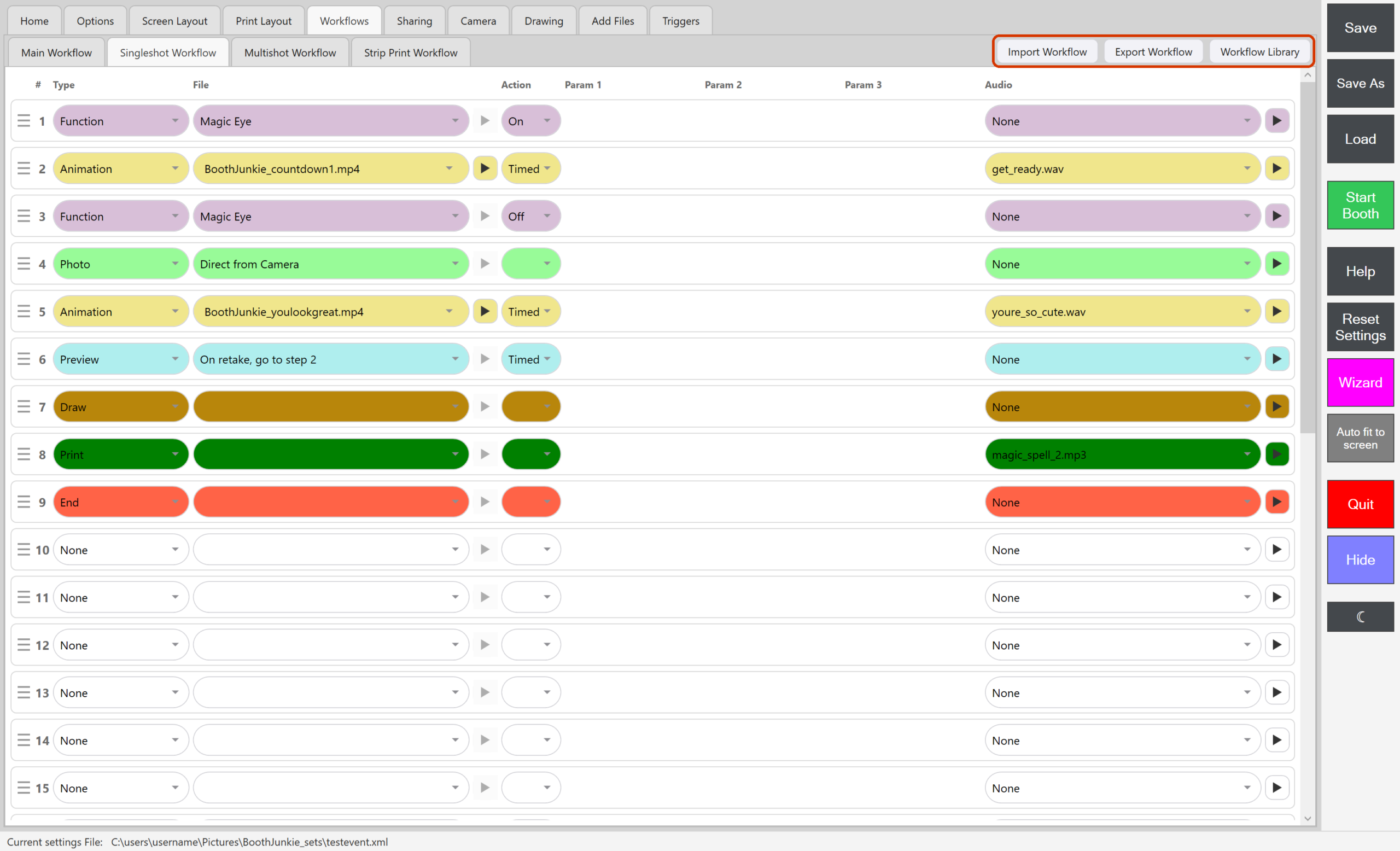
| Button | What it does |
|---|---|
| Workflow Library | Opens the Workflow library window, where you load a ready-made workflow, one from the Booth Junkie library or one you saved yourself, and save your own. The articles listed below are about this window. |
| Export Workflow | Puts workflows in one file to take to another PC. |
| Import Workflow | Loads a workflow file, for example one you exported on another PC. |
Open the Workflow Library
-
Go to Admin Panel → Workflows. Any of the four tabs will do.
-
Press Workflow Library, at the right-hand end of the row of tabs.
Result: The Workflow library window opens on its Ready-made page. It has a button for each of its pages: Ready-made, Booth Junkie library and My saved. The button of the page you’re on is highlighted.
While the window is open, you can’t use the Admin Panel behind it. To close the window, press Close or Esc.
While the window is asking whether to load a workflow, the page buttons are hidden. Press Cancel to get them back.
The Workflow Library articles
- Ready-Made Workflows: Standard, Data Capture and AI Photo: Standard, Data Capture and AI photo, which come with Booth Junkie and load with any licence. AI photo needs an active Premium and AI credits to make its pictures.
- Loading a Workflow: the Preview, Load it and Save: the preview, Load it, and saving afterwards. This works the same on every page.
- The Before Copy: Going Back After Loading a Workflow: how to go back after a load.
- The Booth Junkie Library: Workflows Kept on Our Website: workflows kept on the Booth Junkie website, with an active Premium.
- My Saved Workflows: Saving, Loading and Deleting Your Own: saving your own workflows, and loading, exporting and deleting them.
- Workflow Library Problems and Messages: what the window does with no internet connection, and what each message means.
Taking a workflow to another PC
Your saved workflows stay on this PC. To take workflows to another PC, press Export Workflow on any tab under Admin Panel → Workflows. It puts the workflows you tick in one file, with their print layouts, pictures and sounds if you like. On the other PC, Import Workflow loads the file, with the same preview and Before copy as any other load. Use the same version of Booth Junkie on both PCs.
Related articles
- Main Workflow vs. Shot-Type Workflows
- The Singleshot Workflow
- The Multishot Workflow
- The Strip Print Workflow
- Saving and Loading Your Settings
This guide is from Booth Junkie, photo booth software for Windows that has supplied the photo booth industry for 10 years. It runs enclosed booths, selfie pods and magic mirror booths with a Canon DSLR or a webcam, prints to any Windows printer, and sends photos to guests by WhatsApp, SMS and email.