
Where your settings are kept
The Load and Save As windows show only the folder where Booth Junkie keeps your settings files, so a settings file can’t end up somewhere the booth won’t find it.
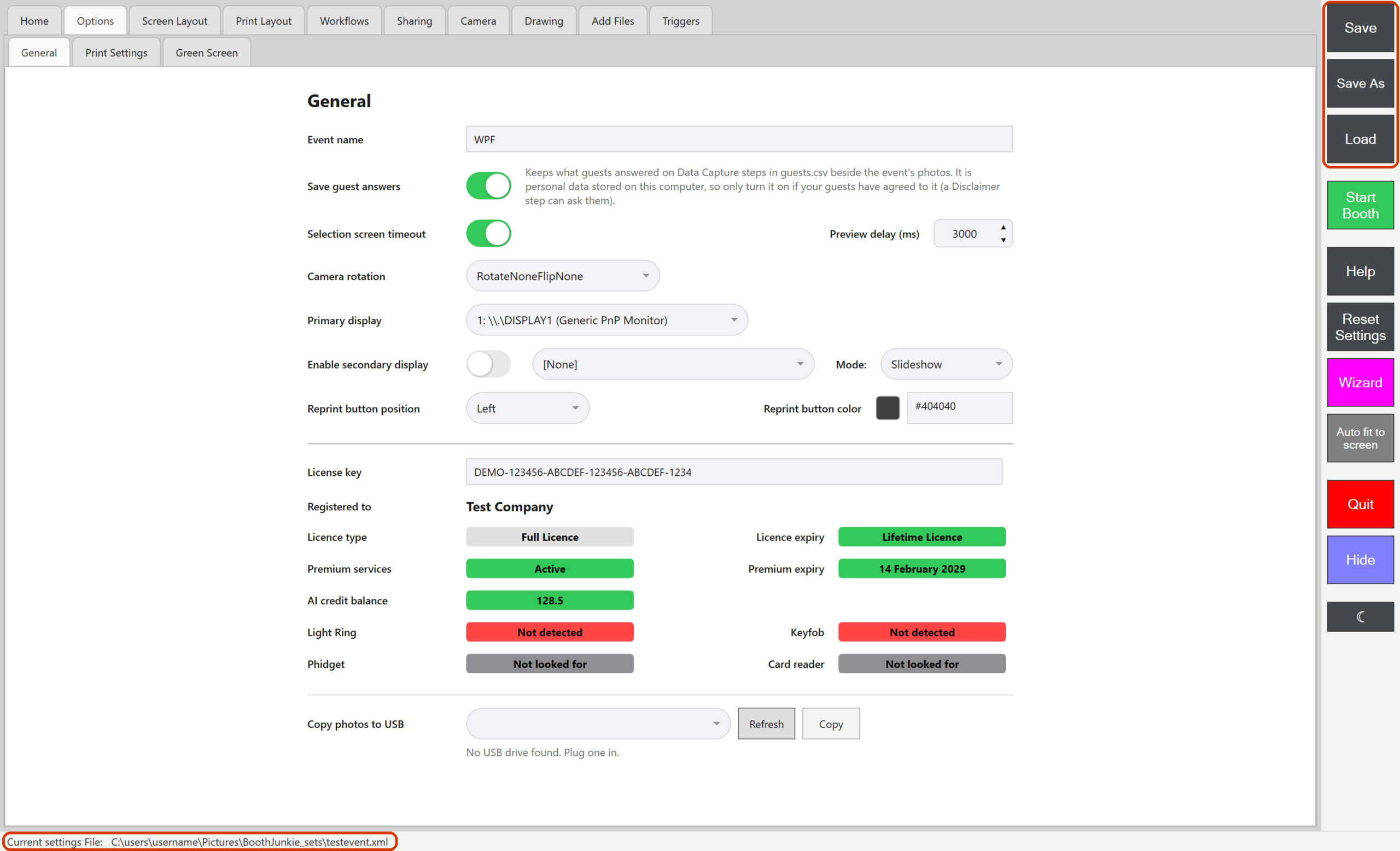
The bottom-left corner of the Admin Panel always shows Current settings File: the file you’re working on now, which Save saves to.
Save your changes
Press Save to save your changes to the current settings file. A “Settings have been successfully saved!” message confirms it.
Good to know: Using Booth Junkie’s default settings?
Booth Junkie’s own default settings files can’t be saved over. If one of them is the current file, Save opens Save As instead, so you can give your settings a name of your own.
Save a new settings file
-
Press Save As.
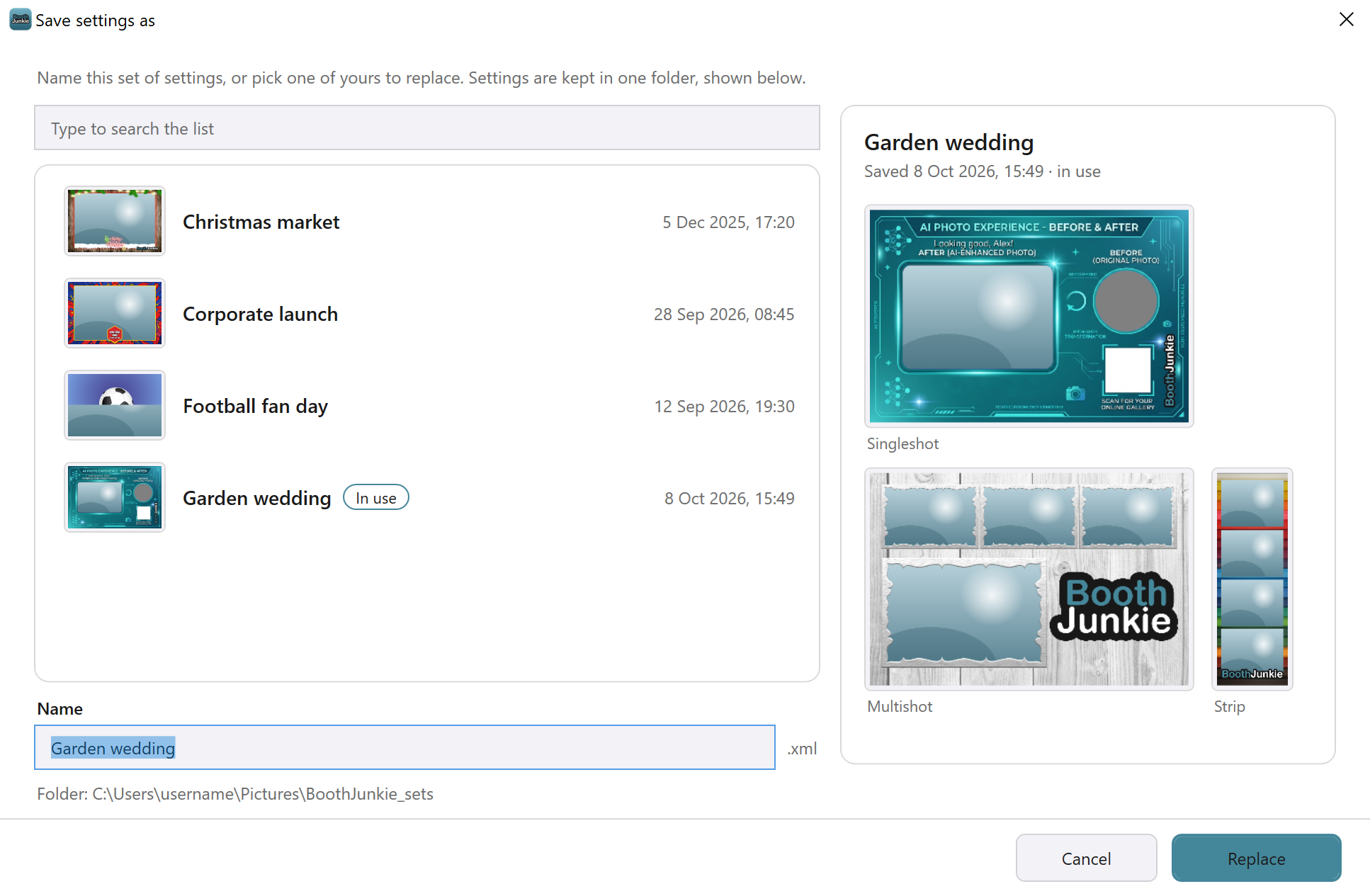
Result: The Save settings as window opens, listing the settings files you already have.
-
Type a name for the new settings file in the Name box.
You don’t need to type
.xml: it’s added for you. The box starts with the current file’s name, or “My settings” if you’re using Booth Junkie’s default settings. -
Press Save.
Result: Your settings are saved under the new name, and it becomes the current settings file.
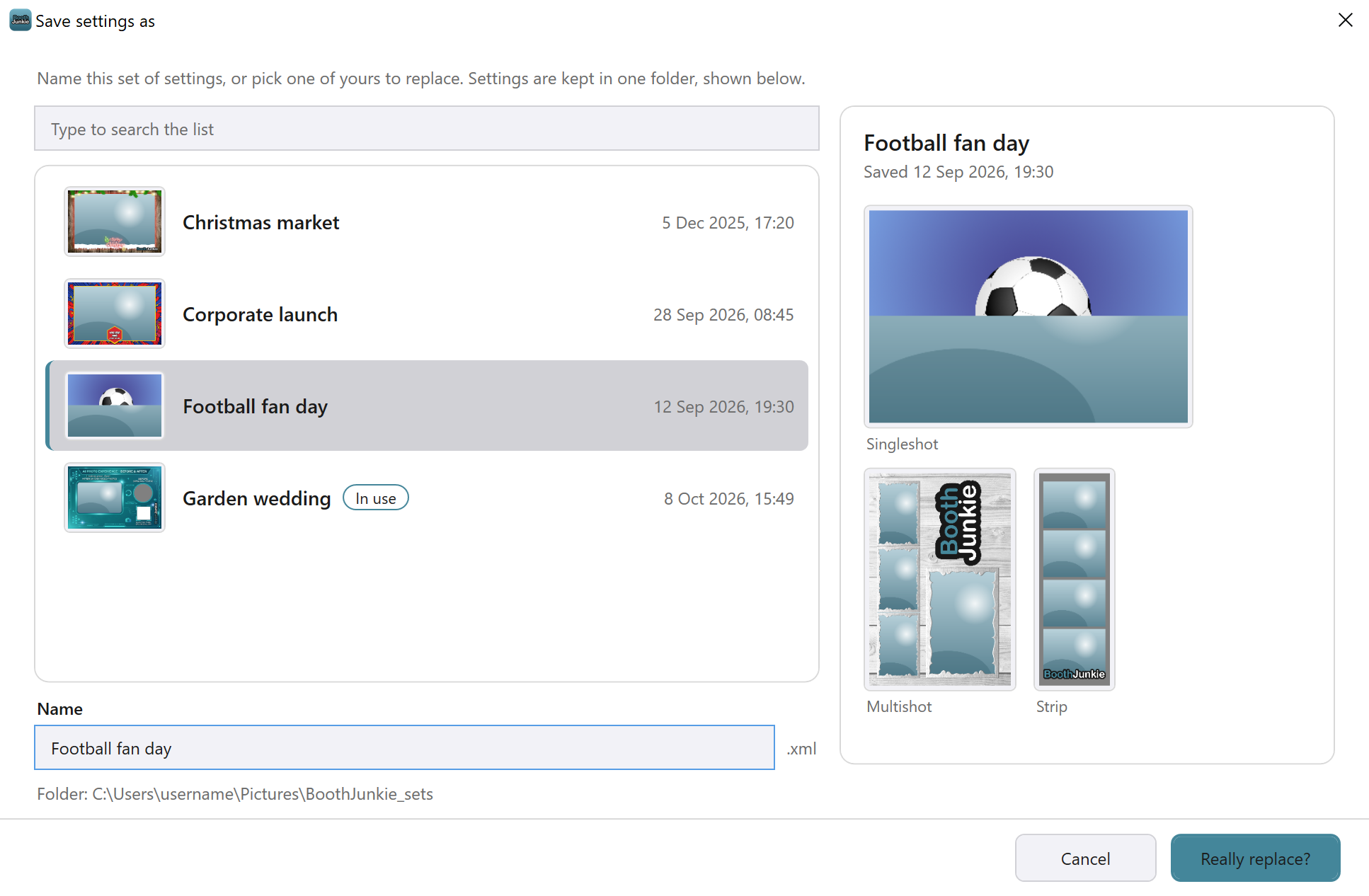
To replace a settings file you already have, pick it from the list or type its name. The button changes to Replace; press it, and then Really replace?, to save over it. The pane beside the list shows that file’s print layouts, so you can check it’s the one you mean.
Names you can’t use
The window says straight away if a name isn’t allowed, and why:
- default_booth and default_mirror are kept for Booth Junkie’s default settings.
- keystrokes is the keyboard shortcuts file, set up on the Triggers tab.
- A name can’t end in _singleshot, _multishot, _stripshot or _boomerang, because those are the ends of workflow file names.
- A name can’t use characters Windows doesn’t allow in a file name, or start or end with a full stop.
Load a settings file
-
Press Load.
Result: The Load settings window opens, listing every settings file in alphabetical order. The file in use is marked In use, and Booth Junkie’s default settings are marked Default.
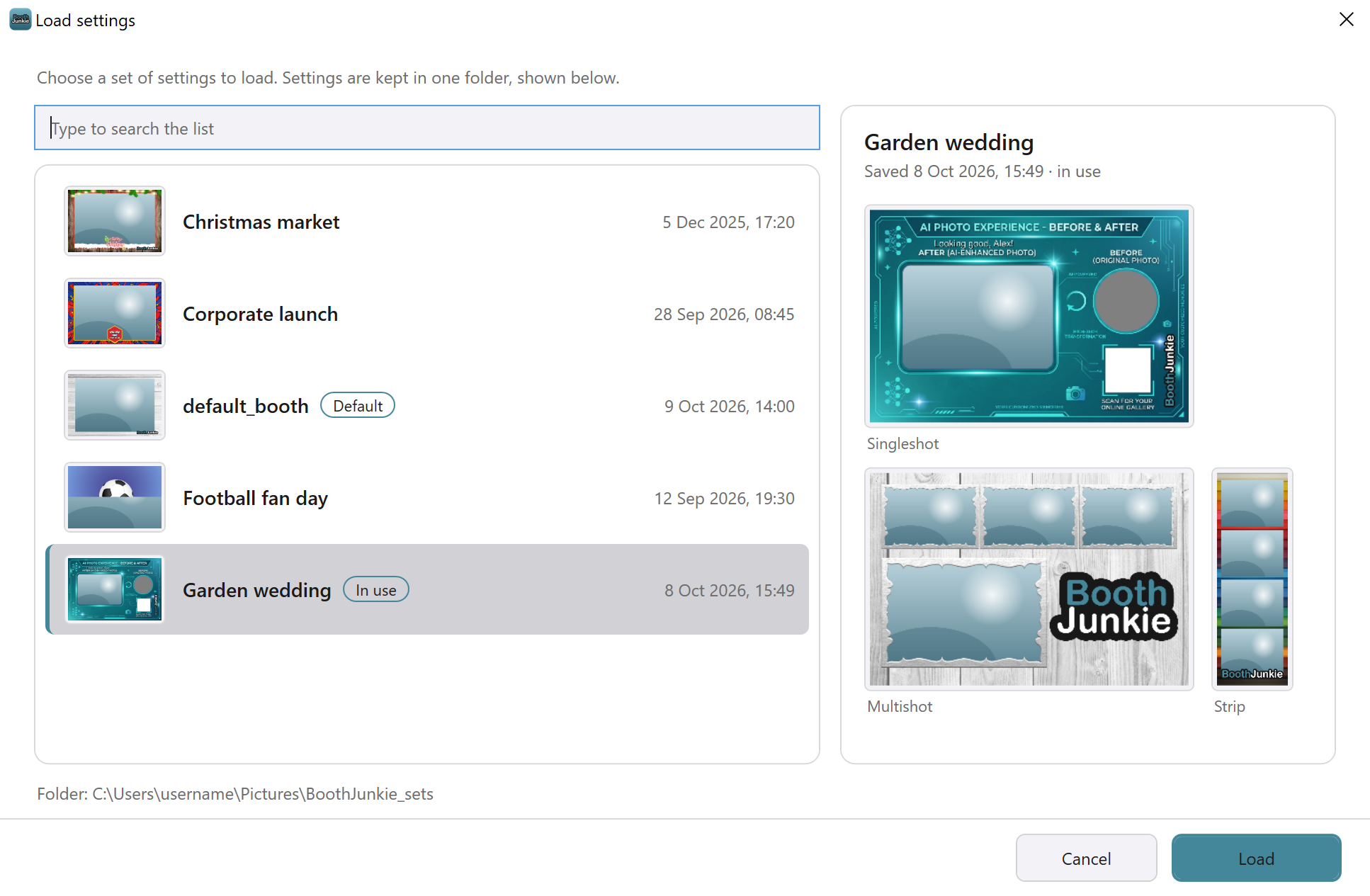
The settings files in this picture are examples. -
Find the settings file you want. To narrow the list down, type part of its name in the search box.
Each row shows a small picture of that file’s print layout and when it was last saved. Click a row, and the pane beside the list shows its print layouts: Singleshot, Multishot and Strip, for each one the file offers guests.
-
Double-click the settings file, or select it and press Load.
Result: The Admin Panel shows the loaded settings, and the file becomes the current settings file.
Tip: Tell your events apart
Rest the mouse on any of the small print layout pictures, in the list or in the pane, and it’s shown enlarged over the window, big enough to read the words on it, such as the event’s name. The pictures are drawn as the window opens, so they may take a moment to appear the first time.
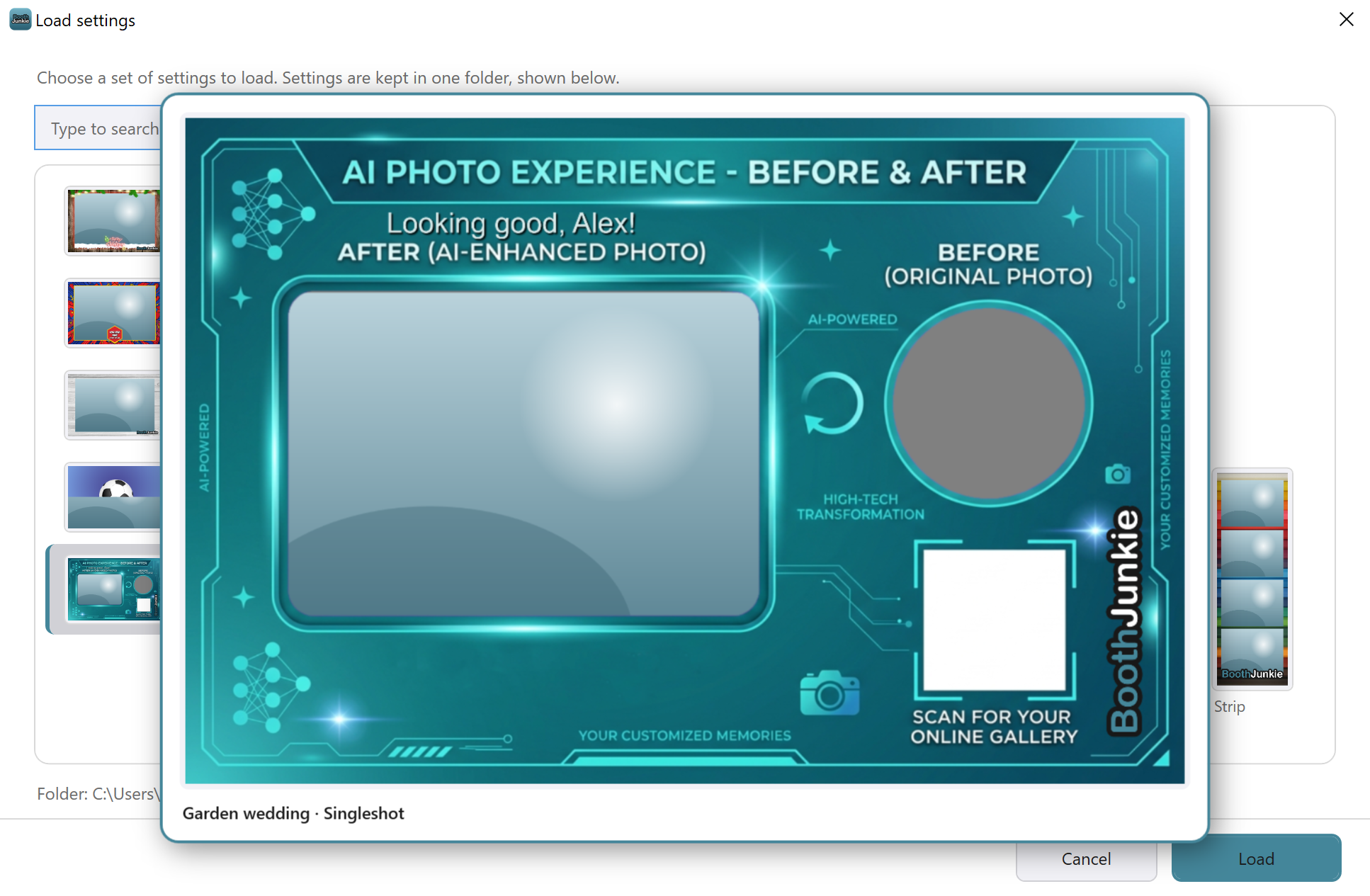
If a file can’t be read as a set of settings, a message says so and nothing changes: the Admin Panel stays exactly as it was.
A print layout installed from the Template Library is shown without its own artwork while Premium has lapsed, just as it would print. See Using the Template Library.
Start Booth uses the saved settings
Start Booth always starts the booth from the saved settings file. Anything you changed in the Admin Panel and didn’t save is dropped, and the next time you open the Admin Panel it shows the saved settings: what the booth is actually running.
Connecting or disconnecting Facebook, Dropbox or Google Drive on the Sharing tab is the exception: it saves the settings file straight away, with any other changes you’ve made. If you’re using Booth Junkie’s default settings, Save As opens first, so you can give your settings a name of your own.
Important: Save before you start the booth
Press Save before Start Booth, or your latest changes will be lost.
Go back to the default settings
-
Press Reset Settings.
Result: A message asks “This will reset all settings back to their defaults. Continue?”
-
Press Yes.
Result: Booth Junkie’s own default settings are loaded, with the Booth Junkie print layouts a new installation starts with.
-
Use Save As to save them under a name of your own before you change anything.
Your own settings files are never touched by Reset Settings: you can Load any of them again afterwards.
One settings file per type of event
A good habit is to save a different settings file for each type of event you run, such as Birthday, Wedding and Anniversary. Set each one up once, then Load the right one whenever that kind of event comes round, give it the new Event name, and press Save.
To reuse just one workflow between settings files, press Workflow Library on the Workflows tab and save it under My saved, or press Export Workflow to save it as a file that Import Workflow can load on another PC. See How the Workflow Library Works: Ready-Made, Booth Junkie and Your Own Workflows.
Related articles
- Quick Start: The Admin Panel and Your First Event
- The Setup Wizard: Setting Up Your Booth Step by Step
- Using the Template Library
This guide is from Booth Junkie, photo booth software for Windows that has supplied the photo booth industry for 10 years. It runs enclosed booths, selfie pods and magic mirror booths with a Canon DSLR or a webcam, prints to any Windows printer, and sends photos to guests by WhatsApp, SMS and email.