
Open the Help window
Press Help in the column of buttons on the right of the Admin Panel, below Start Booth.
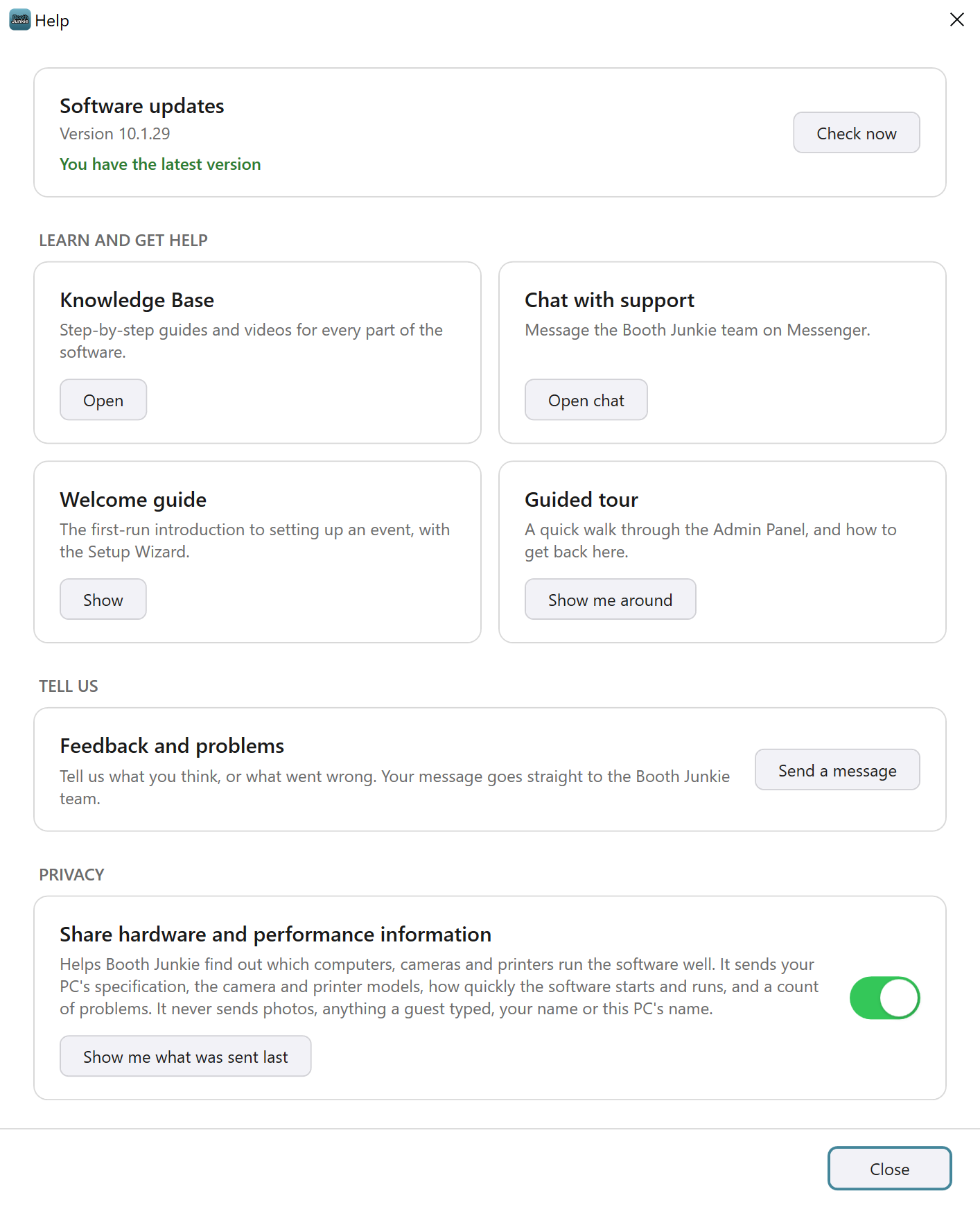
Result: The Help window opens, with a card for each thing you can do:
| Card | What it does |
|---|---|
| Software updates | Shows the version you have. Check now looks for a newer one. |
| Knowledge Base | Open goes to the Knowledge Base: step-by-step guides and videos for every part of the software. |
| Chat with support | Open chat lets you message the Booth Junkie team on Messenger. |
| Welcome guide | Show opens the welcome guide again: the first-run introduction to setting up an event, with the Setup Wizard. |
| Guided tour | Show me around starts a quick walk through the Admin Panel, ending with how to get back to it. |
| Feedback and problems | Send a message opens a form to tell us what you think, or what went wrong. |
| Share hardware and performance information | A switch, with Show me what was sent last. See below. |
Software updates
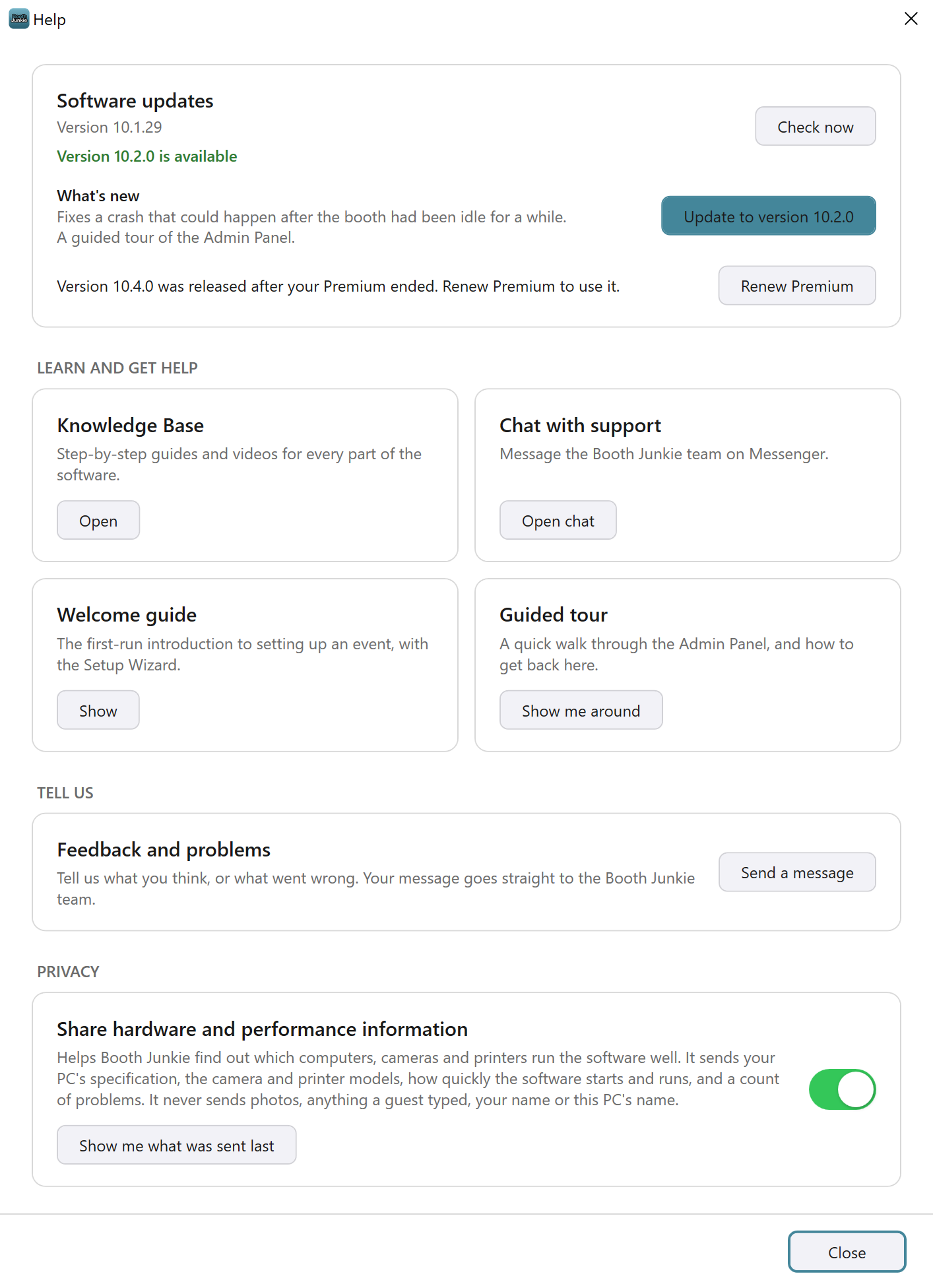
The Software updates card shows the version of Booth Junkie you have, and whether there’s a newer one. Press Check now to look again straight away.
- When there’s a newer version you can install, the card says so, lists What’s new, and has an Update to version button with the new version’s number.
- When a newer version needs an active Premium, the card says so, with a Renew Premium button. The same button appears in the update question when Booth Junkie starts, and in the Booth Junkie Setup program.
- Without an internet connection, the card says “Not checked yet”. If you press Check now and it still can’t connect, the card says “Couldn’t check for updates. Check the internet connection and try again.”
Booth Junkie also asks about updates when it starts. If there’s a version you can install, it asks whether to install it now, with what’s new. Nothing is ever installed without you saying so: if nobody answers, it carries on starting after a short countdown, without updating. If the newer version needs an active Premium, it tells you so, once for that version, with a Renew Premium button.
Opening a web page
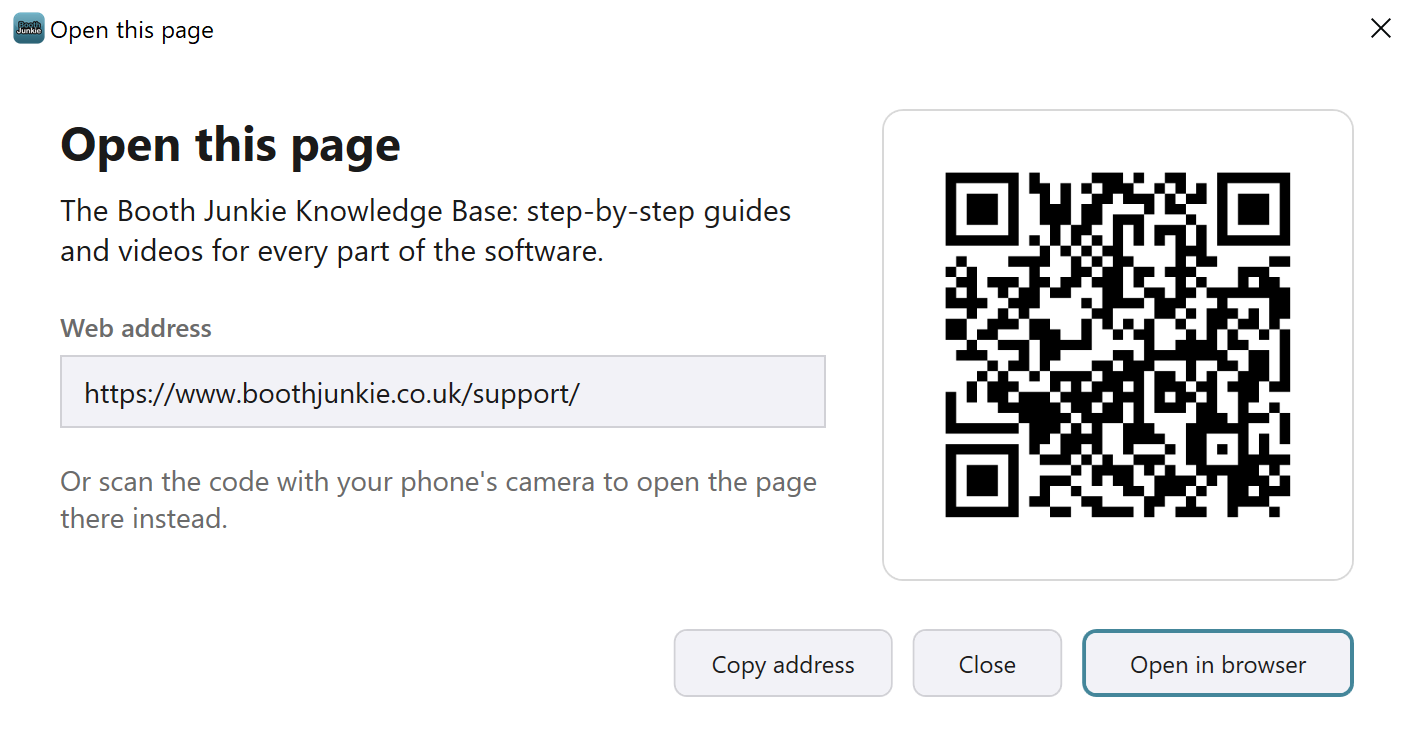
A booth PC often has a touch screen and no keyboard, so most buttons that open a web page show the Open this page window first. You’ll see it for the Open, Open chat and Renew Premium buttons in the Help window, the Renew Premium button in the update question when Booth Junkie starts, the Knowledge Base link on the welcome window, and Buy Licence on the General tab. It shows:
- the page’s name, and its full Web address, with a Copy address button;
- a QR code: scan it with your phone’s camera to open the page there instead. The code is drawn on the booth PC, so it appears even without an internet connection.
Press Open in browser to open the page on the booth PC, or Close to do nothing.
Take the guided tour
-
Press Show me around, on the Guided tour card in the Help window, or on the welcome window.
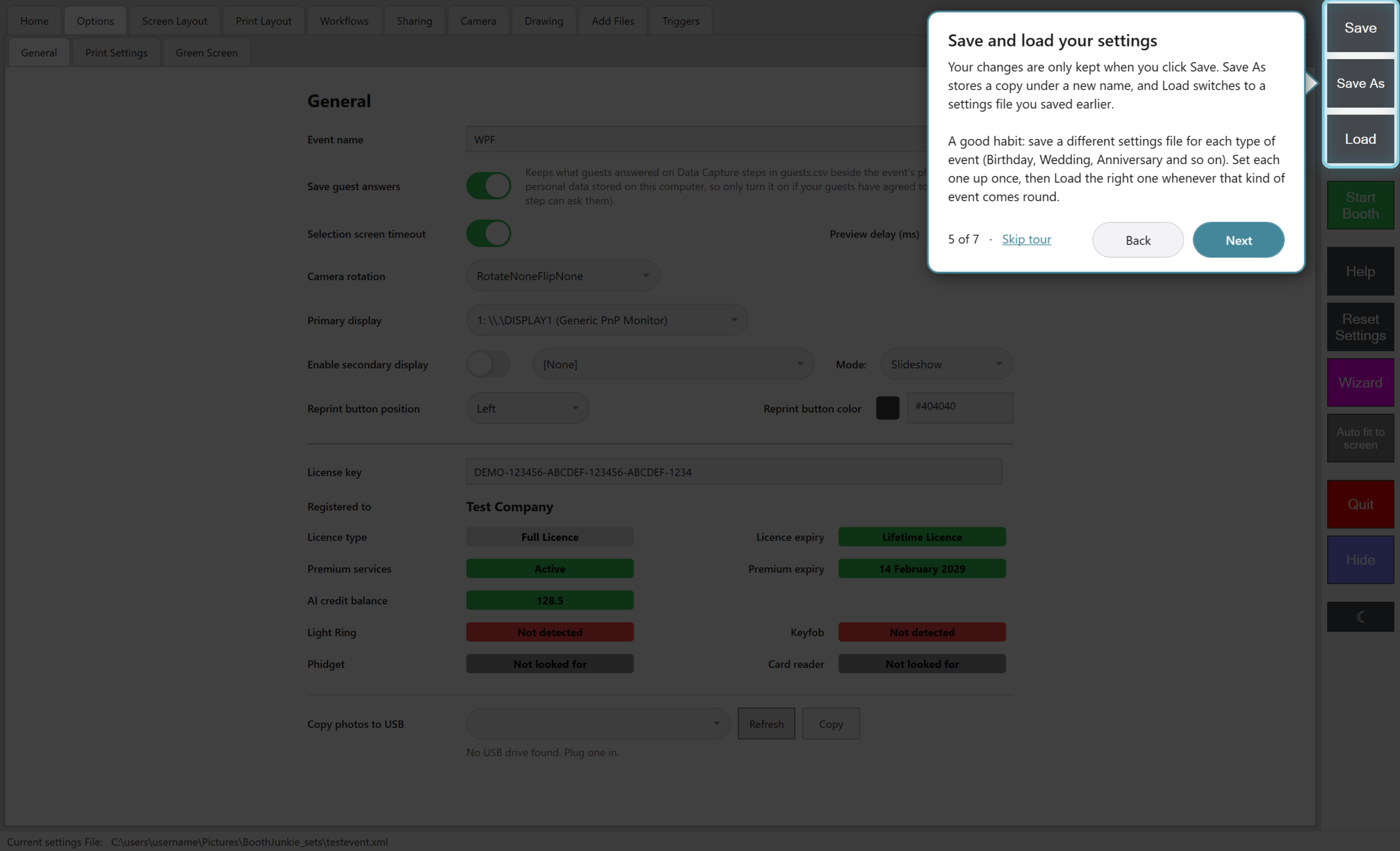
Result: The Admin Panel dims, and a balloon points to each of the main things in turn, with a glowing outline round it.
-
Press Next to move on, or Back to go back. The arrow keys work too.
The tour stops at the tabs, the Event name box, the Wizard, Auto fit to screen, Save, Save As and Load, Start Booth, and finally how to get back to the Admin Panel.
-
Press Done on the last stop. To leave early, press Skip tour, or Esc.
Tip: Getting back to the Admin Panel
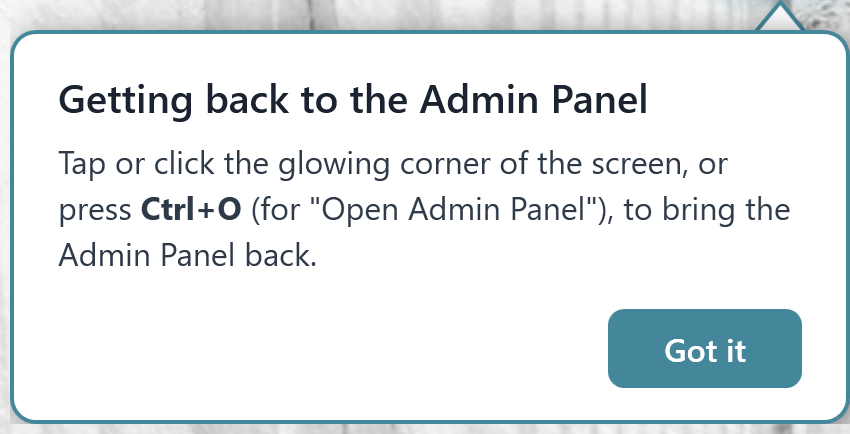
Once the booth is running, there’s nothing on screen to click. To get back to the Admin Panel, tap or click the very top-right corner of the screen, or press the keyboard shortcut (Ctrl+O unless you’ve changed it).
The first time you press Start Booth after the welcome window first appears, or after you take the tour, the booth shows a balloon in its top-right corner, with a glowing square exactly where to tap. It stays until you press Got it, or open the Admin Panel.
The welcome window
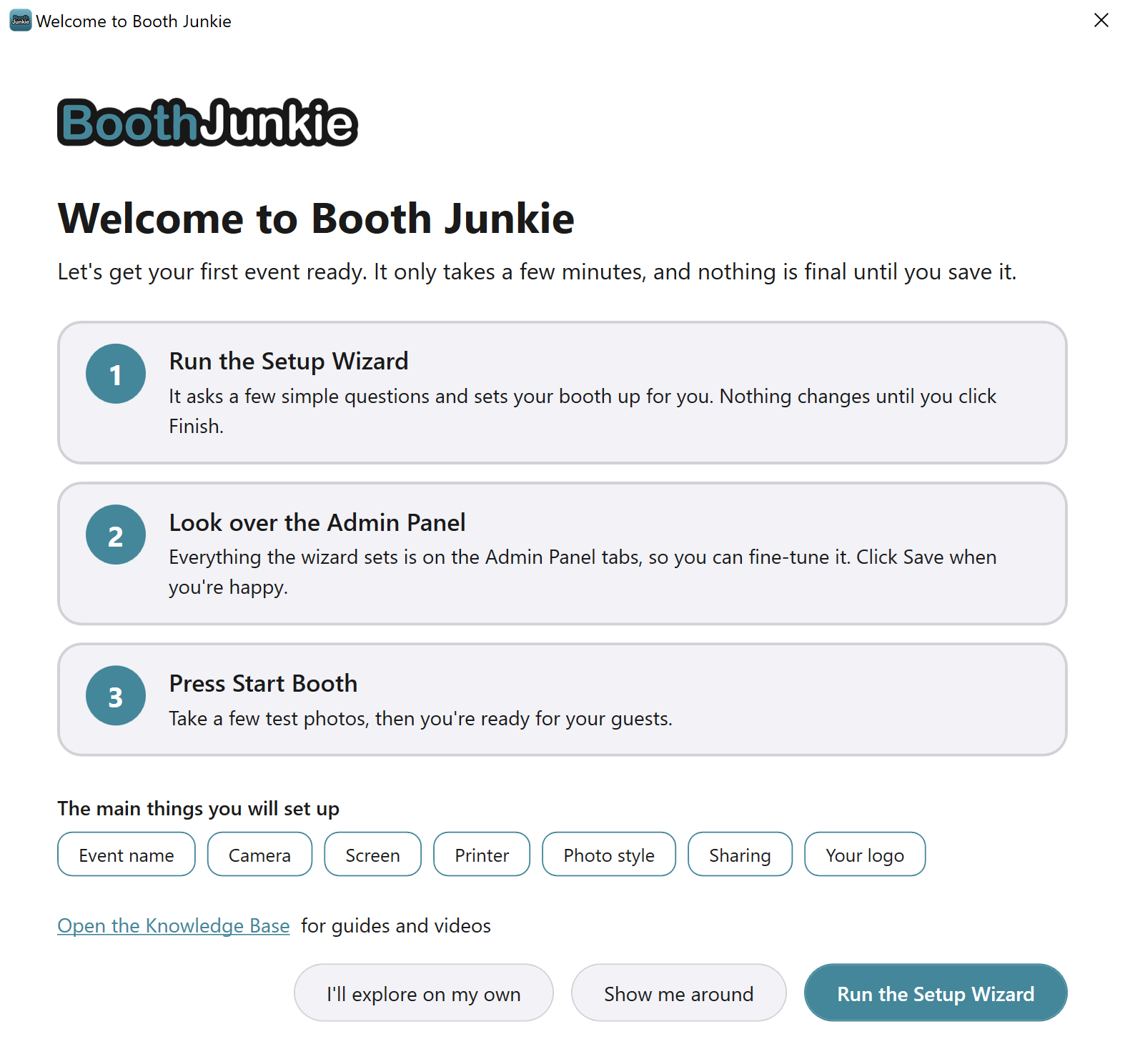
On a new installation, the Welcome to Booth Junkie window appears the first time Booth Junkie starts. It shows the three steps to setting up an event (run the Setup Wizard, look over the Admin Panel, press Start Booth), the main things you’ll set up, and a link to the Knowledge Base.
| Button | What it does |
|---|---|
| Run the Setup Wizard | Starts the Setup Wizard. See The Setup Wizard: Setting Up Your Booth Step by Step. |
| Show me around | Starts the guided tour. |
| I’ll explore on my own | Closes the welcome window. |
It’s only shown once on each PC. To see it again, press Show on the Welcome guide card in the Help window.
Send feedback or report a problem
-
In the Help window, press Send a message on the Feedback and problems card.
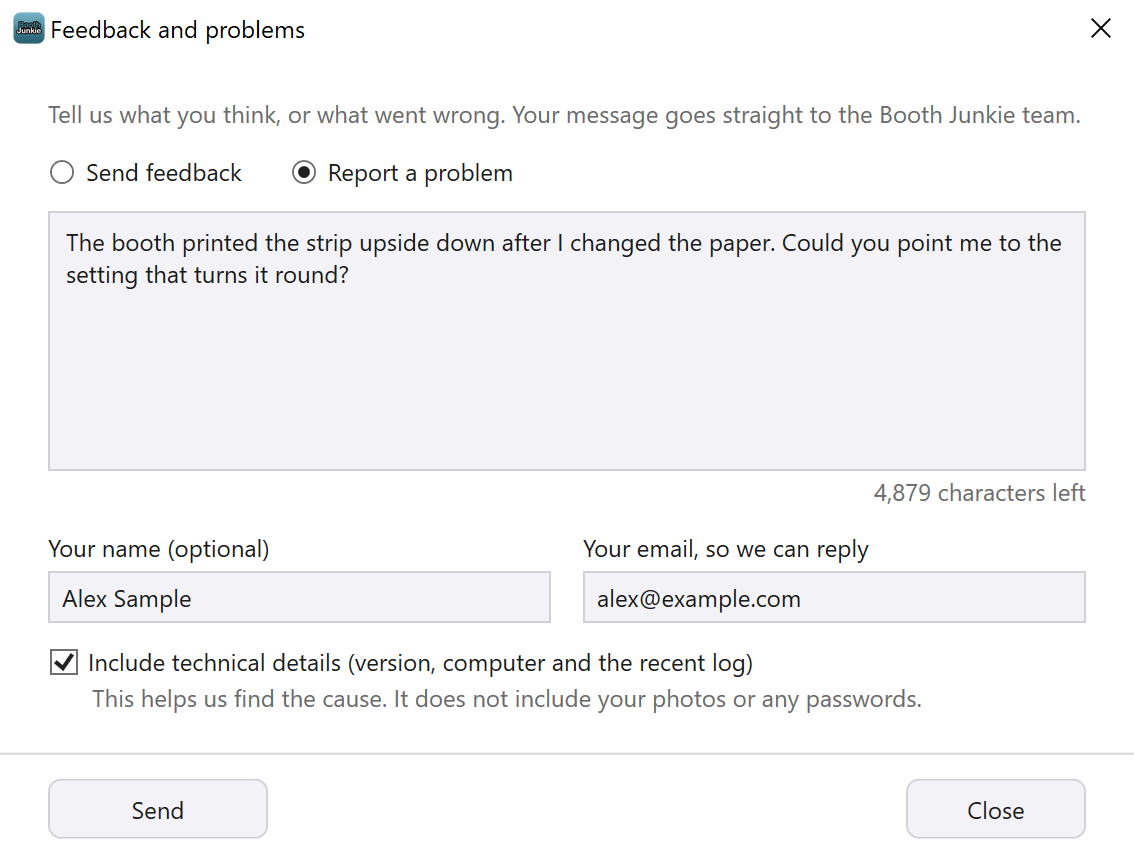
Result: The Feedback and problems window opens.
The name, email and message in this picture are examples. -
Choose Send feedback or Report a problem, and type your message.
-
Check who it comes from.
If this licence belongs to an account, the window shows who you’re sending as, for example “Sending as Sam (s***@example.com)”, and has no name or email boxes: your message is filed under that account.
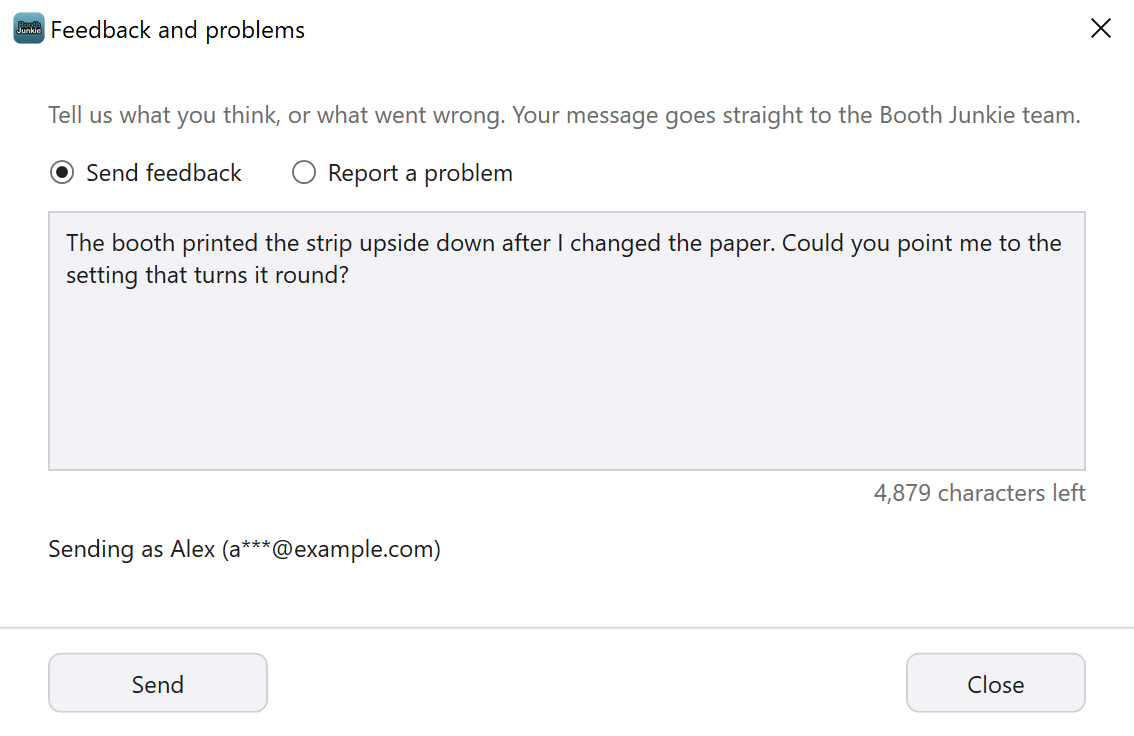
The name, email and message in this picture are examples. Otherwise, fill in Your email, so we can reply: we need it to answer you. Your name (optional) is up to you.
-
For a problem, leave Include technical details ticked.
It helps us find the cause. It doesn’t include your photos or any passwords.
-
Press Send.
Result: Your message is raised as a support ticket, and the window shows its number, for example “Ticket #3930 raised”. If it can’t be accepted, the window says why.
Sharing hardware and performance information
Under PRIVACY in the Help window, Share hardware and performance information is switched on unless you switch it off. It helps Booth Junkie find out which computers, cameras and printers run the software well.
- It sends this PC’s specification, the camera and printer models, how quickly the software starts and runs, and a count of problems.
- It never sends photos, anything a guest typed, your name or this PC’s name.
- Show me what was sent last shows you the last report.
If something goes wrong
If Booth Junkie runs into a problem it can carry on from, a window says “Booth Junkie ran into a problem. It has carried on, but if it happens again please tell Booth Junkie support.”, with the technical details underneath.
The line under it says whether a report reached Booth Junkie, for example “A report was sent to Booth Junkie. Reference 4821.”.
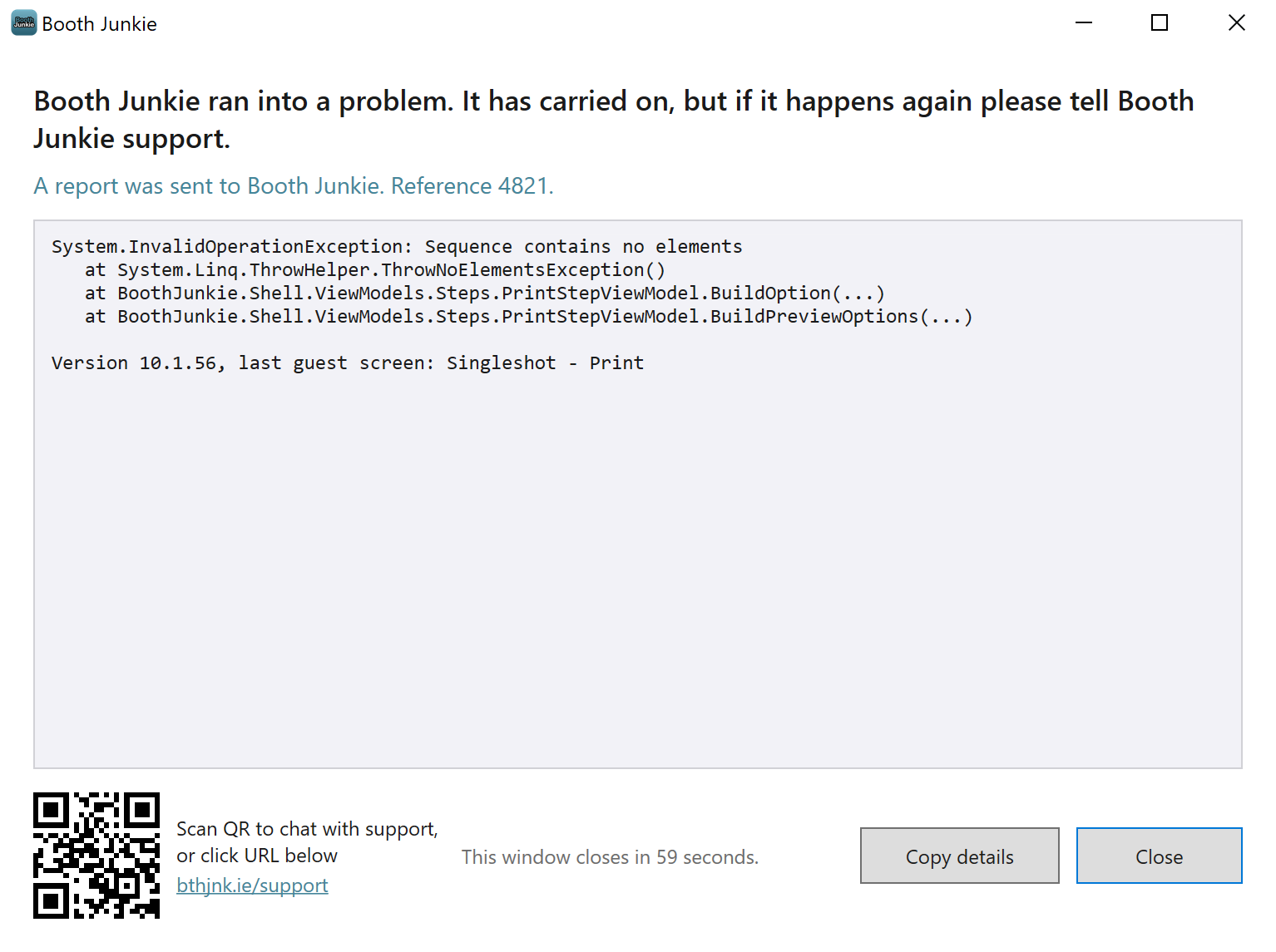
With no internet connection, it says the report couldn’t be sent, and that it will be sent the next time the software starts.
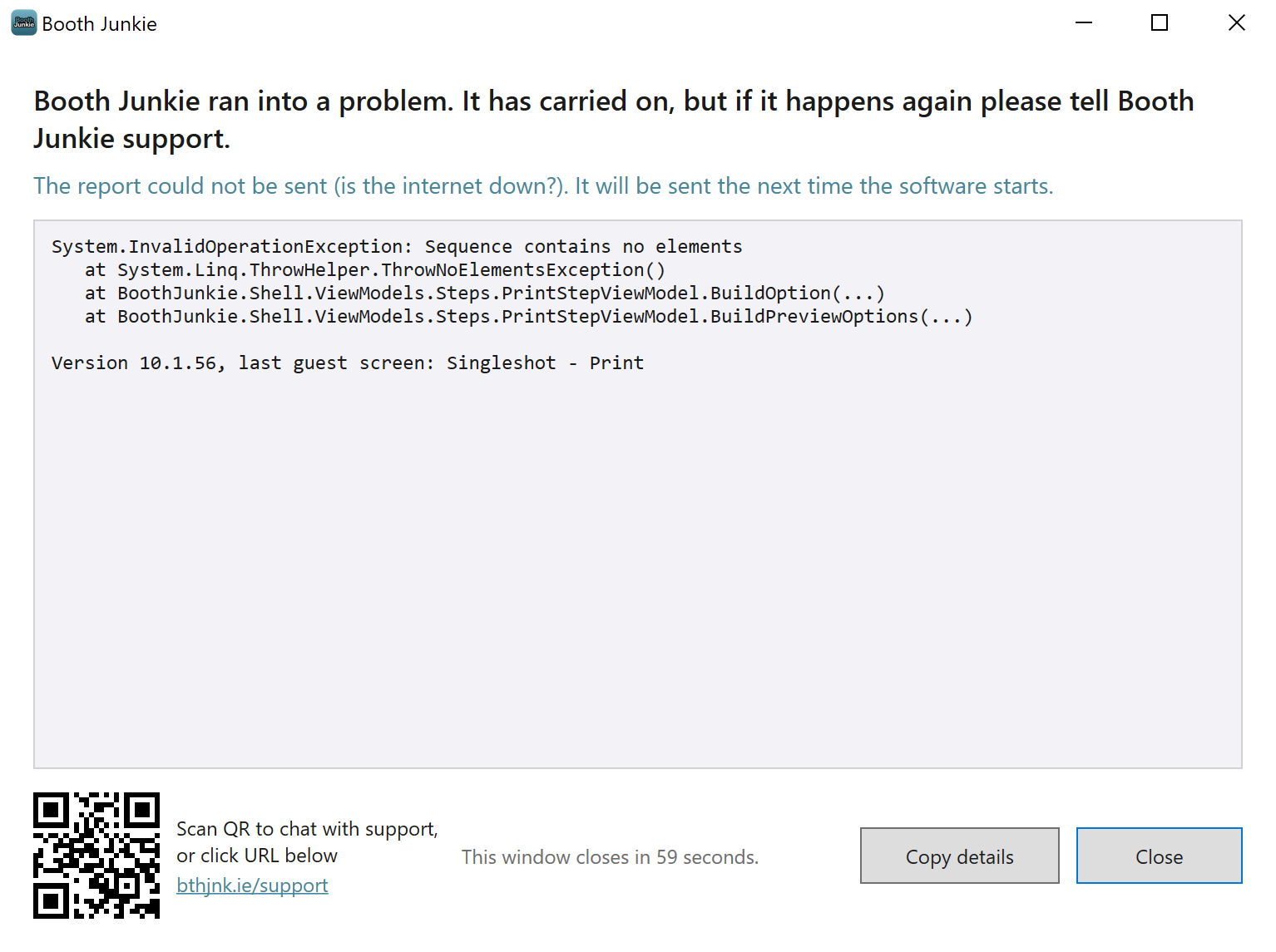
- Copy details copies the details, so you can paste them into a message to Booth Junkie support.
- Close closes the window. It also closes by itself after a minute, unless you’ve pressed Copy details.
The same details are sent to Booth Junkie, with names and file paths taken out, so the cause can be found and fixed. This follows the Share hardware and performance information switch.
Related articles
- Quick Start: The Admin Panel and Your First Event
- The Setup Wizard: Setting Up Your Booth Step by Step
- Saving and Loading Your Settings
This guide is from Booth Junkie, photo booth software for Windows that has supplied the photo booth industry for 10 years. It runs enclosed booths, selfie pods and magic mirror booths with a Canon DSLR or a webcam, prints to any Windows printer, and sends photos to guests by WhatsApp, SMS and email.