
Without an internet connection
| What | With no internet connection |
|---|---|
| Ready-made workflows | Load as usual. They come with Booth Junkie. |
| My saved | Loading, saving and deleting work as usual. |
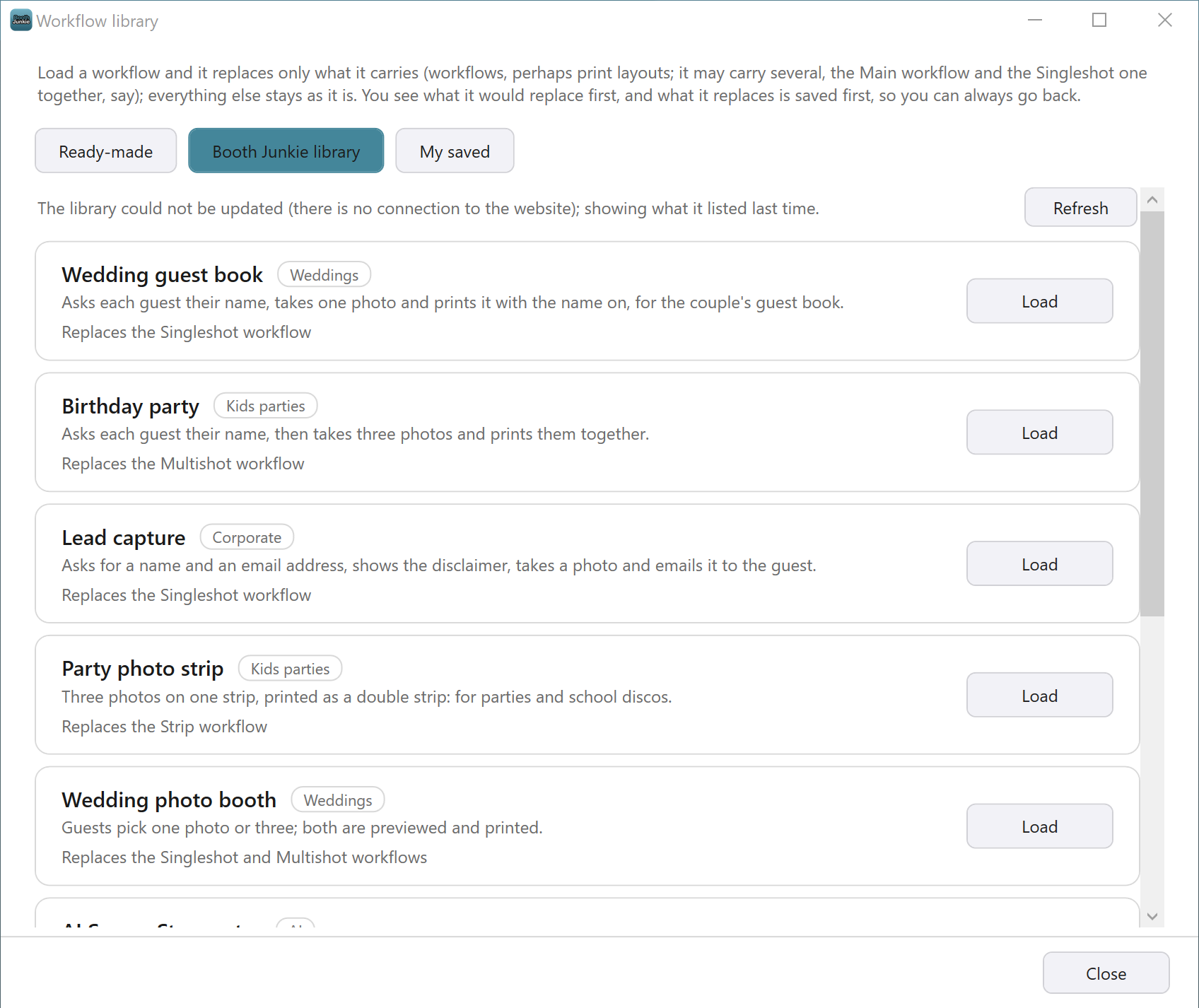
| The Booth Junkie library list | Shows what it listed last time, with the notice “The library could not be updated (there is no connection to the website); showing what it listed last time.” If the list has never been fetched on this PC, it says “The library could not be reached (there is no connection to the website), and nothing has been downloaded before.” |
| Loading from the Booth Junkie library | Load a library workflow while the booth PC has an internet connection. If the download can’t reach the website, the window says “The workflow could not be downloaded: there is no connection to the website.” |
| AI photo (Soccer Star), or any workflow with an AI step | Loads as usual. But each AI photo needs an internet connection when it’s taken. Without one, the guest keeps their original photo. |
When the booth needs the internet, bring your own connection, such as a mobile hotspot. See Do Photo Booths Need Wifi? What Actually Requires an Internet Connection.
If something goes wrong
These are the problem messages the window can show, and what to do about each.
| Message | What it means | What to do |
|---|---|---|
| “No ready-made workflows were found with this installation.” | The ready-made workflows that come with Booth Junkie are missing from this PC. | Update Booth Junkie, or install it again. |
| “There are no workflows in the library yet.” | The Booth Junkie library has no workflows in it at the moment. | Press Refresh another time. You can still load the Ready-made workflows and your own. |
| “The library could not be updated (…); showing what it listed last time.” | The website couldn’t be reached, so the page shows the list from last time. The reason is in the brackets. | Check the internet connection, then press Refresh. |
| “The library could not be reached (…), and nothing has been downloaded before.” | The website couldn’t be reached, and this PC has never fetched the list. | Check the internet connection, then press Refresh. |
| “The library could not be read (…).” | Something went wrong with the list. The reason is in the brackets. | Press Refresh to try again. |
| “The Booth Junkie workflow library is for Premium licences, and the website does not see this licence as Premium.” | The website doesn’t see an active Premium for this licence, so the page lists nothing. | Check your Premium under Your Licences on your account Dashboard (see Your Licences: Machine Status, Renewals, and Remote Control), and renew it if it has run out. |
| “Needs Booth Junkie 10.9.0 or newer.” (with the version it needs) | The workflow was made for a newer version of Booth Junkie, so Load is greyed out. | Update Booth Junkie. |
| “That workflow could not be downloaded.” | The download failed. The reason is under A few things to check. | See “What a failed download says” in The Booth Junkie Library: Workflows Kept on Our Website. Press Load to try again. |
| “That workflow could not be opened.” | The workflow (downloaded from the library, or one of your saved ones) couldn’t be read. The reason is under A few things to check. | Press Load to try again. |
| “What this replaced could not be saved first (…).” | The load went ahead, but no Before copy was made. The reason is in the brackets. | Look over the workflow on its tab before you press Save in the Admin Panel. |
| “That could not be saved.” | Your workflows weren’t saved under My saved. The reason is shown under it. | Try again. |
| “That could not be deleted.” | The saved workflow is still there. The reason is shown under it. | Try again. |
| “The file could not be exported.” | Export… couldn’t write the file. The reason is shown under it. | Choose another place to save it, and try again. |
Related articles
- How the Workflow Library Works: Ready-Made, Booth Junkie and Your Own Workflows
- The Booth Junkie Library: Workflows Kept on Our Website
- Loading a Workflow: the Preview, Load it and Save
- My Saved Workflows: Saving, Loading and Deleting Your Own
- What Needs an Active Premium?
This guide is from Booth Junkie, photo booth software for Windows that has supplied the photo booth industry for 10 years. It runs enclosed booths, selfie pods and magic mirror booths with a Canon DSLR or a webcam, prints to any Windows printer, and sends photos to guests by WhatsApp, SMS and email.