
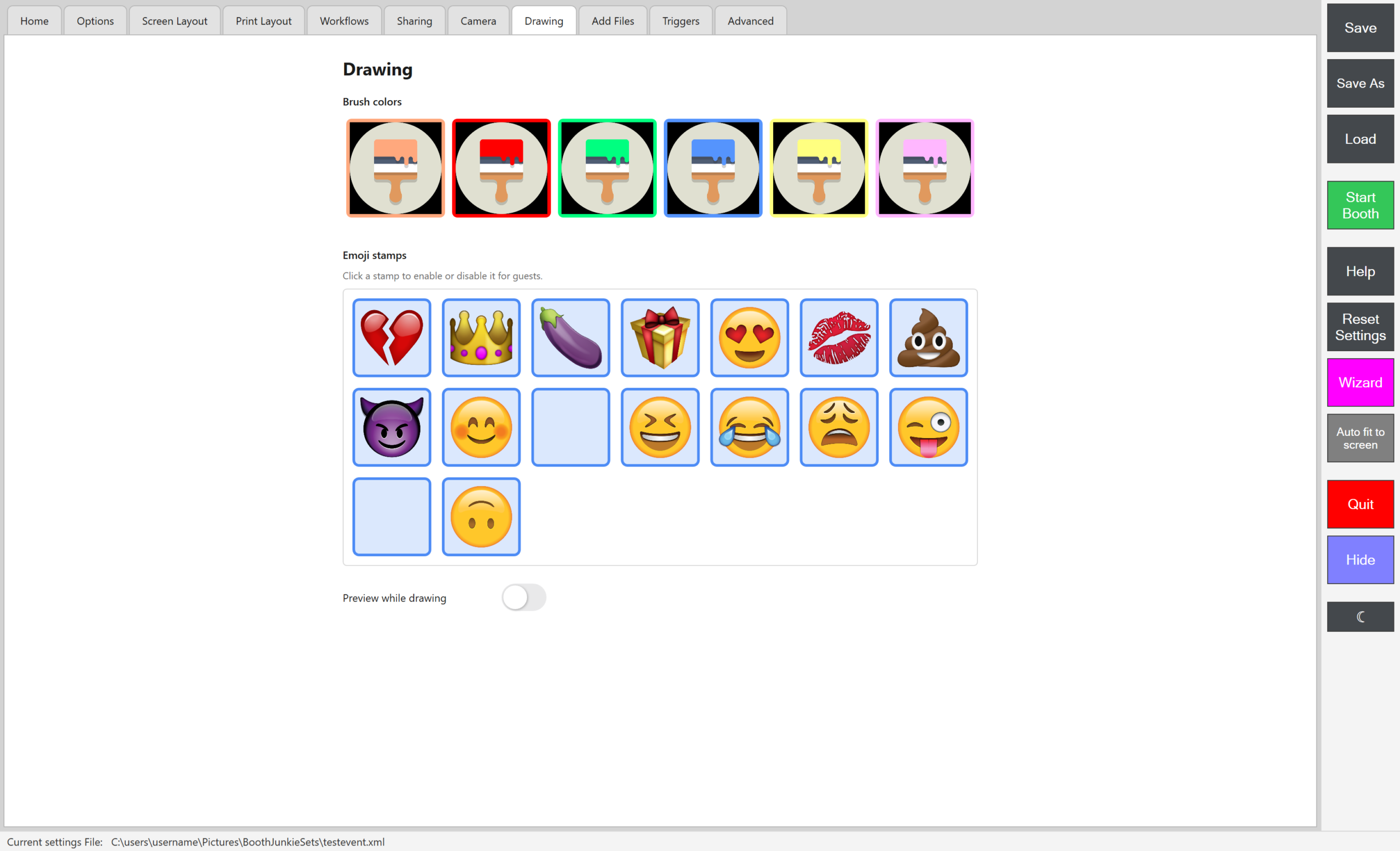
Admin Panel -> Drawing sets up the colours and emoji stamps guests can use on the Draw step – see Adding the Draw Step to Your Workflow for putting that step into a workflow in the first place; this tab is about what guests can draw with once it’s there.
Brush colours
Six colour swatches make up the full palette guests can draw with – there’s no custom colour picker on the guest side, so this list is the complete set for your event.
Emoji stamps
A grid of emoji guests can stamp onto their photo alongside freehand drawing. Click a stamp to enable or disable it for guests – a disabled stamp simply doesn’t appear on the Draw step, so this is how you keep the selection appropriate for a given event without deleting anything permanently.
Preview while drawing
Off by default. With it on, guests see their entire print on screen and draw directly over it, placing their drawing anywhere they like. With it off, guests instead draw on an empty box, which is then placed wherever the “Signature” element sits on the print template – every photo gets its drawing in the same spot, and guests can’t draw over anyone’s face in the shot itself.