
How it works
A Phidget connects to the booth PC by USB. Its inputs and outputs are numbered from 0.
Inputs. An input notices when the wire connected to it switches on or off. Each time it switches on, Booth Junkie counts one pulse. A push button gives one pulse each time it’s pressed. On the Phidget Inputs page, each line turns a number of pulses on one input into a command, such as Reprint Last Photo or Trigger Singleshot. The commands are the same ones Keyfob button A offers. See Phidget Inputs: Buttons and Switches That Run Commands.
Outputs. An output is a switch that Booth Junkie can turn on and off. Outputs have no settings page. Instead, you add a Phidget step to a workflow, and the step switches one output on or off as the guest’s session reaches it. For example, a light can come on for the countdown and the photo, and go off afterwards. See Phidget Outputs: Switching Lights and Relays from a Workflow.
Events. A line on the Phidget Inputs page can also fire Event 1 to Event 5. An Animation or Live View step can wait for an event, so the booth moves on only when someone presses the button. See Events 1 to 5: Steps That Wait for a Button, Keyfob or Shortcut.
The Phidget Inputs page and Phidget steps work with any licence. They don’t need an active Premium.
What you need
- A Phidget connected to the booth PC by USB: an InterfaceKit (for example a PhidgetInterfaceKit 8/8/8) or a VINT Hub. For outputs, you can also plug a VINT module, such as a relay board, into a hub port.
- For inputs, a button or switch wired to an input. For outputs, a relay board, or another small load, wired to an output (see Lamps and mains power in Phidget Outputs: Switching Lights and Relays from a Workflow).
- No other program using the Phidget. Close the Phidget Control Panel, and any other program that uses the Phidget, before you open Booth Junkie. An input or output that another program is using won’t open.
If the Phidget light says the Phidget isn’t found, install Phidget’s own drivers (see Is the Phidget found?, below).
How the numbers work
| On the page or the step | What it means |
|---|---|
| Input N, on Phidget Inputs | Input N of an InterfaceKit, or of a VINT module with inputs. If no board has an input N, it’s port N of a VINT Hub. |
| Channel N, in a Phidget step’s Param 1 | Output N of an InterfaceKit, or of a VINT module such as a relay board. If no board has an output N, it’s port N of a VINT Hub. |
A VINT Hub has six ports, 0 to 5. With only a hub, Input 6 and 7, and Channel 6 and Channel 7, find nothing.
On an InterfaceKit, the inputs and outputs are separate, so Input 0 and Channel 0 can both be used. On a VINT Hub, Input N and Channel N are the same port (see VINT Hub ports, below).
Is the Phidget found?
Booth Junkie starts looking for Phidgets when it opens. The Phidget light on Admin Panel → Options → General shows what it found.
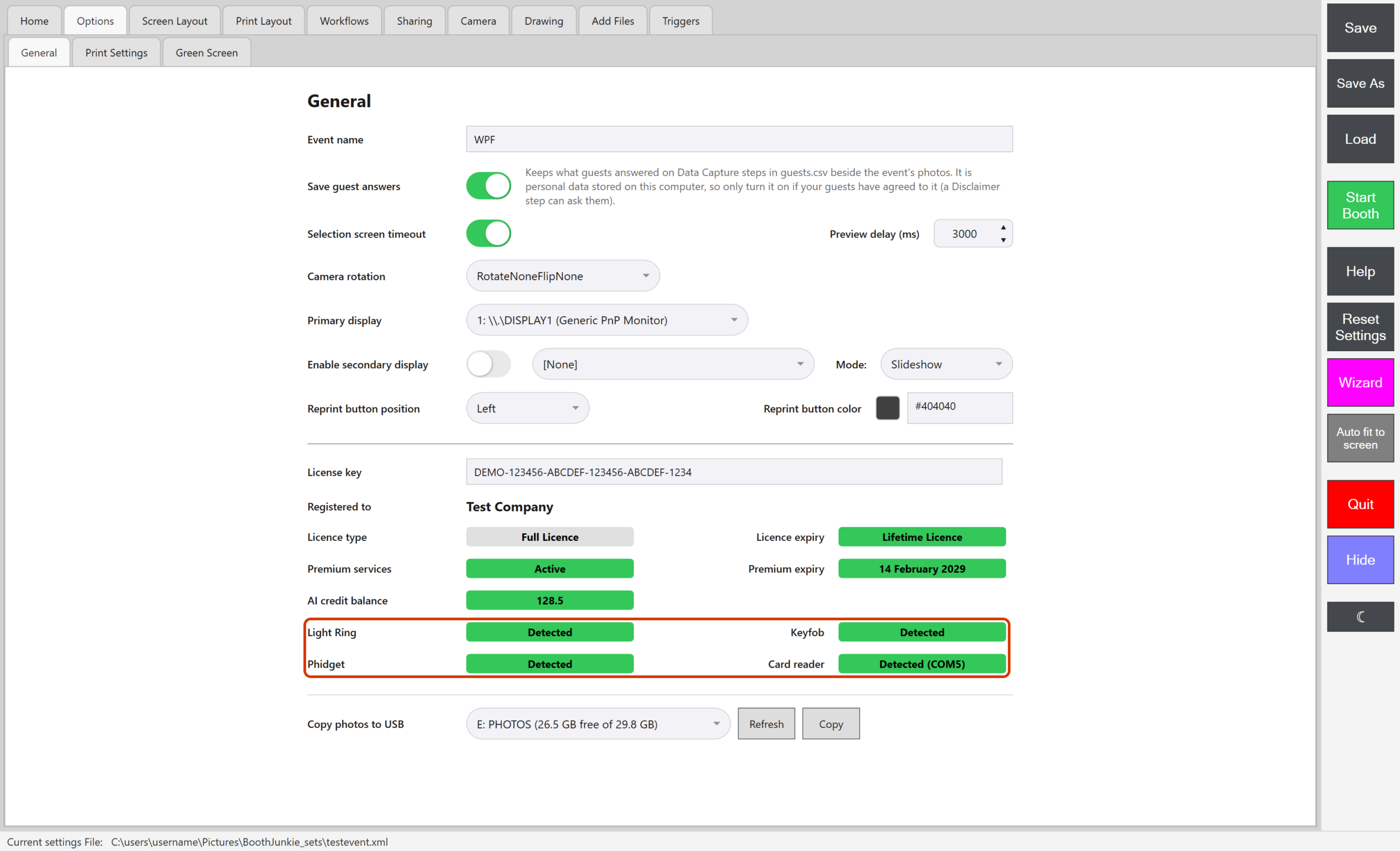
| Light | What it means | What to do |
|---|---|---|
| Green Detected | A Phidget is connected. | Nothing. |
| Amber Looking… | Booth Junkie opened a few seconds ago, and is still looking. | Wait a moment. |
| Red Not detected | Booth Junkie looked, and found no Phidget. | Check the USB cable and plug. If the light stays red, install Phidget’s own drivers (below). |
| Grey Not looked for | Booth Junkie hasn’t started looking yet. It normally starts when Booth Junkie opens. | Click the light to start looking. |
| Grey Library not available | The software Booth Junkie needs for Phidgets can’t be loaded on this PC. | Close Booth Junkie and open it again. If the light still says so, install Phidget’s own drivers (below). |
For the other lights on that tab, see The General Tab: Event Name, Rotation, and Licence Info.
A Phidget plugged in after Booth Junkie has opened is picked up when it appears. A Phidget that’s unplugged and plugged back in is used again. If your Phidget drops out during an event, see Preventing Windows From Powering Down Your Booth’s USB Devices.
The Phidget Inputs page also has a line near the top that counts the inputs Booth Junkie has found. See Check the inputs Booth Junkie has found in Phidget Inputs: Buttons and Switches That Run Commands.
Install Phidget’s own drivers
Do this if the Phidget light says Not detected while the Phidget is plugged in, or says Library not available.
-
Close Booth Junkie.
-
Download the drivers for Windows from the Phidgets website, and install them.
-
Close the Phidget Control Panel if the installer opened it.
-
Plug the Phidget in, and open Booth Junkie.
Result: The Phidget light on Admin Panel → Options → General says Detected.
VINT Hub ports: an input or an output, not both
Important: Use different ports for inputs and outputs on a VINT Hub
On a VINT Hub, Input N and Channel N are the same port, and a port can be an input or an output, not both. Give inputs and outputs different port numbers, for example Input 0 and Channel 1.
- Once a Phidget step has switched hub port N, that port stays an output while Booth Junkie runs. A Phidget Inputs line on Input N can’t use it then, and while the input is watched (a line on it, or Show live input states on) its light says “this hub port is in use as an output”.
- A Phidget step can’t switch a hub port that a Phidget Inputs line is using as an input.
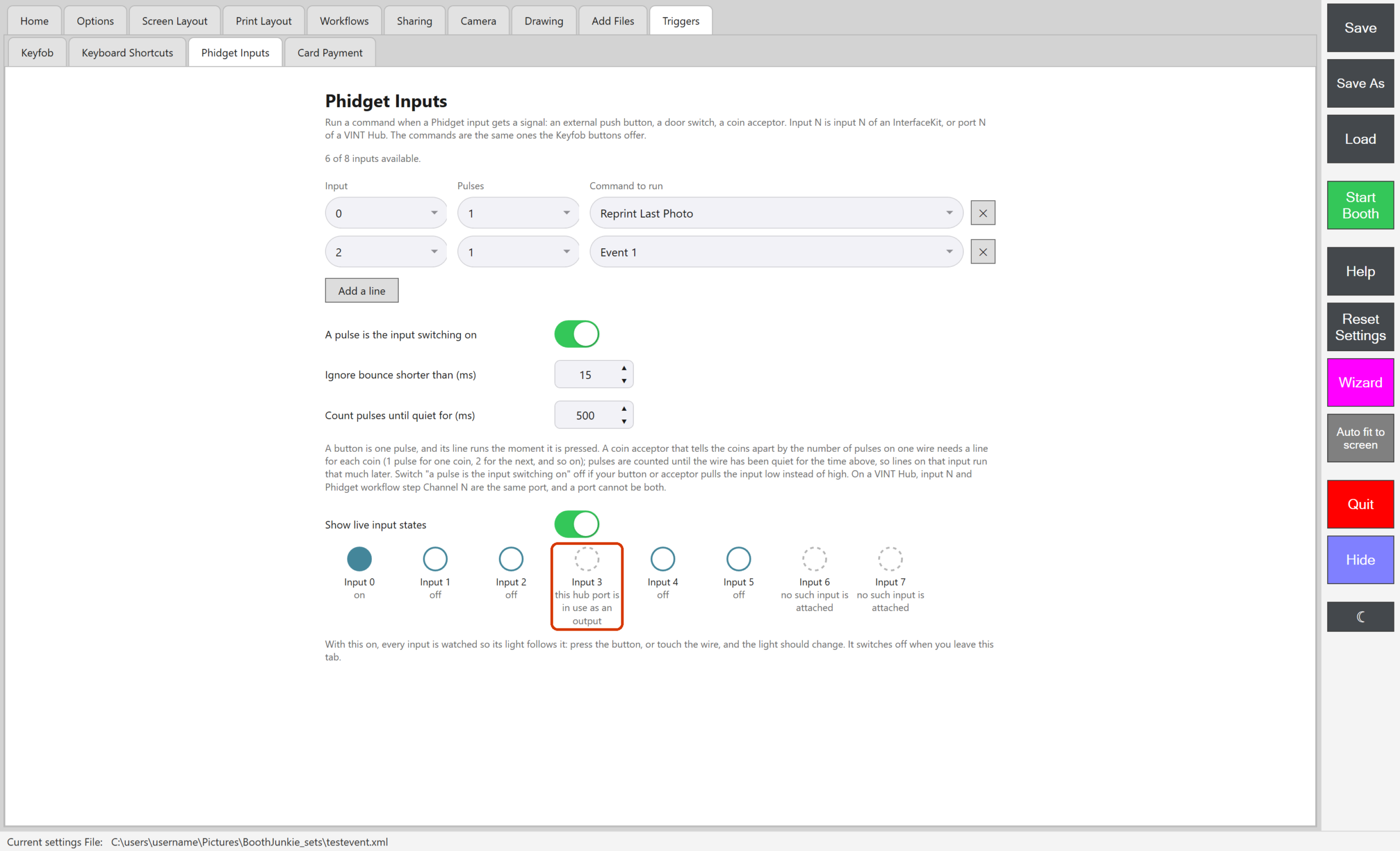
For a relay board plugged into a hub, see VINT Hub ports used as outputs in Phidget Outputs: Switching Lights and Relays from a Workflow.
Phidget lines, settings files and workflow files
The Phidget Inputs lines and their three settings are saved with your other settings when you press Save, so Save As and Load carry them too. See Saving and Loading Your Settings.
A workflow carries no settings, so the lines never travel in a workflow file or in the Workflow Library. The Phidget steps, and the event Action on an Animation or Live View step, are part of the workflow, so they do travel. Another PC that loads the workflow needs its own Phidget, wired the same way, and its own lines on its Phidget Inputs page. The preview you see before loading a workflow gives no reminder about a Phidget.
See How the Workflow Library Works: Ready-Made, Booth Junkie and Your Own Workflows.
If something goes wrong
| What you see | What to do |
|---|---|
| The Phidget light says Not detected | Check the USB cable and plug. If the light stays red, install Phidget’s own drivers (see Is the Phidget found?). |
| The Phidget light says Library not available | Install Phidget’s own drivers (see Is the Phidget found?). |
| The Phidget drops out during an event | See Preventing Windows From Powering Down Your Booth’s USB Devices. |
For an input line, an output or a step that waits for an event, see If something goes wrong in the article for it, listed below.
The Phidget articles
- Phidget Inputs: Buttons and Switches That Run Commands: wire a button or switch to an input, choose the command it runs on Triggers → Phidget Inputs, and check the wiring with the live lights.
- Phidget Outputs: Switching Lights and Relays from a Workflow: switch a light or a relay on and off with a Phidget step in a workflow, with a worked example.
- Events 1 to 5: Steps That Wait for a Button, Keyfob or Shortcut: make an Animation or Live View step wait until a Phidget button, a Keyfob button or a keyboard shortcut fires an event.
Related articles
- Setting Up a Keyfob
- Keyboard Shortcuts: Triggering Booth Functions from a Keyboard
- The General Tab: Event Name, Rotation, and Licence Info
- Main Workflow vs. Shot-Type Workflows
- The Animation Step: Videos Between Everything Else
- The Live View Step: Keeping Guests in Frame Between Shots
- Saving and Loading Your Settings
- Preventing Windows From Powering Down Your Booth’s USB Devices
This guide is from Booth Junkie, photo booth software for Windows that has supplied the photo booth industry for 10 years. It runs enclosed booths, selfie pods and magic mirror booths with a Canon DSLR or a webcam, prints to any Windows printer, and sends photos to guests by WhatsApp, SMS and email.