
For what a Phidget is, the boards Booth Junkie supports and the Phidget light, see Phidget Boards: What They Do and What You Need.
The Phidget Inputs page
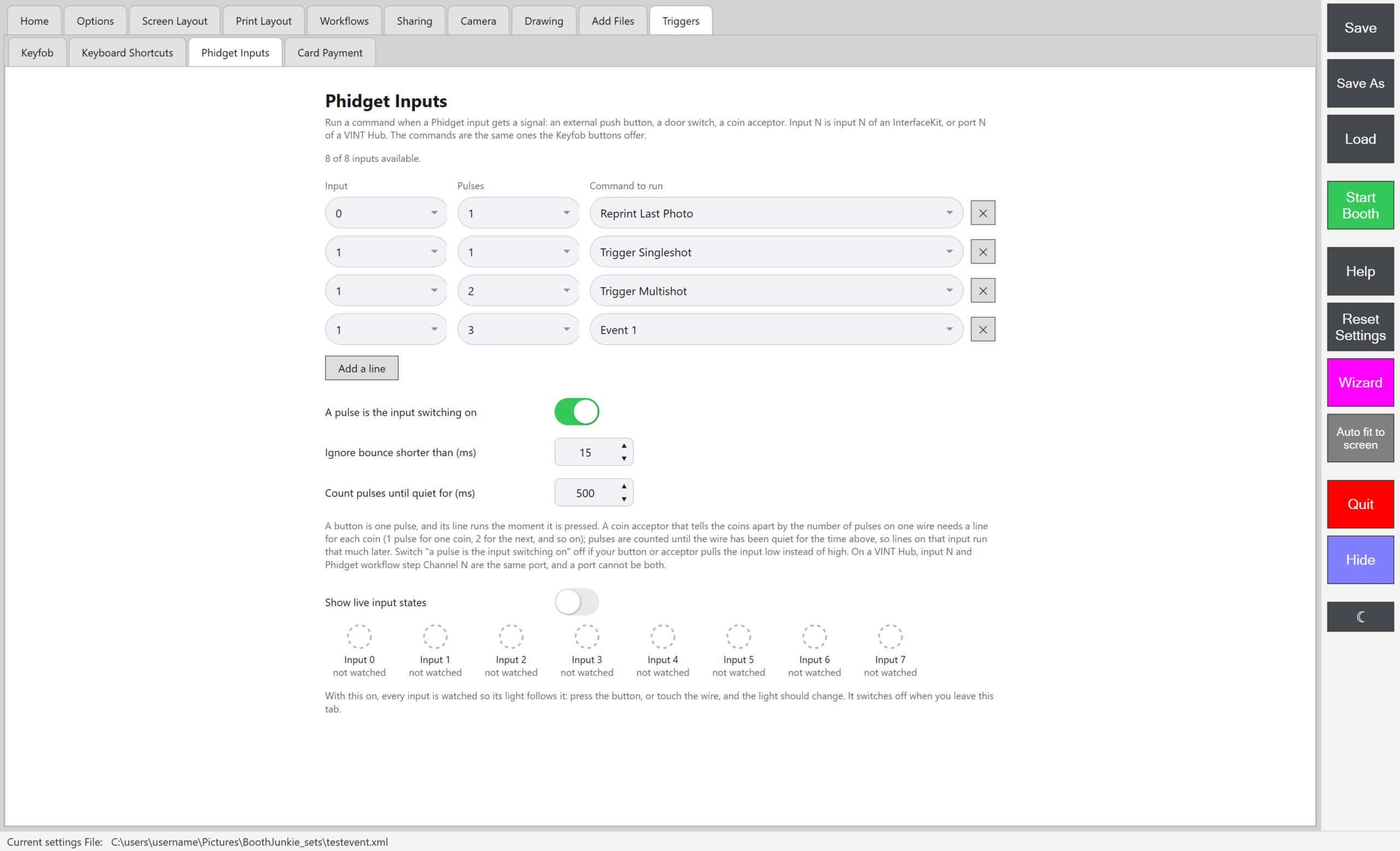
Go to Admin Panel → Triggers → Phidget Inputs. Each line has an Input, a number of Pulses and a Command to run.
| Setting | What it does |
|---|---|
| Add a line | Adds a line with the next Input that has no line yet (Input 0 for the first line), Pulses 1 and Command to run Default Action. You can have up to 16 lines. |
| Input | The input the line listens to, 0 to 7. |
| Pulses | How many pulses in a row run the line, 1 to 20. One press of a button is one pulse. |
| Command to run | What the line does. The list is the same as Keyfob button A’s (see the list below). |
| The cross at the end of a line | Removes the line. |
| A pulse is the input switching on | On to start with. Switch it off if your button pulls the input low instead of high. If a line runs when you let go of the button instead of when you press it, this is the setting to change. |
| Ignore bounce shorter than (ms) | 15 to start with (0 to 1000). A switch can flicker for a moment as it opens or closes. Flickers closer together than this count as one press. |
| Count pulses until quiet for (ms) | 500 to start with (100 to 5000). On an input with a line for 2 or more pulses, presses are counted until the input has been quiet for this long. See Several presses on one input, below. |
| Show live input states | Makes each input’s light follow it, so you can check the wiring. See Check the wiring with the live lights, below. |
Every command a line can run
- Reprint Last Photo
- Open Admin Panel
- Toggle Booth Lock
- Toggle LED Ring: switches the Light Ring on or off.
- Open Event Photos
- Open Printer Settings
- Restart Session
- Quit Software
- Trigger Animation Touch
- Trigger Singleshot
- Trigger Multishot
- Trigger Stripshot
- Finish Drawing
- Default Action: presses the obvious button on the screen that’s showing. It taps an Animation or Live View video, picks the first shot type on the Selection screen, presses Continue on the Preview screen, finishes the Draw screen, presses OK on a Data Capture question, accepts a Disclaimer, and presses the Print screen’s obvious button. It does nothing on other steps, such as Photo.
- Event 1 to Event 5: moves on a step that’s waiting for that event (see Events 1 to 5: Steps That Wait for a Button, Keyfob or Shortcut).
A line runs exactly what a Keyfob button set to the same command would.
Set up a button
-
Connect the Phidget to the booth PC, with your button wired to one of its inputs.
-
Go to Admin Panel → Triggers → Phidget Inputs.
-
Press Add a line.
Result: A new line appears with the next free Input (Input 0 for the first line), Pulses 1 and Command to run Default Action.
-
Choose the Input your button is wired to, and leave Pulses at 1.
-
Choose the Command to run, for example Reprint Last Photo, or Event 1 to move on a step that’s waiting for it.
-
Press Save, then Start Booth.
Result: Pressing the button runs the command.
The booth starts from your saved settings, so a line you haven’t saved doesn’t work yet.
A line runs when the button is pressed. Letting go of the button does nothing. A button that’s already held down when the booth starts doesn’t count as a press.
Several presses on one input
One input can run different commands for different numbers of presses. In the picture above, Input 1 has three lines: 1 press runs Trigger Singleshot, 2 presses run Trigger Multishot, and 3 presses fire Event 1.
- If every line on an input needs 1 pulse, its line runs the moment the button is pressed.
- If any line on an input needs 2 or more pulses, Booth Junkie counts the presses on that input until it has been quiet for Count pulses until quiet for (ms) (500 to start with). Then the line for that count runs. So on that input, even the 1-press line runs about half a second late.
- A count that no line asks for runs nothing.
- If two lines have the same Input and Pulses, only the first one in the list runs.
Tip: Give instant buttons their own input
Give a button that must act at once an input of its own, with only 1-pulse lines on it.
Coin acceptors
A coin acceptor that sends pulses is set up with a line here, like a button, with Event 1 to Event 5 as its Command to run. One that tells coins apart by the number of pulses on one wire needs a line for each coin. See How do I use the Coin Acceptor?.
Check the inputs Booth Junkie has found
The line near the top of Admin Panel → Triggers → Phidget Inputs counts the inputs Booth Junkie has found, for example “8 of 8 inputs available.” for an InterfaceKit 8/8/8. With no Phidget plugged in, it says “No Phidget inputs found. Plug in an InterfaceKit or a VINT Hub.”
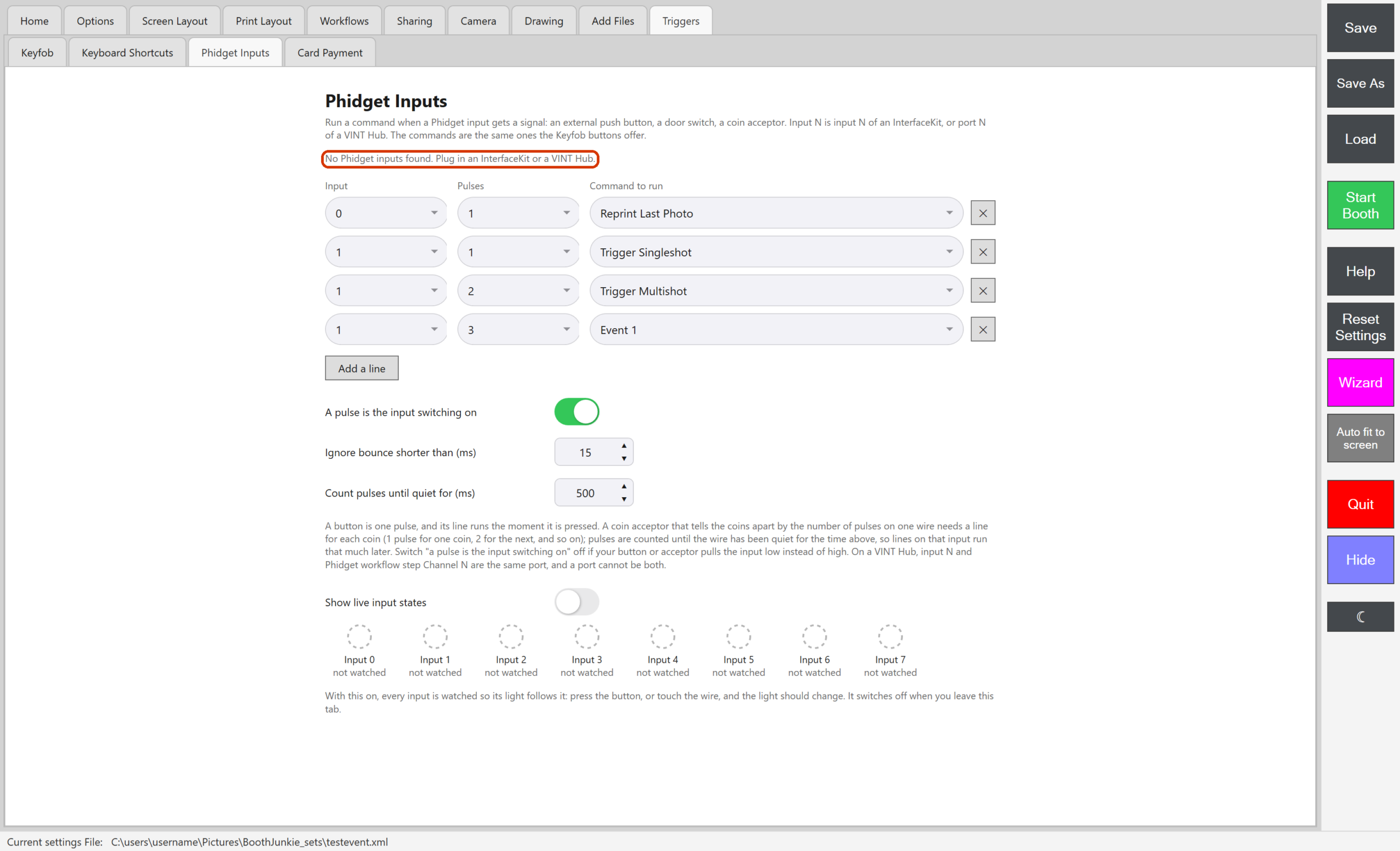
That line counts inputs only. A Phidget with outputs and no inputs shows “No Phidget inputs found” even while the Phidget light is green.
Check the wiring with the live lights
-
On Admin Panel → Triggers → Phidget Inputs, switch on Show live input states.
-
Press your button, or touch the wire.
Result: That input’s light changes.
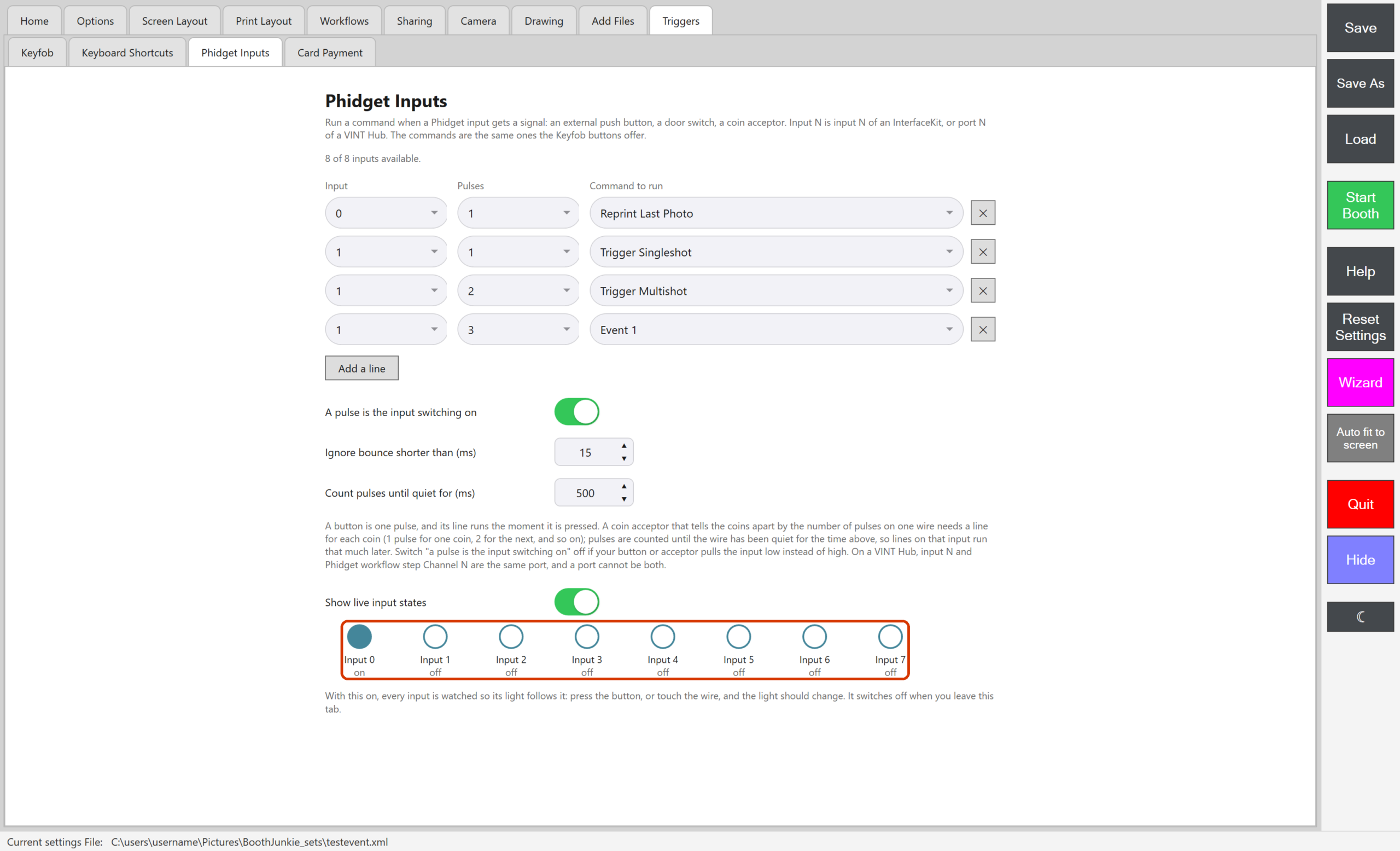
The details in this picture are examples.
| Light | What it means |
|---|---|
| A filled circle, with “on” under it | The input is on. |
| A ring, with “off” under it | The input is off. |
| A faint dashed ring, with “not watched” under it | Nothing is watching this input. |
While the switch is on, every input is watched, and the lights follow the inputs about five times a second. Hover over a light to see which Phidget and input it is, and how many changes it has seen. The switch turns itself off when you leave the tab.
A light can show a message in place of “on” or “off”:
| Message | What it means | What to do |
|---|---|---|
| “no such input is attached” | Nothing has an input with that number. | Check the Phidget is plugged in, and check the Input number. With only a VINT Hub, there’s no input 6 or 7. |
| “this hub port is in use as an output” | A Phidget step has used this VINT Hub port as an output. | Use a different port for the input or for the output. See VINT Hub ports in Phidget Boards: What They Do and What You Need. |
| “the device was unplugged” | The Phidget was unplugged. | Plug it back in. It’s used again when it’s back. |
| “it would not open”, with the error’s name in brackets | The input couldn’t be opened. Often another program, such as the Phidget Control Panel, is using it. | Close the other program. |
Good to know: Lines still run while you test
Phidget Inputs lines still run while the Admin Panel is open, using the lines the booth started with at the last Start Booth. So pressing a button that has a line, while you check the wiring, runs its command. For example, a Reprint Last Photo line prints again. An input with no line runs nothing.
If something goes wrong
| What you see | What to do |
|---|---|
| An input’s light changes, but its line doesn’t run | Press Save, then Start Booth. Check that the number of presses matches a line, and that no earlier line has the same Input and Pulses. |
| A line runs when you let go of the button | Switch off A pulse is the input switching on. |
| A line runs about half a second late | Another line on that input needs 2 or more pulses. Give the button an input of its own. |
| A light says “no such input is attached” | Check the Input number. With only a VINT Hub, there’s no input 6 or 7. |
| A light says “this hub port is in use as an output” | Move the input, or the Phidget step’s Channel, to another port. |
| A light says “it would not open” | Close any other program that’s using the Phidget, such as the Phidget Control Panel. |
For the Phidget light, and a Phidget that drops out during an event, see If something goes wrong in Phidget Boards: What They Do and What You Need.
Related articles
- Phidget Boards: What They Do and What You Need
- Phidget Outputs: Switching Lights and Relays from a Workflow
- Events 1 to 5: Steps That Wait for a Button, Keyfob or Shortcut
- Setting Up a Keyfob
- Keyboard Shortcuts: Triggering Booth Functions from a Keyboard
- The General Tab: Event Name, Rotation, and Licence Info
- Main Workflow vs. Shot-Type Workflows
- The Animation Step: Videos Between Everything Else
- The Live View Step: Keeping Guests in Frame Between Shots
- Saving and Loading Your Settings
- Preventing Windows From Powering Down Your Booth’s USB Devices
This guide is from Booth Junkie, photo booth software for Windows that has supplied the photo booth industry for 10 years. It runs enclosed booths, selfie pods and magic mirror booths with a Canon DSLR or a webcam, prints to any Windows printer, and sends photos to guests by WhatsApp, SMS and email.